1. Bubuka
The ASUS Pro WS W680-ACE is an ATX workstation motherboard designed for professional applications requiring high performance and reliability. It supports Intel LGA 1700 socket processors (13th Gen Intel Core, 12th Gen Intel Core, Pentium Gold, and Celeron Processors) and DDR5 ECC memory. This manual provides essential information for the proper installation, configuration, and maintenance of your motherboard.
Fitur konci:
- Intel LGA 1700 socket for 13th and 12th Gen Intel Core processors.
- Enhanced power solution with DrMOS, ProCool connector, alloy chokes, and durable capacitors.
- Dual PCIe 5.0 SafeSlots and dual PCIe 3.0 slots for expansion.
- Three M.2 PCIe 4.0 slots, SlimSAS, and dual Intel 2.5Gb Ethernet.
- Front panel USB 3.2 Gen2x2 Type-C and Thunderbolt 4 header support.
- Comprehensive cooling with large VRM heatsink, M.2 heatsinks, and Fan Xpert 4.
- Advanced security management via ASUS Control Center Express.
2. Émbaran Kasalametan
Salawasna perhatikeun pancegahan kaamanan di handap ieu salami instalasi sareng operasi:
- Pegatkeun sambungan kabel listrik ti stop kontak témbok samemeh noel komponén nanaon.
- Anggo tali pigeulang anti statik pikeun nyegah karusakan éléktrostatik (ESD) kana komponén.
- Tangani komponén ku sisi-sisina; ulah némpél pin atawa sirkuit.
- Pastikeun ventilasi anu pas dina wadah PC anjeun pikeun nyegah overheating.
- Tetep motherboard jauh ti Uap jeung hawa ekstrim.
3. Setup jeung Instalasi
This section guides you through the physical installation of the motherboard and its primary components.
3.1 Motherboard Leuwihview
Familiarize yourself with the layout of the ASUS Pro WS W680-ACE motherboard.

Gambar: luhur-handap view of the ASUS Pro WS W680-ACE motherboard, showing the LGA 1700 CPU socket, four DDR5 DIMM slots, multiple PCIe slots, and M.2 slots with heatsinks.
3.2 Pamasangan CPU (LGA 1700)
- Tangtukeun lokasi stop kontak LGA 1700 dina motherboard nu.
- Buka uas stop kontak CPU jeung angkat plat beban.
- Carefully align the notches on your Intel LGA 1700 processor with the keys on the socket. Ensure the golden triangle on the CPU matches the triangle on the socket.
- Gently nempatkeun CPU kana stop kontak tanpa maksa eta.
- Tutupkeun pelat beban teras pencét tuas dugi ka konci dina tempatna.
3.3 Mémori (RAM) Pamasangan
The motherboard supports DDR5 ECC memory. Refer to the motherboard's QVL (Qualified Vendor List) for compatible memory modules.
- Buka klip dina kadua tungtung slot DIMM.
- Align modul memori sareng slot, mastikeun kiyeu dina modul cocog konci dina slot.
- Pencét pageuh dina kadua tungtung modul mémori dugi ka jepitan dipasang dina tempatna.

Gambar: A close-up view of the four DDR5 memory slots on the motherboard, highlighting their position next to the CPU socket.
3.4 Pamasangan Alat Panyimpenan
The motherboard features three M.2 PCIe 4.0 slots and a SlimSAS port.
3.4.1 M.2 Instalasi SSD
- Locate the M.2 slots, typically covered by heatsinks. Remove the heatsink and protective film.
- Selapkeun M.2 SSD kana slot dina sudut 30-gelar.
- Gently push down the SSD and secure it with the provided M.2 Q-Latch or screw.
- Pasang deui heatsink M.2.

Image: A diagram illustrating the installation of an M.2 SSD into a motherboard slot, secured by a Q-Latch mechanism.
3.4.2 SlimSAS Port
The SlimSAS port supports SATA devices via an appropriate SlimSAS to SATA cable. Note that SAS disks are not directly supported by this port; a dedicated SAS controller card is required for SAS disk support.
3.5 Pamasangan Kartu ékspansi
The motherboard includes dual PCIe 5.0 SafeSlots and dual PCIe 3.0 slots.
- Select an appropriate PCIe slot for your expansion card (e.g., graphics card, network card).
- Cabut panutup slot anu saluyu tina wadah PC anjeun.
- Align the card with the slot and press down firmly until it is fully seated.
- Ngamankeun kartu kana hal kalawan screw a.

Image: A diagram highlighting the various PCIe 5.0 and PCIe 3.0 expansion slots available on the motherboard.
3.6 Sambungan kakuatan
Connect the 24-pin ATX power connector and the 8-pin (or 4+4-pin) CPU power connector from your power supply unit (PSU) to the motherboard.
3.7 Panel hareup jeung Rear I / O Sambungan
Connect your case's front panel headers (power button, reset button, USB ports, audio jacks) to the corresponding headers on the motherboard. Connect peripherals to the rear I/O panel.

Gambar: A close-up view of the rear I/O panel, showing various ports including USB, dual 2.5Gb Ethernet, and audio jacks.
4. Parentah Operasi
4.1 Boot awal sareng Setup BIOS / UEFI
Upon the first boot, access the BIOS/UEFI setup utility by pressing the DEL or F2 key during POST (Power-On Self-Test). Here you can configure boot order, system time, and various hardware settings.
4.2 Pamasangan Supir
After installing your operating system, install the latest drivers for the chipset, LAN, audio, and other integrated components from the ASUS support website for your motherboard model. This ensures optimal performance and stability.
4.3 ASUS Control Center Express
The ASUS Control Center Express software provides centralized management capabilities, including USB port management, software blacklisting, and Regedit on/off controls. This tool is designed to enhance security and system administration for workstation environments.
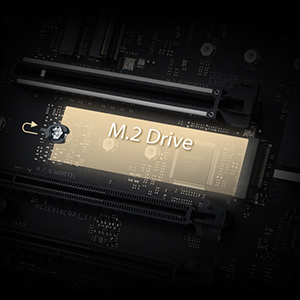
Image: A graphical user interface of the ASUS Control Center Express, displaying system monitoring and management options.
4.4 BMC/IPMI Functionality
The motherboard supports BMC (Baseboard Management Controller) for remote management. This allows for out-of-band management, including remote power control, system monitoring, and BIOS flashing, even when the main system is off or unresponsive. For optimal performance with Linux operating systems, it is recommended to run the server headless when using remote control features, as a connected monitor may cause the remote control to act as a secondary display.
5. Pangropéa
5.1 beberesih
Regularly clean your PC to prevent dust buildup, which can lead to overheating. Use compressed air to clear dust from fans, heatsinks, and vents. Ensure the system is powered off and unplugged before cleaning.
5.2 Update mios
Pariksa dukungan ASUS sacara berkala website for BIOS updates. Before updating the BIOS, it is recommended to update Intel ME firmware. Note that Intel ME updates may require a Windows operating system environment. Follow the instructions provided by ASUS carefully to avoid system instability.
5.3 Fan Control (Fan Xpert 4)
Utilize ASUS Fan Xpert 4 software to manage and optimize fan speeds for effective cooling and reduced noise levels. This tool allows for custom fan profiles based on system temperatures.
6. Cara ngungkulan
Bagian ieu ngabahas masalah umum anu anjeun tingali.
6.1 Sistim gagal pikeun boot
- Pariksa sambungan kakuatan: Ensure all power cables (24-pin ATX, CPU 8-pin) are securely connected.
- Verifikasi Korsi Komponen: Reseat the CPU, RAM modules, and any expansion cards to ensure they are properly installed.
- Hapus CMOS: Refer to your motherboard manual for instructions on how to clear the CMOS, which can resolve boot issues caused by incorrect BIOS settings.
- Inspect CPU Socket: Carefully check the CPU socket for any bent pins. Bent pins can prevent the system from booting and require professional repair.
6.2 Periferal Teu Dideteksi
- Pembaruan Pembalap: Pastikeun sadaya driver anu diperyogikeun parantos dipasang sareng mutahir.
- Pariksa sambungan: Verify that peripherals are correctly connected to the appropriate ports.
- Setélan BIOS: Check BIOS settings to ensure relevant ports (e.g., USB, SATA) are enabled.
6.3 Masalah Konektipitas Jaringan
- Pariksa kabel: Ensure the Ethernet cable is securely connected to both the motherboard and the network device.
- Pamasangan supir: Install or update the Intel 2.5Gb Ethernet drivers.
- Static IP Configuration: If using Linux, ensure network settings are correctly configured, including static IP addresses if necessary, as DHCP may sometimes require manual connection.
7. Spésifikasi
| Fitur | Spésifikasi |
|---|---|
| merek | ASUS |
| Ngaran modél | PRO WS W680-ACE |
| CPU Socket | LGA 1700 |
| Prosesor cocog | Intel Core Generasi ka-13, Intel Core Generasi ka-12, Pentium Gold, Celeron |
| Téhnologi Mémori RAM | DDR5 DIMM (ECC Support) |
| Laju mémori | Up to 1600 MHz (Base) |
| Tipe Chipset | Intel W680 |
| PCIe liang | 2x PCIe 5.0 x16 (x16 or x8/x8), 2x PCIe 3.0 x4 |
| M.2 liang | 3x M.2 PCIe 4.0 |
| palabuhan SATA | 4x SATA 6Gb/s |
| LAN | Dual Intel 2.5Gb Ethernet |
| palabuhan USB | Front Panel USB 3.2 Gen2x2 Type-C, various USB 3.2 Gen2, USB 3.2 Gen1, USB 2.0 |
| Ukuran (L x W x H) | 13.31 x 10.75 x 2.68 inci |
| Item Beurat | 3.09 pon |
| Platform | Windows 10 (sareng langkung énggal) |
8. Garansi jeung Rojongan
Kanggo inpormasi garansi, mangga tingali kartu garansi anu kalebet dina produk anjeun atanapi kunjungi situs wéb resmi ASUS website. ASUS provides technical support for its products. If you encounter issues that cannot be resolved using this manual or the troubleshooting steps, please contact ASUS customer service.
You can find support resources, driver downloads, and the latest BIOS updates on the official ASUS support websitus: www.asus.com/support/


