1. Bubuka
This manual provides detailed instructions for the safe and efficient operation of your NexiGo Aurora Pro Ultra Short Throw 4K Tri-Color Laser Projector. Please read this manual thoroughly before using the product and retain it for future reference.
The NexiGo Aurora Pro is designed to deliver a high-quality home cinema experience with its 4K resolution, tri-color laser technology, and ultra-short throw capabilities.
2. Émbaran Kasalametan
Pitunjuk Kasalametan Penting:
- Do not look directly into the projector lens when the projector is on. The laser light source is powerful and can cause eye damage.
- Pastikeun ventilasi anu cekap di sakitar proyéktor. Ulah ngahalangan liang ventilasi.
- Paké ngan adaptor kakuatan disadiakeun kalawan projector.
- Ulah nepikeun projector ka hujan atawa beueus pikeun nyegah seuneu atawa shock listrik.
- Jauhkeun proyéktor tina sumber panas sapertos radiator, pancatat panas, kompor, atanapi alat sanés anu ngahasilkeun panas.
- Cabut colokan proyektor nalika badai kilat atanapi nalika henteu dianggo kanggo waktos anu lami.
- Rujuk sadayana jasa ka tanaga jasa anu mumpuni.
3. Eusi Paket
Pastikeun yén sadaya item aya dina pakét anjeun:
- NexiGo Aurora Pro Projector
- Kadali jauh
- Kabel Daya
- Manual pangguna (dokumén ieu)
- Pilihan: 100/120 Fresnel Screen (if purchased as a bundle)
- Pilihan: 3D Glasses (if purchased as a bundle)
4. Produk Langkungview
4.1 Komponén Projector
Familiarize yourself with the main components of your NexiGo Aurora Pro projector.

Gambar 1: Hareupeun view of the NexiGo Aurora Pro projector, showcasing its sleek design and front speaker grille.

Gambar 2: Tukangeun view of the NexiGo Aurora Pro projector, highlighting the various input and output ports for connectivity.
The projector features multiple connectivity options including HDMI ports, USB ports, and an Ethernet port for network connectivity. One HDMI port supports eARC.
4.2 Jauh Jauh
The included remote control allows for easy navigation and control of the projector's functions. It features backlit keys for use in dark environments.
5. Setélan
5.1 Nempatkeun
The Aurora Pro is an Ultra Short Throw (UST) projector, designed to project a large image from a very short distance to the screen or wall. Proper placement is crucial for optimal image quality.

Gambar 3: Diagram illustrating the recommended placement distances for various screen sizes (80-150 inches) for the NexiGo Aurora Pro projector.
Refer to the table below for recommended distances from the screen based on desired image size:
| Ukuran Layar (Diagonal) | A: Screen to Front | B: Screen to Rear | C: Screen to Top | D: Screen to Foot | E: Y+D |
|---|---|---|---|---|---|
| 80" | 20.00 | 3.96 | 6.95 | 11.76 | 50.98 |
| 90" | 21.92 | 5.88 | 7.91 | 12.72 | 56.71 |
| 100" | 23.84 | 7.80 | 8.87 | 13.68 | 62.66 |
| 110" | 25.76 | 9.72 | 9.83 | 14.64 | 68.57 |
| 120" | 27.56 | 11.52 | 10.91 | 15.72 | 74.54 |
| 135" | 30.44 | 14.40 | 12.35 | 17.16 | 83.35 |
| 150" | 33.32 | 17.28 | 13.79 | 18.60 | 92.10 |
Note: The unit for values in the table is inches. Measurements do not include the screen border size.
5.2 Nyambungkeun Daya
- Sambungkeun kabel kakuatan ka port input kakuatan proyektor.
- Colokkeun tungtung kabel daya anu sanés ka stop kontak listrik anu dibumikeun.
5.3 Nyambungkeun Alat
The Aurora Pro offers various ports for connecting external devices:
- HDMI: Connect Blu-ray players, gaming consoles, streaming devices, or computers. HDMI 1 supports eARC.
- USB: Connect USB drives for media playback or external accessories.
- Audio optik: Connect to external audio systems.
- Ethernet: Pikeun sambungan jaringan kabel.
Pastikeun sadaya kabel disambungkeun pageuh sateuacan ngahurungkeun proyektor.
6. Parentah Operasi
6.1 Powering on / Pareum
- Pikeun ngahurungkeun, pencét tombol daya dina proyéktor atanapi remot kontrol.
- To power off, press the power button again. A confirmation prompt may appear.
6.2 Wizard Setup Awal
Upon first power-on, the projector will guide you through an initial setup wizard to configure language, network settings, and image adjustments.
6.3 adjustment Gambar
The Aurora Pro features automatic screen adoption and dynamic dimming. Manual adjustments can be made via the settings menu.
- fokus: Adjust the focus using the remote control or on-screen menu to achieve a sharp image.
- Koreksi Keystone: If the image is not perfectly rectangular, use keystone correction to adjust. Note that excessive keystone correction can reduce image quality.
- Pangaturan Layar: Fine-tune the image position to fit your screen perfectly.
6.4 Pilihan Sumber Input
Press the "Input" button on the remote control to select between connected HDMI devices, USB media, or internal smart TV applications.
6.5 Setélan Audio
The projector includes built-in 60W stereo speakers with Dolby Atmos support. You can adjust volume and audio modes through the settings menu. For external audio systems, connect via HDMI eARC or optical audio output.

Gambar 4: Visual representation of the immersive sound experience provided by the projector's 60W speakers, supporting Dolby Atmos and DTS HD.
6.6 Fitur Smart sareng Aplikasi
The projector includes a smart TV interface. Navigate using the remote control to access pre-installed applications or download new ones from the app store.
Catetan: Some streaming applications may require specific external devices for 4K content or may have compatibility limitations.
6.7 Modeu kaulinan
For an optimized gaming experience, enable Gaming Mode in the settings. This mode reduces input lag to 8ms (tested at 1080p 240Hz) and supports 4K@120Hz input, providing smoother motion.
Gambar 5: A user engaged in gaming on a large projected screen, demonstrating the projector's low latency and 4K 120Hz input capabilities for a smooth gaming experience.
7. Pangropéa
7.1 Ngabersihan Projector
- Luar: Use a soft, dry cloth to wipe the projector's exterior. Do not use abrasive cleaners or solvents.
- Lensa: Gently clean the projector lens with a lens cleaning cloth specifically designed for optical surfaces. Avoid touching the lens directly with your fingers.
7.2 Air Filter (if applicable)
Check the user manual for specific instructions regarding air filter cleaning or replacement, if your model is equipped with one. Regular cleaning ensures optimal performance and prevents overheating.
7.3 Apdet firmware
Periodically check for firmware updates through the projector's settings menu. Updates can improve performance, add features, and resolve issues.
8. Cara ngungkulan
Upami anjeun mendakan masalah sareng proyektor anjeun, tingal masalah sareng solusi umum ieu:
| Masalah | Mungkin Cukang lantaranana | Solusi |
|---|---|---|
| Taya gambar ditémbongkeun | Kabel daya leupas, sumber input salah, alat teu nyambung. | Check power connections. Select correct input source. Ensure source device is on and connected. |
| Gambar kabur | Out of focus, dirty lens, incorrect placement. | Adjust focus. Clean the lens. Verify projector placement according to guidelines. |
| Taya sora | Volume too low, incorrect audio output setting, external audio system issue. | Increase volume. Check audio output settings on projector and source. Verify external audio system connections. |
| Kadali jauh teu jalan | Batré lemah, kahalangan, remote teu dipasangkeun. | Replace batteries. Remove obstructions. Re-pair remote if necessary (refer to remote control section in full manual). |
| Smart apps not working or slow | Network connectivity issues, outdated app, insufficient memory. | Check Wi-Fi/Ethernet connection. Update the app. Restart the projector. |
For further assistance, please contact NexiGo customer support.
9. Spésifikasi
| Fitur | Rincian |
|---|---|
| Nomer modél | PJ92 |
| Resolusi tampilan | 3840 x 2160 (4K UHD) |
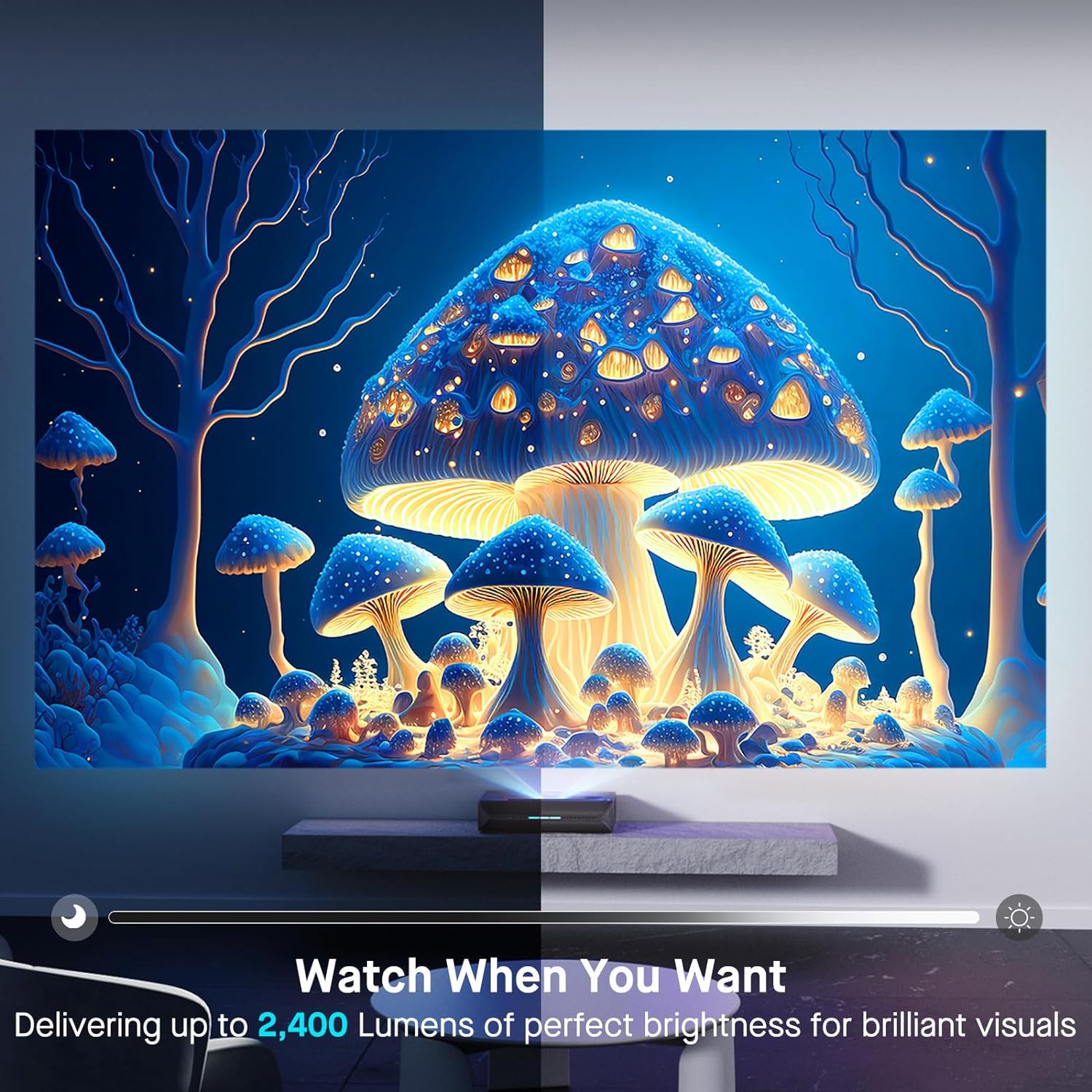
| Caang | 2400 Lumén |
| Sumber Cahaya | Tri-Color Laser (ALPD 4.0 RGB+) |
| Babandingan Kontras Asli | 3000:1 |
| Rasio Kontras Dinamis | >6000:1 (with dynamic laser dimming) |
| Warna Gamut | 107% Rec.2020 |
| Rojongan HDR | Dolby Visi, HDR10+, HLG |
| Dukungan 3D | 3D aktip |
| Input Lag | 8ms (tested at 1080p 240Hz) |
| Max Input Resolution/Refresh Rate | 4K@120Hz |
| MEMC | Yes (120Hz) |
| Kaluaran Audio | 60W Stereo Speakers (2x15W Woofers, 2x15W Tweeters), Dolby Atmos, eARC |
| Konektipitas | HDMI (3, one with eARC), USB, Optical Audio, Ethernet |
| Dimensi produk | 21.54 x 16.04 x 4.81 inci |
| Item Beurat | 22 pon |
| Diagonal layar katempo | 80" - 150" (381 cm max) |
| Laser Lifespan | 25,000 jam |
10. Garansi jeung Rojongan
NexiGo provides customer support and warranty services for its products. For specific warranty terms and conditions, please refer to the warranty card included with your product or visit the official NexiGo websitus.
Rojongan Palanggan:
- For technical assistance, troubleshooting, or product inquiries, please contact NexiGo customer support.
- Contact information can typically be found on the NexiGo websitus atanapi dina bungkusan produk.
- NexiGo offers 24-hour customer support and lifetime technical support.
Ngabalikeun sareng Bursa:
- Refer to your purchase agreement or retailer's policy for details on returns and exchanges. NexiGo typically offers a 30-day return or exchange period.