1. Bubuka
Thank you for choosing the Hayve DM7 Digital Microscope. This device is designed for detailed observation and analysis of various objects, offering up to 1000X magnification and a clear 4.3-inch IPS display. It is suitable for applications such as coin inspection, PCB board examination, insect and plant observation, and jewelry appraisal. This manual provides essential information for the safe and effective use of your microscope.

Figure 1: Hayve DM7 Digital Microscope with 32GB TF Card
2. Émbaran Kasalametan
Please read all safety instructions carefully before using the Hayve DM7 Digital Microscope to prevent injury or damage to the device.
- Jauhkeun alat tina cai sareng Uap.
- Do not attempt to disassemble or modify the microscope. Repairs should only be performed by authorized personnel.
- Hindarkeun ngalaan alat ka suhu anu ekstrim atanapi sinar panonpoé langsung.
- Paké ngan kabel ngecas disadiakeun jeung adaptor.
- Ensure the microscope is placed on a stable, level surface during operation.
- Jauhkeun tina jangkauan barudak leutik pikeun nyegah teu kahaja katelan bagian-bagian leutik.
3. Eusi Paket
Pastikeun yén sadaya item aya dina pakét anjeun:
- Hayve DM7 Digital Microscope (with 4.3-inch IPS screen)
- Nangtung adjustable
- Kartu TF 32GB (tos dipasang atanapi kalebet misah)
- Kabel USB Type-C
- Manual pangguna (dokumén ieu)
4. Produk Langkungview
Familiarize yourself with the main components of your Hayve DM7 Digital Microscope.

Figure 2: Flexible Stand and Screen Adjustments
- Layar IPS 4.3 inci: High-resolution screen for live viewdina jeung playback.
- Roda fokus: Adjusts magnification and focus.
- Lampu LED: 8 adjustable LEDs for optimal lighting of the specimen.
- Microscope Lens: Captures magnified images.
- Stand adjustable: Provides stability and allows for height and angle adjustments.
- Base with Scale: Features measurement markings for precise positioning.
- Tombol kontrol: Power, Menu, Capture/Record, Up/Down navigation.
- Slot Kartu TF: Pikeun nyimpen gambar sareng pidéo anu dicandak.
- Port USB Tipe-C: Pikeun ngecas sareng sambungan PC.
5. Setélan
Follow these steps to assemble and prepare your microscope for first use:
- Kumpulkeun Stand:
- Insert the vertical pole into the base.
- Gantelkeun bracket kana tihang.
- Secure the microscope unit onto the bracket.
- Tighten all knobs to ensure stability.
- Selapkeun Kartu TF: If not pre-installed, gently insert the provided 32GB TF card into the TF card slot on the side of the display unit until it clicks into place.
- Ngeusi batre alat: Connect the Type-C USB cable to the microscope and a suitable USB power adapter (not included) or computer USB port. The charging indicator will illuminate. A full charge provides approximately 5 hours of working time.
- Daya Hurung: Press and hold the Power button (usually located on the display unit) for a few seconds until the screen illuminates.

Figure 3: Assembly Steps

angka 4: TF Card sisipan
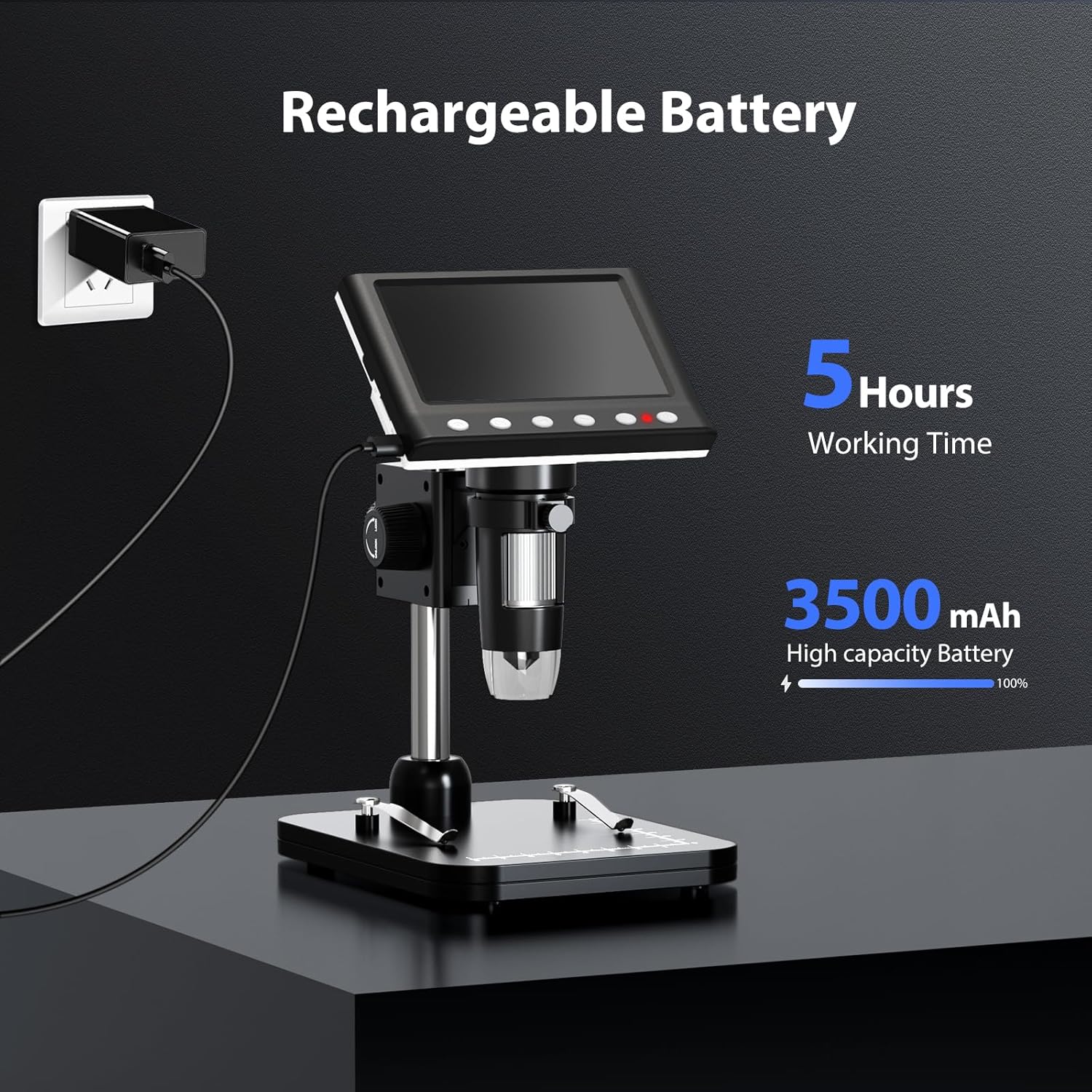
Figure 5: Charging the Microscope
6. Parentah Operasi
6.1 Observasi Dasar
- Place the object you wish to observe on the microscope's base.
- Adjust the distance between the microscope lens and the object using the stand's adjustment knobs.
- Rotate the focus wheel to achieve a clear image on the IPS screen.
- Adjust the LED illumination as needed (see Section 6.4).

Figure 6: Basic Operation Steps
6.2 Nyaluyukeun Pembesaran sareng Fokus
The Hayve DM7 offers 50X to 1000X magnification. Magnification is adjusted by changing the distance between the lens and the object, and then fine-tuning with the focus wheel.
- To increase magnification, lower the microscope lens closer to the object.
- To decrease magnification, raise the microscope lens further from the object.
- After adjusting the height, rotate the Kabayang pokus (typically on the side of the lens barrel) until the image on the screen is sharp and clear.
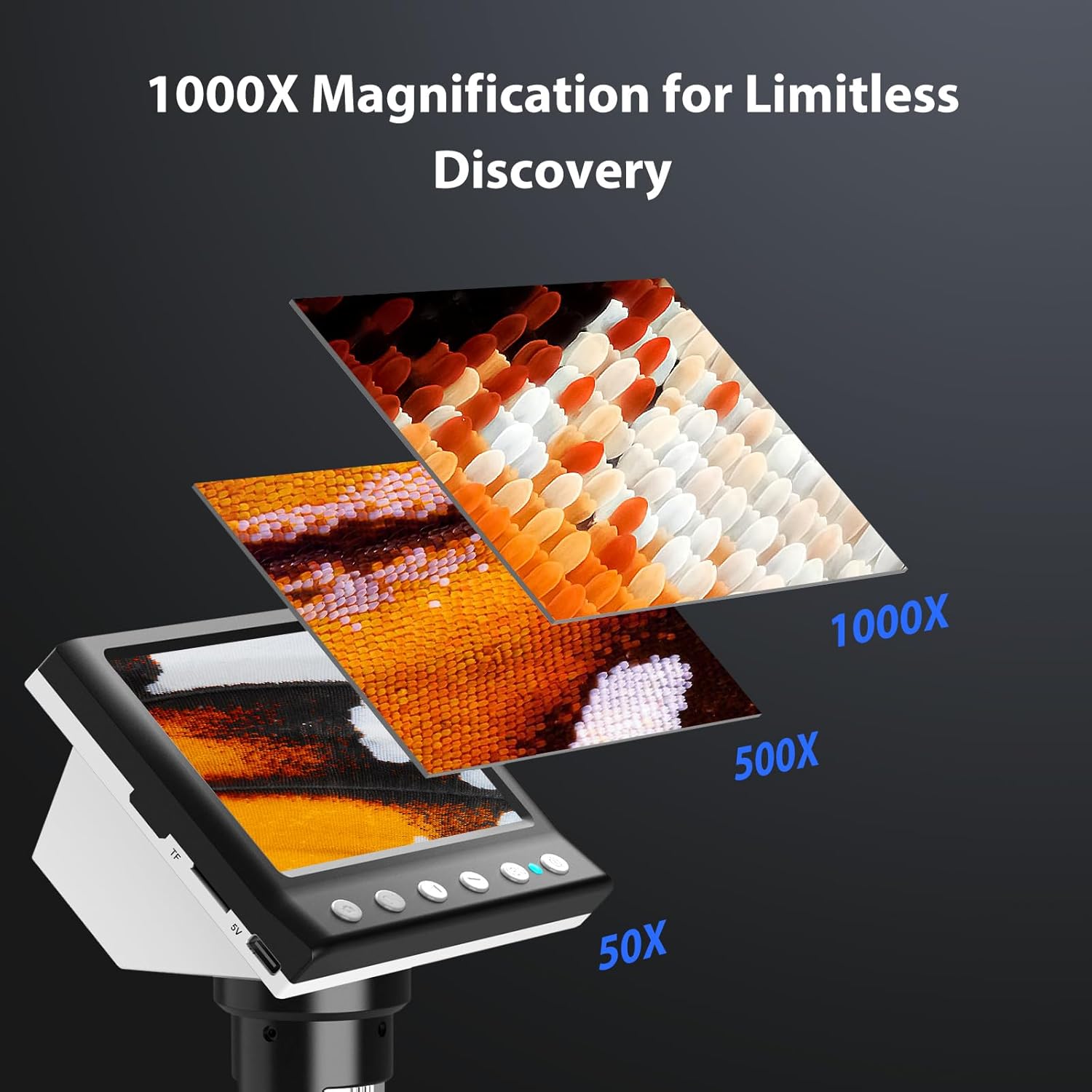
Figure 7: Magnification Levels
6.3 Ngarekam Gambar sareng Pidéo
The microscope allows you to capture high-quality photos and record videos directly to the installed TF card.
- Pikeun nyandak poto: While observing, press the 'Capture' button (often marked with a camera icon). The image will be saved to the TF card.
- Pikeun ngarékam pidéo: Press the 'Record' button (often marked with a video camera icon) once to start recording. Press it again to stop. The video will be saved to the TF card.
- Access saved files through the 'Playback' or 'Gallery' option in the microscope's menu.
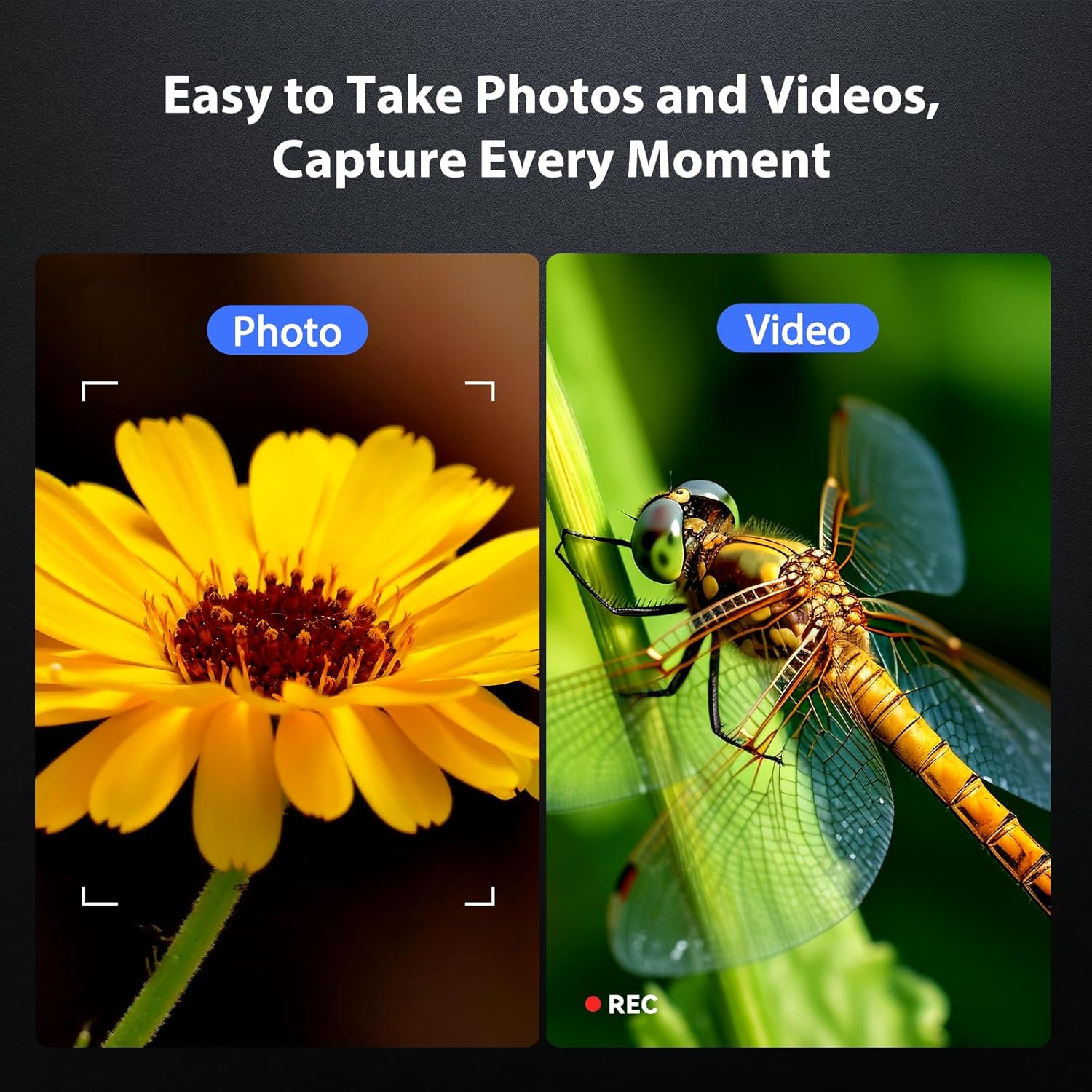
Figure 8: Photo and Video Capture
6.4 Nyaluyukeun Lampu LED
The 8 adjustable LED lights provide optimal illumination for various specimens. You can control their brightness from 0% to 100%.
- Locate the LED control button or dial on the microscope unit.
- Rotate the dial or press the button to increase or decrease the brightness.
- Adjust until the object is evenly lit without glare or shadows.

Figure 9: LED Brightness Adjustment
6.5 Connecting to a Computer (PC Mode)
Pikeun leuwih badag viewing, precise measurements, or sharing, you can connect the microscope to a Windows-compatible computer.
- Ensure the microscope is powered on.
- Connect the microscope to your computer using the provided Type-C USB cable.
- The microscope screen may display "PC Cam" or prompt you to select a mode. Choose "PC Camera" or "UVC" mode.
- On your computer, open a camera application (e.g., Windows Camera app) or a dedicated microscope software (if provided or downloaded) to view eupan hirup.
- Some software may allow for measurement functions.

Figure 10: PC Connection for Measurement
7. Pangropéa
Proper maintenance ensures the longevity and optimal performance of your microscope.
- Ngabersihan lensa: Anggo lawon anu lemes sareng henteu lint anu dirancang khusus pikeun lénsa optik. Pikeun smudges nekad, jumlah leutik leyuran beberesih lensa bisa dilarapkeun ka lawon (henteu langsung kana lensa).
- Cleaning the Screen and Body: Lap layar sareng awakna ku lawon anu lemes sareng garing. Hindarkeun pembersih atanapi pangleyur anu abrasif.
- Panyimpenan: When not in use, store the microscope in a clean, dry, dust-free environment. Consider using a protective cover.
- Perawatan batré: Pikeun neundeun jangka panjang, ngeusi batre kira-kira 50% unggal sababaraha bulan pikeun ngajaga kaséhatan batré.
8. Cara ngungkulan
Tingal bagian ieu pikeun solusi masalah umum.
| Masalah | Mungkin Cukang lantaranana | Solusi |
|---|---|---|
| Mikroskop teu hurung. | batré lemah; Tombol daya teu dipencet leres. | Charge the microscope fully. Press and hold the power button for 3-5 seconds. |
| Gambar blur. | Incorrect focus; Object too far/close to lens. | Adjust the focus wheel. Adjust the height of the microscope unit on the stand. |
| Screen is too dark/bright. | LED illumination not adjusted. | Adjust the LED brightness using the control dial/button. |
| Teu tiasa nyimpen poto/pidéo. | TF card full or not inserted correctly; TF card error. | Check TF card insertion. Delete old files or replace TF card. Format TF card (backup data first). |
| PC connection not working. | Incorrect mode selected; Driver issue; Cable fault. | Ensure "PC Camera" mode is selected on the microscope. Try a different USB port or cable. Check computer's device manager for driver issues. |
9. Spésifikasi
Technical specifications for the Hayve DM7 Digital Microscope:
| Fitur | Rincian |
|---|---|
| Modél | DM7 |
| Layar Pintonan | IPS 4.3 inci |
| Magnification | 50X ka 1000X |
| Sumber Cahaya | 8 LEDs adjustable |
| Panyimpenan | Kartu TF 32GB (kalebet) |
| Batré | 1 batré Litium Ion (kaasup) |
| Waktos Gawé | Kira-kira. 5 jam |
| Konektipitas | Type-C USB (for charging and PC connection) |
| OS cocog | Windows (PC connection) |
| Bahan | palastik |
| Warna | Hideung |
| Item Beurat | 1.3 pon (0.59 kg) |
| Ukuran Paket | 7.91 x 7.44 x 3.78 inci |
10. Garansi jeung Rojongan
Hayve provides customer support for its products. If you encounter any issues or have questions regarding your DM7 Digital Microscope, please contact our customer service team.
- Palayanan palanggan: Hayve offers 24-hour professional and kind after-sales service.
- Inpormasi kontak: Refer to the product packaging or the official Hayve websitus pikeun detil kontak panganyarna.
- Garansi: Specific warranty terms and conditions may apply. Please retain your proof of purchase for warranty claims.
11. Video produk
Teu aya pidéo produk resmi anu disayogikeun dina data input pikeun disematkeun dina manual ieu.


