Produk Leuwihview
The ViaBecs Android 13 Car Stereo is designed to enhance your driving experience with advanced features and seamless integration. This unit features a 10.2-inch QLED HD touch screen, powerful hardware, and comprehensive connectivity options.

Image: ViaBecs Android 13 Car Stereo displaying the Apple CarPlay interface.
Émbaran Kasalametan penting
- Professional installation is highly recommended to ensure proper function and avoid damage to your vehicle.
- Always disconnect the vehicle's battery before beginning installation to prevent electrical shorts or injury.
- Ulah ngajalankeun alat dina cara nu ngaganggu anjeun tina nyetir. Salawasna prioritas kaamanan jalan.
- Ensure all wiring is properly insulated and secured to prevent interference or damage.
Eusi pakét
Pastikeun yén sadaya item anu didaptarkeun di handap kalebet kana pakét anjeun:
- 1 x Apple Play Car Stereo
- 1 x Plug and Play Harness
- 1 x Radio Adapter
- 1 x Kabel Audio RCA
- 1 x Camera and WiFi Port Cable
- 1 x Extra Microphone
- 1 x Antena GPS
- 1 x 4G Anteneu
- 2 x Kabel USB
- 1 x Manual Pamaké
spésifikasi
System & Performance
- Sistim: Android 13
- Prosesor: Built-in UIS7862 Octa-core (2 x Cortex-A75 + 6 x Cortex-A55 @ 2.0 GHz)
- RAM: 6GB
- ROM: 128GB
- Bluetooth: 5.0
- tampilan: 10.2 inch IPS Screen, 1280 x 720 resolution
- Audio Amppanguat: TDA7851
- Daya Kaluaran Maksimum: 50W x 4
Fitur Umum
- Digital Media Receiver with AM/FM Tuner (RDS)
- Handsfree Bluetooth audio calling and streaming
- Cocog sareng Apple CarPlay (Wireless)
- Compatible with Android Auto (Wired and Wireless)
- Steering Wheel Control (SWC) support
- Built-in DSP with 48-Band Parametric Equalizer and Time Correction
- Support WiFi / 4G internet (SIM card slot included)
Audio/Video & Expansion
- Format audio: MP3, ACC, FLAC, WAV, M4A, MP2, ARM, OGG
- Format pidéo: MP4, 3GP, AVI, DVIX, FLV, MKV
- Input: 2 USB Ports, 2 AUX Ports, 1 Rear View Camera Harness, External MIC Port, 1 SIM card slot
- Kaluaran: 3-saluran praamp outputs (2 front AUX, 1 subwoofer), 1 video output
Guide instalasi
This unit is designed for plug-and-play installation in Toyota Highlander models from 2014-2019. It supports original features like the reverse camera, JBL Amplifier, steering wheel controls, USB & AUX inputs, parking sensors, and a 360-degree camera.
1. Nyiapkeun Instalasi
- Pastikeun kendaraan dipareuman sareng batréna dipegatkeun.
- Gather necessary tools: trim removal tools (often included), 10mm socket wrench, screwdriver.
- Protect your dashboard and screen with a soft cloth or foam during the process.
2. Remove Existing Radio Unit
Carefully remove the dashboard trim pieces surrounding the factory radio. Use trim removal tools to avoid scratching or damaging the plastic. Disconnect all wiring harnesses from the back of the factory radio and remove the unit.
Video: Detailed guide on removing the OEM radio and installing a new head unit.
3. Connect New Car Stereo
Connect the provided plug-and-play harness to your vehicle's existing wiring. Match the connectors carefully. Attach the GPS antenna, 4G antenna, and external microphone to the new head unit. Route the microphone cable to a suitable location (e.g., near the steering column or headliner) for optimal voice pickup.

Image: Comparison showing the factory radio before and the new Android 13 unit after installation in a Toyota Highlander.
Video: General instructions on how to connect a car stereo, including wiring harnesses.
4. Install Reverse Camera (Optional)
If installing an aftermarket reverse camera, connect its video output to the designated input on the head unit. Route the camera's power and video cables neatly through the vehicle's interior to the rear.
Video: Demonstration of connecting a car reversing camera cable.
5. Reassemble Dashboard
Carefully place the new head unit into the dashboard opening, ensuring all cables are tucked away and not pinched. Reattach the trim pieces, pressing firmly until they click into place. Reconnect the vehicle's battery.
Parentah Operasi
1. Ngahurungkeun sareng Nyetél Mimiti
- After installation, turn on your vehicle's ignition. The head unit should power on automatically.
- Turutan pitunjuk dina layar pikeun setelan awal, kalebet pilihan basa sareng zona waktos.
- Connect to a Wi-Fi network via your phone's hotspot or a dedicated SIM card for full functionality.

Image: The main interface of the Android 13 Car Stereo, showing various application icons.
2. Smartphone Integration (CarPlay & Android Auto)
The head unit supports both Wireless Apple CarPlay and Wired/Wireless Android Auto. Connect your smartphone to access navigation, music, calls, and other apps directly on the car stereo screen.
- CarPlay nirkabel: Ensure Bluetooth and Wi-Fi are enabled on your iPhone. Pair your iPhone with the head unit via Bluetooth, then follow the on-screen prompts to activate CarPlay.
- Android Otomatis: For wired connection, connect your Android phone via a USB cable. For wireless, ensure Bluetooth and Wi-Fi are enabled on your Android phone, pair via Bluetooth, and follow the prompts.
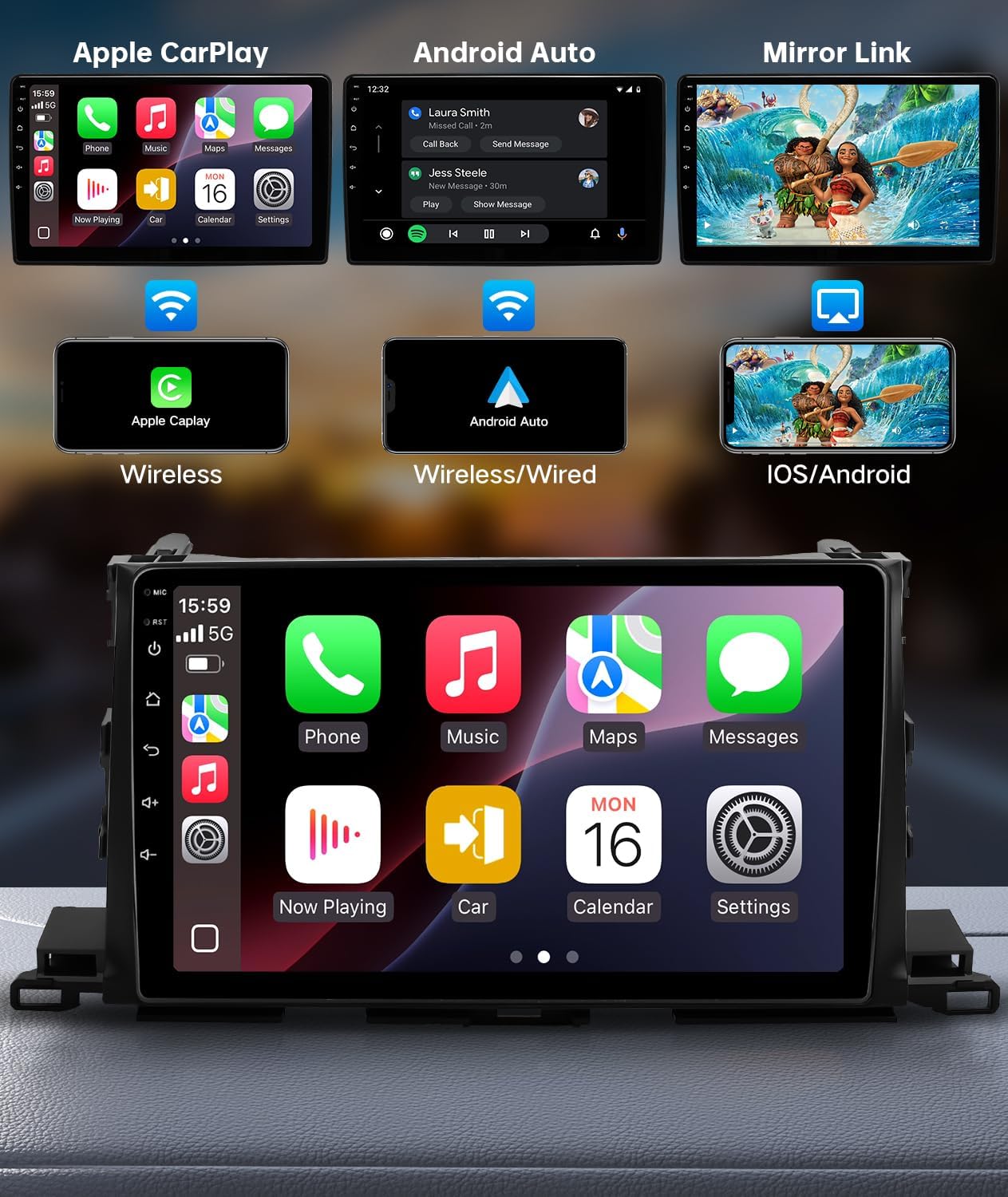
Image: Demonstrates the user interfaces for Apple CarPlay, Android Auto, and Mirror Link functionalities.
Video: Leuwihview of the Android Car Radio and CarPlay features, including the T10S-CA model.
3. Audio and Sound Customization
The built-in DSP (Digital Sound Processor) allows for extensive audio customization. Access the Equalizer settings to adjust sound profiles, bass, and other audio parameters.
- Ékualiser: Navigate to the audio settings to find the 48-band parametric equalizer. Adjust frequencies to match your audio preferences.
- Bass Boost & Filters: Fine-tune bass levels and apply front/rear bass filters for enhanced sound.
- Sora Sakuliling: Activate surround sound features for an immersive audio experience.

Image: The DSP equalizer interface and options for connecting to WiFi or 4G internet.
4. Kadali setir
The head unit supports seamless integration with your vehicle's steering wheel controls. This allows you to manage audio playback, calls, and other functions without taking your hands off the wheel, enhancing safety and convenience.
- Access the Steering Wheel Control settings in the system menu.
- Follow the on-screen instructions to map your vehicle's steering wheel buttons to the desired functions on the head unit.
Pangropéa
- Ngabersihan layar: Use a soft, lint-free cloth to clean the touch screen. Avoid abrasive cleaners or harsh chemicals.
- Apdet parangkat lunak: Periodically check for software updates via the system settings. Updates can improve performance and add new features.
- Manajemén Kabel: Ensure all cables are securely connected and not exposed to prevent damage or interference.
Pamérésan masalah
- Unit teu diaktipkeun: Check all power connections and ensure the vehicle's battery is properly connected. Verify the fuse for the radio.
- Henteu aya sora: Check speaker connections, amplifier settings (if applicable), and ensure the volume is not muted or too low. Verify audio output settings.
- CarPlay/Android Auto Teu Nyambung: Ensure Bluetooth and Wi-Fi are enabled on your phone and the head unit. Try restarting both devices. For wired connections, try a different USB cable.
- Layar teu ngaréspon: Perform a soft reset of the unit (refer to the device's specific reset procedure). If the issue persists, check for software updates.
- Kualitas mikropon goréng: Ensure the external microphone is properly connected and positioned optimally for voice pickup.

Image: The ultra-clear external microphone designed for clear call sound.
Garansi sareng Rojongan
The ViaBecs Android 13 Car Stereo comes with a 12-month warranty and professional technical support. For any questions or assistance, please contact ViaBecs customer service via the email provided on your After-sales card. We are committed to promptly addressing your inquiries and ensuring your satisfaction.


