Labelife Omega S Embossing Label Maker

Labelife Omega S Embossing Label Maker Instruction Manual

Model: Omega S

Bubuka

This manual provides detailed instructions for the safe and effective use of your Labelife Omega S Embossing Label Maker. Please read this manual thoroughly before operating the device to ensure proper function and longevity. This label maker is designed for creating embossed labels for various organizational and crafting needs without the use of batteries or ink.

Eusi pakét

Pastikeun yén sadaya item anu didaptarkeun di handap kalebet kana pakét anjeun:

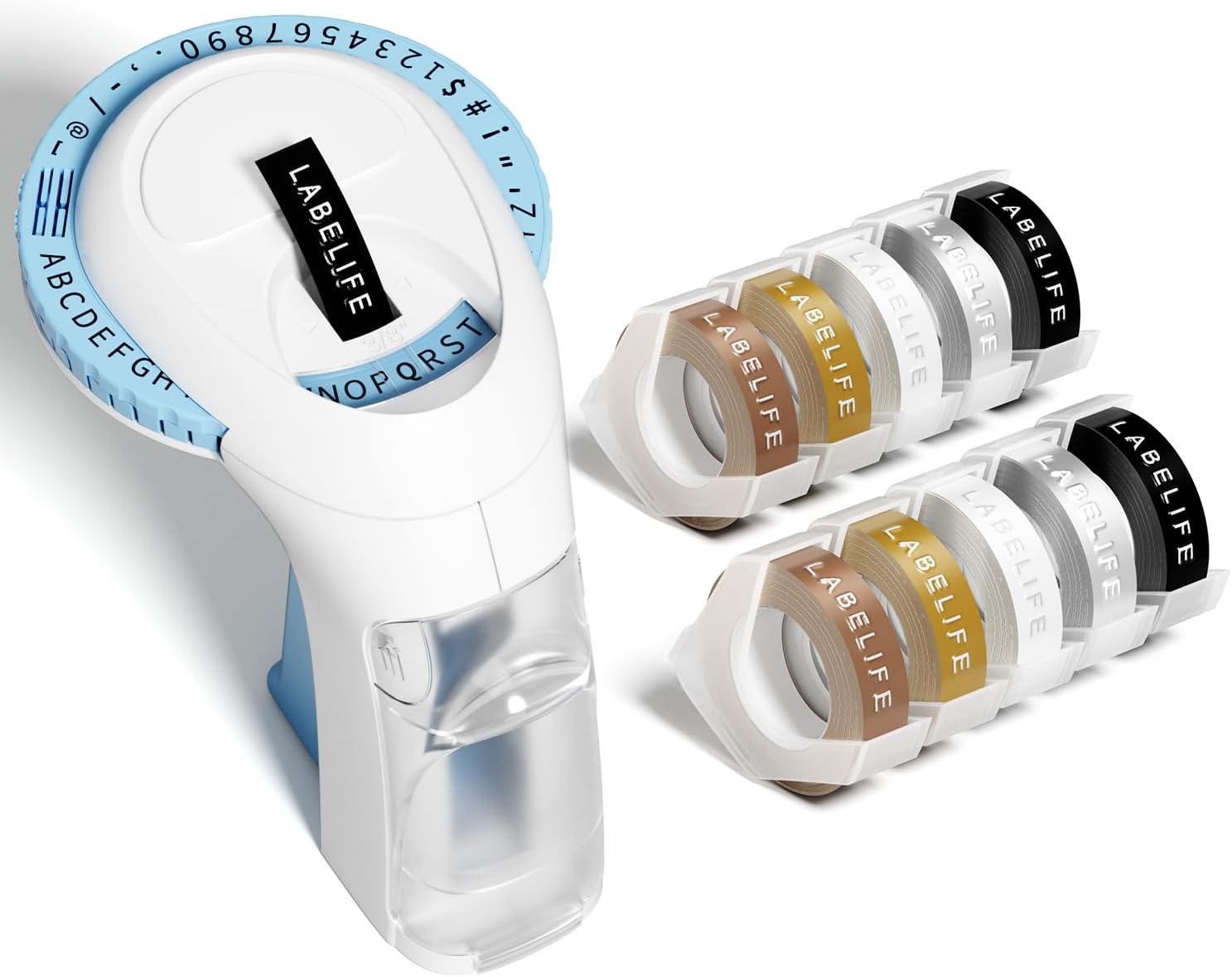
Contents of the Labelife Omega S Embossing Label Maker package

Image: The package contents, including the blue label maker, ten rolls of 9mm embossing tape in various colors, and a user manual.

Fitur produk

Image showing the 48-character dial system of the Labelife Omega S label maker

Image: The label maker's character dial, highlighting the 48 available characters (A-Z, 0-9, and symbols) and the "Turn-and-Click" system.

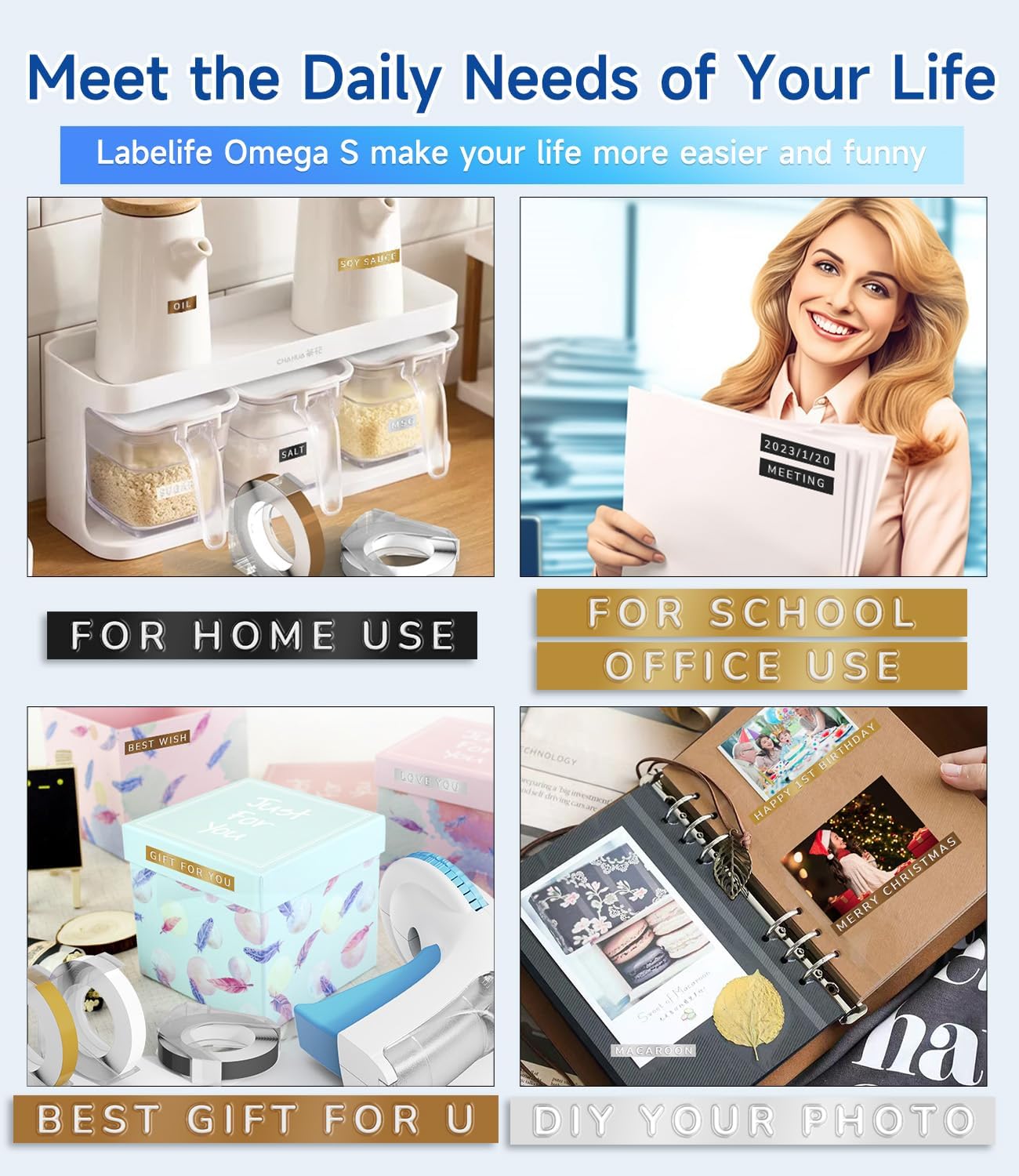
Image illustrating the durability features of the Labelife embossing tapes

Image: Visual representation of the label tapes' properties, including easy peeling, 3D effect, water resistance, abrasion resistance, and strong adhesive.

spésifikasi

merekLabellife
Ngaran modélOmega S Embossing Label Maker
Téhnologi percetakanEmbossing
Téhnologi konektipitasManual
Ukuran Média Maksimum9mm (3/8" Inches)
Tinta Printer TipeTaya Tinta Diperlukeun
Dimensi produk4.96 x 3.62 x 4.64 inci (D x W x H)
Item Beurat11.3 ons

Disetél

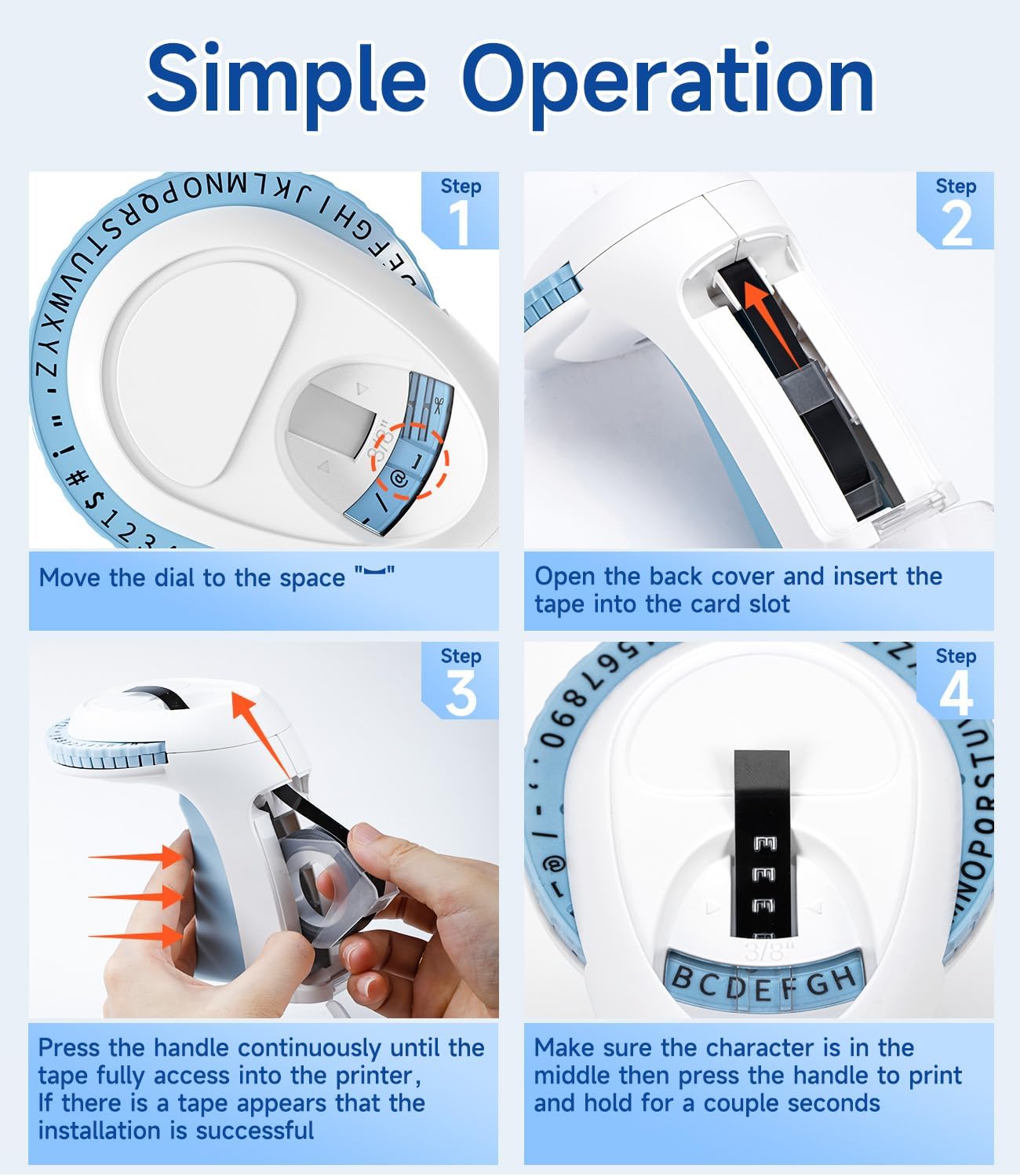
1. Loading the Label Tape

  1. Nyiapkeun Alat: Move the character dial to the blank space symbol ("--") to ensure the mechanism is ready for tape insertion.
  2. Buka Panutup Tukang: Gently open the back cover of the label maker.
  3. Selapkeun pita: Insert a 9mm embossing label tape roll into the card slot, ensuring the tape feeds correctly.
  4. Advance Tape: Close the back cover. Press the handle continuously several times until the tape fully advances into the printer and a small portion appears at the front. This confirms successful tape installation.
Four-step guide to loading tape and preparing the Labelife Omega S label maker for use

Image: Visual steps for loading the label tape, showing how to open the cover, insert the tape, and advance it by pressing the handle.

Parentah Operasi

Nyieun Label a

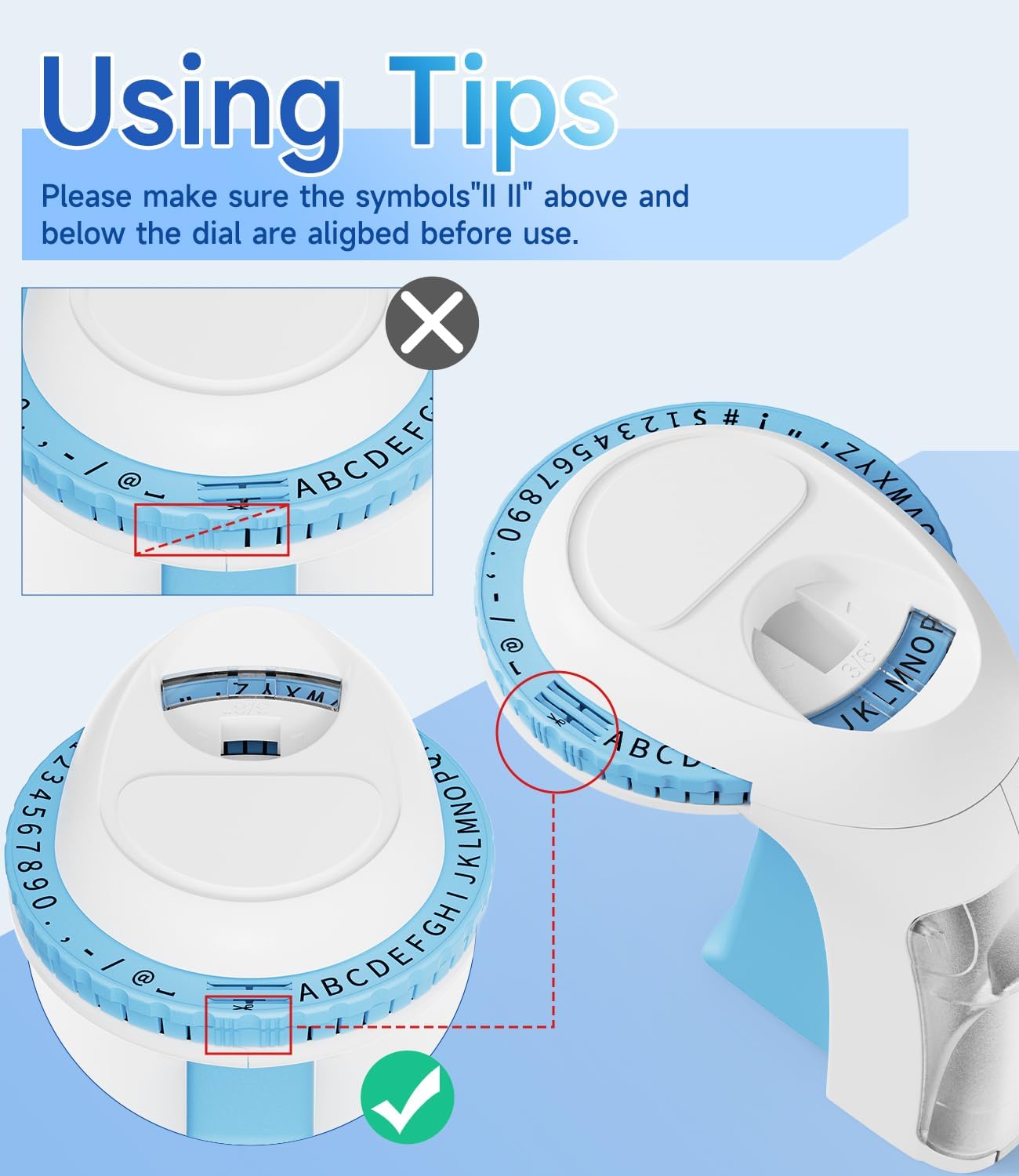
  1. Align Character Dial: Before printing, ensure the alignment marks (two vertical lines) on the dial are perfectly aligned with the indicator on the label maker. This ensures characters are centered and clear.
  2. Select Character: Rotate the character dial to select the desired letter, number, or symbol. Make sure the chosen character is centered in the viewjandela ing.
  3. Emboss Character: Press the handle firmly and hold for a couple of seconds. The harder and longer you press, the clearer the embossed character will be. Release the handle.
  4. Repeat for Each Character: Repeat steps 2 and 3 for each character you wish to emboss on your label.
  5. Potong Label: Once your label is complete, rotate the dial to the scissor symbol. Press the handle firmly to cut the tape.

Tips kanggo Hasil Pangalusna

Close-up image showing correct and incorrect alignment of the character dial on the Labelife Omega S label maker

Gambar: Detil view of the character dial, illustrating the importance of aligning the indicator marks for accurate character embossing.

Pangropéa

The Labelife Omega S Embossing Label Maker requires minimal maintenance. Follow these guidelines to ensure its longevity:

Pamérésan masalah

MasalahMungkin Cukang lantarananaSolusi
Characters are unclear or faint.Insufficient pressure applied to the handle.Press the handle more firmly and hold for a couple of seconds for each character.
Letters are not aligned or appear crooked.Character dial not perfectly aligned before pressing.Ensure the alignment marks on the dial are precisely matched with the indicator before pressing the handle for each character.
Tape does not feed or jams.Tape incorrectly loaded or debris in the tape path.Open the back cover, remove the tape, and check for any obstructions. Re-insert the tape carefully, ensuring it is seated correctly.
Label does not cut cleanly.Insufficient pressure when cutting or cutter blade is dull.Ensure the dial is set to the scissor symbol and press the handle firmly to cut. If the issue persists, contact customer support.
Difficulty peeling off the tape backing.The pre-cut divider may not have been fully created.The tapes are designed with pre-cut dividers for easier peeling. If difficulty occurs, try gently bending the label to separate the backing or use a sharp, thin object to start the peel from a corner.

Garansi sareng Rojongan

For warranty information or technical support, please refer to the documentation included with your purchase or contact Labelife customer service directly. Keep your purchase receipt as proof of purchase.

You can visit the official Labelife store for more information: Labelife Store

Émbaran Kasalametan

Dokumén Patali - Omega S Embossing Label Maker

Praview Labelife Label Maker: Pituduh Instalasi Pita Label Gampang
Pitunjuk komprehensif ti Labelife ngeunaan cara masang kasét labél anu leres kana produsén labél anjeun, kalayan petunjuk léngkah-léngkah visual sareng tip ngungkulan.
Praview M221 Multifunctional Portable Label Maker User Guide
User guide for the M221 Multifunctional Portable Label Maker, covering product introduction, getting started, replacing the paper roll, identifying label sizes, PC application installation, app user guide, safety instructions, cleaning and maintenance, operator panel instructions, and regulatory information.
Praview Labelife D210S Handheld Label Printer User Manual
Comprehensive user manual for the Labelife D210S handheld label printer, covering specifications, initial setup, basic usage, troubleshooting, and warranty information.
Praview Quick Start Guide: PM-241-BT Label Printer
A concise guide to setting up and using the PM-241-BT label printer, covering installation, mobile and computer connectivity, and printing instructions.
Praview Labelife App User Guide: Printing and Label Creation
A comprehensive user guide for the Labelife app, detailing how to connect printers, print PDF files, customize label sizes, and utilize advanced features for label creation.
Praview Labelife Software: Bluetooth Thermal Label Printer Setup Guide
Step-by-step guide to setting up and connecting your Labelife thermal label printer via Bluetooth using the Labelife software. Learn how to create labels, configure paper settings, and establish a Bluetooth connection for printing.