1. Bubuka
This manual provides essential information for the installation, operation, and maintenance of your Qolsys IQ Panel 4. The IQ Panel 4 is an all-in-one touchscreen security and smart home control panel designed for comprehensive connectivity and reliability.
It features a 7-inch HD touchscreen, an 8-megapixel panel camera with Flex-Tilt, and a QuadSound speaker system. The panel supports various wireless technologies including LTE, Wi-Fi, Z-Wave, Bluetooth, PowerG, and legacy security wireless protocols.
2. Émbaran Kasalametan
- Sumber Daya: Only use the specified power adapter provided with the device. Using an incorrect power source may damage the unit and void the warranty.
- panempatan: Install the panel in a dry, indoor location away from direct sunlight, extreme temperatures, and high humidity. Ensure proper ventilation around the device.
- beberesih: Cabut daya sateuacan dibersihkeun. Anggo lawon anu lemes sareng garing. Entong nganggo pembersih cair atanapi semprotan aerosol.
- Palayanan: Entong nyobian ngalayanan produk ieu nyalira. Rujuk sadayana ngalayanan ka tanaga jasa anu mumpuni.
- Kaméra: The integrated camera is for security and monitoring purposes. Ensure privacy settings are configured according to your preferences.
3. Eusi Paket
Pastikeun yén sadaya item aya dina bungkusan:
- Qolsys IQ Panel 4 (IQP4004)
- Sasayogian tanaga
- Pemasangan Hardware (screws, jangkar)
- Quick Guide (if applicable)
4. Setélan
4.1 Pasang Panel
The IQ Panel 4 can be wall-mounted or placed on a table using the SmartMount installation system. For wall mounting, ensure the chosen location is central and within Wi-Fi range.
- Identify a suitable location for the panel.
- Use the mounting bracket (if included) as a template to mark drill holes.
- Bor liang pilot sareng pasang jangkar témbok upami diperyogikeun.
- Ngamankeun bracket ningkatna kana témbok ngagunakeun screws disadiakeun.
- Carefully attach the IQ Panel 4 to the mounting bracket.
4.2 Powering On
Connect the power supply to the panel's power input port and then plug it into a standard electrical outlet. The panel will automatically power on and begin its boot sequence.
4.3 Konfigurasi Awal
Turutan pitunjuk dina layar pikeun ngalengkepan setelan awal, anu biasana ngawengku:
- Milih basa anjeun.
- Nyambungkeun ka jaringan Wi-Fi.
- Nyetél tanggal sareng waktos.
- Creating a master user code.
5. Operating the IQ Panel 4
The 7-inch touchscreen provides intuitive control over your security system and smart home devices.
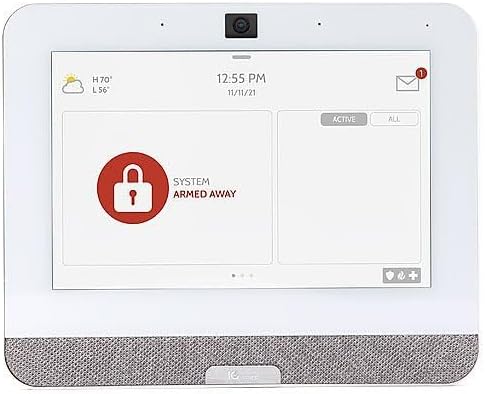
Figure 5.1: The IQ Panel 4 display when the system is armed in 'Away' mode, indicated by a red padlock icon and corresponding text.
5.1 Arming jeung Disarming
- Panangan tetep: Arms the perimeter sensors while allowing movement inside. Tap the "Arm Stay" icon and enter your code.
- Panangan Jauh: Arms all sensors, including interior motion detectors. Tap the "Arm Away" icon and enter your code.
- Ngarampas pakarang: To disarm the system, tap the "Disarm" icon and enter your master code.
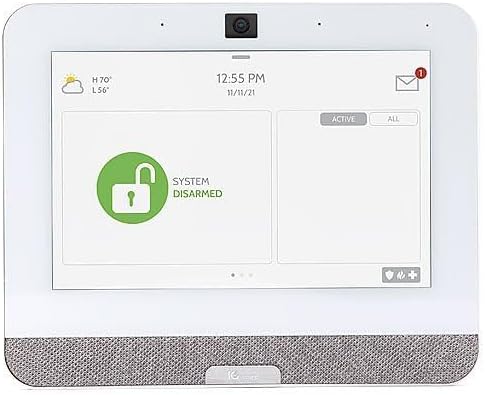
Figure 5.2: The IQ Panel 4 display when the system is disarmed, indicated by a green unlocked padlock icon and corresponding text.
5.2 Fitur kaméra
The 8-megapixel panel camera supports various functions:
- Disarm Photos: The camera can capture an image when the system is disarmed.
- Peek-in: Allows remote viewing of the panel's camera feed.
- Alarm Videos: Records video clips during alarm events.
- Flex-Tilt: Saluyukeun sudut kaméra pikeun optimal viewing.
5.3 Kontrol Imah Pinter
The IQ Panel 4 integrates with Z-Wave devices, allowing control of lights, locks, thermostats, and more directly from the panel or a connected smartphone app.
5.4 Bluetooth Touchless Disarming
Enable Bluetooth Touchless Disarming in settings to automatically disarm your system when your paired smartphone is detected within range.
6. Pangropéa
- Ngabersihan layar: Anggo lawon anu lemes sareng henteu ngaganggu pikeun ngabersihkeun layar rampa. Pikeun noda anu bandel, radaampen lawon jeung cai. Ulah menyemprot cleaners langsung kana layar.
- Apdet parangkat lunak: The IQ Panel 4 receives over-the-air (OTA) software updates. Ensure your panel is connected to Wi-Fi to receive these updates, which provide new features and security enhancements.
- Cadangan batré: The panel includes a backup battery. Periodically check the battery status in the system settings. If the battery needs replacement, contact qualified service personnel.
7. Cara ngungkulan
| Masalah | Mungkin Cukang lantaranana | Solusi |
|---|---|---|
| Panel teu powering on | No power from outlet; power supply disconnected or faulty. | Check power outlet; ensure power supply is securely connected to panel and outlet. |
| Teu bisa nyambung ka Wi-Fi | Incorrect Wi-Fi password; out of range; router issue. | Verify password; move panel closer to router; restart router. |
| System not arming | Open sensor (door/window); system error. | Check all sensors are closed; review system messages for errors. |
| Layar rampa teu ngaréspon | glitch software samentara. | Perform a soft reboot (refer to system settings for option) or power cycle the device. |
8. Spésifikasi
- model: IQP4004
- Ukuran layar: 7 Inches (HD, Capacitive glass multi-touch)
- Kaméra: 8 Megapixel Panel Camera with Flex-Tilt
- Panyimpenan: 16GB NAND Flash
- Audio: QuadSound 4x front-facing 4W speakers, 85-decibel siren
- Konéktipitas nirkabel: LTE, Wi-Fi, Z-Wave, Bluetooth, PowerG, 319.5MHz
- Ukuran (Pakét): 12.32 x 7.24 x 2.13 inci
- Beurat (Item): 1.72 pon
- warna: Bodas
- Alat anu cocog: Smartphone (pikeun ngadalikeun aplikasi)
9. Garansi jeung Rojongan
Qolsys products are covered by a limited warranty. For specific warranty terms and conditions, please refer to the warranty card included with your product or visit the official Qolsys websitus.
For technical support, troubleshooting assistance, or service inquiries, please contact your authorized Qolsys dealer or installer. You may also find additional resources, FAQs, and support documentation on the Qolsys official websitus.
Note: Unauthorized modifications or repairs to the device will void the warranty.


