1. Bubuka
This manual provides detailed instructions for the Rapoo V500Pro Full-Size Mechanical Gaming Keyboard. Please read this manual thoroughly before using the product to ensure proper operation and to maximize its features. The V500Pro is designed for both gaming and office use, featuring durable mechanical switches, customizable RGB backlighting, and programmable keys.

Image 1: Rapoo V500Pro Full-Size Mechanical Gaming Keyboard (White version).
2. Setup Guide
2.1 Eusi pakét
- Rapoo V500Pro Mechanical Gaming Keyboard
- Kabel USB-C
- Manual pangguna (dokumén ieu)
2.2 Nyambungkeun kibor
- Panggihan port USB-C di tukangeun kibor.
- Sambungkeun hiji tungtung kabel USB-C anu disadiakeun ka port USB-C kibor.
- Connect the other end of the USB-C cable (USB-A connector) to an available USB port on your computer or compatible device.
- Kibor bakal otomatis dikenal ku sistem operasi anjeun. Henteu aya supir tambahan anu biasana diperyogikeun pikeun fungsionalitas dasar.
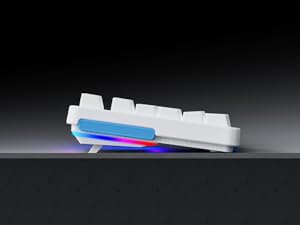
Image 2: Connecting the USB-C cable to the keyboard. The keyboard features an optimized cable management system allowing the cable to be routed to the left, center, or right.
2.3 Manajemén kabel
The V500Pro features an optimized cable management system on its underside. You can route the USB-C cable to the left, center, or right to suit your desk setup and minimize cable clutter.

Image 3: Underside of the keyboard showing the three-way cable routing channels.
3. Parentah Operasi
3.1 Saklar Mékanis
The Rapoo V500Pro utilizes brown mechanical switches, offering a tactile feel with a lower audible click compared to blue switches, making them suitable for both gaming and typing in various environments.

Image 4: Detail of the brown mechanical switch, highlighting its design for balanced performance.
3.2 RGB Backlighting Customization
The keyboard features customizable Rainbow RGB backlighting with 20 lighting modes. You can adjust brightness and speed directly from the keyboard.
- FN + PGUP/PGDN: Switch between different backlight modes.
- FN + INS: Switch side lights modes (RGB/solid color/solid breathing/off).
- FN + DEL: Switch side lights color (red/orange/yellow/green/cyan/blue/purple/white).
- FN + D: Brightness adjustment (press repeatedly to cycle through levels).
- FN + D: Breathing frequency adjustment (press repeatedly to cycle through speeds).
- FN + ESC (short press): Hurungkeun / pareum lampu tukang.
- FN + ESC (long press): Restore default lighting settings.
- FN + V: Switch logo lighting (on/breathing/off).
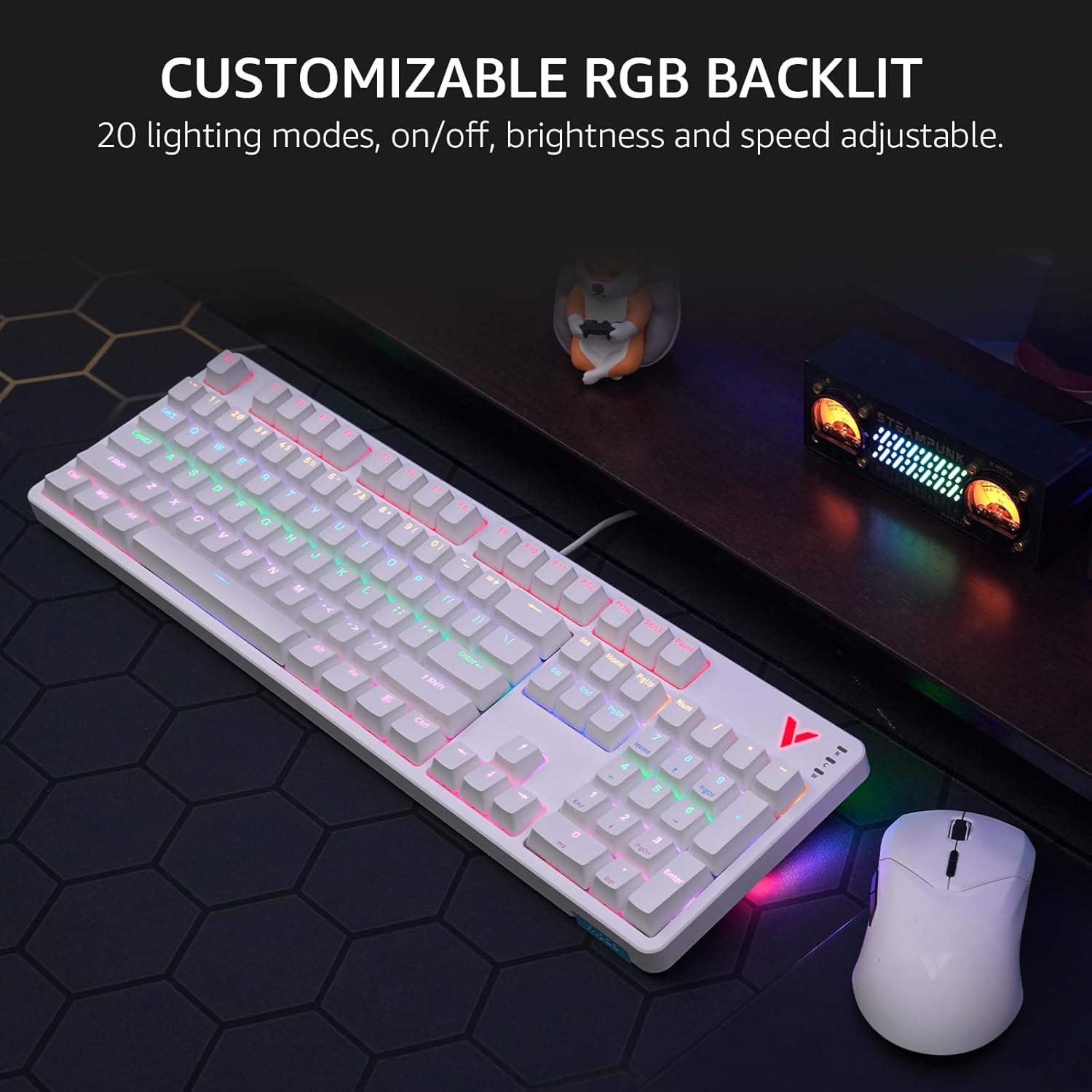
Image 5: The keyboard displaying its customizable RGB backlighting in a typical desktop setup.
Video 1: Hiji leuwihview of the Rapoo V500Pro keyboard, demonstrating its features including RGB lighting and mechanical switches.
3.3 Hotkeys Multimédia
The keyboard includes 12 multimedia hotkeys, accessible by pressing the FN konci dina kombinasi sareng F1-F12 keys. These provide quick access to common functions.
| Kombinasi konci | Fungsi |
|---|---|
| FN + F1 | Komputer |
| FN + F2 | Kalkulator |
| FN + F3 | Kotak surat |
| FN + F4 | Kaca utama |
| FN + F5 | neangan |
| FN + F6 | Pamuter média |
| FN + F7 | Lagu saméméhna |
| FN + F8 | Lagu salajengna |
| FN + F9 | Play / Reureuh |
| FN + F10 | Volume Turun |
| FN + F11 | Volume Up |
| FN + F12 | Ngajempékeun |
| FN + meunang | Konci konci Windows |

Image 6: Visual representation of the FN key combinations for multimedia and system controls.
3.4 Programmable Keys and On-board Memory
The V500Pro allows for programming 103 keys (excluding the FN key) to assign commands and macros. This functionality is managed through dedicated software (available for Windows operating systems) and stored in the keyboard's on-board memory. This enables users to save profiles and apply them across different devices without re-configuration.

Image 7: The software interface for customizing key functions and creating macros. Note: Keyboard driver available for Windows system only.
3.5 Anti-Ghosting
The keyboard supports full 104-key anti-ghosting, ensuring that all simultaneous key presses are registered accurately. This is particularly beneficial for complex skill combinations in gaming.
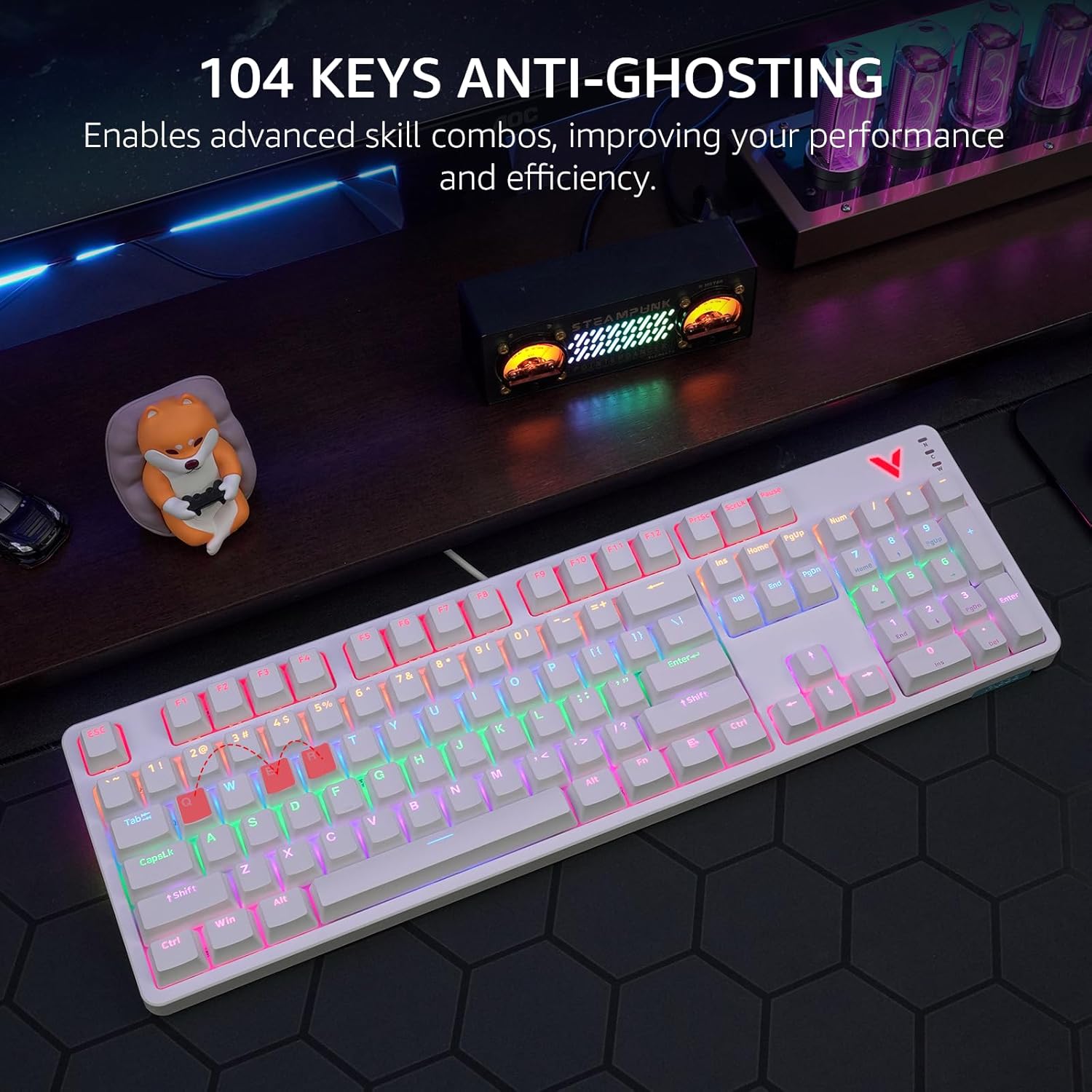
Image 8: Visual explanation of anti-ghosting technology, showing multiple key presses being registered simultaneously.
4. Pangropéa
4.1 Ngabersihan kibor
To clean your Rapoo V500Pro keyboard, follow these steps:
- Pegatkeun sambungan keyboard tina komputer Anjeun sateuacan beberesih.
- Make kaen nu lemes, teu aya lint rada dampku cai atawa solusi beberesih hampang pikeun ngusap keycaps na chassis.
- For deeper cleaning, the top case of the keyboard is removable, allowing easier access to the switches and plate. Gently detach the top case as shown in the product images.
- Hindarkeun nyemprot cairan langsung kana kibor.
- Anggo hawa anu dikomprés pikeun miceun lebu sareng kokotor tina antara tutup tombol.

Image 9: The removable top case feature, which facilitates cleaning and allows for switching between high and low profile keycap setups.
4.2 Panyimpenan
Store the keyboard in a dry, cool environment away from direct sunlight and extreme temperatures to prevent damage.
5. Cara ngungkulan
| Masalah | Solusi anu mungkin |
|---|---|
| Keyboard teu ngabales |
|
| Lampu tukang teu jalan atanapi lepat |
|
| Konci teu kadaptar atanapi teu ngetik dua kali |
|
6. Spésifikasi
| Fitur | Rincian |
|---|---|
| Modél | V500Pro |
| Tipe kibor | Full-Size Mechanical Gaming Keyboard |
| Jumlah konci | 104 |
| Pindah Tipe | Brown Mechanical Switches |
| Lampu tukang | Customizable Rainbow RGB (20 modes) |
| Anti Ghosting | All 104 Keys |
| Tombol Programmable | 103 (excluding FN) with On-board Memory |
| Hotkeys Multimedia | 12 (FN + F1-F12) |
| Konektipitas | USB-C (Kabel) |
| Bahan | Aircraft-grade aluminum alloy frame |
| Dimensi produk | 17.4 x 5.29 x 1.58 inci (44.2 x 13.4 x 4 cm) |
| Item Beurat | 2.42 pon (1.1 kg) |
| Alat nu cocog | PC, Laptop, Gaming Console, Smart TV |

Image 10: Dimensions and weight of the Rapoo V500Pro keyboard.
7. Garansi jeung Rojongan
Rapoo products are designed for durability and performance. For warranty information, technical support, or service inquiries, please refer to the official Rapoo websitus atanapi ngahubungan distributor lokal Anjeun. Simpen resi pameseran anjeun pikeun klaim jaminan.
Online resources and software downloads (e.g., for programmable keys) can typically be found on the official Rapoo support page.


