1. Bubuka
This manual provides detailed instructions for the safe and efficient operation of your ATOMSTACK A12 Pro Laser Engraving Machine. Please read this manual thoroughly before use to ensure proper setup, operation, and maintenance. Keep this manual for future reference.
Perhatosan Kasalametan:
- Always wear UV-filtering eye protection when operating the laser engraver.
- Ensure proper ventilation to dissipate fumes and smoke generated during engraving/cutting.
- Ulah ninggalkeun mesin unattended salila operasi.
- Jauhkeun bahan anu gampang kaduruk tina daérah damel.
- Familiarize yourself with the emergency stop button location.
2. Eusi Paket
Pastikeun yén sadaya item anu didaptarkeun di handap kalebet kana pakét anjeun:
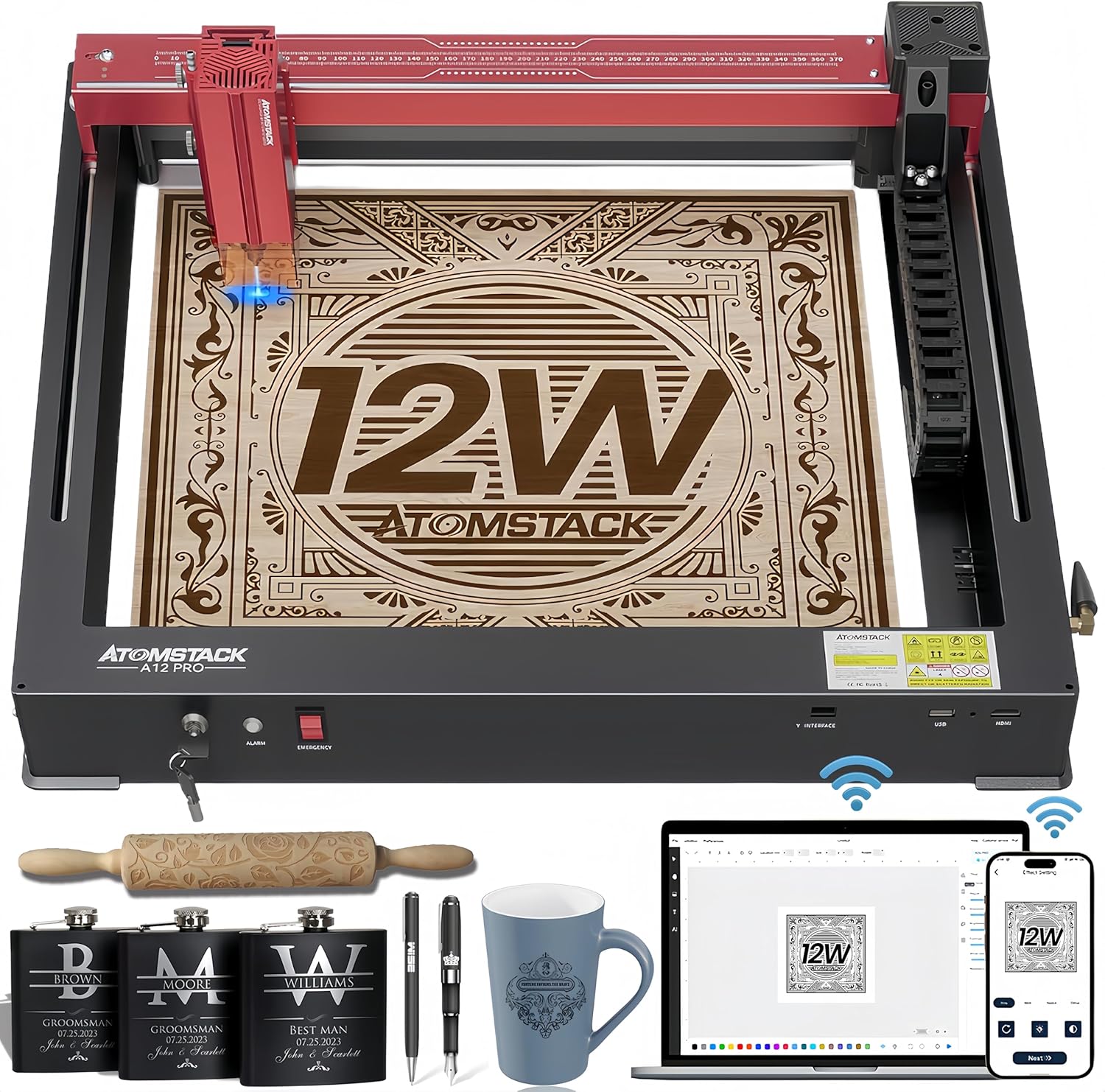
Figure 2.1: ATOMSTACK A12 Pro Laser Engraving Machine and included accessories.
- ATOMSTACK A12 Pro Laser Engraving Machine (Unibody Frame)
- Sirah Laser
- Adaptor Daya (24V, 5A)
- Kabel Daya
- Kabel USB (Tipe-C)
- Goggles (UV-filtering eye protection)
- Fixed Focus Lens
- Manual pamaké
- Tools (H3 hexagon L-shaped wrench, M4 thumb screws)
- Flash Drive
- Antena WiFi
- Silicone Hose (air hose)
- Wire Anchor
- Kabel Clamp
- 100*30 lint free cloth
- Panggeser
- Pindah konci
3. Setup Guide
The ATOMSTACK A12 Pro features an unibody design for minimal assembly. Follow these steps to get started:
- Unboxing: Carefully remove the machine and all accessories from the packaging. The machine is pre-calibrated and shipped as a single unit.

Figure 3.1: The ATOMSTACK A12 Pro is ready to use right out of the box with its unibody design.
- Install the Slider: Attach the slider component to the designated rail on the machine. Secure it with the provided screws.
- Install the Laser Head: Mount the laser head onto the slider. Ensure it is firmly attached.
- Install the WiFi Antenna: Screw the WiFi antenna into its port on the machine's side.
- Install Tubing and X-axis Link Lines: Connect the tubing and X-axis link lines as shown in the diagram to ensure proper cable management and operation.
- Sambungkeun Daya sareng USB: Plug the power adapter into the machine and a power outlet. Connect the USB cable from the machine to your computer.
- Daya Hurung: Insert the switch key and turn it to the ON position. The machine is now ready for software setup.
Video 3.1: A detailed guide on how to install and set up the ATOMSTACK laser engraver.
4. Parentah Operasi
4.1 Software Control
The ATOMSTACK A12 Pro supports multiple control methods:
- ATOMSTACK PC Software: Exclusive software for simplified operation, ideal for beginners.
- LightBurn & LaserGRBL: Traditional PC software for advanced users.
- ATOMSTACK Mobile APP: Available on Android and Apple App Stores for WiFi control via smartphone.

Gambar 4.1: Leuwihview of the various software and app control options for the laser engraver.
4.2 Prosés Ukiran
- Penempatan Bahan: Place your material flat on the engraving bed.
- Penyesuaian fokus: Use the fixed-focus design for rapid and precise focusing in approximately 10 seconds.
- Cross Positioning: Utilize the newly added cross laser positioning feature for clear visibility of the laser's location, ensuring perfect alignment for engraving and easy horizontal adjustment.
- Setélan parangkat lunak: Adjust engraving parameters (speed, power, passes) in your chosen software based on the material.
- Mimitian ukiran: Initiate the engraving process from the software.

Figure 4.2: The cross positioning system helps align objects and lock to edges for precise horizontal carving.
5. Fitur & Kamampuh
- Desain Unibody: Sturdy all-aluminum unibody design, installation-free and pre-calibrated.
- High Speed & Precision: New dual-axis linear guide rail structure and high-speed motherboard allow engraving speeds up to 600mm/s, 3-6 times faster than traditional frame machines. Accuracy within 0.004 inches.
- Laser kuat: 12000mW diode laser (Laser Class 4) with 50W machine power and a 0.05*0.06mm ultra-fine laser spot focus.
- Thicker Cuts: Can cut through 8mm wood, 5mm black acrylic, and 0.02mm stainless steel in a single pass.
- Diverse Material Compatibility: Engraves and cuts a wide range of materials including wood, acrylic, metal, glass, ceramics, leather, paper, cardboard, and more.
- Automatic Power Failure Recovery: Memorizes engraving position and swiftly resumes from the paused point, ensuring uninterrupted production and material saving.
- Kaamanan ditingkatkeun: Equipped with 4-way limit switches, UV-filtering eye protection, a tilt detector with a 15-degree alarm, and an emergency stop button.

Figure 5.1: Comparison showing the significantly faster engraving speed of the A12 Pro.
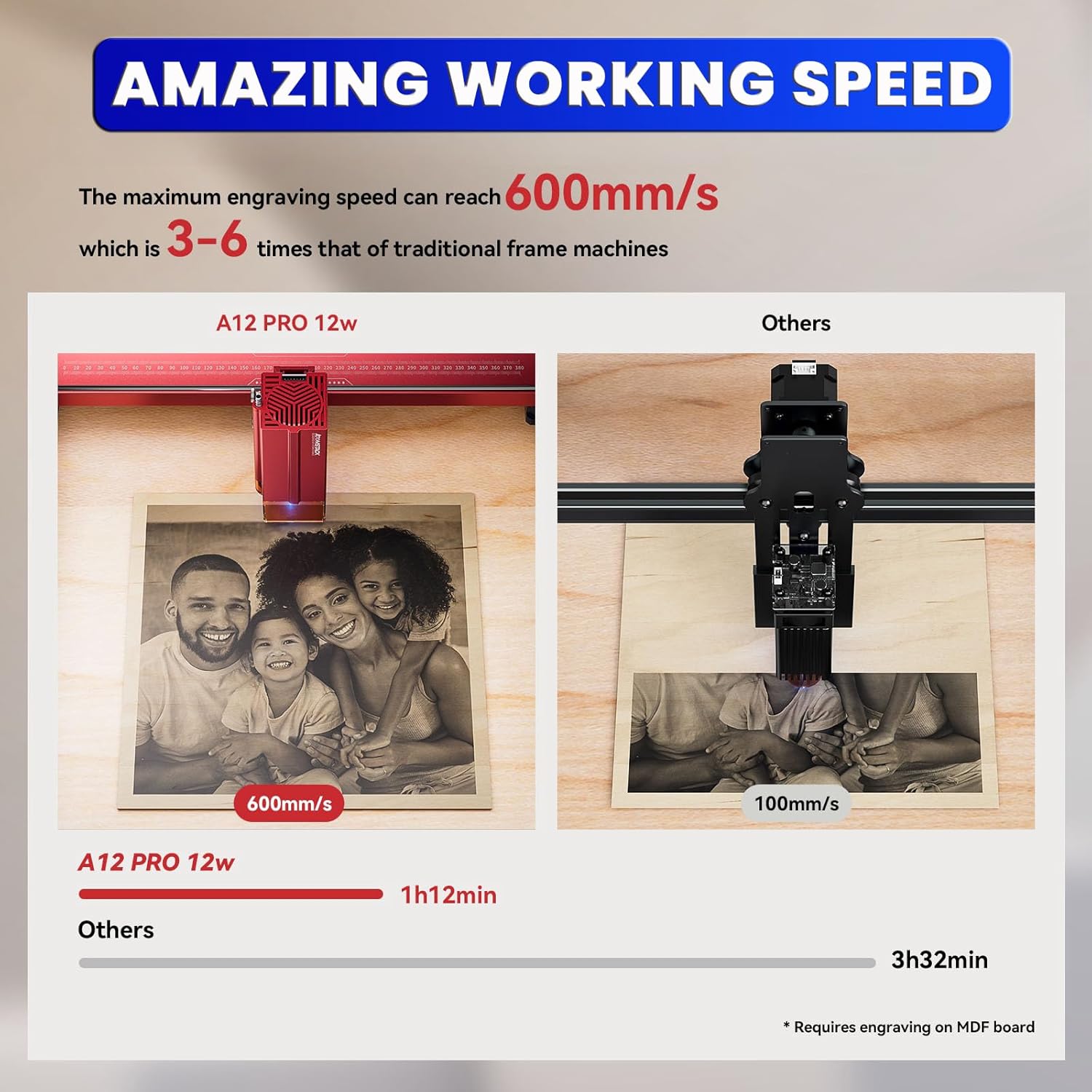
Figure 5.2: Demonstrates the maximum cutting thickness for various materials with the A12 Pro.

Gambar 5.3: Kelamples of various materials that can be engraved or cut by the machine.
6. Pangropéa
- Ngabersihan lensa: Regularly clean the laser lens with the provided lint-free cloth to maintain optimal performance and prevent residue buildup.
- Pelumasan Rel: Periodically apply a small amount of lubricant to the guide rails to ensure smooth movement of the laser head.
- Ngaleungitkeun puing: Keep the engraving bed and surrounding area free of debris and dust. Use an air compressor or brush to clear away small particles.
- Pembaruan firmware: Check the official ATOMSTACK website periodically for firmware updates to ensure your machine has the latest features and bug fixes.
7. Cara ngungkulan
| Masalah | Mungkin Cukang lantaranana | Solusi |
|---|---|---|
| Mesin teu hurung | Power cable loose; Emergency stop engaged; Key not turned. | Check power connections; Disengage emergency stop; Turn key to ON. |
| Laser not firing/weak output | Lens dirty; Incorrect focus; Low power setting in software. | Clean laser lens; Adjust focus; Increase power setting. |
| Engraving is distorted/inaccurate | Loose belts/rails; Material shifting; Incorrect software settings. | Check and tighten belts/rails; Secure material; Verify software settings. |
| Software not connecting to machine | USB cable issue; Driver not installed; Incorrect COM port. | Try different USB port/cable; Install drivers; Select correct COM port in software. |
8. Spésifikasi
- Ukuran produk: 23.22 x 23.22 x 7.08 inci
- Beurat barang: 18.74 pon
- Daya Kaluaran Laser: 12000mW (12W)
- Daya Mesin: 50W
- Ukuran Titik Laser: 0.05 * 0.06 mm
- Laju ukiran: Nepi ka 600mm / s
- Akurasi: Within 0.004 inches
- Konektipitas: USB, WiFi (via Mobile APP)
- Parangkat Lunak anu Dirojong: ATOMSTACK PC Software, LightBurn, LaserGRBL
- Pabrikan: Shenzhen AtomStack Technologies Co., Ltd.
- Negara asal: Cina
9. Garansi jeung Rojongan
Your ATOMSTACK A12 Pro Laser Engraving Machine comes with a standard manufacturer's warranty. For detailed warranty information, technical support, or service inquiries, please refer to the warranty card included in your package or visit the official ATOMSTACK websitus.
Our professional technical and support teams are available 24/7 to answer any questions or concerns you may have.


