1. Bubuka
This manual provides detailed instructions for the setup, operation, and maintenance of your Pisichen 16-inch 1920x1200P Touch Panel Portable Monitor. Please read this manual thoroughly before using the product to ensure proper functionality and to prevent damage.

Image 1.1: The Pisichen 16-inch Portable Monitor, showcasing tampilan na vibrant jeung desain langsing.
2. Émbaran Kasalametan
- Do not expose the monitor to rain or moisture to avoid electric shock or fire hazards.
- Ulah muka monitor casing. Rujuk sadayana jasa ka tanaga anu mumpuni.
- Hindarkeun nempatkeun monitor dina sinar panonpoé langsung atanapi caket sumber panas.
- Use only the power adapter and cables provided or approved by the manufacturer.
- Clean the screen with a soft, lint-free cloth. Do not use liquid cleaners or aerosol sprays directly on the screen.
3. Eusi Paket
Mangga parios pakét kanggo barang-barang ieu:
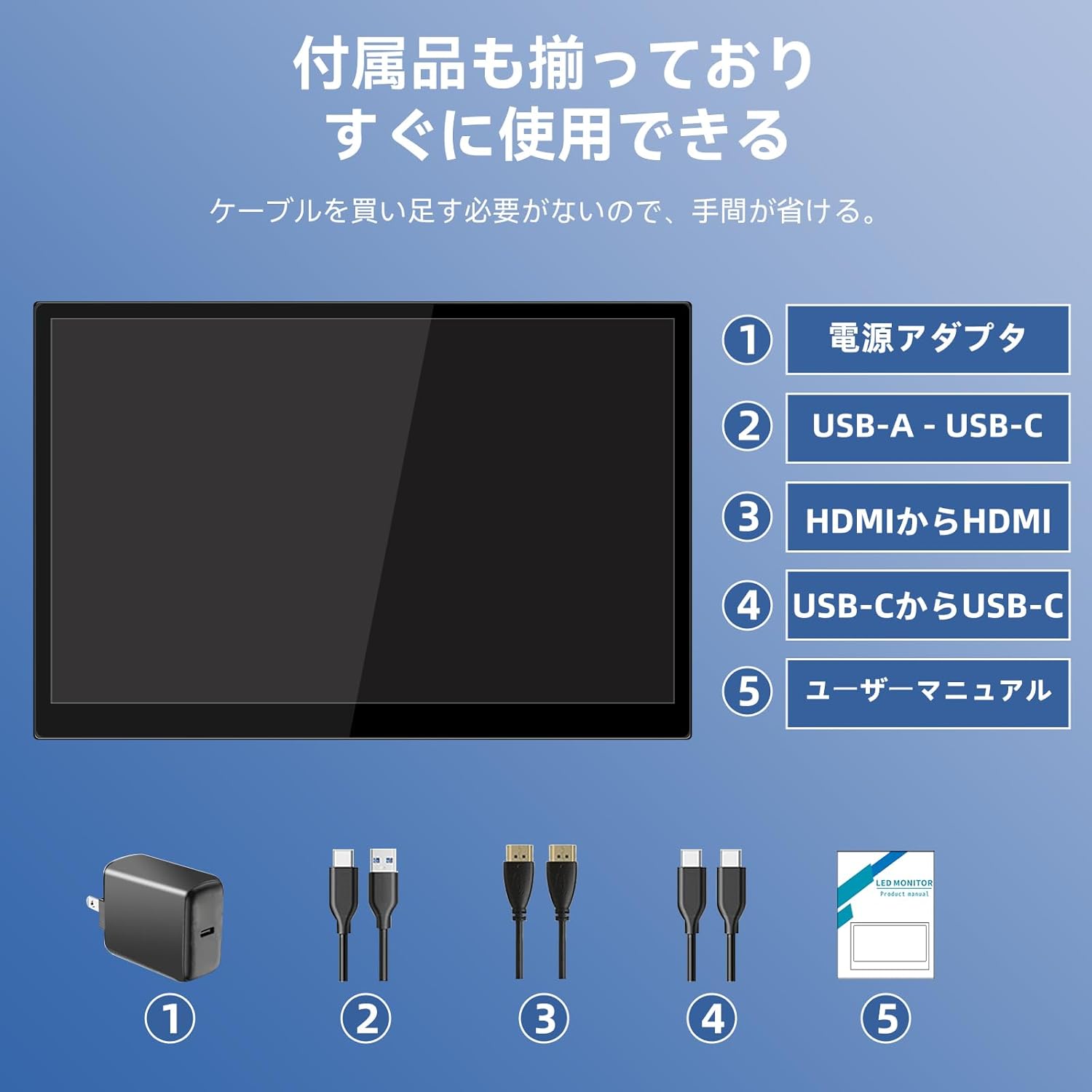
- Pisichen 16-inch Portable Monitor
- Adaptor kakuatan
- USB-A ka USB-C Cable
- HDMI kana kabel HDMI
- USB-C ka USB-C Cable
- Manual pangguna (dokumén ieu)

Image 3.1: All items included in the product package, ready for immediate use.
4. Produk Langkungview
The monitor features multiple ports for versatile connectivity and control buttons for easy navigation of settings.
4.1. palabuhan sarta Tombol
Gambar 4.1: Detil view of the monitor's interfaces, including audio port, USB-C ports, HDMI port, brightness controls, menu/OK button, volume/down button, and USB-A port.
- Port Audio 3.5mm: Pikeun nyambungkeun headphone atanapi speaker éksternal.
- USB-C Port 1 (Full-function): Ngarojong kakuatan, video, sareng transmisi sinyal toél.
- USB-C Port 2 (Full-function): Ngarojong kakuatan, video, sareng transmisi sinyal toél.
- Port HDMI: For video signal input from devices.
- Brightness Up / Power Button: Short press to increase brightness, long press to power on/off.
- Menu / OK Button: Press to open OSD menu, press again to confirm selection.
- Volume Down / Back Button: Short press to decrease volume, long press to go back in OSD menu.
- USB-A Port (OTG): Pikeun nyambungkeun mouse atawa keyboard.
5. Setélan
Turutan léngkah-léngkah ieu pikeun nyambungkeun monitor portabel anjeun ka sababaraha alat.
5.1. Sambungan Kabel Tunggal (USB-C)
For devices with a full-function USB-C port (supporting DisplayPort Alternate Mode and power delivery), a single USB-C to USB-C cable can transmit video, audio, touch signals, and power.
- Connect one end of the USB-C to USB-C cable to a full-function USB-C port on your device (e.g., laptop, smartphone).
- Connect the other end to either USB-C Port 1 or USB-C Port 2 on the monitor.
- The monitor should automatically power on and display the content. Touch functionality will also be active.
5.2. Dual Cable Connection (HDMI + USB-C for Power/Touch)
For devices with an HDMI output, or if your USB-C port does not support power delivery, you will need two cables.
- Connect one end of the HDMI to HDMI cable to your device's HDMI output.
- Connect the other end to the HDMI Port on the monitor.
- Connect the power adapter to one of the monitor's USB-C ports (Port 1 or Port 2) for power.
- For touch functionality, connect the USB-A end of the USB-A to USB-C cable to your device's USB-A port, and the USB-C end to the other available USB-C port on the monitor.

Image 5.1: Illustration of different connection methods: single USB-C cable for power, video, and touch, and dual cable setup using HDMI for video and USB-C for power and touch.
6. Parentah Operasi
6.1. Daya Hurung / Pareum
Long press the Brightness Up / Power Button (5) for approximately 3 seconds to power the monitor on or off.
6.2. Menu dina Layar (OSD).
Press the Menu / OK Button (6) to access the OSD menu. Use the Brightness Up / Power Button (5) and Volume Down / Back Button (7) to navigate through options. Press the Menu / OK Button (6) to confirm selections. Long press the Volume Down / Back Button (7) to exit the menu.
6.3. Toél Fungsionalitas
The monitor supports 10-point capacitive multi-touch. Ensure a USB connection (via full-function USB-C or USB-A to USB-C cable) is established for touch input to work. The touch screen allows for intuitive interaction, including swiping, writing, and annotating.
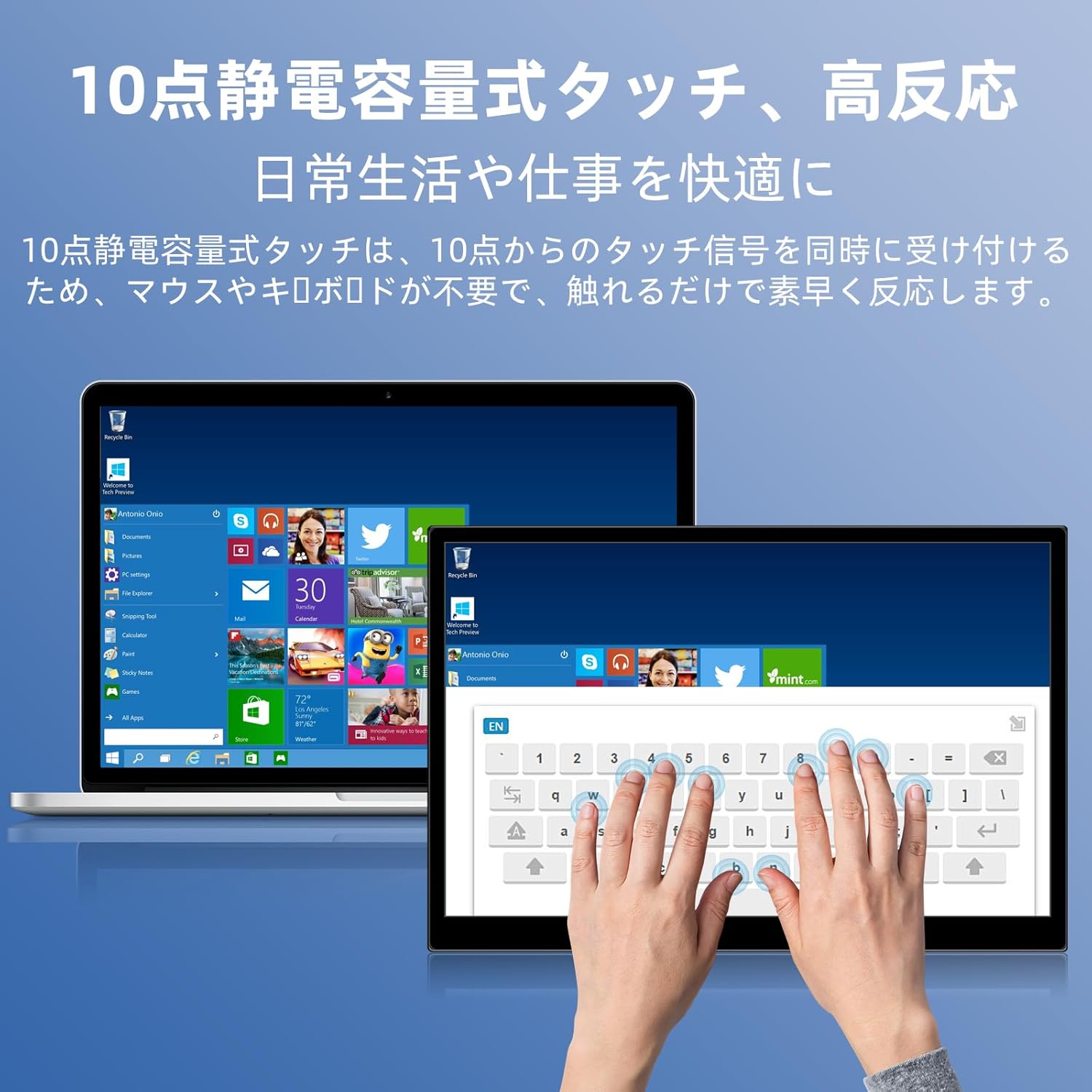
Image 6.1: A user demonstrating the responsive 10-point capacitive touch functionality on the portable monitor, enabling smooth interaction with on-screen content.
6.4. Modeu tampilan
The monitor supports various display modes when connected to a computer:
- Mode duplikat: Mirrors the content of your primary screen.
- Manjangkeun Mode: Extends your desktop, providing more screen real estate for multitasking.
- Modeu Layar Kadua: Uses only the portable monitor as the display.
6.5. Orientasi Layar
The monitor supports both landscape and portrait orientations. You can adjust the display settings on your connected device (e.g., Windows Display Settings, macOS Display Preferences) to change the orientation as needed for different tasks like document viewing or design work.
6.6. HDR Technology
The monitor features HDR (High Dynamic Range) mode, which provides deeper and more realistic colors for an enhanced visual experience. This setting can typically be toggled within the OSD menu or your device's display settings.

Gambar 6.2: Examples of the monitor's versatility, showing its use for entertainment, mobile productivity, and as an extended display for a home office.
7. Pangropéa
- Ngabersihan layar: Lembut usap layar nganggo lawon anu lemes, garing, teu aya serat. Pikeun tanda nekad, rada dampen the cloth with water or a screen-specific cleaner (apply to cloth, not directly to screen).
- Ngabersihan Casing: Make kaen nu lemes tur garing pikeun ngusap monitor casing. Ngahindarkeun cleaners abrasive.
- Panyimpenan: When not in use for extended periods, store the monitor in a cool, dry place, preferably in its original packaging or a protective sleeve.
- Manajemén Kabel: Ulah bending atawa twisting kabel kaleuleuwihan pikeun nyegah karuksakan.
8. Cara ngungkulan
| Masalah | Mungkin Cukang lantaranana | Solusi |
|---|---|---|
| Teu aya tampilan / pesen "Teu aya sinyal" | Sambungan kabel teu bener, daya teu cekap, sumber input salah. | Ensure cables are securely connected. Verify the device's USB-C port supports video output. Connect the power adapter if using HDMI or if USB-C power is insufficient. Check OSD menu for correct input source. |
| Pungsi toél teu jalan | No USB connection for touch, driver issue (rare). | Ensure the USB-C cable is full-function or that the USB-A to USB-C cable is connected for touch data. Restart the monitor and connected device. |
| Layar kedip-kedip | Unstable power, faulty cable, refresh rate mismatch. | Use the provided power adapter. Try a different cable. Adjust the refresh rate in your device's display settings. |
| Image is distorted or stretched | Incorrect aspect ratio settings. | Adjust the aspect ratio in the OSD menu or your device's display settings to match the monitor's native resolution (1920x1200). |

Image 8.1: Demonstrating the importance of correct aspect ratio settings to avoid image distortion.
9. Spésifikasi
| Fitur | Spésifikasi |
|---|---|
| merek | Pisichen |
| Nomer modél | 16QTHCM-1200P |
| Ukuran layar | 16 inci |
| Resolusi | 1920 x 1200 piksel (FHD) |
| Tipe Panel | IPS |
| Viewdina Angle | 178° |
| Refresh Laju | 60 Hz |
| Babandingan Kontras | 1000:1 |
| Caang | 300 cd/m² |
| Warna Gamut | 100% sRGB |
| Jerona Warna | 16.7 Juta Warna |
| Layar cabak | Sentuhan Kapasitif 10-titik |
| Konektipitas | 2x Full-function USB-C 3.1, 1x HDMI, 1x USB-A (OTG), 1x 3.5mm Audio Jack |
| Rojongan HDR | Sumuhun |
| VESA Gunung Cocog | Sumuhun |
| Diménsi Produk (W x H x D) | 350 x 230 x 10 mm |
| Beurat | 1.62 kg |
10. Garansi jeung Rojongan
For warranty information and technical support, please refer to the warranty card included in your product package or contact Pisichen customer service through their official website or the retailer where the product was purchased. Please have your model number (16QTHCM-1200P) and purchase details ready when contacting support.


