Bubuka
This manual provides detailed instructions for the setup, operation, and maintenance of your DOOGEE T10E Portable Tablet Keyboard. Please read this manual carefully before using the product to ensure proper functionality and longevity.
The DOOGEE T10E is a versatile Bluetooth keyboard designed to enhance your tablet experience, offering a comfortable typing solution and a protective case. It features a multi-touch trackpad and supports various shortcut modes for increased productivity.
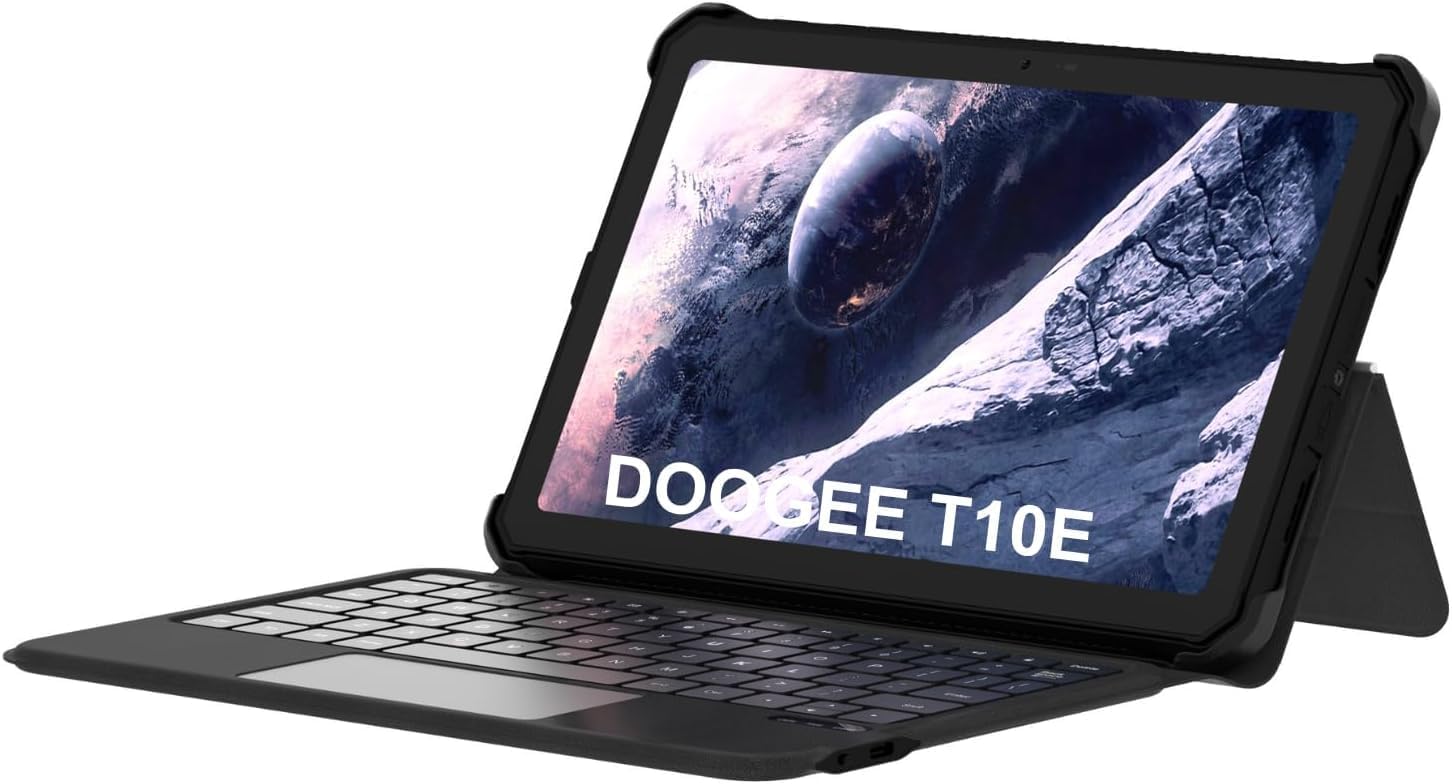
Image: The DOOGEE T10E Portable Tablet Keyboard with a tablet inserted, showcasing faktor bentukna siga laptop.
Eusi pakét
Pastikeun sadaya item aya dina bungkusan:
- DOOGEE T10E Portable Tablet Keyboard
- Kabel USB (pikeun ngecas)
- Manual pangguna (dokumén ieu)
Parentah Setup
1. Ngecas kibor
Before initial use, fully charge the keyboard. Connect the provided USB cable to the keyboard's charging port and the other end to a USB power adapter (not included) or a computer's USB port.
The charging indicator light will typically show red while charging and turn off or change color when fully charged. A full charge ensures extended usage time.
2. Attaching Your Tablet to the Case
The keyboard comes integrated with a protective case. Carefully align your tablet with the case's frame and gently press it into place, ensuring all edges are securely fitted. The case is designed to protect your tablet from scratches and bumps.

Image: The DOOGEE T10E keyboard case, showing the tablet slot and the detachable keyboard.
3. Papasangan Bluetooth
To connect the keyboard to your tablet via Bluetooth:
- Ensure the keyboard is powered on and fully charged. Look for a power switch, usually on the side or back of the keyboard.
- Activate Bluetooth on your tablet. Navigate to your tablet's Setélan > Bluetooth.
- Dina kibor, pencét tombol Nyambung or Papasangan button (often indicated by a Bluetooth icon or a specific function key combination, e.g., Fn + C). The Bluetooth indicator light on the keyboard will start blinking, indicating it's in pairing mode.
- On your tablet, search for available Bluetooth devices. You should see "DOOGEE T10E Keyboard" or a similar name appear in the list.
- Select the keyboard from the list to initiate pairing. Your tablet may display a pairing code; type this code on the keyboard and press Lebetkeun.
- Once paired, the Bluetooth indicator light on the keyboard will stop blinking and remain solid, or turn off. Your tablet will confirm the connection.

Image: The DOOGEE T10E keyboard case highlighting Bluetooth LE Pairing, Multi-touch Trackpad, and Multi Shortcut Modes.
Parentah Operasi
1. Fungsi Kibor Dasar
The DOOGEE T10E features a standard QWERTY layout with 64 keys, providing a comfortable typing experience. All standard alphanumeric keys, symbols, and function keys (F1-F12) are available.
- Tombol Fungsi (Fn): Loba kenop boga fungsi sekundér diaksés ku cara nahan tombol Fn key and pressing the desired function key (e.g., volume control, media playback, screen brightness). Refer to the keycap legends for specific functions.
- Konci hurup ageung: Pencét éta Konci hurup ageung key to toggle uppercase letters. An indicator light may illuminate when Caps Lock is active.
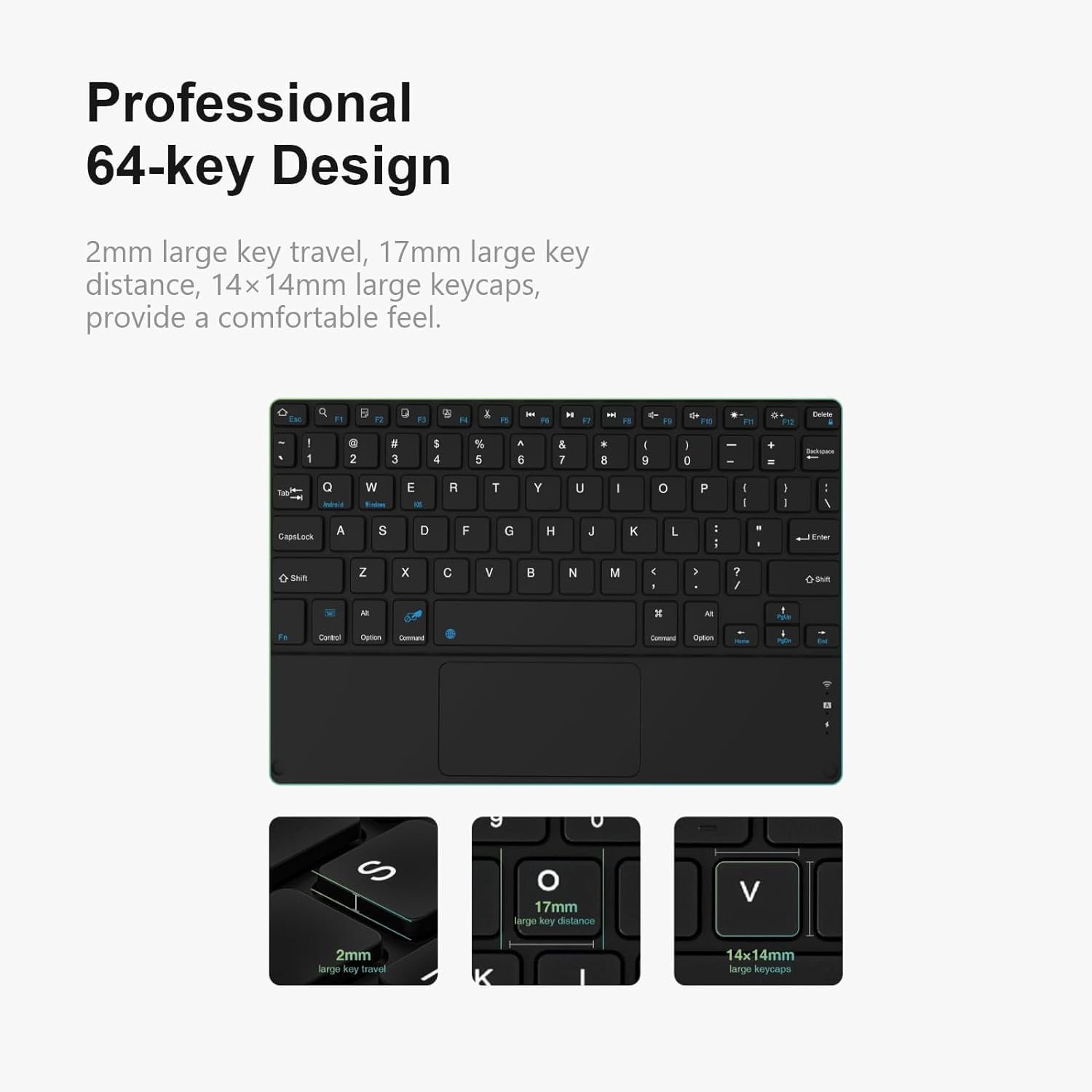
Gambar: Detil view of the DOOGEE T10E keyboard's 64-key layout, showing key travel, key distance, and keycap size.
2. Touchpad Usage
The integrated multi-touch trackpad (approximately 3772mm²) allows for intuitive navigation and control of your tablet. It supports various gestures:
- Ketok Jari Tunggal: Fungsina salaku klik kénca.
- Ketok Dua Jari: Functions as a right-click (context menu).
- Tarik Hiji Jari: Mindahkeun kursor.
- Gulung Dua Jari: Scrolls up or down on web kaca atawa dokumén.
- Ciwit pikeun ngazum: Use two fingers to pinch in or out to zoom.
- Gesek Gesek: Depending on your tablet's operating system, additional multi-finger swipe gestures may be supported for app switching or other functions.

Image: The DOOGEE T10E keyboard's large touchpad, illustrating various touch gestures for full screen control.
3. Multi Shortcut Modes
The keyboard supports various shortcut modes to enhance productivity. These shortcuts often involve combinations of the Fn key with other keys, or specific key combinations for common operating system functions. Consult your tablet's operating system documentation for a full list of supported keyboard shortcuts.
Pangropéa
Proper maintenance ensures the longevity and performance of your DOOGEE T10E keyboard.
- beberesih: Make kaen nu lemes, teu aya lint rada dampened with water or a mild cleaning solution to wipe the keyboard and case surfaces. Avoid harsh chemicals, abrasive cleaners, or excessive moisture.
- Ngaleungitkeun lebu: Anggo hawa anu dikomprés pikeun ngaleungitkeun lebu sareng lebu tina antara kenop.
- Panyimpenan: When not in use, store the keyboard in a cool, dry place away from direct sunlight and extreme temperatures. Ensure the tablet is securely in the case to protect both devices.
- Ngecas: Recharge the keyboard regularly, even if not used frequently, to maintain battery health.
Pamérésan masalah
If you encounter issues with your DOOGEE T10E keyboard, refer to the following common problems and solutions:
- Kibor teu nyambung via Bluetooth:
- Pastikeun keyboard dihurungkeun sareng dicas pinuh.
- Make sure Bluetooth is enabled on your tablet.
- Place the keyboard and tablet within close proximity (within 10 meters).
- Try unpairing the keyboard from your tablet's Bluetooth settings and then re-pairing it.
- Pareuman terus hurungkeun deui tablet sareng kibor anjeun.
- Keys are not responding:
- Pariksa naha kibor disambungkeun via Bluetooth.
- Pastikeun keyboard tos dieusi cekap.
- Pareuman terus hurungkeun deui kibor sareng tablet.
- Touchpad is not working:
- Verify the keyboard is connected.
- Ensure the touchpad is not accidentally disabled (some keyboards have a function key to toggle the touchpad).
- Clean the touchpad surface to remove any obstructions.
- hirup batré pondok:
- Pastikeun kibor tos dicas pinuh sateuacan dianggo.
- Reduce backlight usage if applicable (this model does not specify backlight, but it's a general tip).
- Pareuman keyboard lamun teu dipake.
spésifikasi
| Fitur | Rincian |
|---|---|
| merek | DOOGEE |
| Modél | T10E |
| Alat nu cocog | Laptop, Smart TV, Smartphone, Tablet |
| Katerangan kibor | Mandiri |
| Gaya | Modern |
| Bahan | Acrylonitrile Butadiena Styrene |
| Komponén Kaasup | Kabel USB |
| Sumber Daya | USB Powered |
| Pindah Tipe | mémbran |
| Tata perenah kibor | QWERTY |
| Item Beurat | 1.37 pon (0.62 kg) |
| Ukuran Paket | 11.3 x 7.44 x 1.18 inci (28.7 x 18.9 x 3 cm) |
Garansi sareng Rojongan
For warranty information and technical support, please refer to the warranty card included with your product or contact DOOGEE customer service directly. You can typically find contact details on the official DOOGEE websitus atawa ngaliwatan pangecér Anjeun.
Simpen resi pameseran anjeun salaku bukti pameseran pikeun klaim garansi.


