1. Bubuka jeung Leuwihview
This manual provides comprehensive instructions for the setup, operation, and maintenance of your Maxview Alphatronics SL Line+ Smart TV. Designed for mobile use, this versatile television operates on both 12v and 240v power, making it ideal for motorhomes, caravans, trucks, and boats. It features a Full HD LED display, integrated DVD player, Wi-Fi, Bluetooth, and access to popular streaming services via WebOS.

Gambar: Hareupeun view of the Maxview Alphatronics SL Line+ Smart TV, highlighting its smart features and integrated DVD player.
fitur konci ngawengku:
- Full HD LED Smart TV with Freeview.
- WebOS for access to Netflix, Amazon Prime, Disney+, iPlayer, ITVX, Sky Store, YouTube, and more.
- Dual power compatibility (12v or 240v).
- Built-in DVD Player, Bluetooth, Wi-Fi, and Ethernet.
- Multiple connectivity options: 2 HDMI ports, USB Port, and AV connections.
2. Naon dina Box
Mangga parios eusi pakét anjeun sareng daptar di handap ieu:
- Alphatronics TV (TVSL/22)
- Kadali jauh
- 240v Mains Lead
- 12v adaptor kakuatan
- Manual pangguna (dokumén ieu)

Image: The included remote control for the Maxview Alphatronics Smart TV.
3. Setélan
3.1. panempatan sarta ningkatna
Choose a stable and flat surface for your TV. Ensure adequate ventilation around the unit. If mounting, refer to your specific wall mount instructions and ensure the mount is compatible with VESA standards for your TV size.

Gambar: Example of the TV installed within a caravan interior.
3.2. Sambungan Daya
The TV can be powered by either 12v DC or 240v AC.
- For 240v AC: Connect the supplied 240v Mains Lead to the TV's AC input and then to a standard wall socket.
- For 12v DC: Connect the supplied 12v Power Adapter to the TV's DC input and then to a 12v power source (e.g., vehicle's 12v socket).
Ensure the correct power source is used to prevent damage.
3.3. Nyambungkeun Alat éksternal
TV gaduh sababaraha palabuhan pikeun nyambungkeun alat éksternal:
- Port HDMI (x2): For high-definition audio and video devices like satellite receivers, game consoles, or laptops.
- Port USB: Pikeun nyambungkeun alat panyimpenan USB pikeun muterkeun media files.
- AV Connections: Pikeun alat heubeul make video komposit jeung audio stereo.
- Input Antena/Satelit: Connect your terrestrial antenna or satellite dish cable for Freeview or satellite TV reception.

Image: Rear panel of the TV displaying available connection ports.
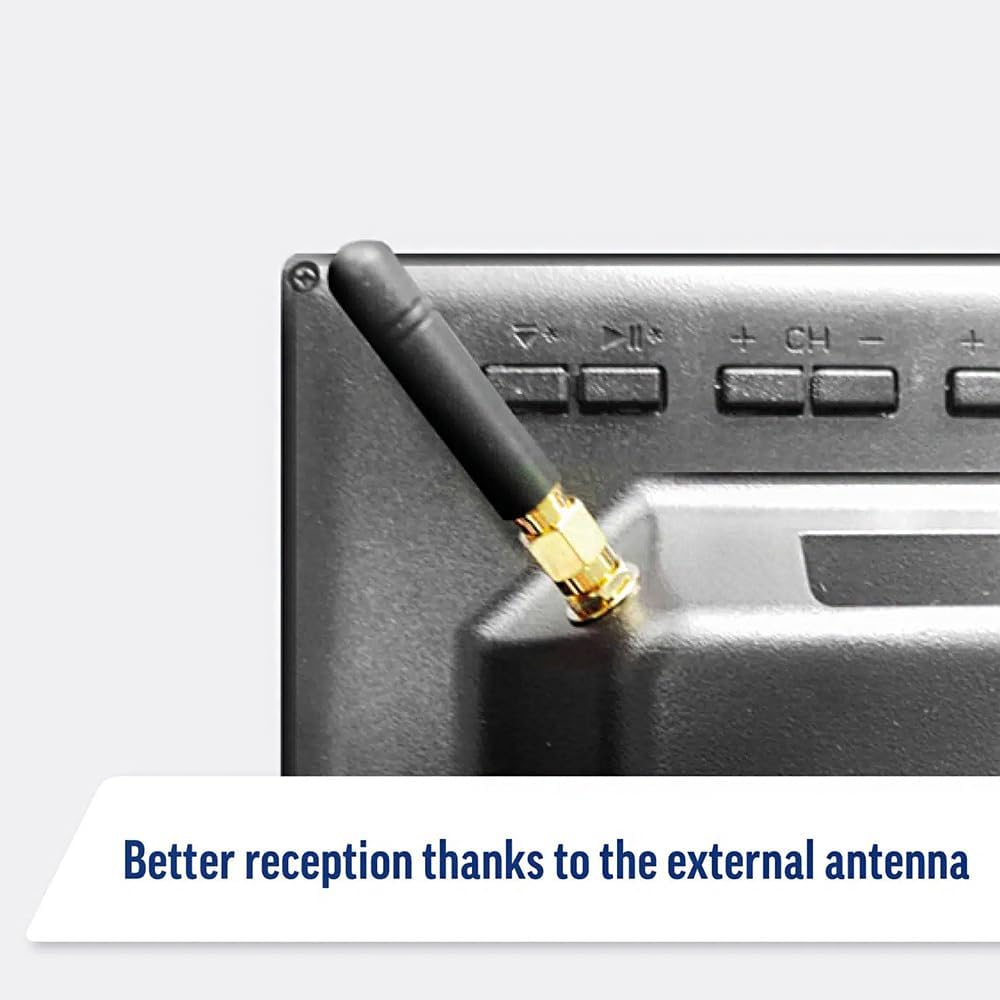
Image: Detail of the external antenna connection for improved signal reception.
3.4. Mimiti Setup Wizard
Saatos mimiti hurung, TV bakal nungtun anjeun ngaliwatan wizard pangaturan awal. Ieu ngawengku:
- Pilihan Basa: Pilih basa anu anjeun pikaresep.
- Sambungan jaringan: Connect to your Wi-Fi network or via Ethernet for internet access. This is crucial for Smart TV features.
- Scan Channel: Scan for available Freeview or satellite channels.
- Setélan Waktos sareng Tanggal: Setel zona waktos sareng tanggal anu leres.
4. Ngoperasikeun TV
4.1. Kadali dasar
Use the supplied remote control to navigate the TV. Common functions include:
- Tombol Daya: Hurungkeun/pareuman TV atawa keur sayaga.
- Volume Kaluhur/Turun: Saluyukeun tingkat audio.
- Saluran luhur/handap: Robah saluran TV.
- Sumber/Input: Selects the input source (HDMI, AV, TV, DVD).
- Tombol Navigasi (Konci Panah, OK): Napigasi ménu tur pilih pilihan.
- Tombol imah: Aksés ka WebLayar utama OS Smart TV.
- Tombol Aksés Gancang: Dedicated buttons for Netflix and Amazon Prime Video for direct access.
4.2. Fitur TV Pinter (WebOS)
Your Maxview Alphatronics TV runs on WebOS, providing a user-friendly interface for accessing a wide range of applications and content.
- Dasbor Imah: Pencét éta Imah button to access the main dashboard, where you can find installed apps, input sources, and settings.
- App Store: Unduh sareng pasang aplikasi tambahan tina toko aplikasi terpadu.
- Layanan streaming: Easily access popular services like Netflix, Amazon Prime Video, Disney+, BBC iPlayer, ITVX, and YouTube.
- Bagikeun layar: Share content from your smartphone or tablet to the TV screen.
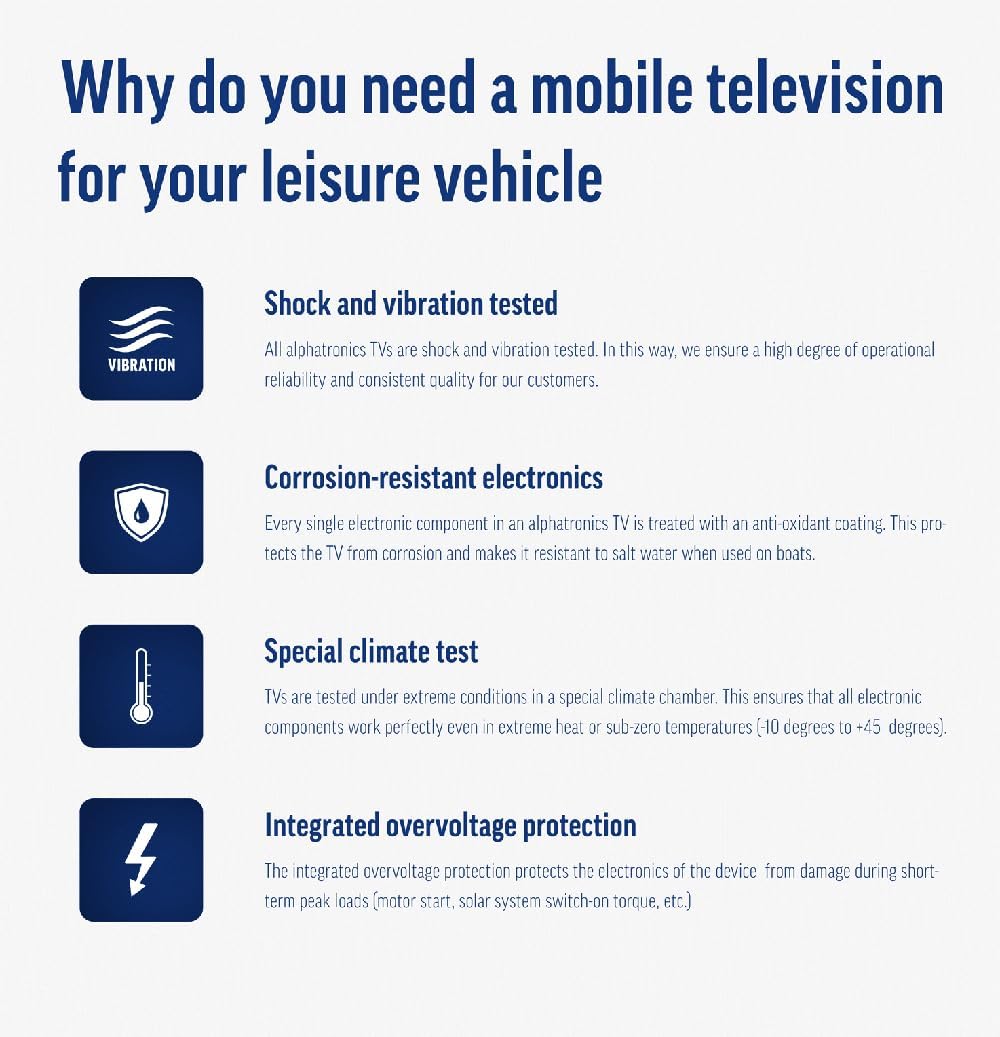
Image: Using a smartphone as a remote control for the TV.
4.3. DVD Player Operation
The integrated DVD player allows you to enjoy your movie collection on the go.
- Insert a DVD disc into the slot on the side of the TV.
- The TV should automatically switch to the DVD input. If not, press the Sumber / Input button on your remote and select "DVD".
- Use the remote control's playback buttons (Play, Pause, Stop, Fast Forward, Rewind) to control the DVD.
- To eject the disc, press the Eject button on the remote or the TV.
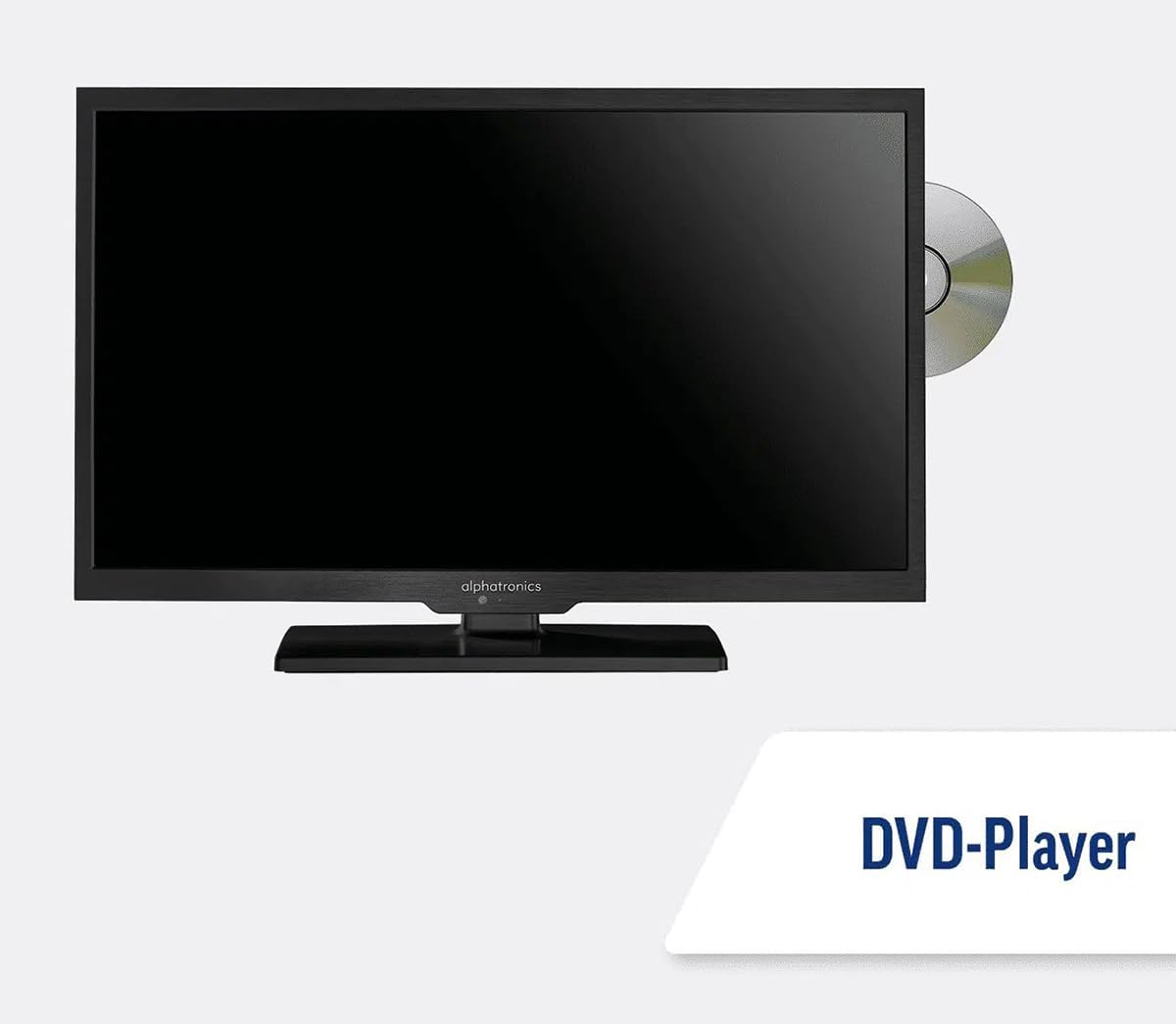
Image: The TV with a DVD disc being inserted into its built-in player.
5. Pangropéa
5.1. beberesih
Pikeun ngabersihkeun layar TV, usap lalaunan nganggo lawon anu lemes sareng henteu ngaganggu. Pikeun tanda anu bandel,ampen the cloth slightly with water or a screen-cleaning solution. Do not spray liquid directly onto the screen. Clean the TV casing ku lawon anu garing sareng lemes.
Awas: Salawasna cabut kabel TV tina sumber listrik sateuacan diberesihan.
5.2. Apdet parangkat lunak
Your Maxview Alphatronics Smart TV supports automatic software updates via the internet. Ensure your TV is connected to a stable Wi-Fi or Ethernet network to receive the latest firmware and feature enhancements.
- To check for updates manually, navigate to the Setélan menu on your TV, then look for Software Update or Émbaran Sistim.
- Follow the on-screen prompts to download and install any available updates. Do not power off the TV during an update process.

Image: The TV screen indicating a software update in progress.
6. Cara ngungkulan
Upami anjeun ngalaman masalah sareng TV anjeun, mangga tingal masalah sareng solusi umum ieu sateuacan ngahubungi dukungan.
| Masalah | Mungkin Cukang lantaranana | Solusi |
|---|---|---|
| Taya Daya | Power cable disconnected; no power from outlet/source. | Check power connections. Ensure outlet/source is active. Try a different outlet. |
| Taya Sinyal | Incorrect input selected; antenna/cable disconnected or faulty. | Pencét Sumber / Input to select correct input. Check antenna/cable connections. Perform a channel scan. |
| Taya Konéksi Internét | Wi-Fi password incorrect; router issue; TV too far from router. | Re-enter Wi-Fi password. Restart your router. Move TV closer to router or use Ethernet. |
| DVD Teu Maén | Disc dirty or scratched; incorrect input selected; region code mismatch. | Clean the disc. Ensure "DVD" input is selected. Check disc region compatibility. |
| Remote Control Teu Gawé | Batteries low/dead; obstruction between remote and TV; remote not paired (if Bluetooth). | Ganti batré. Leupaskeun halangan. Pasangkeun deui jarak jauh upami diperyogikeun (tingali setélan TV). |
If the problem persists after trying these solutions, please contact Maxview rojongan customer.
7. Spésifikasi
| Fitur | Rincian |
|---|---|
| Nomer modél | TVSL/22 |
| Ukuran layar | 22 Inci (56 cm katempo diagonal) |
| Téknologi tampilan | LED |
| Resolusi | 1080p (HD lengkep) |
| Ukuran produk (D x W x H) | 12D x 58W x 38H séntiméter |
| Input kakuatan | 12v DC / 240v AC |
| Konektipitas | Wi-Fi, Bluetooth, Ethernet |
| Palabuhan | 2x HDMI, 1x USB, AV connections, Antenna/Satellite input |
| Fitur husus | Smart TV (WebOS), Built-in DVD Player |
| Rasio Aspék | 16:9 |
| Produsén | Alphatronics |
8. Garansi jeung Rojongan
Your Maxview Alphatronics SL Line+ Smart TV comes with a 3-Taun Garansi, providing peace of mind regarding your purchase. This warranty covers manufacturing defects and ensures reliable operation.
For warranty claims, technical support, or further assistance, please contact Maxview customer service. You can typically find contact information on the official Maxview websitus atanapi dina bahan bungkusan.
Please have your model number (TVSL/22) and proof of purchase ready when contacting support.
Note: No official product videos from the seller were found in the provided data to embed in this manual.


