1. Bubuka
This manual provides essential information for the proper installation, operation, and maintenance of your Protectli Vault V1210-2 Port Micro Appliance/Mini PC. Please read this manual thoroughly before using the device to ensure optimal performance and safety. The Protectli Vault V1210-2 is a compact, fanless mini PC designed for network security applications such as firewalls, routers, and other open-source software solutions.
2. Émbaran Kasalametan
- Ensure the device is placed on a stable, flat surface with adequate ventilation.
- Ulah ngalaan alat ka cai, beueus, atawa suhu ekstrim.
- Paké ngan adaptor kakuatan disadiakeun kalawan alat.
- Ulah nyobian muka atawa ngalereskeun alat sorangan. Rujuk sadayana jasa ka tanaga anu mumpuni.
- Disconnect the power supply before cleaning or moving the device.
3. Eusi Paket
Pastikeun yén sadaya item aya dina pakét anjeun:
- Protectli Vault V1210-2 Micro Appliance
- Power Adapter with regional plugs
- Kabel Konsol USB Tipe-C

Image: Contents of the Protectli Vault V1210-2 package, including the device, power adapter with various regional plugs, and a USB Type-C console cable.
4. Pakakas Ngalangkunganview
4.1 Panel payun
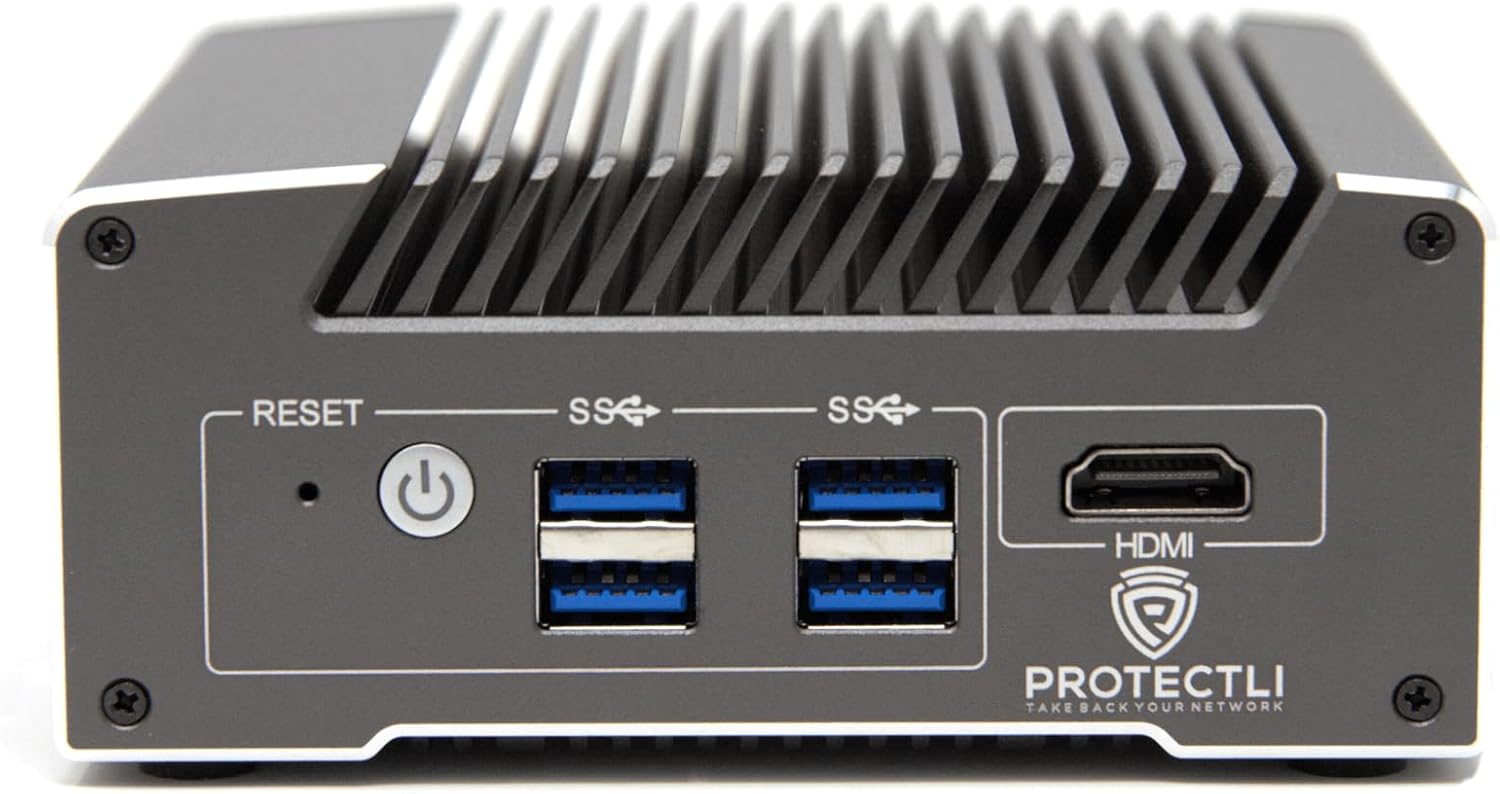
Gambar: Hareupeun view of the Protectli Vault V1210-2, showing the Reset button, Power button, two USB 3.0 ports, and an HDMI port.
- Tombol Reset: Dipaké pikeun ngabalikan deui alat.
- Tombol Daya: Pencét pikeun mareuman/nonaktipkeun alat.
- Port USB 3.0 (x2): Pikeun nyambungkeun alat USB sapertos kibor, beurit, atanapi panyimpenan éksternal.
- Port HDMI: For connecting a display monitor.
4.2 Panel tukang

Gambar: Tukangeun view of the Protectli Vault V1210-2, showing the 12V DC power input, two 2.5G Ethernet ports, a USB Type-C console port, and LED indicators.
- 12V DC Power Input: Sambungkeun adaptor kakuatan anu disayogikeun di dieu.
- 2.5G Ethernet Ports (x2): For network connections. These are Intel I226-V NICs.
- USB Type-C Console Port: For serial console access, typically used for initial setup or debugging.
- Indikator LED:
- Power LED (Green): Indicates power status.
- Storage Activity LED (Red): Indicates eMMC or NVMe storage activity.
4.3 Komponén internal
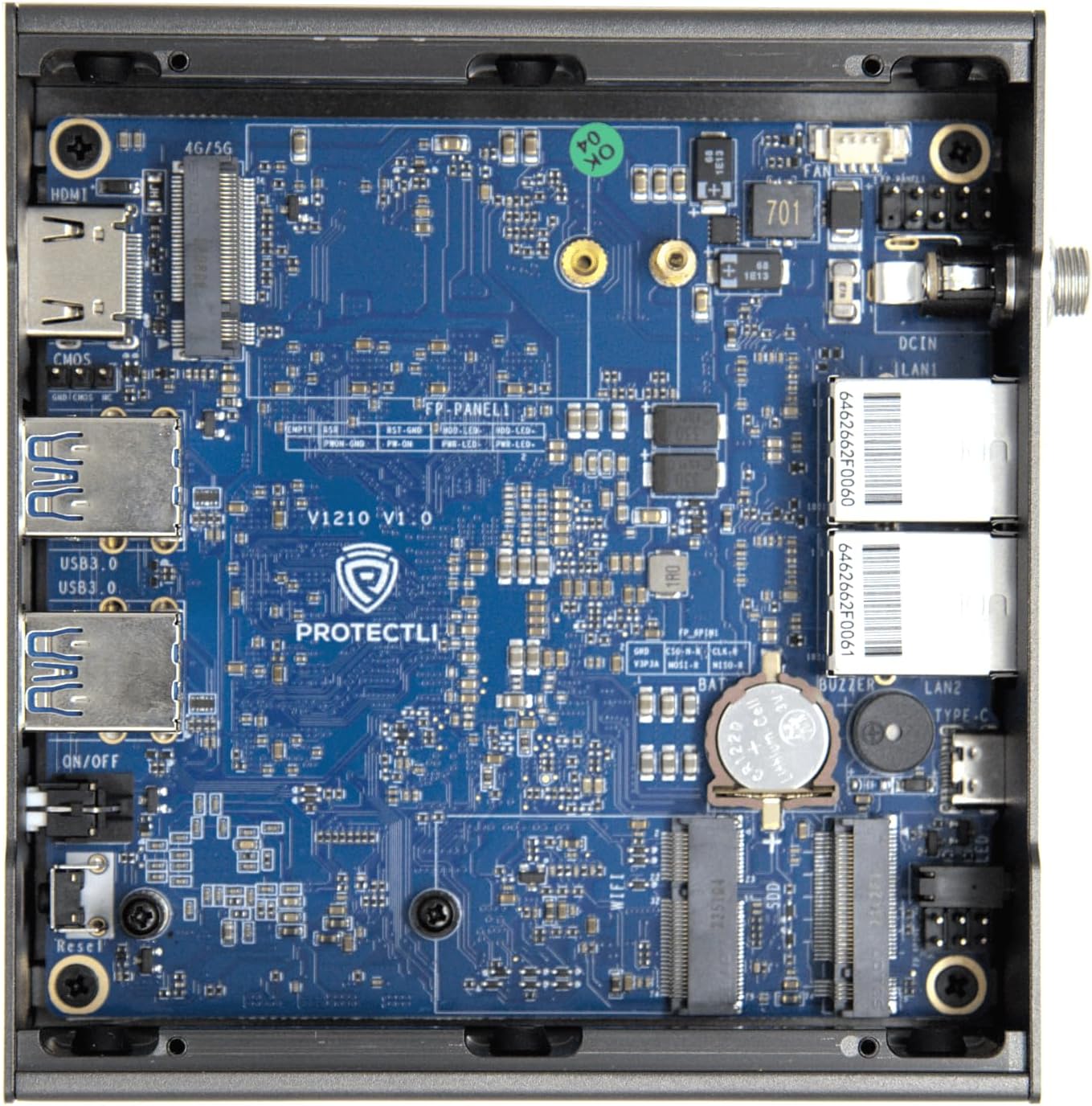
Gambar: internal view of the Protectli Vault V1210-2, showing the motherboard with integrated RAM, eMMC storage, and M.2 slot for optional NVMe SSD.
- Intel N5105 Quad Core CPU: Processor for the device.
- 4GB LPDDR4 RAM: On-board system memory.
- 32GB eMMC Storage: On-board flash storage for the operating system.
- Slot M.2: For optional NVMe SSD expansion (not included in this configuration).
5. Parentah Setup
Follow these steps for initial setup of your Protectli Vault V1210-2:
- Sambungkeun Periferal: Connect a monitor to the HDMI port, a keyboard and mouse to the USB 3.0 ports.
- Sambungan jaringan: Connect your internet source (e.g., modem) to one of the 2.5G Ethernet ports. Connect your local network (e.g., switch or computer) to the other 2.5G Ethernet port.
- Sambungan Daya: Connect the provided 12V DC power adapter to the power input port on the rear panel, then plug the adapter into a power outlet.
- Daya Hurung: Press the power button on the front panel. The device will power on, and the power LED will illuminate.
- Pamasangan Sistem Operasi: The Protectli Vault V1210-2 does not come with a pre-installed operating system. You will need to install your preferred open-source firewall or routing software (e.g., OPNsense, pfSense, VyOS) via a USB installation medium. Refer to the specific software's installation guide for detailed steps.
- Konfigurasi awal: After OS installation, follow the software's instructions for initial network configuration. You may need to use the USB Type-C console port for advanced setup or debugging if direct display output is not sufficient.
6. Parentah Operasi
Once your operating system is installed and configured, the Protectli Vault V1210-2 operates as a dedicated network appliance. Its fanless design ensures silent operation, making it suitable for various environments.
- Operasi normal: The device is designed for continuous operation. Ensure it has adequate airflow around its heatsink chassis.
- Kakuatan Ngabuburit: To safely power off the device, use the shutdown procedure within your installed operating system. If the system is unresponsive, press and hold the power button for 5-10 seconds to force a shutdown.
- Aksés BIOS: To access the AMI BIOS settings, press the DEL konci sababaraha kali nalika ngamimitian.

Image: Diagram illustrating various applications for the Protectli Vault, including VPN Router, Firewall, Hypervisor, Backup WAN, Industrial IoT, Home Automation, Remote Office, and Managed IT Providers.
7. Pangropéa
- beberesih: Use a soft, dry cloth to clean the exterior of the device. Do not use liquid cleaners or aerosols. Ensure the heatsink fins are free from dust buildup to maintain optimal cooling.
- Apdet parangkat lunak: Regularly update your installed operating system and software to ensure security and performance. Refer to your software's documentation for update procedures.
- Pembaruan firmware: Periodically check the Protectli website for BIOS/firmware updates for your V1210-2 model. Follow the provided instructions carefully when performing firmware updates.
8. Cara ngungkulan
Masalah umum sareng Solusi:
- Alat teu hurung:
- Pastikeun adaptor daya disambungkeun sacara aman ka alat sareng stop kontak listrik anu tiasa dianggo.
- Pastikeun stop kontak listrik fungsina.
- Coba adaptor kakuatan anu béda upami sayogi (pastikeun cocog sareng voltage jeung amperage specifications).
- Henteu aya kaluaran tampilan:
- Pariksa sambungan kabel HDMI ka alat sareng monitor.
- Pastikeun monitor dihurungkeun tur disetel ka sumber input nu bener.
- Try connecting to the device via the USB Type-C console port for serial console access to diagnose display issues.
- Masalah konektipitas jaringan:
- Verify Ethernet cables are securely connected to the 2.5G NIC ports.
- Check the link/activity LEDs on the Ethernet ports.
- Ensure your operating system's network configuration is correct.
- Restart your modem/router and the Protectli Vault.
- Sistem operasi teu tiasa boot:
- Ensure the boot order in the BIOS is correctly configured for your installed OS or installation medium.
- If installing from USB, ensure the USB drive is bootable and properly formatted.
- Re-attempt OS installation if necessary.
Pikeun pitulung salajengna, mangga tingal Protectli Store atanapi ngahubungi dukungan pelanggan.
9. Spésifikasi
| Fitur | Spésifikasi |
|---|---|
| Modél | Protectli Vault V1210-2 |
| Prosesor | Intel N5105 Quad Core CPU (2.0 GHz, Turbo 2.9 GHz) |
| Ram | 4GB LPDDR4 (on-board) |
| Panyimpenan | 32GB eMMC (on-board) |
| Antarbeungeut jaringan | 2x Intel I226-V 2.5G NICs |
| palabuhan USB | 4x USB 3.0 Tipe-A |
| Palabuhan konsol | 1x USB Type-C Console |
| Kaluaran Video | 1x HDMI (Max Resolution: 3840 x 2160) |
| BIOS | AMI BIOS |
| Ukuran (L x W x H) | 4.5 x 4.5 x 2 inci (115 x 115 x 50 mm) |
| Beurat | 1.81 pon (0.82 kg) |
| Sistem operasi | No OS pre-installed (Compatible with Linux-based firewall/router OS) |
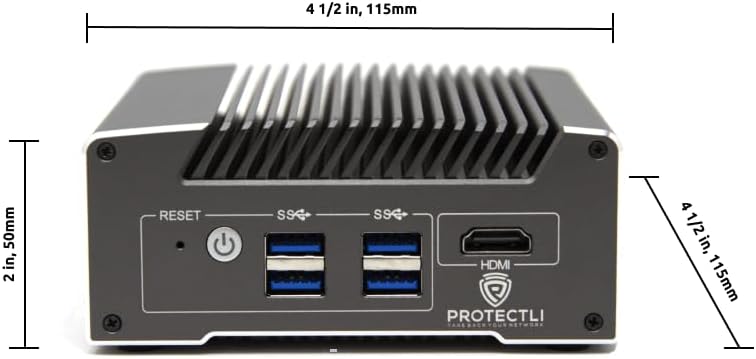
Gambar: Hareupeun view of the Protectli Vault V1210-2 with dimensions indicated: 4 1/2 inches (115mm) width and 2 inches (50mm) height.
10. Émbaran jaminan
Protectli offers a 30-day money-back guarantee for the Vault V1210-2. For detailed warranty terms and conditions, please refer to the official Protectli websitus atanapi ngahubungan rojongan customer maranéhanana.
Rencana panyalindungan anu diperpanjang tiasa sayogi kanggo dipésér nyalira:
- Plan Protection 2 Taun
- Plan Protection 3 Taun
11. Rojongan
For technical assistance, troubleshooting, or general inquiries, please contact Protectli's US-based support team. They are available to help resolve any issues you may encounter.
- Nganjang ka resmi Protectli Store on Amazon pikeun informasi produk jeung sumber.
- Explore the Protectli Knowledge Base for extensive documentation and articles.

Image: Features of Protectli products, highlighting open-source readiness, coreboot support, 4G LTE failover, and US-based support.


