1. Bubuka
The Microsoft Surface Pro 10 is a versatile 2-in-1 device designed to adapt to various work styles, offering the functionality of both a tablet and a laptop. It features an Intel Core Ultra 5 processor, providing robust performance for daily tasks and advanced applications. This manual provides essential information to help you set up, operate, and maintain your device, ensuring optimal performance and longevity.
2. Naon dina Box
Carefully unpack your Surface Pro 10 and ensure all items are present. The standard package includes:
- Alat Microsoft Surface Pro 10
- Unit catu daya
- Microsoft Surface Pro Keyboard
- Microsoft Surface Pro Slim Pen
- Gancang Mimitian Guide
- Dokumén Kasalametan sareng Jaminan
3. Alat Leuwihview
Familiarize yourself with the physical components of your Surface Pro 10.

Gambar 3.1: Hareupeun view of the Surface Pro 10 with the keyboard attached, showcasing the display and keyboard layout.

Gambar 3.2: Samping view of the Surface Pro 10 in laptop configuration, highlighting the adjustable kickstand and connected keyboard.
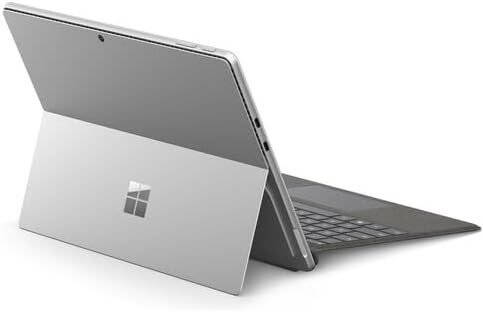
Gambar 3.3: Tukangeun view of the Surface Pro 10 with the kickstand deployed, revealing the device's sleek design and the iconic Microsoft logo.
Komponén konci:
- 13-inch PixelSense Flow Display: High-resolution touchscreen for vibrant visuals and touch interaction.
- Kaméra hareup: For video calls and facial recognition (Windows Hello).
- Kaméra nyanghareup tukang: Pikeun motret poto sareng video.
- Tombol Daya: Lokasina di sisi, dipaké pikeun ngahurungkeun alat on / off atawa nempatkeun eta sare.
- Tombol Volume: Located on the side, for adjusting audio levels.
- Port USB-C: For charging, data transfer, and connecting external displays or accessories.
- Surface Connect Port: Pikeun ngeusi batre sareng nyambungkeun ka asesoris Surface Dock.
- Kickstand: Integrated into the back, allows for multiple viewdina sudut.
- Mikropon: For voice commands and audio recording.
4. Setélan
4.1 Ngecas Awal
- Connect the power supply to the Surface Connect port or one of the USB-C ports on your Surface Pro 10.
- Colokkeun catu daya kana stop kontak témbok.
- Allow the device to charge for at least 30 minutes before first use, or until the battery indicator shows sufficient charge.
4.2 Powering on / Pareum
- Pikeun Ngahurungkeun: Press and hold the Power button until the Microsoft logo appears on the screen.
- Pikeun mareuman: From the Windows desktop, select Mimitian > Kakuatan > Pareuman. Alternatively, press and hold the Power button for a few seconds, then slide down to shut down.
- Pikeun Saré: Briefly press the Power button. Press it again to wake the device.
4.3 Setup Windows Awal
Upon first power-on, you will be guided through the Windows 11 setup process. Follow the on-screen prompts to:
- Pilih basa sareng daérah anjeun.
- Nyambung ka jaringan Wi-Fi.
- Tampa sarat lisénsina.
- Lebet nganggo akun Microsoft anjeun atanapi jieun anu énggal.
- Set up Windows Hello (facial recognition or fingerprint, if available).
- Konpigurasikeun setélan privasi.
4.4 Attaching the Surface Pro Keyboard
Align the magnetic connector on the keyboard with the corresponding port at the bottom edge of your Surface Pro 10. The keyboard will snap into place magnetically. You can adjust the keyboard to lie flat or tilt it slightly for a more ergonomic typing experience.
4.5 Pairing the Surface Pro Slim Pen
The Surface Pro Slim Pen typically pairs automatically when first used with your Surface Pro 10. If not, follow these steps:
- Pindah ka Mimitian > Setélan > Bluetooth & alat > Tambahkeun alat > Bluetooth.
- Press and hold the top button on your Slim Pen for 5-7 seconds until the LED light flashes white.
- Select your Surface Slim Pen from the list of available devices and follow any on-screen prompts.
5. Operating Your Surface Pro 10
5.1 Ngaganti Modeu Tablet sareng Laptop
- Modeu Laptop: Attach the Surface Pro Keyboard and adjust the kickstand for a traditional laptop experience.
- Modeu tablet: Detach the keyboard or fold it back completely. Windows will automatically switch to Tablet Mode, optimizing the interface for touch input.
5.2 Ngagunakeun Layar rampa
The PixelSense Flow Display supports multi-touch gestures:
- Ketok: Pilih hiji item atawa buka aplikasi.
- Ketok jeung Tahan: Aksés ménu kontéks (sarua-klik katuhu).
- Ciwit pikeun ngazum: Ngazum gede atawa leutik dina gambar na web kaca.
- Swipe from Edges: Access quick settings, notifications, or switch between apps.
5.3 Using the Surface Pro Slim Pen
The Slim Pen allows for precise input and creative tasks:
- Nulis / Ngagambar: Use the pen directly on the screen in compatible apps like Microsoft Whiteboard or OneNote.
- Milih: Tap with the pen to select items.
- pamupus: Use the eraser button on the pen to erase digital ink.
- Tombol luhur: Customizable for quick access to apps like OneNote or screenshots.
5.4 Navigasi Dasar Windows 11
- Mimitian Menu: Access apps, settings, and power options.
- Taskbar: Pin frequently used apps and view muka aplikasi.
- Pusat Aksi: Swipe in from the right edge (or click the icon) for quick settings and notifications.
- Widget: Swipe in from the left edge (or click the icon) for personalized information.
6. Pangropéa
6.1 Ngabersihan Alat Anjeun
- Make kaen nu lemes, teu aya lint rada dampened with water or an approved screen cleaner to wipe the display.
- For the body of the device and keyboard, use a soft, dry cloth.
- Hindarkeun bahan kimia anu kasar, pembersih abrasive, atanapi kalembaban anu kaleuleuwihan.
6.2 Perawatan Batré
- Hindarkeun sering-sering ngeusi batre.
- Simpen alat dina tempat anu tiis sareng garing upami henteu dianggo kanggo waktos anu lami.
- Use only the official Microsoft power supply or certified compatible chargers.
6.3 Apdet parangkat lunak
Regularly check for and install Windows updates to ensure your device has the latest security patches, features, and performance improvements. Go to Mimitian > Setélan > Windows Update.
7. Cara ngungkulan
7.1 Alat Henteu Hurungkeun
- Ensure the device is charged. Connect the power supply and wait a few minutes before attempting to power on.
- Perform a force restart: Press and hold the Power button for 15-20 seconds, then release and press it again briefly to turn on.
7.2 Screen Issues (No Display, Flickering)
- Balikan deui alat.
- Ensure display drivers are up to date via Windows Update.
- If connected to an external display, try disconnecting it.
7.3 Masalah Konéktivitas Wi-Fi atanapi Bluetooth
- Check if Wi-Fi or Bluetooth is enabled in Quick Settings or Windows Settings.
- Restart your Surface Pro 10 and your router/modem.
- Forget the network/device and try reconnecting.
- Update network drivers via Windows Update.
7.4 Masalah Kinerja (Slowdowns, Freezes)
- Tutup aplikasi anu teu perlu jalan di latar tukang.
- Check for and install all available Windows updates.
- Run a disk cleanup and optimize drives.
- Mastikeun spasi gudang bébas cukup.
8. Spésifikasi
The following table outlines the key technical specifications for the Microsoft Surface Pro 10 (Intel Core Ultra 5, 16GB RAM, 256GB SSD) model:
| Fitur | Spésifikasi |
|---|---|
| Ngaran modél | Surface Pro 10 (ZEA-00001) |
| Ukuran Layar Ngadeg | 13 inci |
| Resolusi layar | 2880 x 1920 piksel |
| Resolusi layar Max | 2880x1920 |
| Prosesor | 1.4 GHz Intel Core Ultra 5 |
| Hard Drive | 256 GB SSD |
| RAM Mémori Dipasang Ukuran | 16 GB DDR5 RAM |
| Sistem operasi | Windows 11 Pro |
| Chipset Brand | Intel |
| Pedaran Kartu grafik | terpadu |
| Tipe Wireless | 802.11ax |
| Warna | Platinum |
| Dimensi produk | 11.3 x 8.2 x 0.4 inci |
| Batré | 1 batré Litium Ion (kaasup) |
9. Garansi jeung Rojongan
Your Microsoft Surface Pro 10 comes with a limited hardware warranty. For detailed warranty information, please refer to the documentation included with your device or visit the official Microsoft Support websitus. Kanggo bantosan téknis, pituduh ngungkulan masalah, sareng unduhan supir, mangga buka support.microsoft.com/surface.


