Bubuka
The STRONG Mini WI-FI Powerline Kit AV1000 (POWERWF1000DUOMINIUK) provides a simple and effective solution to extend your internet network throughout your home using existing electrical wiring. This kit includes a Powerline 1000 adapter and a Powerline Wi-Fi 1000 adapter, enabling high-speed wired and wireless connectivity in areas with weak or no Wi-Fi signal.
Naon dina Box
- 1 x Powerline 1000 Adapter
- 1 x Powerline Wi-Fi 1000 Adapter
- Kabel Ethernet
- Guide Instalasi Gancang
Produk Leuwihview
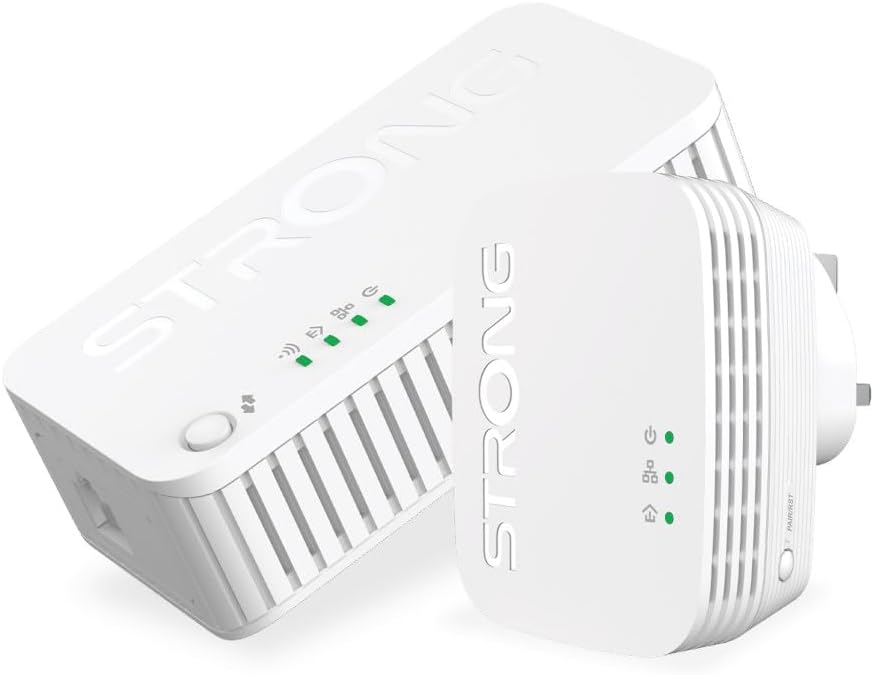
Image: The STRONG Mini WI-FI Powerline Kit AV1000, featuring both the Powerline 1000 adapter and the Powerline Wi-Fi 1000 adapter. The Powerline 1000 adapter is larger and designed for connection to the router, while the Powerline Wi-Fi 1000 adapter is more compact and extends the Wi-Fi signal.
Powerline 1000 Adapter

This adapter connects to your internet router via an Ethernet cable and plugs into a power outlet. It uses your home's electrical wiring to transmit network data. It features indicator lights for power, Powerline connection, and Ethernet activity. A 'Connect & Secure' button is present for secure pairing.
- LED kakuatan: Nunjukkeun status kakuatan.
- LED Jalur Listrik: Indicates Powerline network connection status.
- LED Ethernet: Nunjukkeun kagiatan port Ethernet.
- Tombol Sambungkeun & Amankeun: Used for secure pairing with other Powerline devices.
Powerline Wi-Fi 1000 Adapter
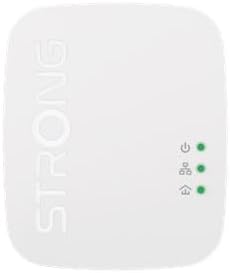
This adapter plugs into any power outlet in your home and extends both the wired and wireless network. It receives the network signal through the electrical wiring and broadcasts a Wi-Fi signal. It also includes an Ethernet port for wired connections.
- LED kakuatan: Nunjukkeun status kakuatan.
- LED Jalur Listrik: Indicates Powerline network connection status.
- LED Wi-Fi: Nunjukkeun status Wi-Fi.
- Port Ethernet: Pikeun nyambungkeun alat-alat anu nganggo kabel.
- Tombol Sambungkeun & Amankeun: Used for secure pairing and Wi-Fi Clone function.
Disetél
- Connect the Powerline 1000 Adapter:
- Plug the Powerline 1000 adapter into a wall power outlet near your internet router. Avoid power strips or extension cords as they can interfere with performance.
- Connect one end of an Ethernet cable to an available LAN port on your router and the other end to the Ethernet port on the Powerline 1000 adapter.
- Wait for the Power LED and Ethernet LED on the adapter to turn solid green.
- Connect the Powerline Wi-Fi 1000 Adapter:
- Plug the Powerline Wi-Fi 1000 adapter into a wall power outlet in the room where you need extended Wi-Fi or wired internet access.
- Wait for the Power LED and Powerline LED on the adapter to turn solid green. If the Powerline LED is not green, try a different outlet or ensure the first adapter is correctly set up.
- Pairing the Adapters (Optional, for security):
- Within two minutes of plugging in the second adapter, press the 'Connect & Secure' button on the Powerline 1000 adapter for one second.
- Then, within the next two minutes, press the 'Connect & Secure' button on the Powerline Wi-Fi 1000 adapter for one second.
- The Powerline LEDs on both adapters should blink and then turn solid green, indicating a secure, paired connection.
- Nyambung ka Wi-Fi:
- On your Wi-Fi enabled device (smartphone, laptop, tablet), search for available Wi-Fi networks.
- The Powerline Wi-Fi 1000 adapter will broadcast a new Wi-Fi network (SSID) with a default name and password usually found on a label on the adapter itself.
- Connect to this network using the provided password.
- Sambungkeun Alat Kabel (Opsional):
- For wired devices like desktop computers, gaming consoles, or smart TVs, connect an Ethernet cable from the device to the Ethernet port on the Powerline Wi-Fi 1000 adapter.
Ngoperasikeun
Extending Wi-Fi Coverage
Once set up, the Powerline Wi-Fi 1000 adapter automatically extends your network. You can connect to its Wi-Fi signal or use its Ethernet port for wired connections. For optimal performance, ensure the adapter is plugged directly into a wall outlet.
Wi-Fi Clone Function
The Powerline Wi-Fi 1000 adapter supports a Wi-Fi Clone function, allowing it to copy the SSID and password of your main router's Wi-Fi network. This creates a seamless roaming experience where your devices automatically switch to the strongest signal without manual intervention.
- Place the Powerline Wi-Fi 1000 adapter near your main router.
- Pencét tombol WPS dina router utama anjeun.
- Within two minutes, press the 'Connect & Secure' (or Wi-Fi Clone) button on the Powerline Wi-Fi 1000 adapter for approximately 3 seconds.
- The Wi-Fi LED on the Powerline Wi-Fi 1000 adapter will blink and then turn solid, indicating successful cloning.
- You can now move the Powerline Wi-Fi 1000 adapter to your desired location.
Pangropéa
- beberesih: Use a soft, dry cloth to clean the adapters. Do not use liquid cleaners or aerosols.
- panempatan: Ensure adapters are plugged directly into wall outlets. Avoid power strips, surge protectors, or extension cords as they can degrade performance.
- Ventilasi: Do not block the ventilation holes on the adapters. Ensure adequate airflow to prevent overheating.
- Pembaruan firmware: périodik pariksa produsén urang websitus pikeun apdet firmware pikeun mastikeun kinerja optimal sarta kaamanan.
Pamérésan masalah
| Masalah | Mungkin Cukang lantaranana | Solusi |
|---|---|---|
| Taya LED Daya | Adapter not plugged in or no power from outlet. | Pastikeun adaptorna dipasang pageuh kana stop kontak anu tiasa dianggo. Uji stop kontakna nganggo alat anu sanés. |
| Powerline LED is off or red | No Powerline connection or poor connection quality. |
|
| Laju internét lalaunan | Electrical interference, long distance, or poor wiring. |
|
| Teu bisa nyambung ka Wi-Fi | Incorrect Wi-Fi password or Wi-Fi not enabled. |
|
spésifikasi
- model: POWERWF1000DUOMINIUK
- Standar Powerline: HomePlug AV
- Laju Mindahkeun Data: Up to 1000 Mbps (Powerline), Up to 1200 Mbps (Wi-Fi)
- rentang: 300 meters over electrical circuit (Powerline)
- Antarbeungeut: Port Ethernet (RJ45)
- Kaamanan: 128-bit AES Encryption (Powerline), WPA/WPA2 (Wi-Fi)
- ukuran: (Refer to product packaging for exact dimensions, approx. 7.64 x 7.05 x 3.23 inches for package)
- beurat: Approx. 1.19 pounds (package weight)
Ngarojong
For further assistance, technical support, or warranty information, please refer to the official Strong website or contact their customer service directly. Keep your purchase receipt and product model number (POWERWF1000DUOMINIUK) handy when seeking support.
Pabrikan: Kuat


