1. Bubuka
Thank you for choosing the PUTRIMS K12 Google TV Projector. This manual provides essential information for the safe and efficient use of your new projector. Please read it thoroughly before operation and keep it for future reference.

Figure 1.1: PUTRIMS K12 Projector
2. Émbaran Kasalametan
- Ulah nempo langsung kana lensa projector lamun lamp dihurungkeun.
- Pastikeun ventilasi ditangtoskeun pikeun nyegah overheating.
- Jauhkeun proyektor tina cai atanapi cairan sanés.
- Paké ngan adaptor kakuatan disadiakeun.
- Hindarkeun nempatkeun proyektor dina permukaan anu teu stabil.
- Do not attempt to disassemble or repair the projector yourself. Contact customer support for assistance.
3. Eusi Paket
Pastikeun yén sadaya item aya dina pakét anjeun:
- PUTRIMS K12 Projector
- Kadali jauh
- Kabel listrik
- Kabel HDMI
- Panutup Lensa Projector
- Manual pangguna (dokumén ieu)
4. Produk Langkungview
The PUTRIMS K12 projector is designed for a versatile home theater and business experience. It features a sleek design with essential ports for connectivity.
Gambar 4.1: Hareupeun view of the K12 Projector, showing the lens and auto-focus sensors.

Gambar 4.2: Tukangeun view of the K12 Projector, highlighting HDMI, USB, and audio ports.
Video 4.1: General product overview and feature demonstration of the PUTRIMS K12 projector.
5. Setélan
5.1 Setélan fisik
The K12 projector offers flexible installation options to suit various environments:
- Penempatan Tabletop: Teundeun proyektor dina permukaan datar anu stabil.
- Pamasangan tripod: Use the M5 screw hole on the bottom to attach a tripod.
- Pemasangan siling: Pasangkeun proyéktor kana lalangit kalayan pageuh nganggo dudukan anu cocog.
- Pamasangan témbok: Attach the projector to a wall using a suitable bracket.

Figure 5.1: Diverse installation methods for the K12 Projector.
5.2 Daya Awal Hurung
- Sambungkeun kabel listrik ka proyektor sareng stopkontak.
- Pencét tombol daya dina proyektor atawa kadali jauh pikeun ngahurungkeun.
- Proyéktor bakal otomatis ngalakukeun fokus otomatis sareng koréksi keystone.
5.3 Sambungan Jaringan (WiFi)
To access online streaming services and updates, connect your projector to a WiFi network:
- Buka menu 'Setélan' dina proyéktor.
- Pilih 'Jaringan' atanapi 'Setélan WiFi'.
- Hurungkeun WiFi teras pilih jaringan anu dipikahoyong tina daptar.
- Lebetkeun kecap akses upami dipenta teras sambungkeun.
5.4 Sambungan Bluetooth
Connect external Bluetooth speakers or headphones for enhanced audio:
- Buka 'Setélan' teras pilih 'Bluetooth'.
- Hurungkeun Bluetooth teras lebetkeun alat éksternal anjeun kana modeu papasangan.
- Pilih alat anjeun tina daptar pikeun dipasangkeun.
5.5 Layar pangeunteungan
Bagikeun eusi tina alat sélulér atanapi komputer anjeun sacara nirkabel:
- Pikeun alat ios (Airplay): Ensure your iOS device and the projector are connected to the same WiFi network. Open the 'iOS Cast' interface on the projector. On your iOS device, open Control Center, tap 'Screen Mirroring', and select 'K12-xxxx' from the list.
- For Android/Windows devices (Miracast): Ensure your device and the projector are connected to the same WiFi network. Open the 'Miracast' interface on the projector. On your Android/Windows device, enable screen mirroring/cast feature and select 'K12-xxxx' to connect.
6. Parentah Operasi
6.1 Fitur Google TV
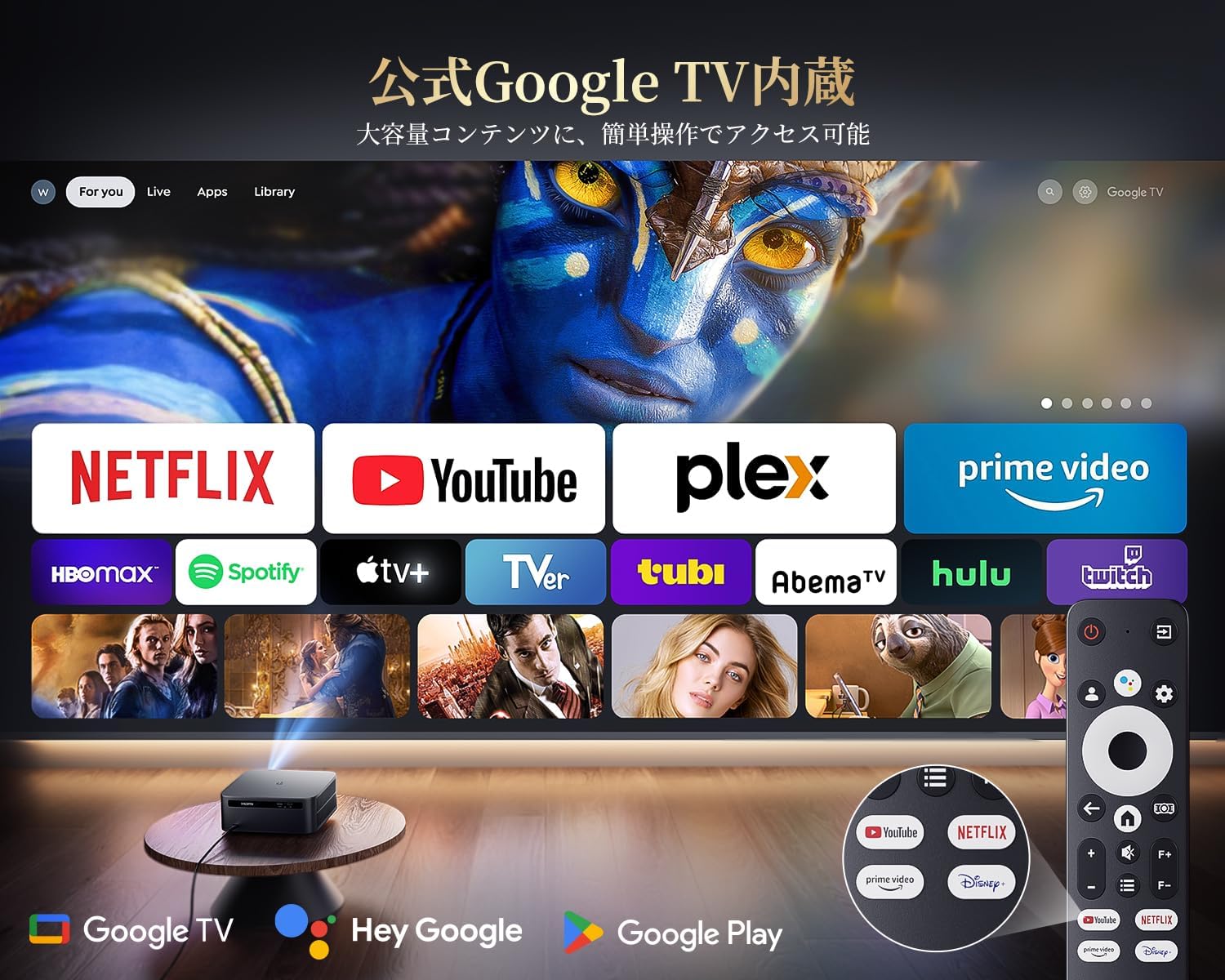
The PUTRIMS K12 comes with official Google TV, providing access to a vast library of content and applications.
- Aplikasi streaming: Directly access Netflix, Disney+, YouTube, Prime Video, Hulu, and many more with a single click.
- Google Play Store: Download and install over 10,000 applications and games.
- Pembaruan Biasa: The projector receives periodic updates to enhance security and stability.

Figure 6.1: Google TV interface with popular streaming applications.
6.2 Kontrol sora
Utilize the Google Voice Assistant for convenient control of your projector and content.
- Press the voice control button on your remote.
- Speak commands such as "Open Netflix," "Play One Piece," "Tell me the weather," or "Increase volume."

Figure 6.2: Using the Google Voice Assistant with the remote control.
6.3 adjustment Gambar
The K12 projector features advanced image adjustment capabilities for optimal viewing.
- Otomatis Pokus: The projector automatically adjusts the focus for a clear image upon startup or movement.
- Koreksi Auto Keystone: It automatically corrects horizontal and vertical trapezoidal distortions, ensuring a perfectly rectangular image even from an angle.
- Fungsi zum: Adjust the screen size from 50% to 100% without moving the projector.
- Rasio Aspék: Ngarojong rasio aspék 4:3 sareng 16:9.
- Caang & Kontras: Customize brightness and contrast settings to your preference.

Figure 6.3: Automatic focus and keystone correction in action.

Figure 6.4: Projection distances and corresponding screen sizes (100", 120", 150").
6.4 Nyambungkeun Alat éksternal
The K12 projector offers multiple connectivity options for various devices:
- HDMI ARC: Connect to soundbars, laptops, gaming consoles (Switch, PS5), or DVD players.
- USB: Play media directly from USB memory sticks.
- Port Audio 3.5mm: Connect to external audio systems.

Figure 6.5: Seamless connection with various external devices.
7. Pangropéa
7.1 beberesih lénsa
To maintain optimal image quality, regularly clean the projector lens.
- Pastikeun proyektor dipareuman sareng dicabut.
- Gently wipe the lens with a soft, lint-free cloth or a cotton swab.
- For stubborn smudges, use a lens cleaning solution specifically designed for optical surfaces.
- Avoid using abrasive materials or harsh chemicals that could damage the lens.
8. Cara ngungkulan
Ieu mangrupikeun solusi pikeun masalah umum anu anjeun tingali:
- No image/signal: Check all cable connections (HDMI, power). Ensure the correct input source is selected on the projector.
- Gambar kabur: The projector features auto-focus. If the image remains blurry, ensure the lens is clean and there are no obstructions.
- Image not rectangular: The projector has auto-keystone correction. If issues persist, ensure the projector is placed on a stable surface and try repositioning it.
- Teu aya sora: Check volume settings on both the projector and connected devices. Ensure external speakers are properly connected via Bluetooth or audio cable. If using HDMI ARC, verify the connection and settings.
- WiFi/Bluetooth connection issues: Ensure the projector and your device are within range of the router/device. Restart both the projector and the router/device.
- App crashes or malfunctions (for unofficial Android TV versions): The PUTRIMS K12 has an official Google TV license, which ensures stability. If you experience issues, ensure your system is updated.
Pikeun pitulung salajengna, mangga tingal bagian Garansi sarta Rojongan.
9. Spésifikasi
| Fitur | Katerangan |
|---|---|
| merek | PUTRIMS |
| Modél | K12 |
| Caang | 1500 ANSI Lumens |
| Resolusi | 1080P FHD (4K Support) |
| Sistem operasi | Official Google TV |
| Kontrol sora | Asisten Google Sora |
| Pokus | Omnidirectional Auto Focus |
| Koréksi Keystone | Horizontal & Vertical Auto Keystone Correction |
| Zum | 50%-100% |
| Ukuran Layar Max | 300 inci |
| Wifi | WiFi 6 |
| Bluetooth | Bluetooth 5.3 |
| Kaluaran Audio | 20W HIFI Speaker, 3.5mm Audio Jack |
| Palabuhan Input | HDMI ARC, USB |
| Diménsi | 40.5 x 30.2 x 17 cm |
| Beurat | 3.31 kg |
10. Garansi jeung Rojongan
PUTRIMS is committed to providing excellent customer service. Your K12 projector comes with comprehensive support:
- jasa purna jual: 24 hours a day, 365 days a year.
- Bantosan Téknis: Professional technical assistance is available.
- Garansi: Free exchange or 100% refund guarantee for initial defects or natural failures under normal use.
If you have any questions or require assistance, please contact PUTRIMS customer support via the official email address provided in your product packaging or on the official websitus.


