1. Bubuka
This manual provides detailed instructions for the installation, operation, and maintenance of your AZDOME M01 Pro 3K WiFi Dash Cam. Please read this manual thoroughly before use to ensure proper functionality and to prevent damage.
2. Eusi Paket
Pastikeun yén sadaya item anu didaptarkeun di handap kalebet kana pakét anjeun:
- M01 Pro Dash Cam (Front Unit)
- Cam Rear
- Carjer mobil
- 3M Sticky Mount
- Nguseup Gunung
- Kartu SD 64GB (tos dipasang sateuacanna)
- Alat Wiring Mobil
- Klip kabel
- Stiker éléktrostatik
- Manual pamaké
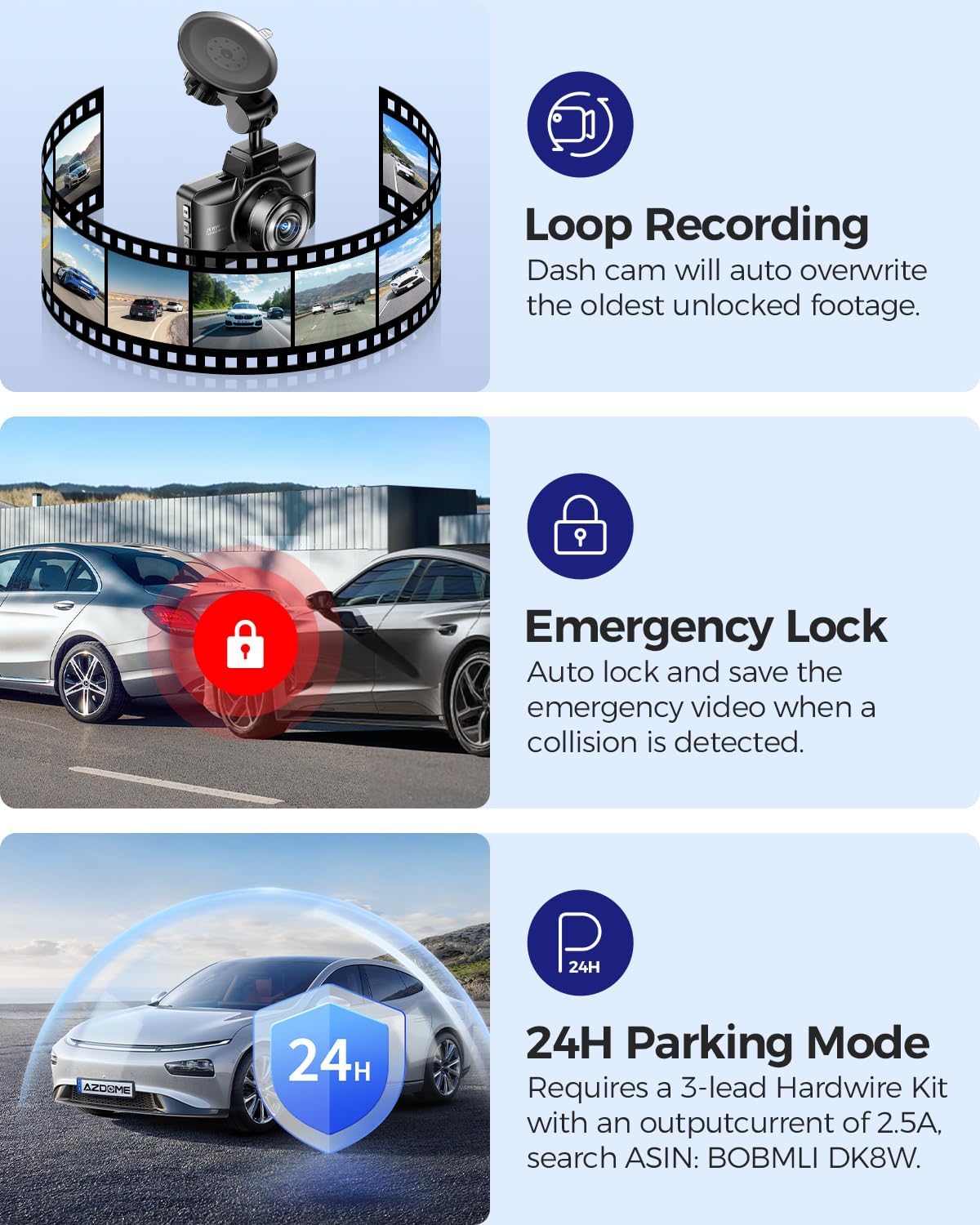
Image: All components included in the AZDOME M01 Pro dash cam package.
3. Produk Langkungview
3.1 Front Dash Cam Unit
The main dash cam unit features a 3-inch IPS screen for live view and menu navigation. It includes control buttons on the sides for various functions and a front-facing lens for recording.

Image: The AZDOME M01 Pro front dash cam unit with its screen and lens visible.
3.2 Kaméra tukang
The compact rear camera records in 1080P resolution and is designed for external mounting on the rear of the vehicle. It connects to the main unit via a cable.

Gambar: A close-up view of the compact rear camera unit.
4. Setup & Instalasi
4.1 Front Dash Cam Installation
The front dash cam can be installed using either the suction cup mount or the 3M sticky mount. Both mounts allow for 360° rotation for optimal viewdina sudut.
- Clean the desired area on your windshield thoroughly.
- Attach the electrostatic sticker to the cleaned area.
- Attach the chosen mount (suction cup or 3M sticky) to the electrostatic sticker.
- Slide the main dash cam unit onto the mount until it clicks securely.
- Connect the car charger to the dash cam's power port and plug it into your vehicle's cigarette lighter socket.
- Use the provided car wiring tool and cable clips to neatly tuck away the power cable along the vehicle's trim for a clean installation.
Video: Demonstrates the installation process of the suction cup mount for the AZDOME M01 Pro dash cam.

Image: Illustrates the 360° rotation capability of the dash cam mount.
4.2 Pamasangan kaméra pungkur
The rear camera can be mounted externally using either the included 3M adhesive or screws. Connect the rear camera cable to the main dash cam unit and route it neatly along the vehicle's interior trim to the rear.
Video: Pra pondokview demonstrating how to enable the reverse assist line function for the rear camera.
5. Parentah Operasi
5.1 Operasi Dasar
The dash cam automatically powers on and begins recording when your vehicle starts. It powers off when the vehicle is turned off. Use the physical buttons on the unit to navigate menus and adjust settings.
5.2 Kontrol Aplikasi (Wi-Fi)
The AZDOME M01 Pro features built-in Wi-Fi for convenient app control. Download the dedicated AZDOME app on your smartphone to manage settings, view hirup footage, download, playback, and share videos.
- Download the AZDOME app from your device's app store.
- Turn on the dash cam and enable its Wi-Fi.
- Connect your smartphone to the dash cam's Wi-Fi network (SSID and password typically found in the dash cam settings).
- Open the AZDOME app to access controls and features.

Image: Screenshots illustrating the AZDOME app interface for dash cam control.
5.3 Ngarekam loop
The dash cam continuously records video in short segments. When the SD card is full, the oldest unprotected files sacara otomatis ditulis deui ku rékaman anyar. Ieu mastikeun rékaman kontinyu tanpa campur tangan manual.

Image: Icon representing the Loop Recording feature.
5.4 G-Sensor (Konci Darurat)
The built-in G-Sensor detects sudden impacts or collisions. When an event is detected, the current video segment is automatically locked and saved to prevent it from being overwritten by loop recording. This footage serves as crucial evidence in case of an accident.

Image: Icon representing the G-Sensor feature.
5.5 Modeu Parkir
The M01 Pro offers two parking modes to monitor your vehicle when parked:
- Modeu Parkir Deteksi Tabrakan: The G-Sensor detects impacts and automatically records and locks video segments.
- Modeu Parkir Selang Waktu: The dash cam records continuously at a low frame rate (e.g., 1fps) for extended periods (12/24/48 hours).
Note: A hardwire kit (sold separately) is required to enable 24-hour parking modes.

Image: Icon representing the Parking Mode feature.
5.6 ADAS (Advanced Driver-Assistance Systems)
Built-in ADAS features provide alerts for potential hazards, enhancing driving safety. These alerts may include lane departure warnings or forward collision warnings.

Image: Icon representing the ADAS (Advanced Driver-Assistance Systems) feature.
5.7 Fatigue Driving Alert
The dash cam can be configured to provide alerts reminding the driver to take a rest after continuous driving for a set duration (e.g., 1, 2, or 4 hours) to promote safe driving practices.

Image: Illustration of the fatigue driving alert system in action.
5.8 Parking Assistance
When the reverse gear is engaged, the dash cam automatically displays a rear view with parking guide lines, aiding in safe parking maneuvers.
6. Pangropéa
To ensure optimal performance and longevity of your dash cam:
- Regularly format the SD card (e.g., once a month) to prevent data corruption and ensure smooth recording.
- Keep the lenses clean using a soft, dry cloth.
- Hindarkeun ngalaan alat ka suhu anu ekstrim atanapi sinar panonpoé langsung kanggo waktos anu berkepanjangan.
- Pastikeun sadaya kabel disambungkeun aman.
7. Cara ngungkulan
If you encounter any issues with your AZDOME M01 Pro dash cam, please refer to the following common solutions:
- Dash cam teu hurung: Check the car charger connection and ensure the vehicle's power outlet is functioning.
- Masalah rékaman: Ensure an SD card is inserted and formatted correctly. Check for sufficient storage space.
- Masalah sambungan Wi-Fi: Ensure the dash cam's Wi-Fi is enabled and your smartphone is within range. Restart both devices if necessary.
- Screen freezing/unresponsive: Use a thin object (like a paperclip) to press the reset button on the device.
For further assistance, please contact AZDOME customer support.
8. Spésifikasi
| Fitur | Rincian |
|---|---|
| Dimensi produk | 1.18 x 5.48 x 1.3 inci |
| Item Beurat | 14.8 ons |
| Ngaran modél | M01 Pro |
| Resolusi Capture Video | 2160p (3K UHD) |
| Téhnologi konektipitas | Wifi |
| Fitur husus | App Control, Compact Design, G-Sensor, Loop Recording, Night Vision |
| Tipe Pamasangan | Dasbor Gunung |
| Widang Of View | 150 darajat |
| Warna | Hideung |
9. Jaminan & Dukungan
For warranty information and customer support, please refer to the official AZDOME websitus atanapi ngahubungi layanan palangganna sacara langsung. Rincian biasana tiasa dipendakan dina manual pangguna anu kalebet atanapi dina bungkus produk.


