1. Bubuka
This manual provides detailed instructions for the FL ESPORTS CMK75 Mechanical Keyboard. It covers setup, operation, maintenance, and troubleshooting to ensure optimal performance and user experience. The CMK75 features a 75% layout, a TFT color screen, a multi-function knob, tri-mode connectivity, hot-swappable switches, and programmable keys.
2. Setélan
2.1 Eusi pakét
Pastikeun sadaya barang aya:
- FL ESPORTS CMK75 Mechanical Keyboard
- USB-C ka USB-A Cable
- 2.4G Wireless Receiver (stored magnetically on the keyboard's underside)
- Keycap / switch Puller
- Extra Switches (if included with specific model variant)
- Manual pangguna (dokumén ieu)
2.2 Ngecas kibor
The keyboard is equipped with a 3000mAh lithium polymer battery. Connect the supplied USB-C cable to the keyboard's USB-C port and the other end to a computer's USB-A port or a compatible USB charger. The TFT screen will display the battery level. A full charge ensures extended usage.

Image: The FL ESPORTS CMK75 Mechanical Keyboard, showcasing its 75% layout, blue and white keycaps, and the integrated TFT color screen.
2.3 Modeu sambungan
The CMK75 supports three connection modes: Wired (USB-C), 2.4G Wireless, and Bluetooth (BT 3.0/5.0). Use the switch on the side of the keyboard to select your preferred mode.
- Mode Kabel: Connect the USB-C cable directly to your computer. The keyboard will automatically switch to wired mode.
- Modeu Nirkabel 2.4G: Flip the switch to '2.4G'. Remove the 2.4G wireless receiver from the bottom of the keyboard and insert it into a USB port on your computer. The keyboard should connect automatically.
- Mode Bluetooth: Flip the switch to 'BT'. The keyboard can store up to three Bluetooth devices (BT1, BT2, BT3). To pair, press Fn + W (for BT1), Fn + E (for BT2), or Fn + R (for BT3) until the indicator light flashes, then search for 'CMK75' on your device and connect.

Image: Visual representation of the keyboard's tri-mode connectivity, showing its ability to connect to multiple devices via 2.4G wireless, USB-C, and Bluetooth.
2.4 OS kasaluyuan
The CMK75 is compatible with both Windows and Mac OS systems. Use the operating system switch on the keyboard's underside to select the corresponding position (WIN/MAC) for optimal key mapping.
3. Parentah Operasi
3.1 TFT Color Screen and Multi-function Knob
The integrated TFT color screen displays various useful information such as date, time, battery level, operating system, connection mode, RGB light mode, and language. The metal knob allows for volume adjustment (rotate) and screen navigation/selection (press).
To change the screen language, navigate to the language setting on the TFT screen using the knob, select your preferred language (e.g., English), and confirm by pressing Fn + Enter.
Video: Demonstration of how to change the language setting on the keyboard's TFT color screen.

Image: The TFT color screen and metal knob, highlighting their functions and display capabilities.
3.2 Lampu latar RGB
The keyboard features customizable RGB backlighting with 16.8 million colors and various dynamic effects. You can adjust the brightness and speed of the lighting effects using key combinations or the programmable software. The south-facing RGB ensures vibrant illumination.
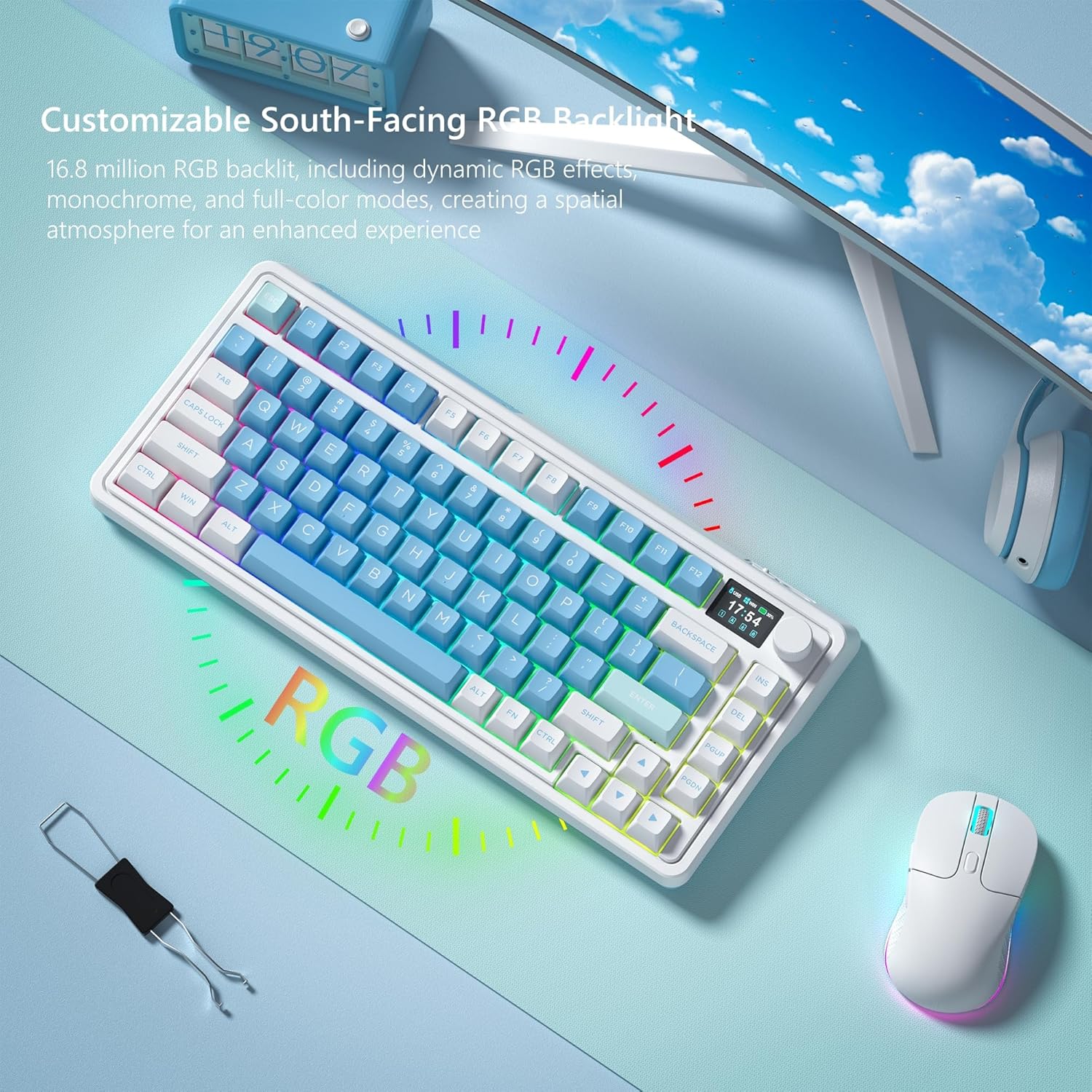
Image: The CMK75 keyboard with its vibrant, customizable RGB backlighting in action.
3.3 Programmable Software
The keyboard's RGB backlight modes and macro settings are fully customizable through the dedicated keyboard driver software. This allows users to create custom keybindings, shortcuts, and personalized lighting effects for enhanced work and gaming efficiency.

Image: The user interface of the FL ESPORTS keyboard software, demonstrating customization options for key functions and macros.
Video: Leuwihview of the keyboard's software capabilities, including key remapping and macro creation.
3.4 Saklar Hot-Swappable sareng Keycaps PBT
The CMK75 features a hot-swappable PCB, allowing users to easily change 3-pin or 5-pin mechanical switches without soldering. The keyboard comes with durable, high-quality spherical profile PBT keycaps that resist wear and maintain a sleek, matte appearance.

Gambar: Detil view of the hot-swappable PCB, highlighting the ease of changing switches.
Video: Demonstrates the hot-swappable feature and the creamy sound profile of the keyboard's gasket structure.
3.5 Struktur Gasket
The keyboard's gasket structure, combined with an extended integrated silicone pad and PCB single key slotting, optimizes resilience and stability. Five layers of filling silencer material between the PCB, positioning plate, and shaft provide a solid feel and a satisfying typing sound.

Image: An exploded diagram illustrating the multi-layered gasket structure for enhanced typing feel and sound.
3.6 Adjustable Typing Angle
The keyboard features dual-level adjustable feet on its underside, allowing you to customize the typing angle for ergonomic comfort and improved typing posture.

Image: The adjustable feet on the keyboard's underside, providing options for different typing angles.
4. Pangropéa
4.1 beberesih
Regularly clean your keyboard to maintain its appearance and functionality. Use a soft, dry cloth to wipe down the keycaps and chassis. For deeper cleaning, remove keycaps using the provided puller and use compressed air to clear debris from beneath the keys.
4.2 Pindah jeung Keycap ngagantian
Use the included keycap/switch puller to carefully remove and replace switches or keycaps. Ensure proper alignment when inserting new components to avoid damage.
5. Cara ngungkulan
- Keyboard teu ngabales: Check the connection mode switch. For wired, ensure the USB-C cable is securely connected. For 2.4G wireless, verify the receiver is properly inserted and the switch is in 2.4G mode. For Bluetooth, ensure the keyboard is paired and the switch is in BT mode.
- Masalah lampu latar: If RGB lighting is not functioning as expected, check software settings or try cycling through lighting modes using Fn key combinations.
- Batré teu ngecas: Ensure the USB-C cable is correctly connected and the power source is active.
- Software not working: Ensure you have downloaded the correct driver from the official FL ESPORTS website. If issues persist, consult the manufacturer's support.
- Spill management: In case of liquid spills, immediately unplug the keyboard, wipe off excess liquid, and allow it to dry in a well-ventilated area before reconnecting.
6. Spésifikasi
| Tata perenah | 75% (81 konci) |
| Konektipitas | Tri-Mode (USB-C Wired, 2.4G Wireless, Bluetooth 3.0/5.0) |
| Kapasitas batré | 3000mAh Litium Polimér |
| Saklar | Hot-Swappable (3-pin/5-pin compatible) |
| Kancing konci | PBT (Spherical Profile) |
| Fitur husus | TFT Color Screen, Multi-function Knob, Gasket Structure, RGB Backlighting |
| Sistem operasi | Windows, Mac OS |
| Item Beurat | 2.92 pon |
| Ukuran Paket | 14.57 x 8.15 x 2.32 inci |
7. Garansi jeung Rojongan
For warranty information, technical support, or further inquiries, please visit the official FL ESPORTS website or contact the seller directly through your purchase platform. Keep your proof of purchase for warranty claims.
Video: An official FL ESPORTS video showcasing the CMK75 keyboard's features and design.


