1. Bubuka
The 8BitDo 64 Bluetooth Controller is designed for enhanced gaming experiences across multiple platforms. This manual provides essential information for setting up, operating, and maintaining your controller.
Kasaluyuan: Analogue 3D, Switch, Switch 2, Windows, Android.
Konektipitas: Bluetooth or Wired USB.
2. Eusi Paket
- 8BitDo 64 Bluetooth Controller
- Kabel USB-C
- Manual Pitunjuk (dokumén ieu)
3. Controller Leuwihview

Gambar 1: Hareupeun View. This image displays the front of the 8BitDo 64 Bluetooth Controller, highlighting the classic button layout including the D-pad, analog stick, A, B, X, Y buttons, and central function buttons like Start and Select.

Gambar 2: Balik View. This image shows the rear of the controller, featuring the S/D mode switch for different input modes and the product information label.

Gambar 3: Top View. This image illustrates the top edge of the controller, detailing the L/R shoulder buttons, Z-triggers, and the USB-C charging/connection port.

Figure 4: Hall Effect Joystick. A lengkep view of the controller's Hall Effect Joystick, known for its precision and durability.
4. Setélan
4.1 Ngecas Controller
Connect the supplied USB-C cable to the controller's USB-C port and the other end to a USB power source (e.g., computer, USB wall adapter). The LED indicators will show charging status and turn off when fully charged.
4.2 Firmware Update (Critical)
It is highly recommended to update your controller's firmware before first use, especially for compatibility with Analogue 3D and Switch 2. Firmware updates often include critical bug fixes and performance improvements.
- Visit the official 8BitDo support websitus.
- Download the latest firmware update tool for your operating system (Windows/macOS).
- Connect your 8BitDo 64 Bluetooth Controller to your computer using the USB-C cable.
- Follow the on-screen instructions in the update tool to complete the firmware update.
4.3 Nyambungkeun via Bluetooth
Ensure the controller is charged and updated before attempting Bluetooth connection.
4.3.1 Mode Selection (S/D Switch)
The switch on the back of the controller allows you to select between 'S' (Switch/Analogue 3D) and 'D' (Windows/Android) input modes. Ensure the correct mode is selected for your device.
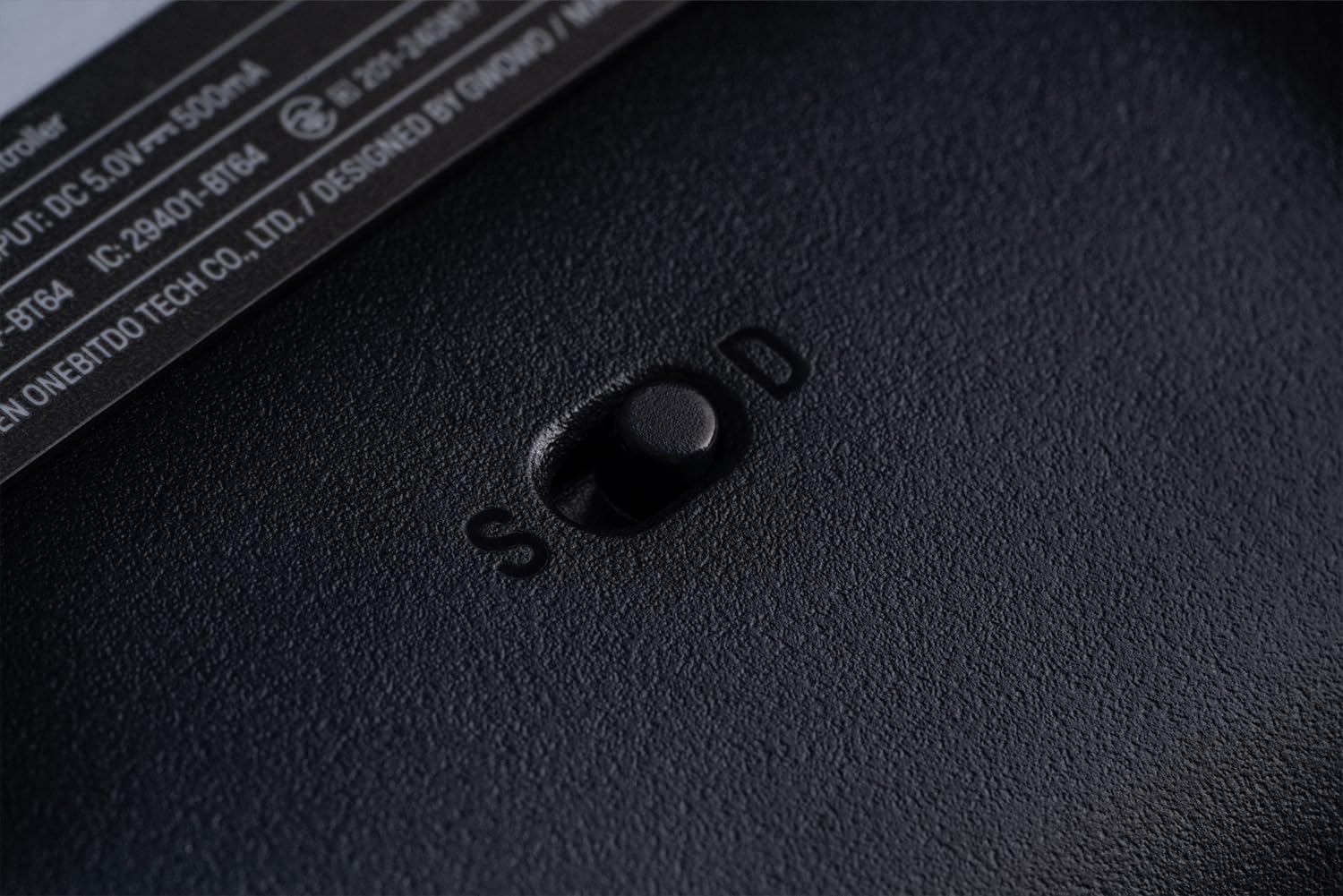
Figure 5: S/D Mode Switch. This image highlights the physical switch on the controller's rear for selecting input modes.
4.3.2 Pairing with Analogue 3D / Switch / Switch 2
- Set the mode switch on the back of the controller to 'S'.
- Press and hold the Start button on the controller for 3 seconds until the LED indicators begin to flash rapidly.
- On your Analogue 3D or Switch console, navigate to the controller pairing menu.
- Select the 8BitDo 64 Bluetooth Controller from the list of available devices.
- The LED indicators on the controller will become solid when successfully paired.
4.3.3 Pairing with Windows / Android
- Set the mode switch on the back of the controller to 'D'.
- Press and hold the Start button on the controller for 3 seconds until the LED indicators begin to flash rapidly.
- On your Windows PC or Android device, enable Bluetooth and search for new devices.
- Select the 8BitDo 64 Bluetooth Controller from the list of available devices.
- The LED indicators on the controller will become solid when successfully paired.
4.4 Connecting via Wired USB
For a wired connection, simply connect the 8BitDo 64 Bluetooth Controller to your device (PC, Switch dock, Analogue 3D) using the supplied USB-C cable. The controller will automatically switch to wired mode.
5. Parentah Operasi
5.1 Tombol Perenah jeung Fungsi
The 8BitDo 64 Bluetooth Controller features a layout inspired by classic N64 controllers, adapted for modern gaming.
- Tongkat analog: Kontrol gerakan primér.
- D-Pad: Input arah.
- A/B Buttons: Main action buttons.
- C-Buttons (Triangle, Circle, Square, Cross): Context-sensitive actions, often camera control or specific game functions.
- Tombol Mimitian: Pause, menu access.
- Shoulder Buttons (L/R): Tombol aksi tambahan.
- Z-Triggers (L/R): Located on the underside of the shoulder buttons, providing quick access for specific actions like aiming or shielding.
5.2 Fungsi Turbo
The Turbo function allows a button to be pressed repeatedly as long as it is held down. To activate/deactivate:
- Press and hold the button you wish to assign Turbo to.
- While holding the button, press the Star button (Turbo button). The LED will flash to confirm activation.
- Pikeun nganonaktipkeun, balikan deui prosésna.
5.3 Fungsi Geter
Vibration is supported on Analogue 3D and Switch (Nintendo 64 Online only). The intensity of vibration is game-dependent and cannot be manually adjusted on the controller.
6. Pangropéa
- Jaga controller tetep garing sareng jauh tina suhu anu ekstrim.
- Ngabersihan controller jeung lemes, lawon garing. Ulah make bahan kimia kasar atawa bahan abrasive.
- Hindarkeun leupaskeun atanapi tundukkeun pangendali kana dampak anu kuat.
- Nyimpen controller dina tempat anu aman lamun teu dipaké pikeun nyegah karuksakan.
7. Cara ngungkulan
- Controller teu nyambung: Ensure the mode switch (S/D) is set correctly for your device. Try re-pairing the controller. Ensure the controller is charged.
- Tombol teu ngabales: Check for any physical obstructions. Ensure the controller's firmware is up to date.
- Input lag: Ensure you are within the optimal range for Bluetooth connectivity. Try a wired connection to rule out wireless interference.
- Masalah apdet firmware: Ensure you are using the correct update tool for your operating system and controller model. Try a different USB port or cable.
8. Spésifikasi
| Nomer modél | 6922621507161 |
| Konektipitas | Bluetooth 5.0 (Support Bluetooth LE), Wired USB |
| Input | DC 5V === 500mA |
| Batré | 1 batré Litium Ion (kaasup) |
| Diménsi | 15.94 x 8.07 x 12.4 inci |
| Beurat | 7.05 ons |
9. Garansi jeung Rojongan
For warranty information, technical support, or further assistance, please visit the official 8BitDo websitus atanapi ngahubungan layanan palanggan maranéhanana langsung. Simpen bukti pameseran anjeun pikeun klaim garansi.


