1. Bubuka
The Prolink DH-5202 Wi-Fi 6 AX1500 Dual-band Extender is designed to enhance your existing Wi-Fi coverage and eliminate dead zones. It operates on both 2.4GHz and 5GHz bands simultaneously, providing a combined speed of up to 1500Mbps. This extender supports the latest Wi-Fi 6 technology, offering faster speeds, improved connectivity, and greater capacity for multiple devices. It can function as a Wi-Fi Repeater or an Access Point, adapting to your network requirements. Key features include a Gigabit Ethernet port for wired connections, a Smart LED Indicator for optimal placement, and WPA3 security for enhanced network protection.
2. Produk Langkungview
2.1 Komponén fisik
The Prolink DH-5202 features a compact design with integrated antennas and essential ports for network extension.
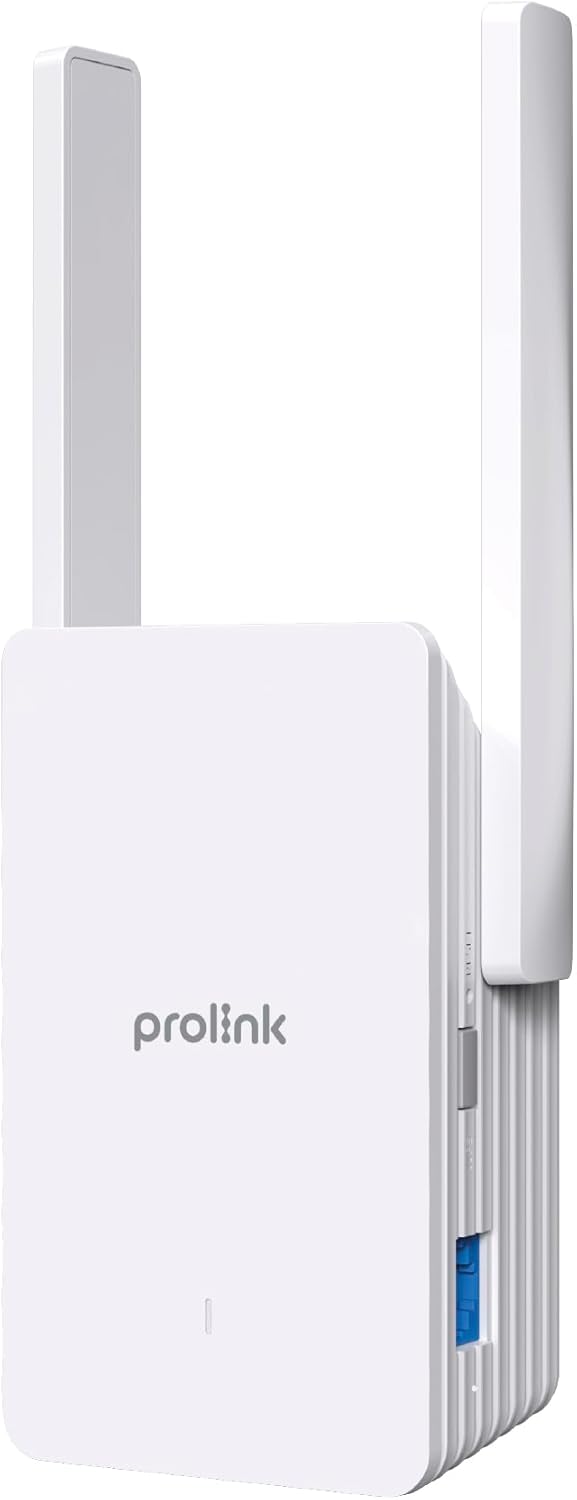

2.2 Smart LED Indicator
The LED indicator on the front of the extender provides visual feedback on the connection status and signal strength, aiding in optimal placement.
- héjo: Sambungan anu saé.
- Koneng: Unstable connection. Consider changing the extender's location.
- Beureum: Poor connection. Move the extender closer to the main router.
- Beureum kedip-kedip: Network extension failed or re-connection is needed.
3. Setélan
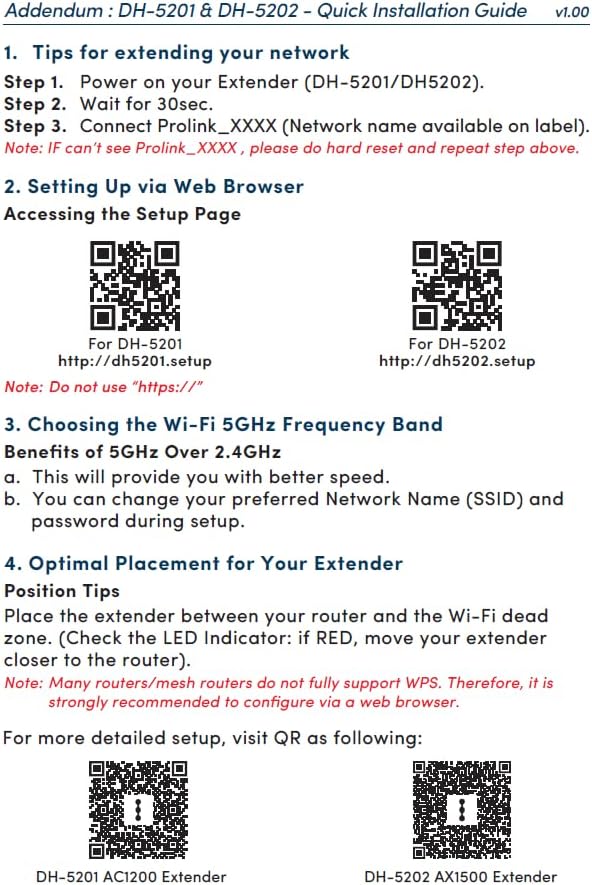
The Prolink DH-5202 offers two primary methods for setup: WPS (Wi-Fi Protected Setup) for quick pairing or Web GUI (Graphical User Interface) for more detailed configuration.
3.1 Method 1: WPS Setup
- Colokkeun extender kana stop kontak listrik deukeut router utama Anjeun.
- Wait for 30 seconds for the extender to power on.
- Pencét tombol WPS dina router utama anjeun.
- Within two minutes, press the WPS button on the Prolink DH-5202 extender.
- The LED indicator on the extender will change to green when successfully connected.
Note: Many routers/mesh routers do not fully support WPS. If WPS fails, use the Web GUI method.
3.2 Métode 2: Web Setup GUI
- Colokkeun extender kana stop kontak listrik.
- On your computer or mobile device, connect to the extender's default Wi-Fi network (e.g., Prolink_XXXX).
- Buka a web browser tur arahkeun ka http://dh5202.setup.
- Follow the on-screen instructions to set up a login password for the extender.
- Select the Wi-Fi network you wish to extend (preferably the 5GHz band for better speed).
- Lebetkeun kecap akses pikeun jaringan Wi-Fi router utama anjeun.
- The extender will then connect and extend your network.


4. Modeu Operasi
The Prolink DH-5202 can operate in two distinct modes:
4.1 Modeu Repeater
In Repeater Mode, the extender wirelessly connects to your existing Wi-Fi network and re-broadcasts it, extending the coverage area. This mode is ideal for eliminating Wi-Fi dead zones and providing wireless connectivity to devices like smart TVs, gaming consoles, and laptops in areas with weak signals.
4.2 Modeu Titik Aksés (AP)
In Access Point Mode, the extender connects to your main router via an Ethernet cable. It then creates a new dual-band wireless network, effectively turning your wired connection into a Wi-Fi hotspot. This mode is suitable for situations where you have an Ethernet port available but need to provide wireless access.

5. Penempatan Optimal
Proper placement of your Wi-Fi extender is crucial for maximizing its performance and ensuring stable network coverage. Use the Smart LED Indicator to find the best location.
- Place the extender roughly halfway between your main router and the Wi-Fi dead zone.
- Avoid placing the extender near large metal objects, concrete walls, or appliances that emit electromagnetic interference (e.g., microwaves, cordless phones).
- Observe the LED indicator:
- Lamun LED nyaeta Héjo, the connection is good.
- Lamun LED nyaeta Konéng, the connection is unstable; try adjusting the position slightly.
- Lamun LED nyaeta Beureum, the connection is poor; move the extender closer to the router.

6. Spésifikasi
| Fitur | Spésifikasi |
|---|---|
| merek | Prolink |
| Nomer modél | DH-5202 |
| Tipe Wireless | 802.11a/b/g/n, 802.11ax (Wi-Fi 6) |
| Laju Mindahkeun Data | 1500 Megabit Per Detik (AX1500) |
| Frékuénsi Band Kelas | Dual-Band (2.4 GHz sareng 5 GHz) |
| anteneu | 2x 5dBi antennas |
| Port Ethernet | Port Ethernet Gigabit |
| Kaamanan | WPA3 |
| Fitur husus | Modeu Titik Aksés, Indikator LED |
| Dimensi produk | 12.3D x 7.2W x 4.8H séntiméter |
| Item Beurat | 0.25 kg |
7. Cara ngungkulan
If you encounter issues with your Prolink DH-5202 extender, refer to the following common troubleshooting steps:
- Henteu aya kakuatan: Pastikeun extender dipasang pageuh kana stop kontak anu tiasa dianggo.
- No Wi-Fi Signal from Extender: Check the LED indicator. If it's off or blinking red, the extender may not be powered on or connected to the main router. Re-attempt setup.
- Poor Connection (Red/Yellow LED): Relocate the extender closer to your main router. Ensure there are no major obstructions between the router and the extender.
- Teu Bisa Aksés Web GUI: Ensure your device is connected to the extender's Wi-Fi network (e.g., Prolink_XXXX) and you are typing the correct address (http://dh5202.setup) into your browser. Avoid using "https://".
- Laju Lambat: Ensure the extender is placed optimally (Green LED). If extending a 5GHz network, ensure your devices also support 5GHz for best performance. Consider switching to AP mode if a wired connection to the router is feasible.
- Forgotten Login Password: If you forget the extender's login password, you may need to perform a factory reset. Locate the reset button (usually a small pinhole) and press and hold it for about 10 seconds while the extender is powered on. This will revert the extender to its factory default settings, and you will need to set it up again.
- Network Extension Failure (Blinking Red LED): This often indicates an issue with the connection to the main router. Verify the main router's Wi-Fi is active and the password entered during setup is correct. Try restarting both the router and the extender.
8. Pangropéa
To ensure the longevity and optimal performance of your Prolink DH-5202 Wi-Fi Extender, consider the following maintenance tips:
- beberesih: Gently wipe the exterior of the extender with a soft, dry cloth. Do not use liquid cleaners or abrasive materials. Ensure ventilation holes are clear of dust.
- Pembaruan firmware: Periodically check the Prolink official website for any available firmware updates. Firmware updates can improve performance, add new features, and enhance security. Follow the instructions provided by Prolink for updating firmware.
- Kaayaan Lingkungan: Operate the extender within recommended temperature and humidity ranges. Avoid exposing it to direct sunlight, excessive heat, or moisture.
- Ngahurungkeun deui: If you experience intermittent connectivity issues, a simple restart of the extender (unplugging and replugging after 10 seconds) can often resolve the problem.
9. Garansi jeung Rojongan
Prolink offers local warranty and technical support for its products. For assistance, please contact:
- Rojongan Email: support@prolink2u.com
- Rojongan Telepon: (65) 6357 0666
Prolink is an established Singaporean brand with 30 years of excellence since 1991, committed to providing reliable products and support.


