1. Bubuka
Thank you for choosing the GENBOLT 2K Wireless Outdoor Solar Security Camera. This advanced security solution features a dual-lens system, 360° pan-tilt-zoom (PTZ) functionality, and is powered by an integrated 8W solar panel and a 15600mAh rechargeable battery. Designed for outdoor use, it offers comprehensive surveillance with PIR motion detection, automatic tracking, color night vision, and two-way audio communication. This manual provides essential information for proper installation, operation, and maintenance to ensure optimal performance and longevity of your device.
2. Produk Langkungview
2.1 Fitur konci
- Résolusi 2K (4MP): Nyayogikeun pidéo anu jelas sareng lengkeptage.
- Sistem lensa ganda: Combines a fixed lens and a PTZ lens for broader coverage.
- 360° PTZ Functionality: Offers 355° horizontal pan and 90° vertical tilt for comprehensive area monitoring.
- Solar Powered: Equipped with an 8W solar panel for continuous charging, reducing the need for manual recharging.
- Batré Kapasitas Tinggi: Built-in 15600mAh rechargeable battery ensures extended operation.
- PIR Motion Detection & Auto Tracking: Detects human movement and automatically tracks the subject.
- Warna Night Vision: Provides full-color video even in low-light conditions.
- Audio Dua Arah: Mikropon sareng spiker internal pikeun komunikasi sacara real-time.
- Enhanced WiFi Connectivity: Features 5dBi dual antennas for stable 2.4GHz WiFi signal.
- Cloud & SD Card Storage: Supports cloud storage (7-day free trial available) and local storage via TF card.
- Multi-Platform Access: View and control via iOS/Android app, macOS, and Windows software.
2.2 Komponén produk

Gambar: Diwincik view of the camera components.
- Dual Antenna: For improved WiFi signal reception.
- Sensor Pir: Sensor Infrabeureum pasip pikeun deteksi gerak.
- HD Lénsa: High-definition optical lens for clear imaging.
- 8 IR/White LEDs: Infrared LEDs for black and white night vision, white LEDs for color night vision and spotlight.
- Speaker: Pikeun komunikasi audio dua arah sareng sora alarm.
- Slot Kartu TF: Pikeun panyimpenan vidéo lokal (ngarojong dugi ka 128GB, kartu henteu kalebet).
- Tombol Reset: Pikeun mulangkeun setélan pabrik.
- Type-C Slot & Power ON/OFF: For charging and power control.
- Infrared LED (4pcs): Additional infrared illumination.
- Indikator Lamp: Nembongkeun status alat.
2.3 Eusi pakét
- GENBOLT 2K Wireless Outdoor Solar Security Camera
- 8W Solar Panel (integrated)
- Kabel USB Tipe-C (0.7m)
- Network Cable (1m)
- Pemasangan Screws sareng Colokan Tembok
- Manual pamaké
3. Setélan
3.1 Ngecas Batré
Before initial use, fully charge the camera's built-in 15600mAh battery using the provided USB Type-C cable and a 5V/2A power adapter (not included). The solar panel will maintain the charge once installed, but a full initial charge is recommended.
3.2 Installing a TF Card (Optional)
If you plan to use local storage, insert a TF (microSD) card (up to 128GB, Class 10 or higher recommended) into the TF card slot. Ensure the camera is powered off before inserting or removing the card.
3.3 Masang kaméra
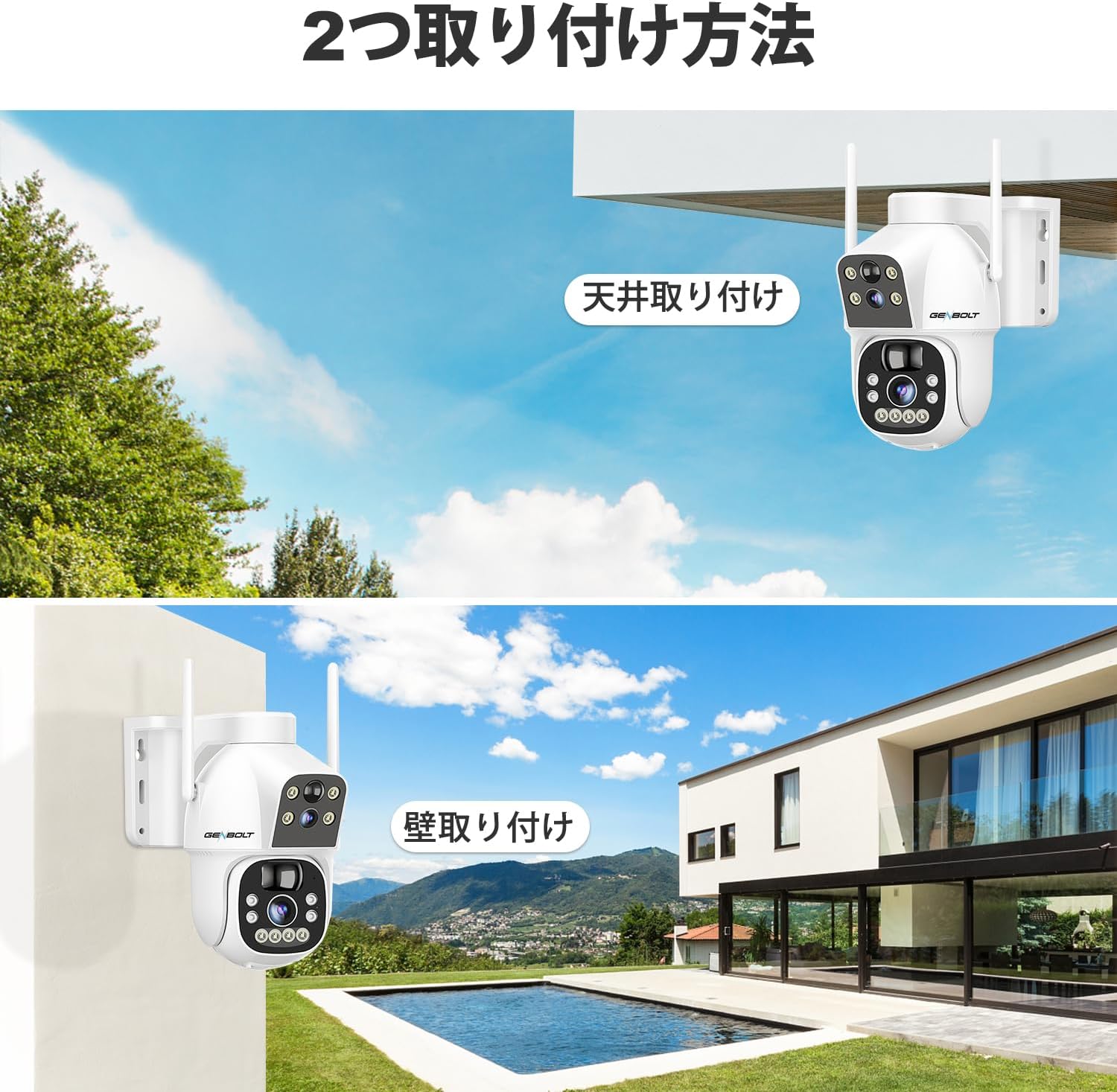
Gambar: Two common installation methods: wall mounting and ceiling mounting.
The camera supports both wall and ceiling mounting. Choose a location with optimal sunlight exposure for the solar panel and a strong 2.4GHz WiFi signal. Use the provided screws and wall plugs to securely attach the camera bracket. Adjust the camera angle for the desired viewwewengkon.
3.4 Pamasangan Aplikasi sareng Konéksi WiFi

Gambar: Step-by-step guide for connecting the camera to WiFi via the mobile app.
- Download the official GENBOLT app from the iOS App Store or Google Play Store.
- Ngadaptar akun tur asup.
- Tap 'Add Device' or the '+' icon and select your camera model.
- Follow the on-screen instructions to connect the camera to your 2.4GHz WiFi network. This typically involves scanning a QR code displayed on your phone with the camera lens.
- Ensure your phone's location services are enabled during setup for proper network detection.
Catetan: The camera does not support 5GHz WiFi networks. If you encounter issues, ensure your router is broadcasting a 2.4GHz signal and that your phone is connected to it during the setup process. Some users have reported difficulties with initial wired LAN connection instructions in the manual; this camera primarily uses wireless setup.
4. Parentah Operasi
4.1 Hirup View jeung Kontrol PTZ

Gambar: The camera's pan and tilt range for flexible monitoring.
Once connected, open the app to view the live feed. Use the on-screen controls to pan (355° horizontally) and tilt (90° vertically) the camera. The dual-lens system allows you to switch between a fixed wide-angle view and a movable PTZ view.
4.2 Motion Detection and Auto Tracking

Gambar: PIR motion detection in action, highlighting the detection area.
Enable PIR motion detection in the app settings. When motion is detected, the camera will automatically begin recording and can track the moving object. You will receive instant alerts on your mobile device. Adjust sensitivity settings to minimize false alarms.
4.3 Ngarekam jeung Playback

Gambar: The app interface for accessing recorded footage from cloud storage.
Recordings are triggered by motion detection or can be scheduled. Access recorded footage through the app's playback feature. Videos are stored either on the inserted TF card or in the cloud (subscription may apply after the initial free trial). The app allows you to review past events by date and time.
4.4 Modeu Visi Peuting

Gambar: Visual comparison between color night vision and standard infrared night vision.
The camera supports multiple night vision modes: infrared (black and white), full-color (using white LEDs), and smart mode (switches between IR and color based on detected motion). Configure your preferred mode in the app settings.
4.5 Audio Dua Arah
Use the microphone and speaker functions in the app to communicate with visitors or deter intruders in real-time.
4.6 Multi-pamaké Sharing

Gambar: App interface demonstrating the multi-user sharing feature.
You can share access to your camera's live feed and recordings with family members or trusted individuals through the app. Each user can have different permission levels.
5. Pangropéa
- Pembersih Panel Surya: Rutin ngusap panel surya ku lemes, damp cloth to remove dust, dirt, or debris that may reduce charging efficiency.
- Ngabersihan lensa: Bersihkeun lénsa kaméra sacara saksama nganggo lawon microfiber pikeun mastikeun kualitas gambar anu jelas. Hindarkeun bahan anu kasar.
- Pembaruan firmware: Check the app periodically for firmware updates to ensure your camera has the latest features and security enhancements.
- Kaséhatan batré: While the solar panel helps maintain charge, prolonged periods of low sunlight may require occasional manual charging via the Type-C port to preserve battery health.
6. Cara ngungkulan
| Masalah | Mungkin Cukang lantaranana / Solusi |
|---|---|
| Camera fails to connect to WiFi |
|
| Poor image quality or blurry video |
|
| Motion detection alerts are delayed or missed |
|
| Batré gancang boros |
|
| Cloud storage issues or plan changes |
|
| SD card recording not working |
|
| No response from camera |
|
7. Spésifikasi
| Fitur | Rincian |
|---|---|
| merek | GENBOLT |
| Modél | B0DNFMMMQN |
| Resolusi | 2K (4MP) |
| widang View | Dual Lens (Fixed & PTZ) |
| Pan / Dengdekkeun Range | Horizontal 355°, Vertikal 90° |
| Sumber Daya | 8W Solar Panel, 15600mAh Rechargeable Battery |
| Konektipitas | WiFi 2.4GHz (IEEE 802.11b/g/n) |
| Visi Peuting | Infrared, Full-Color, Smart Mode |
| Deteksi gerak | PIR Human Motion Detection, Auto Tracking |
| Audio | Audio Dua Arah (Mic & Speaker Terpasang) |
| Panyimpenan | Kartu TF (dugi ka 128GB), Panyimpenan Awan |
| Rojongan System Operasi | ios, Android, macOS, Windows |
| Fitur Kaamanan | RSA Encryption, SSL Data Transmission |
| Diménsi | 26.4 x 21.7 x 18.1 cm |
| Beurat | 1.96 kg |
8. Garansi jeung Rojongan
8.1 Émbaran jaminan
- Garansi 1 Taun: Your GENBOLT camera is covered by a 1-year warranty from the date of purchase, protecting against manufacturing defects.
- Pangembalian/Penukaran 30 Dinten: You are eligible for a return or exchange within 30 days of purchase, subject to the retailer's policy.
Punten tahan bukti pameseran anjeun pikeun klaim garansi.
8.2 Rojongan Palanggan
For technical assistance, troubleshooting, or warranty inquiries, please contact GENBOLT customer support. We offer 24/7 technical support to ensure your satisfaction.
- Dukungan Online: Visit the official GENBOLT websitus pikeun FAQs, artikel rojongan, sarta formulir kontak.
- Rojongan Email: Reach out via email for detailed assistance.
We are committed to providing reliable home security solutions and excellent customer service.


