1. Bubuka
Thank you for choosing the TECPHILE K936 Wireless Keyboard and Mouse Combo. This product is designed to provide versatile and efficient input for multiple devices, featuring both Bluetooth 5.0 and 2.4GHz USB connectivity. This manual will guide you through the setup, operation, and maintenance of your new keyboard and mouse.
2. Eusi Paket
- TECPHILE K936 Wireless Keyboard
- TECPHILE Wireless Mouse
- Panarima USB (disimpen dina kompartemen batré beurit)
- Kabel Ngecas USB-C
- Keyboard Protective Cover
- Manual pamaké
3. Produk Langkungview
Familiarize yourself with the components of your TECPHILE K936 Wireless Keyboard and Mouse Combo.

Gambar 3.1: The TECPHILE K936 Wireless Keyboard and Mouse Combo in Grey. The keyboard features a full layout with a numeric keypad, and the mouse is a compact, ergonomic design.

Gambar 3.2: Diagram showing the dimensions of the keyboard (368mm x 121mm) and mouse (110mm x 63mm x 30mm).
Fitur keyboard:
- Multi-device connectivity: 3 x Bluetooth 5.0, 1 x 2.4GHz USB
- Dedicated function keys (F1-F12) with multimedia controls
- Rechargeable batré litium 300mAh
- Port ngecas Tipe-C
- Automatic sleep mode for power saving
- Scissor-leg key structure for comfortable typing
- Transparent protective cover included
Fitur Mouse:
- Dual-mode connectivity: 1 x Bluetooth, 1 x 2.4GHz USB
- Optical movement detection technology
- Desain ambidextrous
- Quiet click buttons
4. Setélan
4.1 Ngecas Awal
Before first use, fully charge both the keyboard and mouse. Connect the provided USB-C charging cable to the charging port on the keyboard and mouse, and the other end to a 5V/1A power adapter (not included) or a computer USB port. The charging indicator light will show charging status and turn off when fully charged.
Note: Only use a 5V/1 Amp power adapter for charging to ensure optimal battery life.

Gambar 4.1: Illustration of the keyboard's battery specifications: 2-4 hours charging time, 300mAh battery capacity, and up to 180 days standby time.
4.2 Nyambungkeun kibor
The keyboard supports up to three Bluetooth connections and one 2.4GHz USB connection.

Gambar 4.2: Diagram illustrating the keyboard's ability to connect to multiple devices via Bluetooth (3 channels) and 2.4GHz USB.
2.4GHz USB Connection:
- Panggihan panarima USB di jero kompartemen batré beurit.
- Colokkeun panarima USB ka port USB nu sadia dina komputer atawa alat Anjeun.
- Turn on the keyboard. The keyboard should automatically connect.
Bluetooth Connection (BT1, BT2, BT3):
- Hurungkeun kibor.
- Pencét jeung tahan tombol Fn konci sareng salah sahiji konci Bluetooth (BT1, BT2, atawa BT3) for 3-5 seconds until the corresponding indicator light flashes rapidly. This indicates pairing mode.
- Dina alat anjeun (komputer, tablet, smartphone), buka setélan Bluetooth teras milarian alat énggal.
- Select "TECPHILE Keyboard" from the list of available devices to pair.
- Sakali dipasangkeun, lampu indikator bakal eureun kedip-kedip sareng tetep hurung salami sababaraha detik sateuacan pareum.
- Repeat for other Bluetooth channels to connect to additional devices.
4.3 Nyambungkeun Mouse
The mouse supports one Bluetooth connection and one 2.4GHz USB connection.
2.4GHz USB Connection:
- Ensure the USB receiver is plugged into your device.
- Switch the mouse to 2.4GHz mode using the switch on the bottom of the mouse.
- Mouse kedahna otomatis nyambung.
Sambungan Bluetooth:
- Switch the mouse to Bluetooth mode using the switch on the bottom of the mouse.
- Press and hold the Bluetooth pairing button on the bottom of the mouse for 3-5 seconds until the indicator light flashes.
- Dina alat Anjeun, buka setelan Bluetooth tur neangan alat anyar.
- Select "TECPHILE Mouse" from the list to pair.
5. Parentah Operasi
5.1 Switching Between Devices (Keyboard)
To switch between connected devices on the keyboard, simply press the Fn key along with the corresponding connection key (BT1, BT2, BT3, atawa 2.4G for USB). The keyboard will switch to the selected device instantly.
5.2 Switching Between Devices (Mouse)
To switch between 2.4GHz USB and Bluetooth modes on the mouse, use the toggle switch located on the bottom of the mouse.
5.3 Function Keys (Keyboard)
The keyboard features dedicated function keys (F1-F12) that can be used in conjunction with the Fn key for various multimedia and system controls.
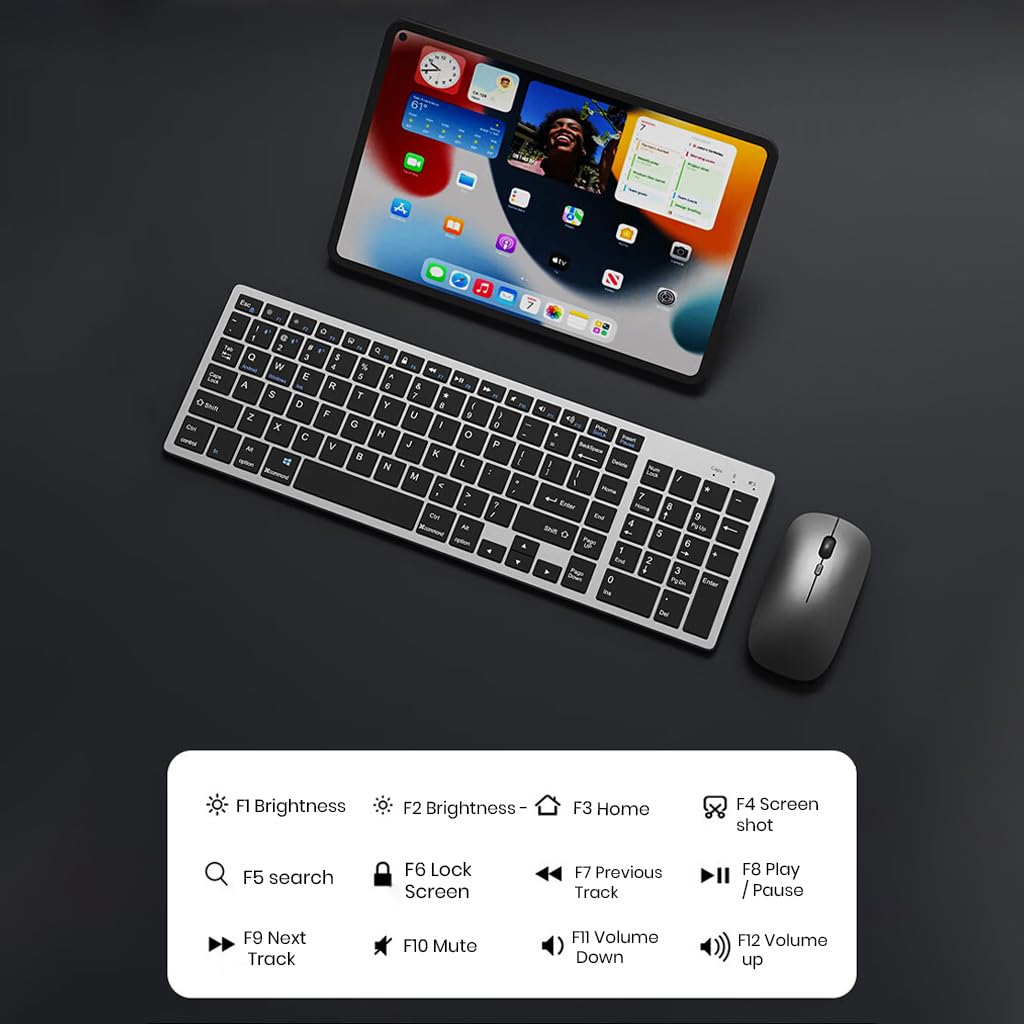
Gambar 5.1: The keyboard displaying its function keys and their associated actions, such as brightness control, home, screen shot, search, lock screen, media playback, and volume control.
- Fn+F1: Caang Turun
- Fn+F2: Caang Up
- Fn+F3: Imah
- Fn+F4: Potret layar
- Fn+F5: neangan
- Fn+F6: Layar konci
- Fn+F7: Lagu saméméhna
- Fn+F8: Play / Reureuh
- Fn+F9: Lagu salajengna
- Fn+F10: Ngajempékeun
- Fn+F11: Volume Turun
- Fn+F12: Volume Up
5.4 Modeu Hemat Daya
The keyboard and mouse are equipped with an automatic sleep mode to conserve battery life. If inactive for 10 minutes, the devices will enter sleep mode. To wake them up, simply press any key on the keyboard or move/click the mouse.

Gambar 5.2: Diagram illustrating the auto-sleep mode and how to reactivate the keyboard and mouse by pressing any key.
6. Pangropéa
- beberesih: Anggo lawon anu lemes sareng garing pikeun ngabersihkeun kibor sareng beurit. Pikeun kokotor anu bandel, usap sakedikamp lawon bisa dipaké, mastikeun euweuh cairan asup ka alat.
- Panutup pelindung: Utilize the included transparent protective cover for the keyboard to guard against dust and accidental spills.
- Panyimpenan: Simpen alat-alat dina tempat anu tiis sareng garing jauh tina sinar panonpoé langsung sareng suhu anu ekstrim.
- Ngecas: Always use a 5V/1A power adapter for charging to prevent damage and ensure battery longevity.

Gambar 6.1: The keyboard shown with its transparent protective keyskin, designed to prevent dust and spills.
7. Cara ngungkulan
| Masalah | Mungkin Cukang lantaranana | Solusi |
|---|---|---|
| Keyboard/Mouse not connecting via 2.4GHz USB. | USB receiver not properly inserted, low battery, incorrect mode selected. |
|
| Keyboard/Mouse not connecting via Bluetooth. | Not in pairing mode, device's Bluetooth is off, already connected to max devices, low battery. |
|
| Lag atanapi sambungan intermittent. | Gangguan, jarak ti panarima/alat, batré lemah. |
|
| Keyboard keys not responding. | Low battery, device in sleep mode, connection issue. |
|
8. Spésifikasi
| Fitur | Rincian |
|---|---|
| merek | TECPIL |
| Modél | K936 |
| Téhnologi konektipitas | Keyboard: 3 x Bluetooth 5.0, 1 x 2.4GHz USB; Mouse: 1 x Bluetooth, 1 x 2.4GHz USB |
| Alat nu cocog | Laptop, Komputer Pribadi, Smartphone, Tablet |
| Sistem operasi | Android, iOS, Windows, macOS |
| Batré keyboard | 300mAh Lithium Ion (Rechargeable) |
| Port ngecas | USB Tipe-C |
| Waktu Ngecas | 2-4 jam (kira-kira) |
| Waktu sayaga | Nepi ka 180 dinten |
| Ukuran Keyboard (LxWxH) | 36 x 13 x 1.5 cm |
| Ukuran Mouse (L x W x H) | 11 x 6.3 x 3 cm (kira-kira) |
| Item Beurat | 661 g (combo) |
| Téhnologi Deteksi Gerakan | Optik |
| Orientasi leungeun | Ambidextrous |
9. Garansi jeung Rojongan
TECPHILE products come with a standard warranty. For warranty claims, technical support, or any product-related inquiries, please contact TECPHILE customer service through the retailer where the product was purchased or visit the official TECPHILE websitus pikeun inpo kontak.
Punten mertahankeun bukti pameseran anjeun pikeun tujuan garansi.
Manufacturer/Importer: TECPHILE, 2nd Floor, A36, Block B, Naraina Industrial Area Phase 2, Naraina, New Delhi, Delhi, 110028


