1. Bubuka
This manual provides instructions for the ELECOM OSMOD Six Rechargeable Silent Wireless Mouse (model M-MY35MBSBK-G). The OSMOD series is designed for ease of use, featuring essential functions in a symmetrical, comfortable shape suitable for any user, regardless of hand preference or grip style.
Key features include dual wireless connectivity (2.4GHz and Bluetooth), multi-pairing for up to two devices, six programmable buttons, silent click operation, a rechargeable lithium-ion battery, and a precise BlueLED sensor.
2. Eusi Paket
- ELECOM OSMOD Six Wireless Mouse (M-MY35MBSBK-G) x 1
- USB Wireless Receiver x 1
- USB-A to USB Type-C Charging Cable (approx. 0.5m) x 1

Image: The ELECOM OSMOD Six Wireless Mouse and its accompanying USB receiver.
3. Fitur Produk
- Konektipitas Nirkabel Ganda: Supports both 2.4GHz wireless (via USB receiver) and Bluetooth Low Energy connections.
- Multi-Pairing Function: Connects to up to two devices (one via 2.4GHz, one via Bluetooth) with easy switching.
- Desain 6-Tombol: Includes left/right click, scroll wheel, forward/back buttons, and a customizable function button.
- Pencét jempé: All buttons are designed for silent operation, minimizing noise in quiet environments.
- Batré anu tiasa dicas deui: Built-in lithium-ion battery, rechargeable via the included USB Type-C cable.
- BlueLED Sensor: 1000 DPI sensor for accurate tracking on various surfaces, including wood, resin, glass, and fabric.
- Desain simetris: Ergonomic, ambidextrous shape for comfortable use over extended periods.
- Tombol customizable: Utilize the free 'ELECOM Mouse Assistant' software (Windows/macOS only) to assign functions to the buttons.

Gambar: Hiji leuwihview of the OSMOD Six mouse's features, including Blue LED sensor, 6 buttons, silent design, pairing switch, rechargeable battery, 2.4GHz wireless, and Bluetooth connectivity.

Image: A diagram labeling the six buttons on the mouse: left, right, scroll wheel, forward, back, and function button.
4. Setélan
4.1 Persiapan Awal
- Ngecas mouse: Connect the included USB-A to USB Type-C charging cable to the mouse's Type-C port and a USB power source (e.g., computer USB port, USB charger). The charging indicator will light up.
- Cabut pilem pelindung: Before use, peel off the protective film from the bottom glide pads of the mouse.
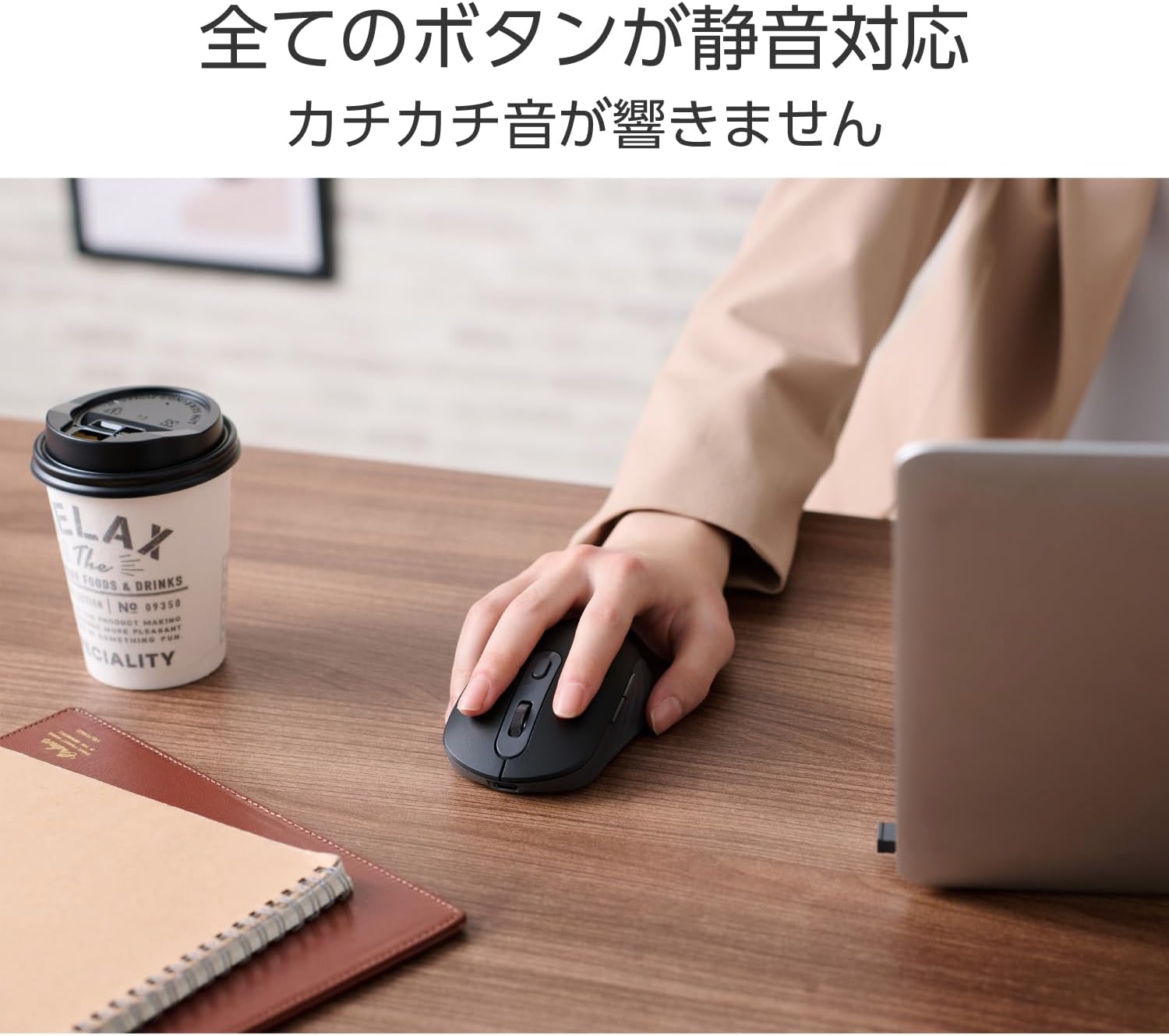
Image: The ELECOM OSMOD Six mouse connected to a laptop via its USB Type-C charging cable.

Image: A white variant of the ELECOM OSMOD Six mouse with a USB-C cable plugged in for charging.

Image: A hand peeling a transparent protective film from the bottom glide pad of the mouse.
4.2 Nyambungkeun via Nirkabel 2.4GHz
- Hurungkeun beurit nganggo saklar daya di handap.
- Set the connection switch on the bottom of the mouse to the '2.4GHz' position (indicated by a USB icon).
- Insert the USB wireless receiver into an available USB-A port on your computer.
- The computer should automatically detect the mouse.
4.3 Nyambungkeun via Bluetooth
- Hurungkeun beurit nganggo saklar daya di handap.
- Set the connection switch on the bottom of the mouse to the 'Bluetooth' position (indicated by a Bluetooth icon).
- Press and hold the pairing button on the bottom of the mouse until the LED indicator starts flashing, indicating pairing mode.
- Dina alat anjeun (PC, tablet, smartphone), buka setélan Bluetooth teras milarian alat énggal.
- Select 'ELECOM OSMOD Six' (or similar name) from the list of available devices to complete pairing.

Image: The ELECOM OSMOD Six mouse connected to both a laptop (via 2.4GHz receiver) and a tablet (via Bluetooth), demonstrating multi-pairing capability.

Gambar: A close-up view of the multi-pairing switch on the bottom of the mouse, showing options for 2.4GHz wireless and Bluetooth connections.
5. Parentah Operasi
5.1 Fungsi Dasar
- Klik Kénca: Seleksi sareng aktivasi primér.
- Klik katuhu: Muka ménu kontéks.
- Gulung kabayang: Ngagulung eusi sacara vertikal. Bisa ogé diklik pikeun fungsi klik tengah.
- Tombol Maju/Mundur: Napigasi ka hareup jeung ka tukang web browser atawa file penjelajah.
5.2 Customizing Buttons
The function button and other buttons can be customized using the 'ELECOM Mouse Assistant' software. This software is available for free download from the ELECOM website and is compatible with Windows and macOS operating systems.
- Download and install 'ELECOM Mouse Assistant' from the official ELECOM websitus.
- Launch the software and follow the on-screen instructions to assign desired functions to each button.
5.3 Ngalihkeun Alat
To switch between a 2.4GHz connected device and a Bluetooth connected device, simply use the connection switch located on the bottom of the mouse.

Image: A hand holding the black ELECOM OSMOD Six mouse, demonstrating its ergonomic fit.

Image: A person using the ELECOM OSMOD Six mouse on a desk, highlighting its silent operation suitable for various environments.
6. Pangropéa
6.1 beberesih
To clean the mouse, gently wipe it with a soft, dry cloth. Avoid using harsh chemicals or abrasive materials, as these may damage the surface.
6.2 Ngecas
When the battery is low, connect the mouse to a USB power source using the provided USB-A to USB Type-C cable. A full charge provides approximately 7 months of use, though this may vary based on usage conditions.
7. Cara ngungkulan
7.1 Beurit Teu Ngabales
- Pastikeun beurit diaktipkeun.
- Pariksa tingkat batré jeung ngecas lamun perlu.
- Verify the connection method switch (2.4GHz/Bluetooth) is set correctly.
- Pikeun 2.4GHz: Pastikeun panarima USB dipasang pageuh kana port USB anu tiasa dianggo. Cobi port USB anu sanés.
- For Bluetooth: Ensure Bluetooth is enabled on your device and the mouse is paired. Try re-pairing the mouse.
7.2 Pointer Movement Issues
- Ensure the BlueLED sensor on the bottom of the mouse is clean and free from obstructions.
- Try using the mouse on a different surface to rule out surface-related issues.
7.3 Scroll Wheel Feels Stiff or Inaccurate
- Some users have reported the scroll wheel feeling stiff initially. Continued use may improve its smoothness.
- Ensure no debris is lodged around the scroll wheel.
8. Spésifikasi
| Fitur | Spésifikasi |
|---|---|
| Nomer modél | M-MY35MBSBK-G |
| Connector Shape (Receiver) | Colokan USB-A |
| Connector Shape (Mouse) | Port USB Type-C™ |
| Métode Sambungan | USB 2.4GHz Wireless / Bluetooth® Wireless |
| Standar Bluetooth | Bluetooth Low Energy |
| Compatible Devices (USB) | WindowsOS, macOS, ChromeOS devices with USB port or Bluetooth Low Energy support |
| Compatible Devices (Bluetooth) | WindowsOS, macOS, ChromeOS, Android, iOS, iPadOS devices with USB port or Bluetooth Low Energy support |
| OS cocog | Windows 11/10, Android 14, macOS 15 Sequoia, iOS 18, iPadOS 18, ChromeOS |
| Frékuénsi Radio | pita 2.4GHz |
| Radio Wave Reach | Max approx. 10m (varies by environment) |
| Ngalihkeun sambungan | Supported (1x 2.4GHz, 1x Bluetooth) |
| Métode Maca | LED biru |
| Resolusi sénsor | 1000 DPI |
| Jumlah Kancing | 6 buttons (including scroll wheel button) |
| Jumlah Roda | 1 |
| Panyimpenan panarima | Supported (inside mouse body) |
| Sumber Daya | Diwangun-di batré litium-ion rechargeable |
| Kahirupan batré | Max approx. 7 months (on full charge, varies by usage) |
| Size Classification | ukuran M |
| External Dimensions (Mouse) | Kira-kira. 65mm (W) x 107mm (D) x 38mm (H) |
| External Dimensions (Receiver) | Kira-kira. 13mm (W) x 19mm (D) x 6mm (H) |
| Weight (Mouse) | Kira-kira. 89g |
| Weight (Receiver) | Kira-kira. 2g |
| Warna | Hideung |
| Periode Garansi | 1 taun |
9. Garansi jeung Rojongan
9.1 Garansi
This product comes with a 1-year manufacturer's warranty from the date of purchase. Please retain your proof of purchase for warranty claims.
9.2 Rojongan
For further assistance, technical support, or detailed product information, please visit the official ELECOM homepage. Contact information and FAQs can typically be found in the support section of their websitus.


