1. Bubuka
This manual provides essential information for the safe and efficient operation of your NexiGo PJ40 Ultra Outdoor Netflix Projector. Please read this manual thoroughly before using the projector and retain it for future reference.
2. Émbaran Kasalametan
Perhatikeun pancegahan kaamanan di handap ieu pikeun nyegah karusakan proyektor sareng mastikeun kasalametan pangguna:
- Ulah ngahalangan liang ventilasi. Pastikeun aliran hawa di sabudeureun proyéktor cekap.
- Ulah ngalaan proyektor ka hujan, beueus, atawa suhu ekstrim.
- Paké ngan adaptor kakuatan disadiakeun kalawan projector.
- Hindarkeun ningali langsung kana lensa proyektor nalika lamp dihurungkeun.
- Jauhkeun proyektor tina sumber panas sareng sinar panonpoé langsung.
- Pegatkeun sambungan kabel listrik nalika badai kilat atanapi nalika henteu dianggo kanggo waktos anu lami.
3. Eusi Paket
Pastikeun yén sadaya item aya dina bungkusan:
- NexiGo PJ40 Ultra Projector
- Kadali Jauh (kalayan batré 2x AAA)
- Adaptor kakuatan
- Kabel HDMI
- AV kabel
- Lawon beberesih lénsa
- Spare Air Filter
- Manual pamaké
4. Produk Langkungview
The NexiGo PJ40 Ultra is a high-performance projector designed for versatile entertainment. It features native 1080p resolution, 800 ANSI lumens brightness, and AI image enhancement for clear, vibrant visuals. Integrated 20W speakers provide immersive audio. The projector includes officially licensed streaming apps like Netflix, YouTube, and Prime Video, along with comprehensive connectivity options.

Figure 4.1: NexiGo PJ40 Ultra Projector with projected Netflix screen.
Fitur konci:
- Resolusi 1080p asli: Delivers crisp images with incredible detail.
- 800 ANSI Lumens Kacaangan: Provides clear visuals in various lighting conditions.
- Peningkatan Kualitas Gambar AI: Optimizes clarity, detail, and color reproduction with HDR and HLG support.
- Officially Licensed Streaming: Pre-installed Netflix, YouTube, and Prime Video for immediate access to content.
- AI-Enhanced Surround Sound: 20W speakers with DSP decoding for immersive audio.
- Koreksi Auto Keystone: Otomatis nyaluyukeun distorsi gambar nangtung.
- Pangeunteungan layar nirkabel: Supports iOS, Android, and Windows devices via 5 GHz Wi-Fi.
- Sababaraha Pilihan Konektipitas: Includes 2 USB ports, 2 HDMI inputs, AV port, and 3.5mm audio jack.
5. Setélan
5.1 Mimiti Power-On
- Sambungkeun adaptor daya kana input daya proyéktor teras kana stop kontak.
- Pencét tombol daya dina proyektor atawa kadali jauh pikeun ngahurungkeun.
- Follow the on-screen instructions for initial language and network setup.
5.2 Panempatan sareng Ukuran Layar
Position the projector on a stable, flat surface. The projection distance affects the screen size. Refer to the table below for recommended distances.

Figure 5.1: Recommended Projection Distances.
| Screen Diagonal (in.) | Jarak proyéksi (ft) |
|---|---|
| 72 | 7.68 |
| 100 | 10.5 |
| 120 | 12.4 |
| 150 | 15.52 |
| 300 | 30.18 |
Note: Sizing measured by NexiGo Laboratory. Test measurements do not include the screen border size.
5.3 Fokus jeung Koreksi Keystone
- Penyesuaian fokus: Rotate the focus wheel on the projector until the image is clear.
- Otomatis Vertikal Keystone: The projector features automatic vertical keystone correction. Ensure this setting is enabled in the menu for automatic adjustment.
- Manual 4D Correction: For horizontal or more precise adjustments, navigate to the manual keystone settings in the menu.
- Fungsi zum: Use the zoom function in the settings to shrink the screen size from 100% down to 60% without moving the projector.
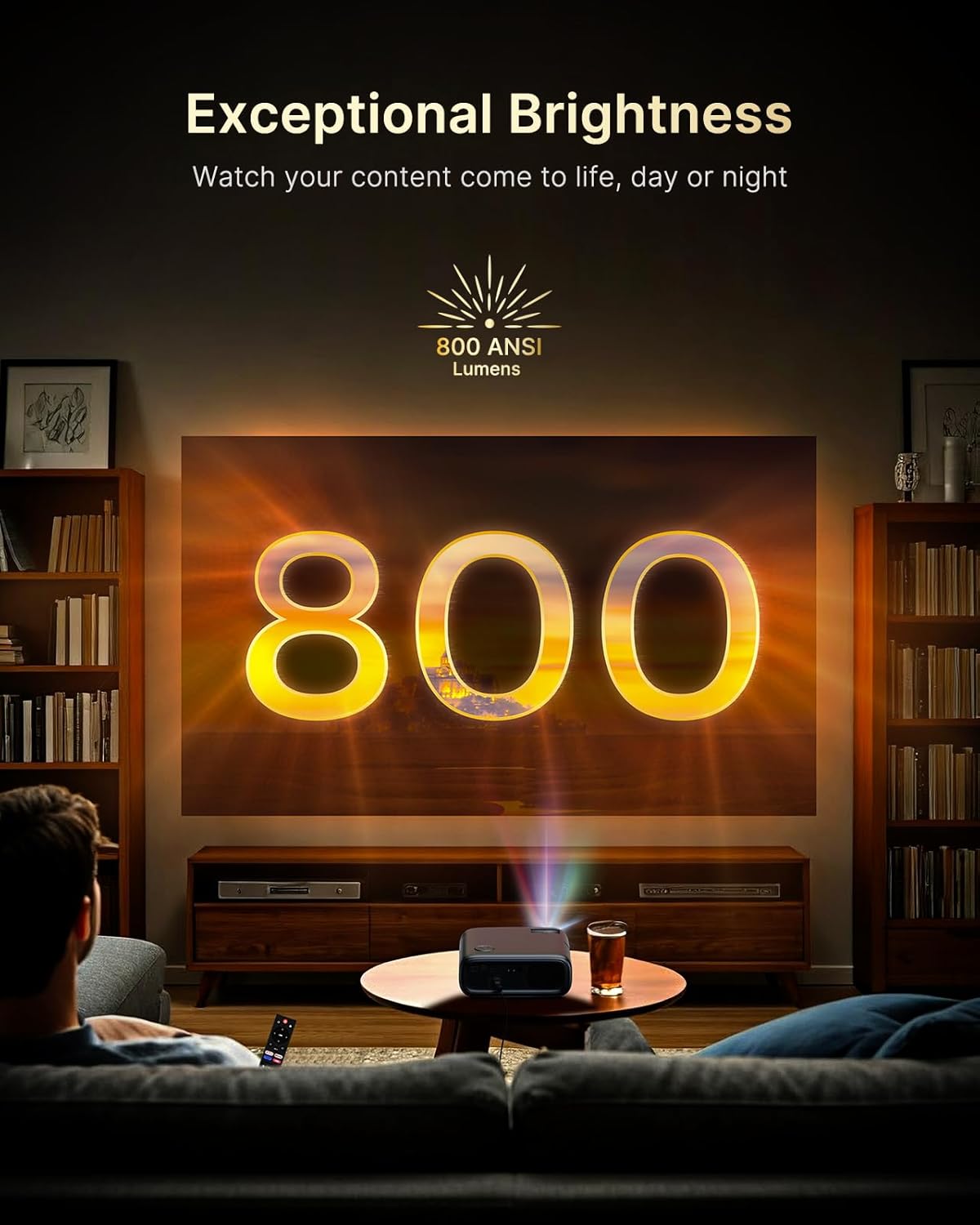
Figure 5.2: Keystone Correction and Zoom Options.
5.4 Sambungan Jaringan
To access streaming services and screen mirroring, connect the projector to a Wi-Fi network:
- Arahkeun ka menu 'Setélan'.
- Pilih 'Jaringan' atanapi 'Wi-Fi'.
- Choose your desired Wi-Fi network from the list and enter the password.

Figure 5.3: Dual-Band Wi-Fi Connectivity.
5.5 Nyambungkeun Alat éksternal
The PJ40 Ultra offers various ports for connecting external devices:
- Port HDMI (HDMI 1, HDMI 2): Connect gaming consoles (PS5, Nintendo Switch), TV sticks, laptops, or other HDMI-enabled devices. HDMI 1 supports ARC & CEC, HDMI 2 supports CEC.
- Port USB: Connect USB flash drives or hard drives for media playback.
- AV Input Port: Sambungkeun alat anu langkung lami nganggo kabel AV anu kalebet.
- 3.5mm Audio Jack: Sambungkeun headphone éksternal atanapi speaker.

Figure 5.4: Connectivity Ports.
6. Parentah Operasi
6.1 Navigasi Kadali Jarak Jauh
Use the included remote control to navigate the projector's interface. The remote allows you to power on/off, adjust volume, select input sources, and access settings and applications.
6.2 Aplikasi Streaming
The projector comes with pre-installed and officially licensed applications:
- Netflix: Access your Netflix library directly.
- YouTube: Browse and watch videos from YouTube.
- Video Perdana: Stream content from Amazon Prime Video.
To use these apps, ensure the projector is connected to the internet and log in with your respective account credentials.

Figure 6.1: Officially Licensed Streaming Applications.
6.3 Layar pangeunteungan
The PJ40 Ultra supports wireless screen mirroring for various devices:
- iOS Devices (AirPlay): Connect your iPhone or iPad to the same Wi-Fi network as the projector and use AirPlay to mirror your screen.
- Android Devices (Screen Mirror): Use the Screen Mirroring feature on your Android device to connect wirelessly.
- Windows Devices (Windows Cast): Utilize Windows Cast functionality for screen sharing from compatible Windows computers.
Note: Due to copyright restrictions, some streaming apps (e.g., Netflix, Amazon Prime, Hulu) may not support direct screen mirroring.
6.4 Setélan Audio
The projector features built-in 20W speakers with DSP decoding for enhanced audio. You can also connect external audio devices:
- Sambungan Bluetooth: Pair Bluetooth speakers or headphones for a wireless audio experience.
- 3.5mm Audio Jack: Sambungkeun headphone kabel atanapi spiker éksternal.

Figure 6.2: AI-Enhanced Surround Sound.
7. Pangropéa
7.1 Ngabersihan Lensa
Use the provided lens cleaning cloth to gently wipe the projector lens. Avoid using abrasive cleaners or materials that could scratch the lens surface.
7.2 Pangropéa Filter hawa
The projector includes an air filter to prevent dust accumulation. Periodically check and clean the air filter to maintain optimal performance and cooling. A spare air filter is included for replacement when necessary.
7.3 Perawatan Umum
- Keep the projector in a clean, dry environment.
- When not in use, cover the lens with the protective cap.
- Avoid dropping or subjecting the projector to strong impacts.
8. Cara ngungkulan
Masalah umum sareng Solusi:
- Henteu aya kakuatan: Ensure the power adapter is securely connected to both the projector and a working power outlet. Try a different outlet.
- Teu aya gambar:
- Pariksa lamun projector diaktipkeun.
- Pariksa deui naha sumber input parantos dipilih kalayan leres (contona, HDMI 1, HDMI 2).
- Pastikeun alat anu nyambung dihurungkeun sareng ngaluarkeun sinyal.
- Gambar kabur: Adjust the focus wheel on the projector until the image is sharp. Check keystone correction settings.
- Henteu aya sora:
- Naékkeun volume dina proyéktor sareng alat sumber anu disambungkeun.
- Check if external speakers or headphones are properly connected or paired via Bluetooth.
- Pastikeun setélan kaluaran audio dina alat sumber leres.
- Masalah Konektipitas Wi-Fi:
- Pastikeun kecap akses Wi-Fi diasupkeun bener.
- Balikan deui proyektor sareng router Wi-Fi anjeun.
- Move the projector closer to the Wi-Fi router to improve signal strength.
- Projector Randomly Powers On: Some users have reported the projector powering on from standby mode unexpectedly. If this occurs, ensure the projector is fully powered off at the main power switch or unplugged when not in use to prevent unintended operation. Check for any available firmware updates that might address this behavior.
9. Spésifikasi
| Fitur | Spésifikasi |
|---|---|
| merek | NexiGo |
| Nomer modél | PJ40 Ultra |
| Dimensi produk | 11.3 x 10.78 x 4.8 inci |
| Item Beurat | 7.99 pon |
| Resolusi tampilan | 1920 x 1080 (Native 1080p) |
| Caang | 800 ANSI Lumens |
| Téhnologi konektipitas | HDMI, USB, Wi-Fi |
| Fitur husus | Official Netflix-Licensed, Built-in 20W Speaker, HDMI CEC Support, Wireless Screen Mirroring, Auto Keystone, 4K Support Input |
| Produsén | Nexight INC |
| Tanggal Kahiji Sadia | 2 Januari 2025 |
10. Garansi jeung Rojongan
NexiGo is committed to customer satisfaction and provides comprehensive support for its products.
- Rojongan Palanggan: Layanan palanggan 24 jam sayogi.
- Kawijakan Pangembalian/Penukaran: Enjoy a 30-day return or exchange period.
- Bantosan Téknis: Dukungan téknis salami hirup disayogikeun pikeun produk anjeun.

Figure 10.1: NexiGo Customer Support Information.
For further assistance or to contact support, please visit the official NexiGo websitus atanapi tingal inpormasi kontak anu disayogikeun sareng bungkusan produk anjeun.