Bubuka
The MCHOSE V9 PRO Wireless Gaming Headset delivers an immersive audio experience with 7.1 surround sound, low-latency wireless connectivity, and an AI noise-canceling microphone. This manual provides detailed instructions for setup, operation, and maintenance to ensure optimal performance.
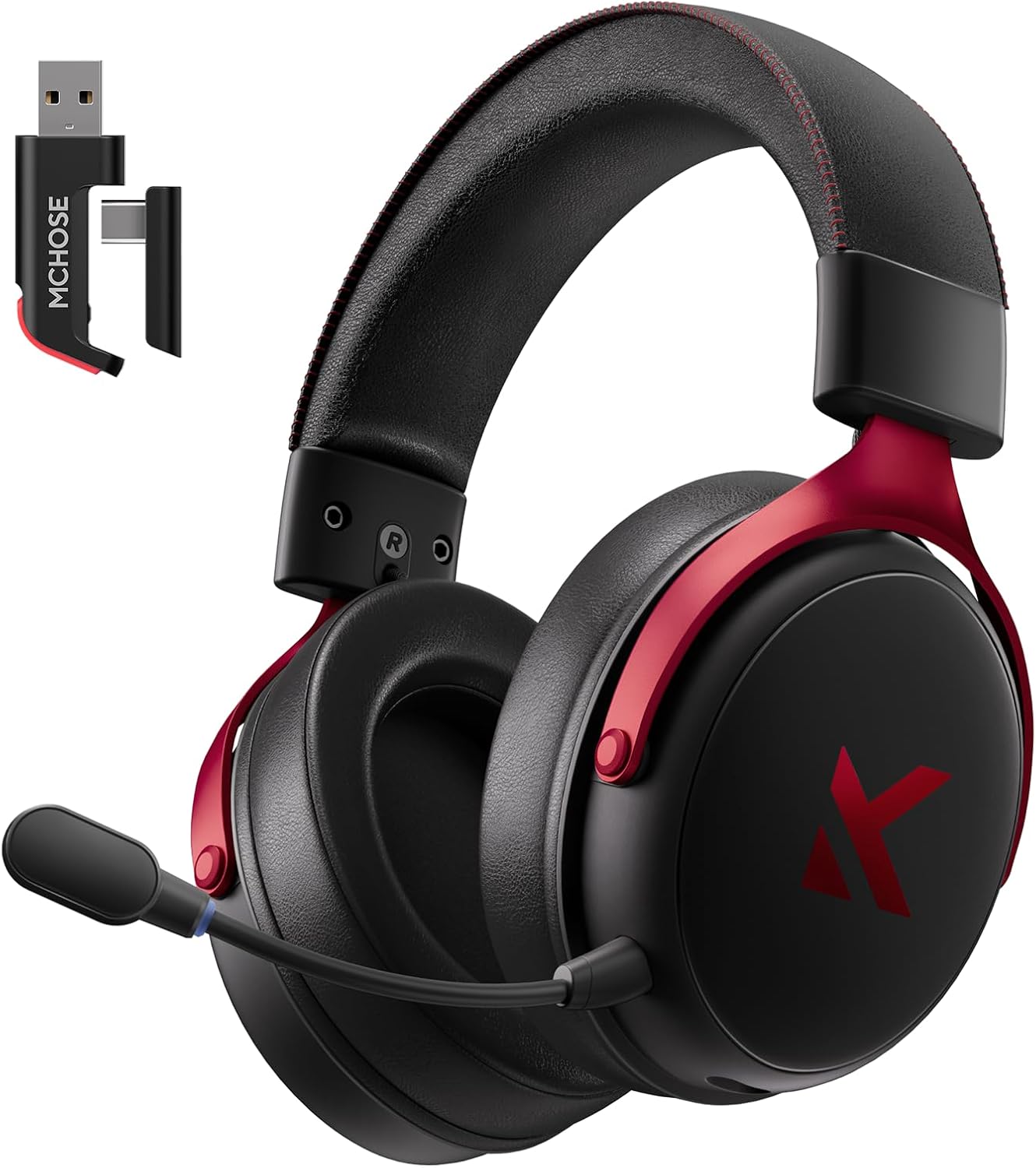
Image: MCHOSE V9 PRO Wireless Gaming Headset with its 2.4GHz USB receiver.
Eusi pakét
Pastikeun yén sadaya item anu didaptarkeun di handap kalebet kana pakét anjeun:
- MCHOSE V9 PRO Wireless Gaming Headset
- 2.5GHz Receiver (USB-A & Type-C compatible)
- Kabel Ngecas USB-C
- Mikropon anu tiasa dicabut
- Kaca hareup busa (tos dipasang dina mikropon)
- Manual pamaké

Image: Diagram illustrating the headset, receiver, cables, microphone, and user manual.
Produk Leuwihview
Kontrol jeung Indikator

Image: Handy guide showing the location and function of buttons and indicator lights on the headset.
- Tombol Daya: Long press for approximately 3 seconds to power on/off.
- Switch Mode Sambungan: Double-click the power button to switch between 2.4GHz wireless, Bluetooth, and wired modes.
- Pindah Mode Game/Musik: Triple-click the power button to switch between Game Mode 1, Game Mode 2, and Music Mode.
- Puter / Reureuh: Pencét tunggal tombol daya.
- Ngajawab / mungkas Telepon: Pencét tunggal tombol daya.
- Nolak Telepon: Long press the power button for approximately 1.5 seconds.
- Tombol mikropon: Pencét tunggal pikeun nganonaktipkeun / mareuman mikropon.
- Kabayang Volume: Slide upwards to increase volume, slide downwards to decrease volume.
Lampu Indikator
- Bluetooth (BT) Waiting for Connection: Lampu beureum jeung biru hurung silih ganti.
- 2.4G Waiting for Connection: Red and green lights flash alternately.
- Ngecas: Lampu beureum tetep hurung.
- Dicas pinuh: Lampu biru tetep hurung.
- 2.4G Mode Active: Lampu hejo.
- Bluetooth Mode Active: Lampu biru.
- Microphone Active: Blue light on microphone tip.
Setup sareng Sambungan
Konéksi Nirkabel 2.4GHz (PC, PS5, PS4, Switch)
- Remove the 2.4GHz USB receiver from its storage slot on the headset.
- Plug the 2.4GHz receiver into an available USB-A port on your computer or gaming console. For devices with only USB-C ports, detach the USB-A adapter from the receiver and plug in the USB-C end.
- Pencét terus tahan tombol daya dina headset salami kurang leuwih 3 detik pikeun ngahurungkeunana.
- Double-click the power button to ensure the headset is in 2.4GHz wireless mode (indicated by a green light). The headset should automatically connect to the receiver.
Bluetooth Wireless Connection (Mobile Phone, Tablet, PC, Switch)
- Pencét terus tahan tombol daya dina headset salami kurang leuwih 3 detik pikeun ngahurungkeunana.
- Double-click the power button to switch the headset to Bluetooth mode (indicated by a blue light flashing alternately with red).
- On your device (phone, tablet, PC, Switch), navigate to Bluetooth settings and search for "MCHOSE V9 PRO".
- Select the headset to pair. Once connected, the blue light will remain steady.
Wired Connection (PC, PS5, PS4, Switch, Mobile Phone, Tablet)
The headset supports a wired connection via the included USB-C cable. This mode is primarily for charging and can also be used for audio if wireless options are not preferred or available.
- Connect the USB-C cable to the headset's charging port.
- Connect the other end of the USB-C cable to your device.
- The headset will function as a wired device.
Setup Mikropon
- Plug the detachable microphone into the designated port on the left earcup of the headset. Ensure it is securely inserted.
- Adjust the microphone's position for optimal voice pickup.
- Single-click the microphone button on the headset to toggle the microphone on or off. A blue light on the microphone tip indicates it is active.
Video: This video demonstrates the initial setup of the MCHOSE V9 PRO Wireless Gaming Headset, including connecting the 2.4GHz receiver, powering on, switching modes, and attaching the microphone.
Software Installation and Customization (MCHOSE HUB)
The MCHOSE HUB software allows for advanced customization of your headset's audio settings. It is compatible with Windows 10 and above.
Léngkah-léngkah Instalasi
- Kunjungi MCHOSE resmi websitus (toko mchose).
- Navigate to the 'Support' section and click on 'Drivers & Firmwares'.
- Locate the 'V9 / V9 Pro Driver' and download the desktop driver.
- Before installing the driver, ensure the 2.4GHz receiver is plugged into your computer.
- Install the downloaded driver and follow the on-screen instructions.
- Once installed, open the MCHOSE HUB application. You can switch the application language to English from the settings.
Video: This video guides you through the process of connecting and installing the MCHOSE desktop driver for your headset.
Audio Equalizer Customization
The MCHOSE HUB features a customizable equalizer to fine-tune your audio output.
- In the MCHOSE HUB, right-click on 'Speakers' and select 'Equalizer'.
- Enable the equalizer.
- Adjust the frequency bands as needed to create your desired sound profile.
- Anjeun tiasa nyimpen setélan khusus salaku préset atanapi milih tina préset resmi sapertos Dance, Rap, Metal, Jazz, jsb.
- You can also restore the default equalizer settings.

Image: Screenshot of the MCHOSE HUB software interface displaying the audio equalizer settings.
7.1 Sakuliling Sora
Enable 7.1 surround sound for enhanced spatial awareness in games and movies.
- In the MCHOSE HUB, right-click on 'Speakers' and select 'Xear Surround Headphone'.
- Enable Xear Surround.
- Choose between 'Music/Gaming mode' or 'Movie mode' based on your content.
- Adjust the 'Room Size' for optimal effect.

Image: Visual representation of 7.1 surround sound technology with the MCHOSE V9 PRO headset.
Voice Effects (Magic Voice)
The software includes various voice effects for fun or specific communication needs.
- In the MCHOSE HUB, right-click on 'Mic' and select 'Xear Magic Voice'.
- Enable 'Magic Voice' and choose from different voice effects.
AI Noise Reduction for Microphone
Enhance microphone clarity by enabling AI noise reduction.
- In the MCHOSE HUB, right-click on 'Mic' and select 'AI NoiseReduction'.
- Enable 'AI NoiseReduction' to filter out background noise.
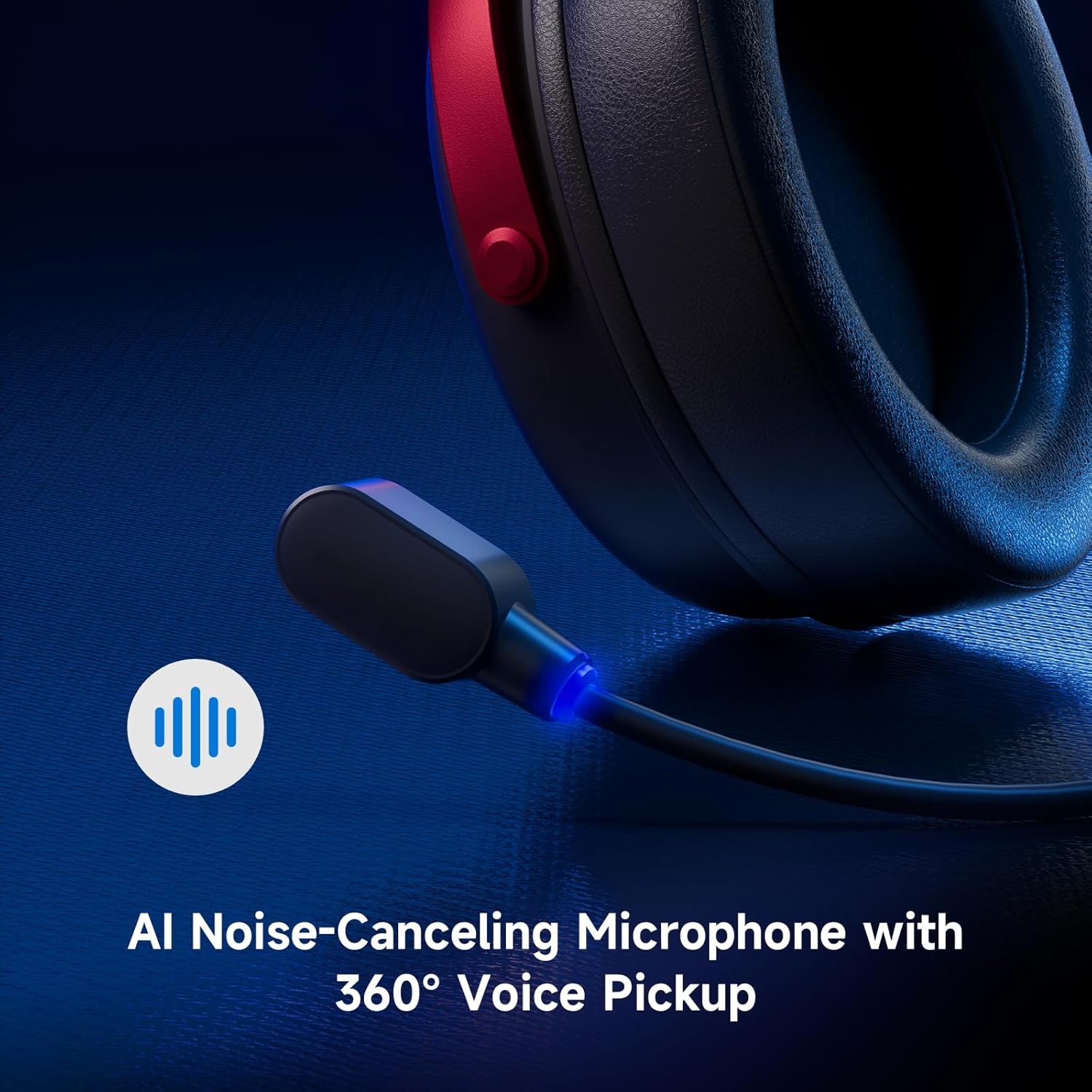
Image: Close-up of the AI Noise-Canceling Microphone on the MCHOSE V9 PRO headset.
Parentah Operasi
Daya Hurung/Pareuman
To power on the headset, press and hold the power button for approximately 3 seconds. To power off, repeat the action.
Ngalihkeun Modeu
Double-click the power button to cycle through 2.4GHz wireless, Bluetooth, and wired connection modes. The indicator light color will change accordingly (Green for 2.4GHz, Blue for Bluetooth).
Triple-click the power button to switch between Game Mode 1, Game Mode 2, and Music Mode, optimizing audio profiles for different content.
Volume Control
Use the volume wheel located on the earcup to adjust the audio output level. Slide up to increase volume, slide down to decrease volume.
Mikropon Bisu
Single-click the microphone button to mute or unmute the microphone. The blue light on the microphone tip indicates its active status.
Pangropéa
- beberesih: Anggo kaén anu lembut sareng garing pikeun ngabersihan headset. Ulah make bahan kimia kasar atawa bahan abrasive.
- Panyimpenan: Simpen headset di tempat anu tiis sareng garing jauh tina sinar panonpoé langsung sareng suhu anu ekstrim.
- Perawatan batré: For optimal battery life, avoid fully discharging the headset frequently. Charge it regularly.
- Mikropon: Handle the detachable microphone carefully. Ensure the foam windscreen is properly seated.
Pamérésan masalah
- Taya Sora/Polumeu Lemah:
- Check headset volume wheel and device volume settings.
- Ensure the headset is correctly connected (2.4GHz receiver, Bluetooth, or wired).
- Pariksa deui naha alat kaluaran audio anu leres parantos dipilih dina setélan sora komputer anjeun.
- Mikropon Teu Gawé:
- Pastikeun mikropon dicolokkeun aman kana headset.
- Check if the microphone is muted (blue light on tip should be on).
- Pariksa deui naha alat input mikropon anu leres parantos dipilih dina setélan sora alat anjeun.
- If using MCHOSE HUB, check AI Noise Reduction settings.
- Masalah Koneksi (2.4GHz/Bluetooth):
- Ensure the headset is in the correct connection mode (green light for 2.4GHz, blue for Bluetooth).
- For 2.4GHz, try plugging the receiver into a different USB port.
- For Bluetooth, try unpairing and re-pairing the headset with your device.
- Pastikeun headset tos dicas.
- Software Not Detecting Headset:
- Ensure the 2.4GHz receiver is plugged into the computer before launching the MCHOSE HUB.
- Restart the MCHOSE HUB application and/or your computer.
spésifikasi
| Ngaran modél | V9 Pro |
| merek | MCHOSE |
| Téhnologi konektipitas | 2.4GHz Wireless, Bluetooth (BT 5.1), Wired |
| Supir Audio | 53mm Neodymium Drivers with Bio-cellulose Diaphragm |
| Sakuliling Sora | 7.1 Sakuliling Sora |
| Mikropon | AI Noise-Canceling Microphone with 360° Voice Pickup |
| Wireless Latency | 15ms (TOPSPEED 2.4GHz) |
| Kahirupan batré | Nepi ka 250 Jam Playtime |
| Vérsi Bluetooth | 5.1 |
| Rentang Bluetooth | Nepi ka 40 Méter |
| Alat nu cocog | PC, Laptop, Switch, PS5, PS4, Telepon Sélulér, Tablet |
| Beurat | 0.60 lbs (kira-kira 275g) |
| Bahan | Logam, Plastik, Poliuretan (PU) |
| Panempatan Ceuli | Leuwih Ceuli |
Garansi sareng Rojongan
MCHOSE products are designed for quality and reliability. For warranty information, technical support, or to contact customer service, please visit the official MCHOSE websitus di toko mchose. You can find detailed warranty policies and support contact information in the 'Support' section of the websitus.


