1. Bubuka
This manual provides comprehensive instructions for the installation, operation, and maintenance of your Beetronics 12HB9M/U1 12-inch high brightness touchscreen monitor. This industrial-grade display features Full HD 1920x1080 resolution, a high brightness IPS panel, and a capacitive multi-touch panel with 10-point touch support. Its IP66-rated front panel ensures protection against dust and water, making it suitable for various demanding environments.
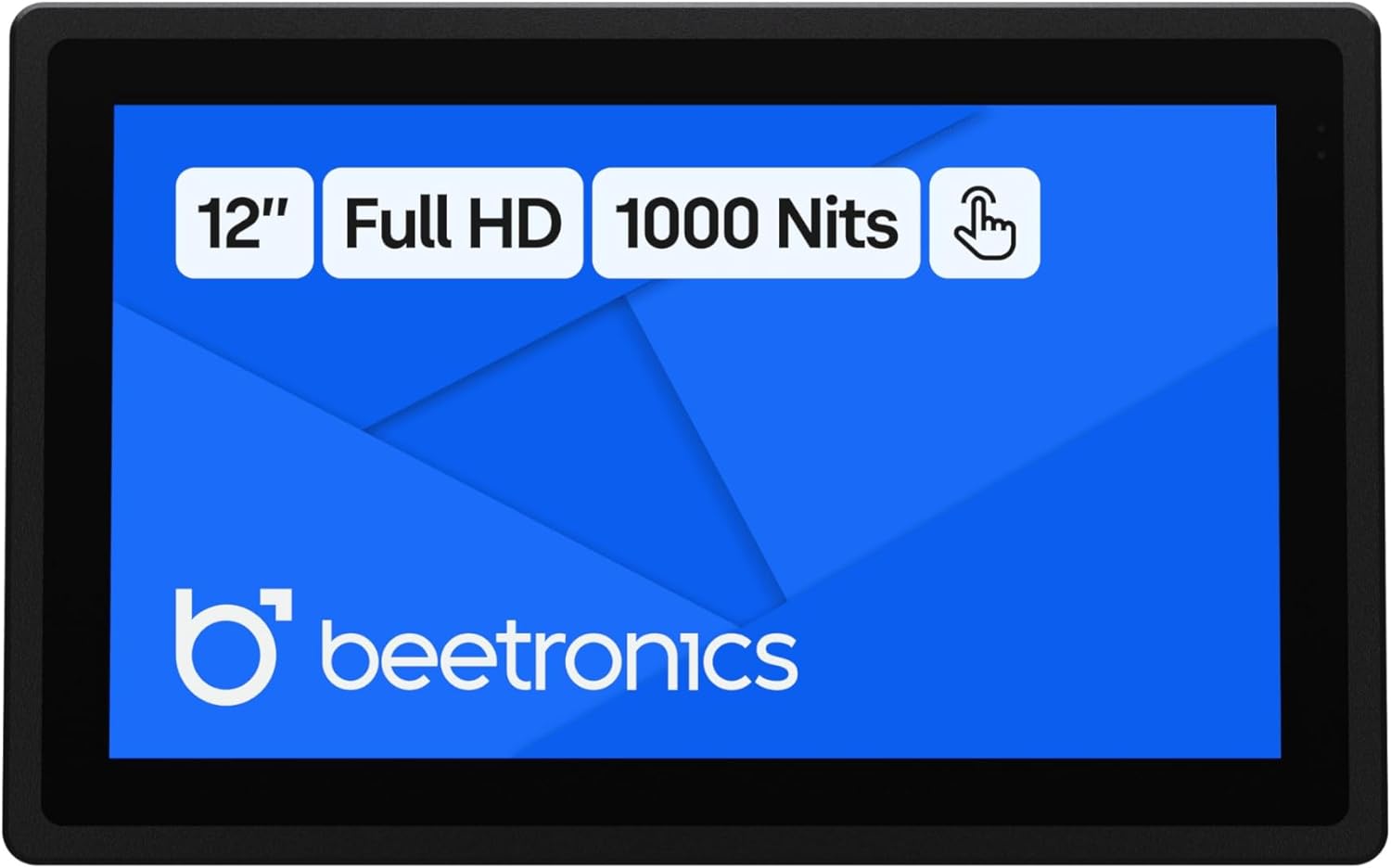
Gambar 1: Hareupeun view of the Beetronics 12HB9M/U1 monitor, highlighting its 12-inch Full HD display, 1000 Nits brightness, and touch functionality.

Gambar 2: Leuwihview of the Beetronics 12HB9M/U1 monitor, emphasizing its Full HD resolution, 1000 Nits brightness, and touchscreen capabilities.
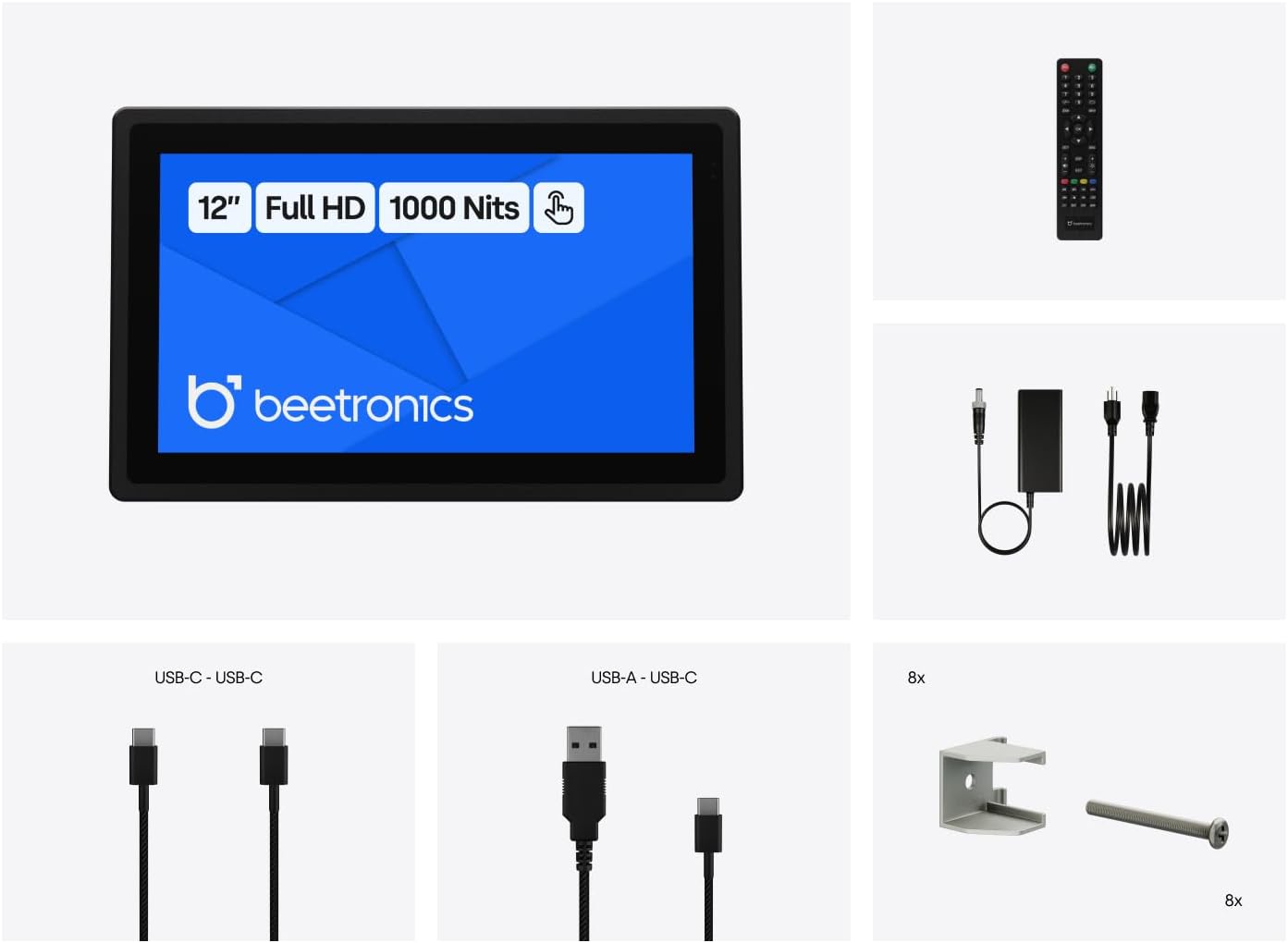
2. Naon dina Box
Pastikeun sadaya komponén parantos aya sateuacan neraskeun pamasangan.
- Power Cord and Power Supply
- USB C to USB C Cord
- USB C to USB A Cord
- Kadali jauh
- Panel Mounting Clips (8x)

Figure 3: All items included in the product packaging: monitor, power supply, USB cables, remote control, and panel mounting clips.
3. Setélan
3.1 Instalasi fisik
The 12HB9M/U1 monitor offers versatile installation options, including desktop, wall-mounted, or panel-mounted configurations. Its compact dimensions are 12.0 x 7.6 x 1.6 inches.
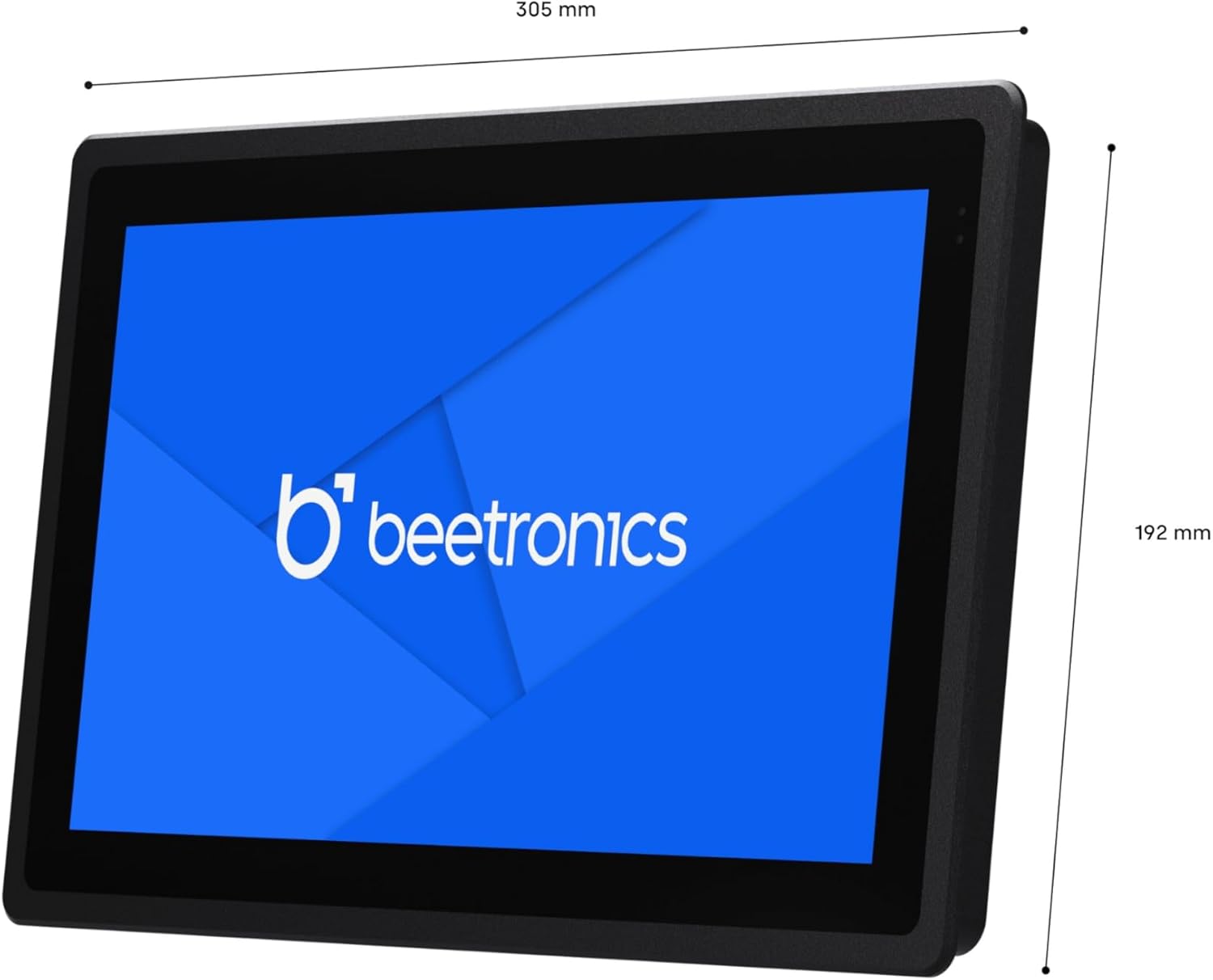
Figure 4: Dimensional drawing of the Beetronics 12HB9M/U1 monitor, showing its width of 305mm and height of 192mm.

Figure 5: Illustration of how the panel mounting clips are used to secure the monitor into an enclosure.
3.2 Nyambungkeun Monitor
The monitor features multiple connectivity ports for video input and touch functionality.

Gambar 6: Detil view of the monitor's rear ports, including AUX in/out, USB-C, VGA, DisplayPort, HDMI, and 5.5mm DC power input.

Figure 7: Rear panel of the monitor showing control buttons (ON/OFF, -, MENU, AUTO, +) and port labels.
- Sambungan Daya: Connect the provided power supply to the 5.5mm DC input port on the monitor. The monitor supports a wide input voltage rentang 9-36V.
- Video Input: Connect your source device (PC, Mac, Linux system) to one of the following video input ports:
- HDMI
- Port tampilan (DP)
- USB-C (for video and touch data)
- VGA
- Fungsi Toél: For touch functionality, connect the monitor to your source device using either the provided USB-C to USB-C cable or the USB-C to USB-A cable. This connection enables the 10-point capacitive touch interface.
- Audio: Use the AUX in/out ports for audio connections if required.
4. Parentah Operasi
4.1 Daya Hurung/Pareuman
Pencét éta ON/OFF button located on the rear of the monitor or use the remote control to power the unit on or off.
4.2 Navigasi Menu
Ngagunakeun éta MENU button to access the On-Screen Display (OSD) menu. Navigate through options using the + jeung - kancing. The OTOMATIS button can be used for automatic image adjustment (VGA only) or as a selection/exit button in the OSD.
4.3 Fungsi Layar Toél
Once connected via USB, the capacitive multi-touch panel will be recognized by your operating system. It supports up to 10 pressure points for gestures like swiping, zooming, and tapping. The monitor is compatible with Windows, macOS, and Linux operating systems.

Figure 8: Icons representing compatibility with Windows, macOS, ChromeOS, and Linux operating systems.
4.4 adjustment kacaangan
The monitor features a high brightness IPS panel with 1000 Nits. Brightness can be adjusted via the OSD menu or using the dimmer control if connected.
5. Pangropéa
5.1 Ngabersihan Monitor
The front panel of the 12HB9M/U1 monitor is IP66 rated, providing protection against dust and powerful water jets. To clean the screen, gently wipe it with a soft, lint-free cloth. For stubborn marks, use a mild, non-abrasive screen cleaner applied to the cloth, not directly to the screen. Ensure the monitor is powered off before cleaning.
5.2 Perawatan Umum
Avoid exposing the monitor to extreme temperatures or direct sunlight for prolonged periods. Ensure proper ventilation around the unit. Do not attempt to open the monitor casing, as this will void the warranty and may cause damage.
6. Cara ngungkulan
| Masalah | Mungkin Cukang lantaranana | Solusi |
|---|---|---|
| Henteu aya gambar dina layar |
|
|
| Layar rampa teu ngabales |
|
|
| Gambarna robah warna atawa salah warna |
|
|
7. Spésifikasi
| Nomer modél | 12HB9M/U1 |
| Ukuran layar | 11.6 Inches (12 Inch product variant) |
| Resolusi | 1920 x 1080 piksel (Full HD 1080p) |
| Rasio Aspék | 16:9 |
| Caang Gambar | 1000 Candela (Nits) |
| Tipe layar rampa | Capacitive Multi-Touch (10 points) |
| Ingress Protection (Front) | IP66 Waterproof & Teu tahan lebu |
| Masukan Voltage | 9-36 Volt (DC) |
| Palabuhan Konéktipitas | HDMI, DisplayPort, USB-C, VGA, AUX in/out, 5.5mm DC |
| Ukuran produk (L x W x H) | 12.0 x 7.6 x 1.6 inci (305 x 192 x 40.6 mm) |
| Item Beurat | 4.1 pon |
| Produsén | Beetronics |
Angka 9: Ngabeledug view illustrating key features such as Tempered Glass, Rugged Metal Enclosure, Conformal Coated PCB, IP66-Rated Front Panel, Full Lamination Optical Bonding, and Wide Input Voltage Rentang.
8. Garansi jeung Rojongan
The Beetronics 12HB9M/U1 monitor comes with a garansi 2 taun, ensuring reliability for continuous and intensive professional use. For technical support, warranty claims, or further assistance, please contact Beetronics Inc. directly.
Pabrikan: Beetronics Inc.
Kanggo inpo nu leuwih lengkep, buka resmi Toko Beetronics di Amazon.


