1. Bubuka
The DigiLand R10 PRO is a 10.1-inch Android 14 tablet designed for versatile use, from entertainment to productivity. It features an MTK Helio G80 Octa-Core processor, 12GB RAM, and 128GB internal storage, expandable via TF card. This manual provides essential information to help you get started and make the most of your tablet.
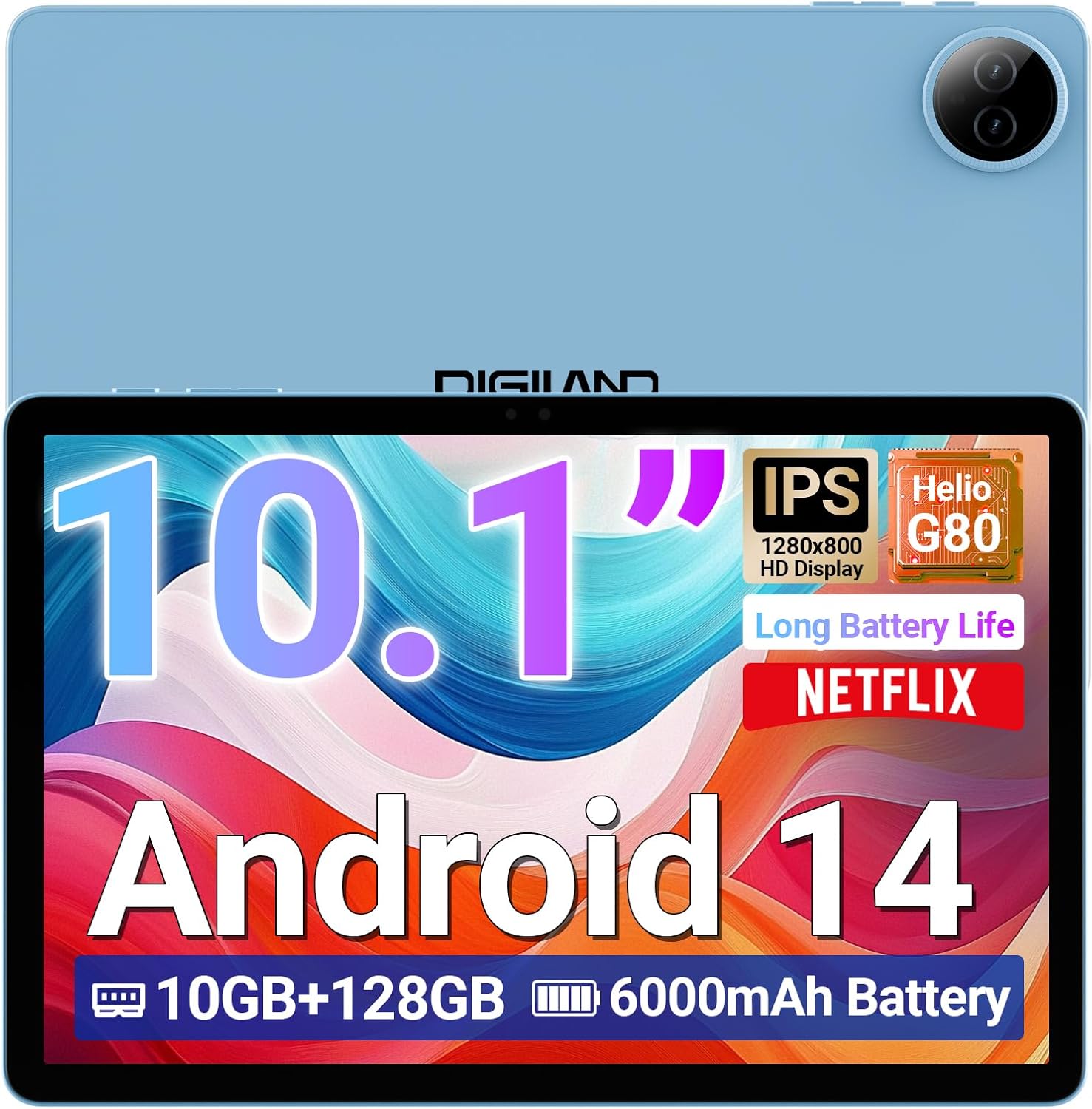
Image 1.1: DigiLand R10 PRO Tablet. This image displays the tablet's front screen, highlighting its 10.1-inch display, Android 14 operating system, 10GB RAM, 128GB ROM, and 6000mAh battery capacity.
2. Naon dina Box
Upon unpacking your DigiLand R10 PRO tablet, please verify that all the following items are included:
- R10 PRO Tablet
- R10 PRO Stand Case
- Charger
- Kabel Ngecas (USB Tipe-C)
- Manual pangguna (dokumén ieu)

Image 2.1: Box Contents. This image illustrates the tablet, charger, charging cable, stand case, and user manual included in the product packaging.
3. Produk Langkungview
Familiarize yourself with the physical components of your DigiLand R10 PRO tablet.
3.1 Hareup View
- 10.1-inch HD IPS Touchscreen: Tampilan utama pikeun interaksi.
- Kaméra hareup (8MP): Located above the screen, used for video calls and selfies.
3.2 Tukangeun View
- Kaméra pungkur (13MP): Perenahna di tukang, dianggo pikeun ngarekam poto sareng pidéo.
3.3 Samping Views (General Layout)
- Tombol Daya: Dianggo pikeun ngahurungkeun/mareuman tablet atanapi ngasarekeun/ngahudangkeunana.
- Tombol Volume: Saluyukeun volume audio.
- Port USB Tipe-C: Pikeun ngecas sareng mindahkeun data.
- Speaker Grilles: Pikeun kaluaran audio.
- Slot Kartu MicroSD: For expanding storage (supports up to 256GB).

Image 3.1: Tablet Features Overview. This infographic highlights key specifications including screen size, resolution, RAM, ROM, processor, battery, and camera details.
4. Setélan
4.1 Ngecas Awal
Before first use, fully charge your tablet. Connect the provided USB Type-C cable to the tablet's charging port and the other end to the power adapter. Plug the adapter into a wall outlet. The charging indicator will show the charging status.
4.2 Daya Hurung/Pareuman
- Pikeun Ngahurungkeun: Press and hold the Power button until the DigiLand logo appears on the screen.
- Pikeun mareuman: Press and hold the Power button until a power menu appears. Select "Power off" and confirm.
- Pikeun Saré / Hudang: Pencét sakeudeung tombol Daya.
4.3 Wizard Setup Awal
The first time you power on the tablet, you will be guided through an initial setup process. Follow the on-screen prompts to:
- Pilih basa anjeun.
- Nyambung ka jaringan Wi-Fi.
- Set up your Google account (optional, but recommended for app downloads and services).
- Setel konci layar (PIN, pola, atawa kecap akses).
- Review sareng nampi sarat sareng kaayaan.
4.4 Sambungan Wi-Fi
Pikeun nyambung ka jaringan Wi-Fi:
- Pindah ka Setélan > Jaringan & internét > Internét.
- Togél Wi-Fi On.
- Pilih jaringan anu dipikahoyong tina daptar.
- Lebetkeun kecap akses upami dipenta teras ketok Nyambung.
5. Ngoperasikeun Tablet
5.1 Napigasi Dasar
- Ketok: Pilih hiji item atawa buka aplikasi.
- Toel & Tahan: Aksés menu kontekstual atanapi pindahkeun item.
- Gesek: Gulung ngaliwatan layar atawa daptar.
- Ciwit: Ngazum gede atawa leutik dina gambar na web kaca.
5.2 Layar Utama
The home screen provides quick access to your favorite apps, widgets, and notifications. You can customize it by adding or removing app icons and widgets.
5.3 Bewara sareng Setélan Gancang
Gesek ka handap ti luhur layar pikeun ngaksés béwara sareng togél setelan gancang (Wi-Fi, Bluetooth, kacaangan, jsb.).
5.4 Pamakéan kaméra
The tablet features an 8MP front camera and a 13MP rear camera. To use the camera:
- Buka na Kaméra aplikasi.
- Ketok tombol jepret pikeun moto.
- Pindah antara kaméra hareup sareng pungkur nganggo ikon toggle kaméra.
- Pilih modeu pidéo pikeun ngarékam pidéo.

Image 5.1: Camera Functionality. This image highlights the 8MP front and 13MP rear cameras, showing examples of photos taken with the tablet.
5.5 Manajemén Panyimpenan
Your tablet comes with 128GB of internal storage. You can expand this by inserting a MicroSD card (up to 256GB) into the dedicated slot. To manage storage, go to Setélan > Panyimpenan.

Image 5.2: Memory and Storage. This image details the 12GB RAM, 128GB ROM, and the option for 256GB expansion via MicroSD card.
5.6 Konektipitas Bluetooth
Pikeun nyambungkeun alat Bluetooth:
- Pindah ka Setélan > Alat disambungkeun > Préferénsi sambungan > Bluetooth.
- Pindahkeun Bluetooth On.
- Pilih Masangkeun alat énggal and choose your device from the list.
- Follow any on-screen pairing instructions.
6. Pangropéa
6.1 Perawatan Batré
- Hindarkeun suhu anu ekstrim, anu tiasa ngirangan umur batre.
- Ulah ninggalkeun tablet pinuh discharged pikeun période nambahan.
- Anggo carjer sareng kabel anu disayogikeun pikeun ngecas anu optimal.

Image 6.1: Battery Performance. This image illustrates the 6000mAh battery's estimated usage times for video playback, e-books, music, and gaming.
6.2 beberesih
Anggo lawon anu lemes sareng henteu lint pikeun ngabersihan layar sareng awak tablet. Hindarkeun bahan abrasive atanapi bahan kimia kasar.
6.3 Apdet parangkat lunak
Parios sareng pasang apdet parangkat lunak sacara rutin pikeun mastikeun tablet anjeun gaduh fitur sareng patch kaamanan panganyarna. Pindah ka Setélan > Sistim > Pembaruan sistem.
6.4 Nyadangkeun Data
Periodically back up important data to a cloud service or external storage device to prevent data loss.
7. Cara ngungkulan
7.1 Tablet Teu Nyala
- Pastikeun batréna geus dieusian. Sambungkeun carjer sareng antosan sababaraha menit sateuacan nyobian hurungkeun.
- Pencét jeung tahan tombol Daya salila 10-15 detik pikeun ngalakukeun balikan deui paksa.
7.2 Masalah Sambungan Wi-Fi
- Balikan deui router Wi-Fi anjeun sareng tablet.
- Pastikeun anjeun aya dina jangkauan sinyal Wi-Fi.
- Pastikeun kecap akses Wi-Fi leres.
- Pohokeun jaringan dina setélan Wi-Fi teras sambungkeun deui.
7.3 Performance slow
- Tutup aplikasi anu henteu dianggo jalan di latar tukang.
- Hapus data cache pikeun aplikasi.
- Pastikeun aya rohangan panyimpen anu cekap.
- Balikan deui tablet.
7.4 Reset pabrik
Upami masalah anu terus-terusan kajantenan, reset pabrik tiasa ngabéréskeunana. Perhatosan: Ieu bakal mupus sadaya data dina tablet anjeun. Nyadangkeun data penting sateuacan neraskeun.
- Pindah ka Setélan > Sistim > Reset pilihan.
- Pilih Hapus sadaya data (reset pabrik).
- Konpirmasikeun kaputusan anjeun sareng lebetkeun PIN/pola/sandi upami dipenta.
8. Spésifikasi
Detailed technical specifications for the DigiLand R10 PRO Tablet:
| Fitur | Spésifikasi |
|---|---|
| Nomer modél | R10 PRO |
| Sistem operasi | Android 14 |
| Prosesor | MediaTek Helio G80 Octa-Core (2.0GHz A75 + 1.8GHz A55) |
| Ram | 12 GB |
| Panyimpenan internal | 128 GB |
| Panyimpenan Expandable | Nepi ka 256GB via kartu MicroSD |
| Ukuran layar | 10.1 inci |
| Resolusi layar | 1280x800 IPS HD |
| Kaméra tukang | 13 MP |
| Kaméra hareup | 8 MP |
| Kapasitas batré | 6000mAh (Average 12 hours usage) |
| Konéktipitas Wireless | Wi-Fi 5 (802.11a/b/g/n/ac), Bluetooth 5.0 |
| Palabuhan | USB Tipe-C |
| Ukuran (L x W x H) | 9.54 x 6.35 x 0.31 inci |
| Item Beurat | 1.07 pon |

Image 8.1: Detailed Specifications. This image provides a visual summary of the tablet's core features, including Android 14, RAM, ROM, screen size, resolution, cameras, processor, and battery.
9. Garansi jeung Rojongan
DigiLand is committed to providing quality products and customer satisfaction. For any issues or inquiries regarding your R10 PRO tablet, please contact DigiLand customer support.
9.1 Rojongan Palanggan
If you encounter any problems or have questions not covered in this manual, please reach out to our support team. Contact information can typically be found on the DigiLand official websitus atawa ngaliwatan platform pameseran Anjeun.

Image 9.1: After-Sales Support. This image represents DigiLand's commitment to customer service and support.


