1. Bubuka
This manual provides detailed instructions for the installation, operation, maintenance, and troubleshooting of your TP-Link Archer NX600 5G Wireless Router. The Archer NX600 is designed to deliver high-speed 5G connectivity with Wi-Fi 6 AX3600Mbps dual-band performance. It features a 2.5G WAN/LAN port and two Gigabit LAN ports, offering a plug-and-play setup for advanced network sharing. It is compatible with EasyMesh and HomeShield for flexible and secure home networking.
2. Eusi Paket
Pariksa heula sadaya barang aya dina bungkusan anjeun. Upami aya barang anu leungit atanapi ruksak, mangga ngahubungi padagang ritel anjeun.
- TP-Link Archer NX600 5G Wireless Router
- Adaptor kakuatan
- Kabel Ethernet
- Guide Instalasi Gancang
3. Pakakas Ngalangkunganview
Familiarize yourself with the physical components of your router.
3.1 Panel payun

Katerangan Gambar: The front panel of the Archer NX600 router is white with a vertical black strip containing LED indicators. These indicators show the status of signal strength, internet connection, Wi-Fi, and power.
3.2 Panel tukang
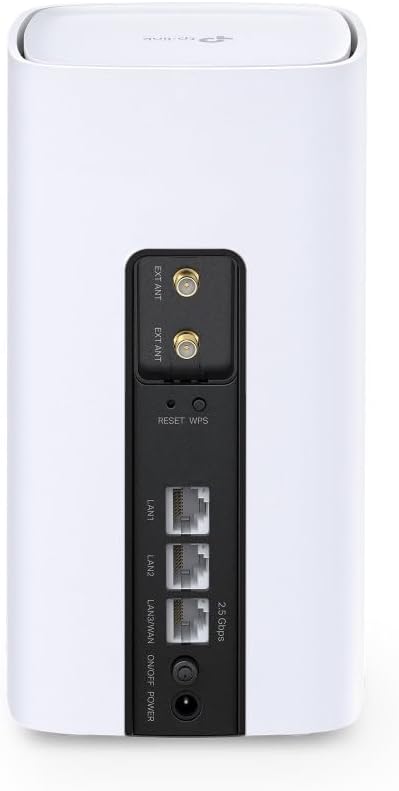
Katerangan Gambar: The rear panel of the Archer NX600 router features various ports and buttons. From top to bottom, it includes two external antenna connectors (EXT ANT), a Reset/WPS button, two Gigabit LAN ports (LAN1, LAN2), a 2.5G WAN/LAN port, an On/Off switch, and a power input port.
3.3 Indikator LED
- Kakuatan sinyal: Indicates the strength of the 5G/LTE cellular signal.
- Internét: Némbongkeun status sambungan internét.
- Wifi: Nunjukkeun aktivitas jaringan Wi-Fi.
- kakuatan: Némbongkeun status daya alat.
3.4 Palabuhan sarta Tombol
- Slot Kartu SIM: Lebetkeun kartu SIM 5G/4G anjeun di dieu.
- Palabuhan WAN/LAN 2.5G: Connect to a modem for wired internet or to a device for high-speed LAN connection.
- Port LAN Gigabit (x2): Sambungkeun alat-alat anu nganggo kabel sapertos komputer atanapi konsol kaulinan.
- Tombol Reset/WPS: Press and hold to reset the router to factory settings. Press briefly to activate WPS.
- Palabuhan Daya: Sambungkeun adaptor daya anu disayogikeun.
- Saklar on/off: Power the router on or off.
4. Setélan
Follow these steps for initial setup of your Archer NX600 router.
4.1 Selapkeun Kartu SIM
- Pastikeun router dipareuman.
- Pilari slot kartu SIM, biasana di handapeun atanapi sisi alat.
- Insert your 5G/4G SIM card into the slot until it clicks into place. Ensure the correct orientation as indicated on the router.
4.2 Kakuatan Hurung
- Connect the provided power adapter to the router's power port and then to a power outlet.
- Press the On/Off switch to power on the router.
- Wait for the LED indicators on the front panel to stabilize. The Signal Strength and Internet LEDs should indicate a stable connection.
4.3 Nyambung ka Internét
The router is designed for plug-and-play operation with a SIM card. Once the SIM card is inserted and the router is powered on, it should automatically connect to the 5G/4G network.
You can connect your devices to the router via Wi-Fi or Ethernet cable:
- Sambungan Wi-Fi: Find the Wi-Fi network name (SSID) and password printed on the label at the bottom of the router. Select this network on your device and enter the password.
- Sambungan Ethernet: Connect an Ethernet cable from one of the router's LAN ports to your computer or other wired device.
4.4 Aksés Web Manajemén Panganteur
For advanced settings and configuration, access the router's web panganteur manajemén:
- Connect your device to the router (Wi-Fi or Ethernet).
- Buka a web browser teras lebetkeun alamat aksés standar (contona, http://tplinkwifi.net or the IP address printed on the router label) in the address bar.
- Log in using the administrator password you set during the first login, or the default password (if not changed).
5. Parentah Operasi
This section covers common operational aspects of your Archer NX600 router.
5.1 Manajemén Jaringan Wi-Fi
Ngaliwatan éta web management interface, you can:
- Change Wi-Fi network names (SSIDs) and passwords.
- Aktipkeun atawa mareuman jaringan tamu.
- Konpigurasikeun setelan kaamanan Wi-Fi.
5.2 EasyMesh Compatibility
The Archer NX600 supports EasyMesh, allowing it to work with other EasyMesh-compatible devices to form a unified mesh Wi-Fi network. This provides seamless coverage with a single Wi-Fi name throughout your home.
- Refer to the EasyMesh setup guide within the router's web interface or on the TP-Link support website for detailed instructions on expanding your mesh network.
5.3 HomeShield Features
TP-Link HomeShield provides comprehensive network protection and parental controls. Access these features via the TP-Link Tether app or the web panganteur manajemén.
- Perlindungan Jaringan: Real-time IoT protection, malicious site blocker, intrusion prevention, and home network scanner.
- Kadali kolot: Profile management, content filtering, time limits, and insights.
- Kualitas Pelayanan (QoS): Prioritaskeun alat atanapi kagiatan pikeun kinerja anu optimal.
5.4 Using the 2.5G WAN/LAN Port
The versatile 2.5G port can be configured as either a WAN port or a LAN port:
- Modeu WAN: Connect an external modem (cable, fiber, or DSL) to this port to use the Archer NX600 as a traditional wireless router, in addition to its 5G capabilities.
- Mode LAN: Use this port to connect a high-speed wired device, such as a network-attached storage (NAS) or a powerful desktop PC, for faster local network transfers.
6. Pangropéa
Pangropéa rutin ngabantosan mastikeun kinerja optimal sareng umur panjang router anjeun.
- panempatan: Tempatkeun router di lokasi anu sentral, jauh tina halangan sareng sumber gangguan (contona, microwave, telepon nirkabel).
- Ventilasi: Ensure adequate airflow around the router to prevent overheating. Do not cover ventilation openings.
- Pembaruan firmware: Pariksa sacara périodik sareng pasang apdet firmware ngalangkungan router web antarmuka manajemen. Apdet sering kalebet paningkatan kinerja, patch kaamanan, sareng fitur énggal.
- beberesih: Gently clean the router's exterior with a soft, dry cloth. Avoid using liquid cleaners or abrasive materials.
- Reboot: If you experience minor performance issues, try rebooting the router by unplugging it from the power outlet for 10 seconds and then plugging it back in.
7. Cara ngungkulan
Bagian ieu ngabahas masalah umum anu anjeun tingali.
7.1 Taya Sambungan Internét
- Pariksa Kartu SIM: Pastikeun kartu SIM dipasang kalayan leres sareng aktip nganggo paket data.
- Indikator LED: Verify that the Signal Strength and Internet LEDs are solid green. If not, try repositioning the router or checking your SIM card.
- Setélan APN: Dina web management interface, check the APN (Access Point Name) settings. These are usually configured automatically, but may need manual adjustment for some carriers.
- Reboot: Power cycle the router.
7.2 Laju Internét Leungit
- Kakuatan sinyal: Check the Signal Strength LED. If it's low, try moving the router to a location with better 5G/4G reception.
- Kemacetan jaringan: High network traffic from multiple devices can reduce speed. Consider using QoS settings to prioritize important devices or applications.
- Gangguan Wi-Fi: Other wireless devices can interfere with your Wi-Fi signal. Try changing Wi-Fi channels in the router settings.
- Carrier Throttling: Your mobile carrier might be throttling your speed after a certain data usage. Check your data plan.
7.3 Cannot Connect to Wi-Fi Printer
Some older Wi-Fi printers may have compatibility issues with newer Wi-Fi standards or dual-band networks. If you are experiencing difficulty connecting a Wi-Fi printer:
- Pita Wi-Fi anu misah: Dina router urang web management interface, try separating the 2.4 GHz and 5 GHz Wi-Fi networks by giving them different SSIDs (network names). Then, attempt to connect your printer specifically to the 2.4 GHz network, as many older printers only support this band.
- Printer Firmware: Ensure your printer's firmware is up to date.
- WPS: Try using the WPS button on the router and your printer (if supported) for an easier connection.
- Sambungan Ethernet: If possible, connect the printer to one of the router's LAN ports using an Ethernet cable.
7.4 Router Overheating
If the router feels excessively hot or experiences frequent disconnections, it might be overheating.
- Ventilasi: Ensure the router is placed in a well-ventilated area and its vents are not blocked.
- Suhu lingkungan: Avoid placing the router in direct sunlight or in an enclosed space where heat can build up.
8. Spésifikasi
| Fitur | Rincian |
|---|---|
| merek | TP-Link |
| Ngaran modél | Archer NX600 5G/4G Wi-Fi 6 |
| Nomer Modél Item | Pamanah NX600 |
| Téhnologi konektipitas | Wifi |
| Standar Komunikasi Nirkabel | 802.11ax |
| Frékuénsi Band Kelas | Dual Band |
| Fitur husus | Dual Band |
| Tipe Wireless | 802.11ax |
| Sistem operasi | Sistem Operasi TP-Link |
| Warna | Bodas |
| Item Beurat | 600 gram |
| Ukuran Paket | 22.8 x 22.7 x 11.9 cm |
| Dianjurkeun Mangpaat Pikeun Produk | Imah |
| Alat nu cocog | Smartphone, Tablet, PC, Gaming Console, Smart TV, Surveillance Camera, Smart Thermostat, Printer |
| Komponén Kaasup | TP-Link Archer NX600 |
9. Garansi jeung Rojongan
Kanggo inpormasi garansi sareng dukungan téknis, mangga tingal TP-Link resmi. website or the warranty card included with your product. You can typically find:
- pendaptaran produk.
- Technical support contact information (phone, email, chat).
- Firmware downloads and FAQs.
- Sarat jeung kaayaan jaminan.
Nganjang Rojongan TP-Link pikeun inpo nu panganyarna.