Bubuka
The STRONG Leap-UNA TV Streaming Stick is a compact and powerful device designed to transform your television into a smart TV, providing instant access to a vast array of streaming content. Powered by Android TV 11, it offers seamless 2K resolution streaming with Wi-Fi 5 connectivity. This manual provides detailed instructions for setting up, operating, and maintaining your Leap-UNA streaming stick to ensure an optimal entertainment experience.
Émbaran Kasalametan
- Baca sadaya parentah sateuacan nganggo alat.
- Ulah ngalaan alat ka hujan, beueus, atawa suhu ekstrim.
- Pastikeun ventilasi ditangtoskeun sabudeureun alat pikeun nyegah overheating.
- Paké ngan adaptor kakuatan disadiakeun kalawan alat.
- Ulah nyobian ngabongkar atawa ngalereskeun alat sorangan. Rujuk sadayana jasa ka tanaga anu mumpuni.
- Jauhkeun alat tina sinar panonpoé langsung sareng sumber panas.
Eusi pakét
Punten parios yén sadaya barang aya sareng dina kaayaan anu saé:
- STRONG Leap-UNA 2K Android TV Streaming Stick
- Kadali jauh
- Power Adapter (or USB cable for power)
- HDMI Extender (if included)
- Manual pangguna (dokumén ieu)
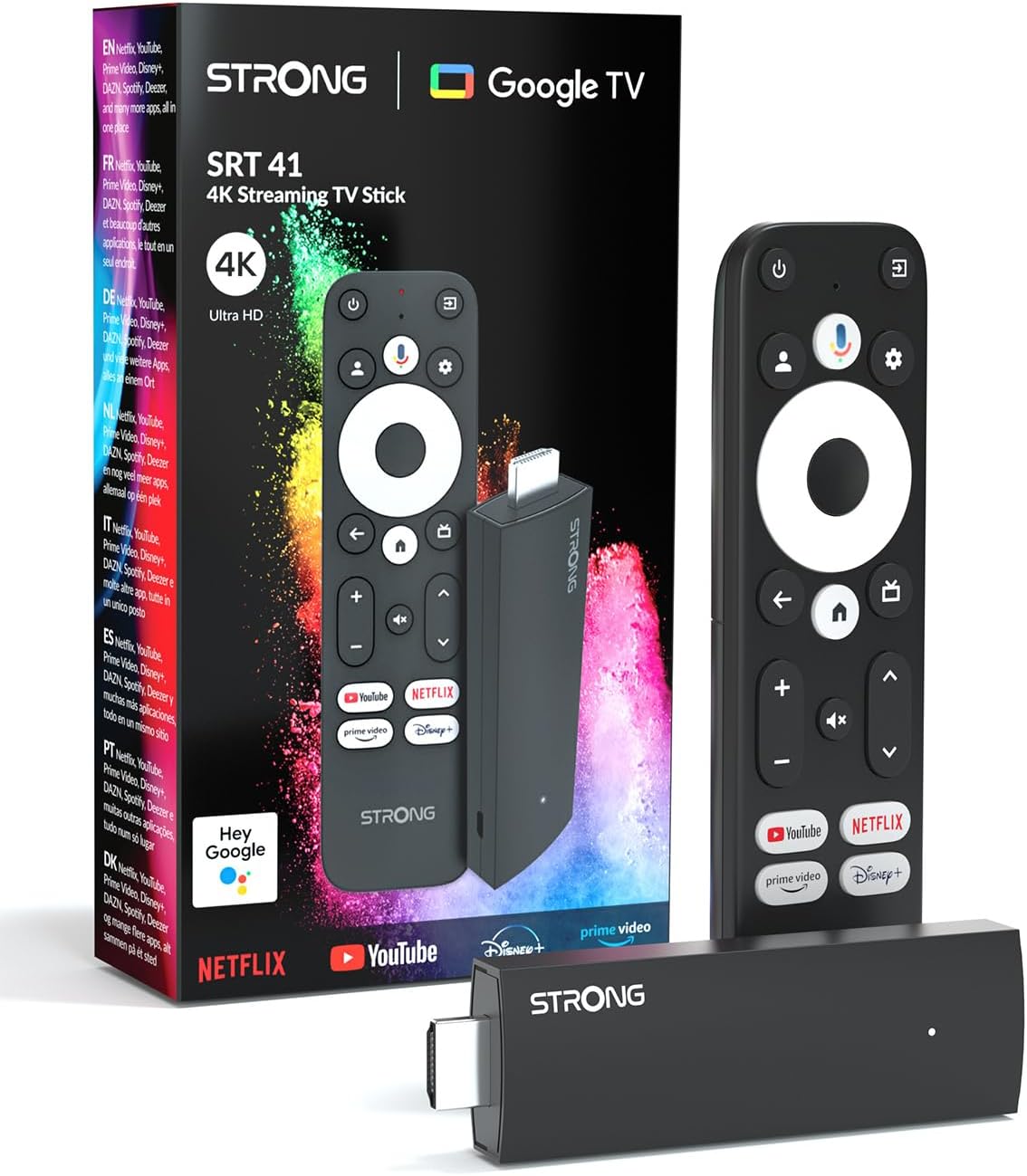
Image: The STRONG Leap-UNA streaming stick, its remote control, and the product packaging. This shows the main components included in the box.
Produk Leuwihview
The Leap-UNA stick is designed for ease of use and portability. It connects directly to your TV's HDMI port.
Komponén Alat:
- Streaming Stick: Compact device with an HDMI connector for TV and a Micro USB port for power.
- Kadali jauh: Features dedicated buttons for power, navigation, volume, Google Assistant, and quick access to popular streaming services like Netflix and YouTube.

Image: A close-up of the STRONG Leap-UNA streaming stick, highlighting its compact design and connectivity options including HDMI and Micro USB ports.
Disetél
Follow these steps to set up your STRONG Leap-UNA streaming stick:
- Nyambung ka TV: Plug the STRONG Leap-UNA streaming stick directly into an available HDMI port on your television. If space is limited, use an HDMI extender (if provided).
- Daya Hurung: Connect the power adapter to the Micro USB port on the streaming stick and then plug the adapter into a power outlet. The device will power on automatically.
- Pilih Input HDMI: Use your TV's remote control to select the correct HDMI input source to which the Leap-UNA stick is connected.
- Pasangkeun Remote Control: Follow the on-screen instructions to pair your remote control. This usually involves pressing and holding specific buttons on the remote close to the stick.
- Nyambung ka Wi-Fi: On the screen, select your Wi-Fi network from the list and enter the password. Ensure you have a stable internet connection for optimal streaming.
- Setup Akun Google: Sign in with your Google account. This is necessary to access the Google Play Store, Google Assistant, and other Google services. If you don't have one, you can create one.
- Pasang Aplikasi: After initial setup, you can download and install your favorite streaming applications like Netflix, Amazon Prime Video, YouTube, and Disney+ from the Google Play Store.

Image: Visual representation of the simple setup process: 1. Connect the stick to your TV. 2. Connect to your internet box (Wi-Fi). 3. Start streaming your content.
Parentah Operasi
Ngagunakeun Remote Control:
The included remote control allows you to navigate the Android TV interface and control your streaming experience.
- Pad Navigasi: Use the circular pad to move through menus and select items.
- Tombol Balik: Mulih ka layar saméméhna.
- Tombol imah: Balik deui ka layar utama Android TV.
- Tombol Asisten Google: Pencét pikeun ngaktipkeun paréntah sora.
- Tombol Volume: Saluyukeun polumeu TV.
- Tombol Aplikasi khusus: Quickly launch Netflix, YouTube, Prime Video, and Disney+ (if available).

Image: The remote control for the STRONG Leap-UNA, highlighting its dedicated app buttons and the wide range of applications available through Google Play.
Kontrol Sora sareng Asisten Google:
The integrated Google Assistant allows you to control your device and search for content using your voice. Press the Google Assistant button on your remote and speak your command. Examples ngawengku:
- "Buka Netflix"
- "Find action movies"
- "Play [Movie Title]"
- "What's the weather?"

Image: The STRONG Leap-UNA remote control positioned in front of a TV screen, illustrating the use of Google Assistant for voice commands, such as "Avvia Netflix" (Start Netflix).
Chromecast Diwangun-di:
With Chromecast built-in, you can cast content directly from your smartphone, tablet, or computer to your TV. Simply open a compatible app on your mobile device and tap the Cast icon ▶ to send the content to your TV.

Image: A TV screen displaying content being cast via Google Cast, with a smartphone in the foreground demonstrating the casting functionality.
Pangropéa
To ensure the longevity and optimal performance of your STRONG Leap-UNA streaming stick, follow these maintenance guidelines:
- beberesih: Anggo kaén anu lemes sareng garing pikeun ngabersihan alat. Ulah make cleaners cair atawa aerosol.
- Ventilasi: Ensure the device is placed in a well-ventilated area and that its vents are not blocked.
- Apdet parangkat lunak: The device may receive automatic software updates. Ensure it is connected to the internet to receive these updates, which improve performance and add new features.
- Panyimpenan: Lamun teu dipaké pikeun période nambahan, nyimpen alat dina tiis, tempat garing.
Pamérésan masalah
If you encounter issues with your STRONG Leap-UNA streaming stick, refer to the following common problems and solutions:
| Masalah | Mungkin Cukang lantaranana | Solusi |
|---|---|---|
| Taya kakuatan / Alat teu hurung | Power cable not connected properly; Faulty power adapter; Power outlet issue. | Check all power connections. Try a different power outlet. Ensure the power adapter is working. |
| Taya gambar dina TV | Incorrect HDMI input selected; Loose HDMI connection; TV compatibility issue. | Ensure your TV is on the correct HDMI input. Reconnect the HDMI cable. Try a different HDMI port on your TV. |
| Kadali jauh teu ngabales | Batteries are low or dead; Remote not paired; Obstruction between remote and stick. | Replace batteries. Re-pair the remote control (refer to Setup section). Ensure no obstructions. |
| Buffering atanapi kualitas streaming anu goréng | Weak Wi-Fi signal; Internet speed issues; Network congestion. | Move the stick closer to your Wi-Fi router. Restart your router. Check your internet speed. Reduce other network activity. |
| Aplikasi nabrak atanapi katirisan | App error; Insufficient memory; Software glitch. | Restart the app. Clear the app's cache (Settings > Apps > [App Name] > Clear cache). Restart the streaming stick. |
spésifikasi
| Fitur | Rincian |
|---|---|
| merek | Kuat |
| Ngaran modél | Leap-UNA |
| Sistem operasi | Android TV 11 |
| Resolusi | 2K |
| Téhnologi konektipitas | Bluetooth, HDMI, IR, Wi-Fi (Wi-Fi 5) |
| Dirojong jasa Internét | Netflix, Amazon Prime Video, Disney+, YouTube |
| Ukuran RAM | 1 GB |
| Diménsi | 9L x 3W x 1.5H séntiméter |
| Alat nu cocog | TV, smartphone, tablet, personal computer, laptop |
| Warna | Hideung |
Garansi sareng Rojongan
STRONG products are designed for reliability and performance. For warranty information and technical support, please refer to the warranty card included with your product or visit the official STRONG website. You can also contact customer support through the details provided on the packaging or website for assistance with any issues not covered in this manual.
Kanggo inpormasi sareng dukungan panganyarna, mangga buka: www.strong.tv


