1. Bubuka
This manual provides essential information for the safe and efficient operation of your Next YE-65GFSG8-QLED 65-inch UHD 4K Google QLED TV. Please read this manual thoroughly before using the television and retain it for future reference. Your new television combines QLED display technology with the Google TV operating system, offering a high-quality viewing experience and smart features.
2. Émbaran Kasalametan penting
Always follow these basic safety precautions when operating your television:
- Sumber Daya: Pastikeun TV disambungkeun ka catu daya dina vol nu ditangtukeuntage rentang.
- Ventilasi: Ulah meungpeuk bukaan ventilasi. Ngidinan spasi nyukupan sabudeureun TV pikeun aliran hawa ditangtoskeun.
- Cai sareng Uap: Ulah ngalaan TV ka hujan atawa beueus. Ulah nempatkeun barang-barang anu dieusi cairan, sapertos vas, dina TV.
- beberesih: Cabut TV tina stop kontak sateuacan beberesih. Paké lawon lemes, garing. Ulah make cleaners cair atawa cleaners aerosol.
- panempatan: Teundeun TV dina permukaan datar anu stabil. Hindarkeun nempatkeunna dina sinar panonpoé langsung atanapi caket sumber panas.
- kilat: During lightning storms or when unused for long periods, unplug the TV from the power outlet and disconnect the antenna.
- Palayanan: Entong nyobian ngalayanan produk ieu nyalira. Rujuk sadayana ngalayanan ka tanaga jasa anu mumpuni.
3. Eusi Paket
Verify that all items are present in your TV package:
- Next YE-65GFSG8-QLED 65-inch UHD 4K Google QLED TV
- Kadali jauh
- Kabel Daya
- TV Stand (2 lembar) jeung Screws
- Manual pangguna (dokumén ieu)
- Gancang Mimitian Guide
4. Setélan
4.1 Instalasi fisik
You can install your TV on a stand or mount it on a wall. Ensure the TV is placed on a stable surface or securely mounted.

Gambar: TV Dimensions. This image illustrates the physical dimensions of the 65-inch television, including its width, height, and diagonal screen size of 164 cm (65 inches).
Pamasangan Stand:
- Teundeun TV sacara saksama dina tempat anu lemes sareng datar pikeun nyegah karusakan layar.
- Attach the two stand pieces to the designated slots on the bottom of the TV.
- Secure the stands with the provided screws.
- Taliti angkat TV ka posisi tegak dina permukaan anu stabil.
Pamasangan témbok:
For wall mounting, use a VESA-compatible wall mount kit (sold separately) that matches the TV's VESA pattern. Follow the instructions provided with your wall mount kit. It is recommended to have professional assistance for wall mounting.
4.2 Nyambungkeun périferal
Connect your external devices to the appropriate ports on the back of your TV.
Gambar: Rear Panel Connections. This image displays the various input and output ports located on the back of the television, including HDMI, USB, DVB-S, DVB-T, CI Module, Mini AV-IN, Optical Out, and Ethernet.
- HDMI (ARC): Connect Blu-ray players, game consoles, or other HDMI devices. HDMI 1 supports Audio Return Channel (ARC).
- USB (2x): Sambungkeun alat panyimpenan USB pikeun playback media.
- DVB-S / DVB-T: Connect satellite (DVB-S) or terrestrial (DVB-T) antenna cables.
- CI Module: Insert a Common Interface (CI) module for encrypted digital channels.
- Mini AV-IN: Connect older devices using an AV adapter cable.
- Optik kaluar: Connect to an external audio system for digital audio output.
- Ethernet: Sambungkeun kabel Ethernet pikeun sambungan internét kabel.
- kakuatan: Sambungkeun kabel kakuatan ka TV terus ka stop kontak témbok.
4.3 Daya Awal Hurung sareng Setup Kahiji-Waktos
- After connecting all cables, plug the power cord into an electrical outlet.
- Pencét tombol daya dina kadali jauh atanapi dina TV.
- The TV will guide you through the initial setup process, which includes:
- Pilihan basa
- Nyambungkeun ka Wi-Fi atanapi Ethernet
- Signing in with your Google Account (required for Google TV features)
- Narima sarat jeung kaayaan
- Channel scanning (for DVB-S/T)
- Turutan parentah dina-layar pikeun ngarengsekeun setelan.
5. Ngoperasikeun TV Anjeun
5.1 Fungsi Remote Control
The remote control allows you to navigate the TV's features. Familiarize yourself with its buttons:
- kakuatan: Ngahurungkeun atawa mareuman TV.
- Asisten Google: Ngaktipkeun paréntah sora.
- Pad Navigasi (Kaluhur/Turun/Kénca/Katuhu/OK): Navigates ménu tur pilih pilihan.
- Balik: Mulih ka layar saméméhna.
- imah: Ngaksés layar utama Google TV.
- Volume +/-: Saluyukeun tingkat polumeu.
- Saluran +/-: Robah saluran TV.
- Input: Milih sumber input (HDMI, AV, jsb.).
- Tombol Aplikasi: Aksés langsung ka aplikasi streaming populér.
5.2 Navigating Google TV Interface
Google TV organizes your entertainment with a personalized home screen. Content from your apps is brought together and organized for easy discovery.

Gambar: Google TV Interface. This image shows the main Google TV home screen with various streaming app icons and content recommendations, demonstrating the user interface.
- Layar Utama: Displays personalized recommendations, installed apps, and quick access to content.
- Tab Kanggo Anjeun: Provides tailored content suggestions based on your viewkabiasaan.
- Tab Live: Accesses live TV channels from integrated services.
- Tab Aplikasi: Shows all installed applications. You can download more from the Google Play Store.
- Tab Perpustakaan: Accesses your purchased or rented content from Google Play.
5.3 Gambar jeung Sora Setélan
Pikeun nyaluyukeun setelan gambar sareng sora:
- Pencét éta Setélan button (usually a gear icon) on your remote.
- Arahkeun ka Tampilan & Sora.
- Setélan Gambar: Adjust brightness, contrast, color, sharpness, and select picture modes (e.g., Standard, Vivid, Movie, Game). Your QLED TV offers enhanced color saturation.
- Setélan sora: Adjust bass, treble, balance, and select sound modes (e.g., Standard, Music, Movie, Speech).

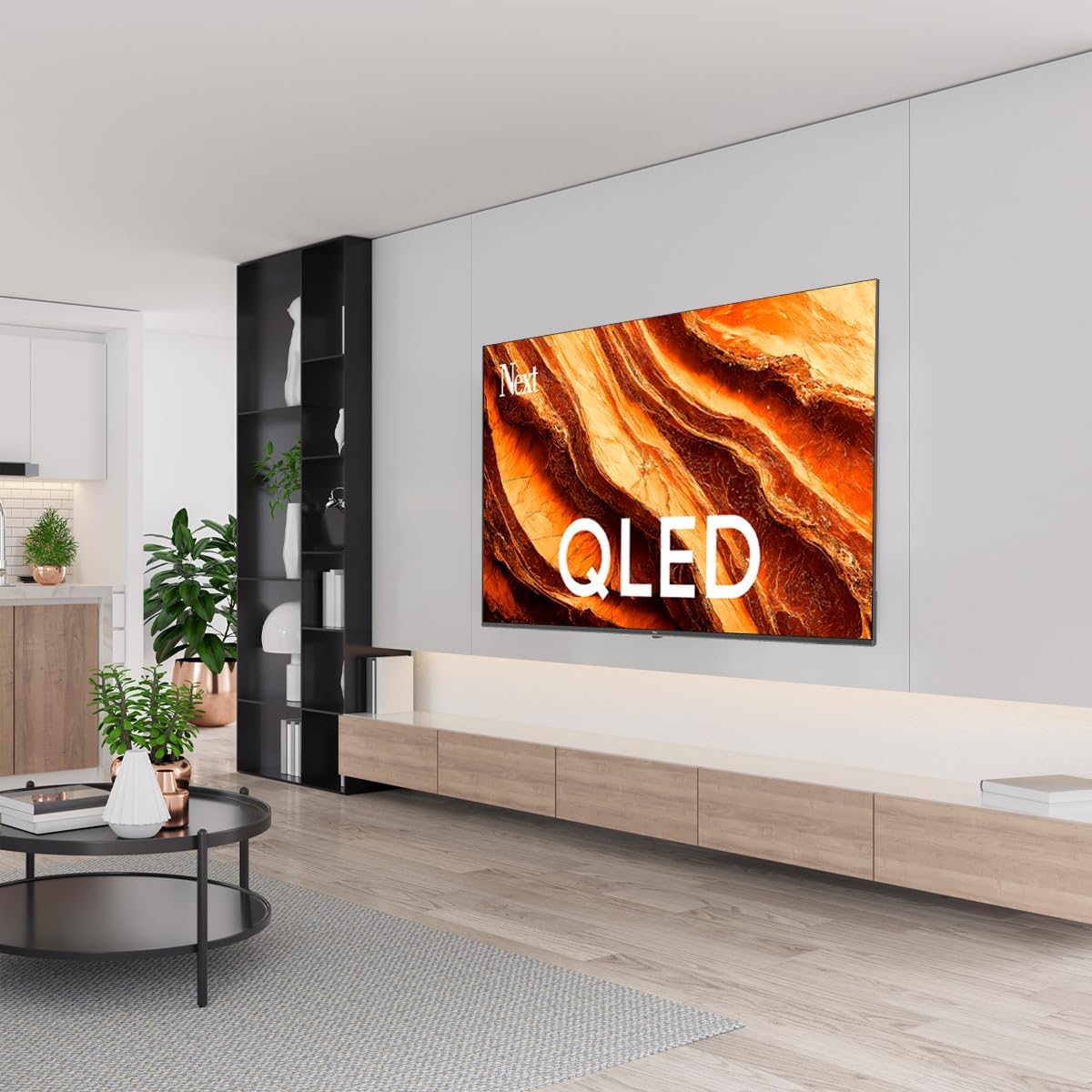
Gambar: QLED Color Saturation. This image visually demonstrates the high color saturation achieved with QLED technology, showing a vibrant and rich color display.

Gambar: HDR (High Dynamic Range). This image illustrates the visual impact of HDR, showcasing improved contrast and color detail in a scene when HDR is enabled versus when it is off.
5.4 Setélan jaringan
To connect your TV to the internet:
- Pencét éta Setélan tombol dina remote Anjeun.
- Arahkeun ka Jaringan & Internét.
- Pilih Wifi to connect to a wireless network or ensure Ethernet is connected for a wired connection.
- Pikeun Wi-Fi, pilih jaringan anjeun tina daptar teras lebetkeun kecap aksesna.
6. Pangropéa
6.1 Ngabersihan TV
- Sok cabut TV samemeh beberesih.
- Use a soft, dry, lint-free cloth to gently wipe the screen and TV body.
- Pikeun tanda pengkuh, enteng dampen the cloth with water or a specialized screen cleaner (ensure it's safe for TV screens). Never spray cleaner directly onto the screen.
- Ulah make cleaners abrasive, lilin, atawa pangleyur.
6.2 Apdet parangkat lunak
Your TV may receive software updates to improve performance and add new features. It is recommended to keep your TV's software updated.
- Pastikeun TV Anjeun disambungkeun ka internét.
- Pencét éta Setélan tombol dina remote Anjeun.
- Arahkeun ka Sistim > Ngeunaan > Pembaruan sistem.
- Pilih Pariksa apdet.
- Turutan parentah dina layar pikeun ngundeur tur masang apdet sadia.
7. Cara ngungkulan
Upami anjeun ngalaman masalah sareng TV anjeun, tingal masalah sareng solusi umum ieu:
| Masalah | Mungkin Cukang lantaranana / Solusi |
|---|---|
| Taya kakuatan | Check if the power cord is securely plugged into the TV and the wall outlet. Ensure the outlet is working. |
| Henteu aya gambar, tapi aya sora | Pariksa sumber input. Pastikeun alat nu disambungkeun dihurungkeun tur fungsina bener. |
| Henteu aya sora, tapi aya gambar | Check the volume level and mute status. Verify audio cable connections for external devices. Check TV sound settings. |
| Kadali jauh teu jalan | Ganti batréna. Pastikeun teu aya halangan antara jauh sareng sénsor IR TV. |
| Teu bisa nyambung ka Wi-Fi | Ensure your Wi-Fi router is on and within range. Re-enter the Wi-Fi password carefully. Try restarting the TV and router. |
| Aplikasi laun atanapi macet | Close unused apps. Clear app cache (Settings > Apps > See all apps > [App Name] > Clear cache). Ensure a stable internet connection. |
Lamun masalah persists sanggeus nyobian solusi ieu, mangga ngahubungan rojongan customer.
8. Spésifikasi
Technical specifications for the Next YE-65GFSG8-QLED 65-inch UHD 4K Google QLED TV:
- merek: Teras
- Model Taun: 2025
- Resolusi: 4K (3840x2160)
- Téknologi tampilan: QLED
- Ukuran layar: 65 inci (165 cm)
- Rasio Aspék: 16:9
- Laju Refresh: 60 Hz
- Fitur konci: Desain Tanpa Bingkai
- Konektipitas: Bluetooth, Ethernet, HDMI (ARC), USB (2x), Wi-Fi
- Ukuran produk: 27.8D x 144.6W x 88.9H cm
- beurat: 16.3 kg
- Sistem operasi: Google TV
- Komponén Kaasup: Kadali jauh
- Negara asal: kalkun
9. Garansi jeung Rojongan
Your Next YE-65GFSG8-QLED TV comes with a manufacturer's warranty. Please refer to the warranty card included in your package for specific terms and conditions, including the warranty period and coverage details.
For technical support, service requests, or further assistance, please contact Next customer service. Contact information can typically be found on the manufacturer's websitus atanapi dina dokuméntasi jaminan.
- Dukungan Online: Visit the official Next website for FAQs, troubleshooting guides, and support contact details.
- Puseur Palayanan: For hardware issues, locate an authorized service center near you.


