1. Produk Langkungview
This manual provides instructions for the Doohoeek Wireless Illuminated Keyboard Case, designed to enhance the functionality and protection of your compatible iPad device. This keyboard case features a multi-touch trackpad, illuminated keys, and a rechargeable battery, offering a versatile and portable solution for productivity.
Kasaluyuan:
- iPad Air 13 (2025 M3 / 2024 M2)
- iPad Pro 12.9 Inch (6th, 5th, 4th, 3rd Generation)

Gambar 1.1: The Doohoeek Keyboard Case with an iPad Air 13 installed, showcasing the keyboard and trackpad. The case provides comprehensive protection while allowing full access to device features.

Gambar 1.2: Visual representation of compatible iPad models, including iPad Air 13 M3/M2 2025/2024 and various generations of iPad Pro 12.9 Inch. Ensure your iPad model matches the listed compatibility.
2. Setup Guide
2.1 Eusi pakét
Before proceeding, please verify that all components are present:
- 1 x Keyboard Case for iPad Air 13 / iPad Pro 12.9 Inch
- 1 x Kabel Ngecas USB
- 1 x Manual Pamaké (dokumén ieu)
2.2 Ngecas kibor
The keyboard features a built-in rechargeable battery. For optimal performance, fully charge the keyboard before first use.
- Locate the charging port on the keyboard (typically on the side).
- Sambungkeun kabel ngecas USB anu disayogikeun kana port ngecas kibor.
- Sambungkeun tungtung kabel USB anu sanés ka adaptor kakuatan USB standar (teu kalebet) atanapi port USB komputer.
- Lampu indikator ngecas bakal hurung. Ngecas pinuh biasana peryogi 2-3 jam.
- Once fully charged, the indicator light may change color or turn off. The keyboard offers approximately 300 hours of standby time without backlight on a single charge.
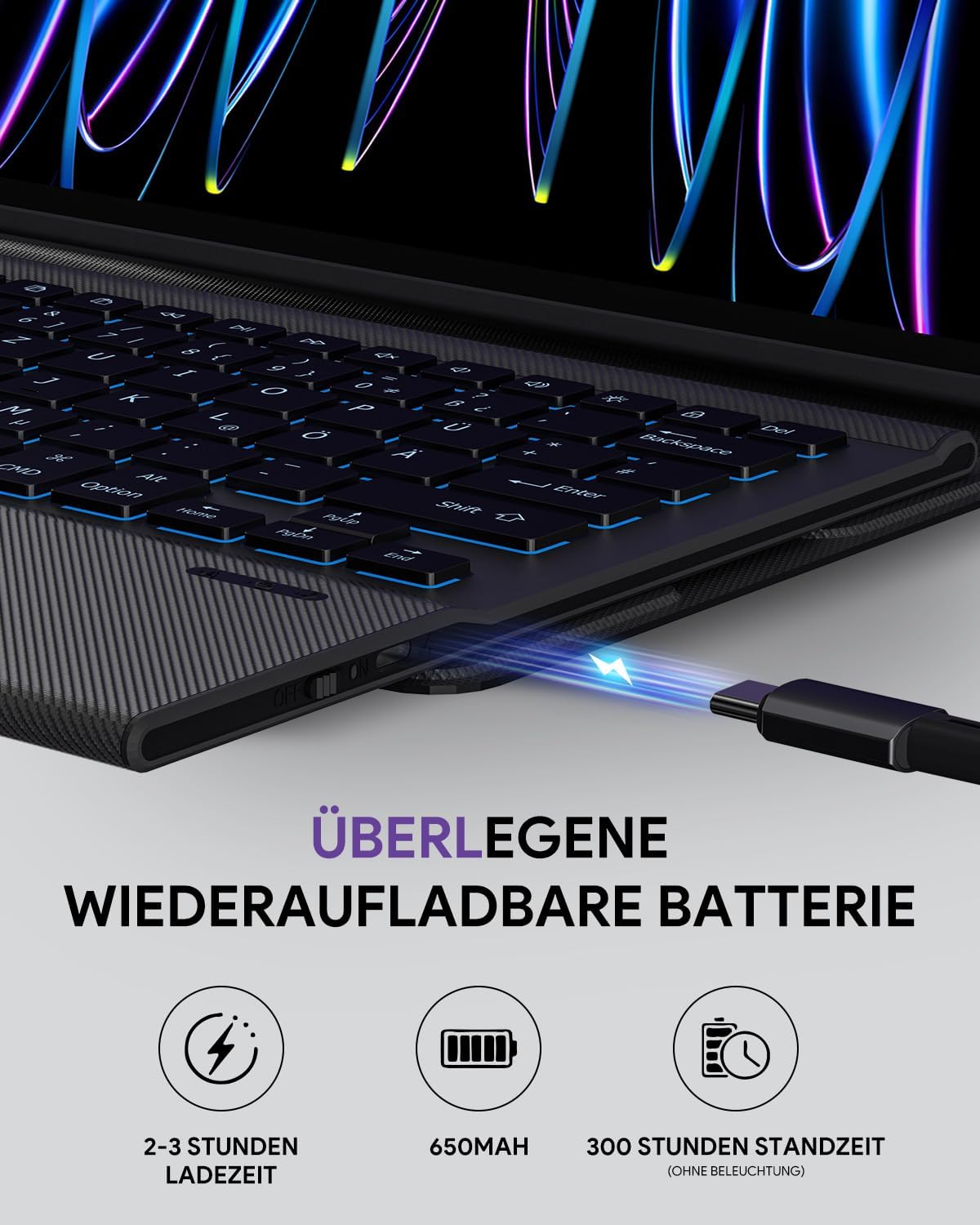
Gambar 2.1: The keyboard's charging port connected to a USB cable, indicating the charging process. The battery provides extended usage time.
2.3 Masang iPad Anjeun
Carefully place your iPad into the protective case:
- Align your iPad with the cut-outs of the case.
- Pencét iPad kana wadahna lalaunan, pastikeun sadaya sisi-sisina dipasang pageuh.
- Verify that all ports, buttons, and cameras are accessible and unobstructed.

Gambar 2.2: Detail of the compact case design, showing the secure fit for the iPad and the integrated pen holder. The case is designed for protection and convenience.
2.4 Nyapasangkeun Bluetooth
To connect the keyboard to your iPad via Bluetooth:
- Ensure the keyboard is charged and turn on the keyboard's power switch (usually located on the side).
- Dina iPad anjeun, buka Setélan > Bluetooth.
- Turn on Bluetooth. Your iPad will begin searching for nearby devices.
- Dina kibor, pencét tombol Nyambung button (or a combination like Fn + C, refer to keyboard markings if different) to enter pairing mode. The Bluetooth indicator light on the keyboard will flash.
- On your iPad, select "Doohoeek Keyboard" (or a similar name) from the list of available devices.
- Turutan sagala parentah dina layar pikeun ngalengkepan prosés papasangan. Lampu indikator dina kibor bakal eureun kedip-kedip saatos hasil dipasangkeun.
3. Parentah Operasi
3.1 Fungsi kibor
The keyboard features a QWERTZ layout and several special functions:
- Kontrol lampu latar: The keyboard offers 7 different backlight colors and 3 adjustable brightness levels. Use the dedicated backlight key (often represented by a light bulb icon) or a function key combination (e.g., Fn + Light Bulb) to cycle through colors and adjust brightness.
- Konci Saklar Gunting: The keys utilize a scissor-switch mechanism for a comfortable and responsive typing experience.

Gambar 3.1: The illuminated keyboard displaying various backlight colors and brightness settings. Users can customize the lighting to suit their environment.
3.2 Trackpad Multi-Toél
The integrated multi-touch trackpad allows for precise navigation and gesture control on your iPad, similar to a laptop. It includes anti-palm mistouch technology to prevent accidental inputs during typing.
- Napigasi Dasar: Pindahkeun kursor ku cara ngageserkeun ramo anjeun dina trackpad.
- Klik: Press down on the trackpad or tap with one finger.
- Gulung: Anggo dua ramo pikeun ngagulung ka luhur atanapi ka handap.
- Zum: Ciwit ku dua ramo pikeun ngazum gede atawa leutik.
- Other Gestures: Refer to iPadOS settings for additional multi-touch gestures supported by your iPad.

Gambar 3.2: The multi-touch trackpad in use, demonstrating various gestures for navigation and control on the iPad screen. The anti-palm mistouch feature is also highlighted.
3.3 bisa diatur Viewdina Angles
The case features a kickstand that allows for three adjustable viewing angles, providing flexibility for typing, drawing, or media consumption.
- The keyboard is magnetically attached and can be removed from the case for standalone use or to adjust the viewing angle more freely.

Gambar 3.3: The keyboard case demonstrating its three adjustable viewing angles (110°, 120°, 130°), allowing users to find the most comfortable position for their tasks. The removable keyboard feature is also illustrated.
4. Pangropéa
To ensure the longevity and optimal performance of your keyboard case:
- beberesih: Ngagunakeun lemes, damp cloth to wipe the exterior of the case and keyboard. Avoid harsh chemicals or abrasive materials. For the keyboard keys, a soft brush or compressed air can remove debris.
- Panyimpenan: Upami teu dianggo salami lami, simpen wadah kibor di tempat anu tiis sareng garing. Pastikeun kibor dipareuman pikeun ngahémat umur batré.
- Perlindungan: While the case offers protection, avoid dropping the device or exposing it to extreme temperatures or liquids.
5. Cara ngungkulan
If you encounter issues with your Doohoeek Keyboard Case, refer to the following common solutions:
- Kibor teu nyambung via Bluetooth:
- Ensure the keyboard is turned on and fully charged.
- Pastikeun Bluetooth diaktipkeun dina iPad anjeun.
- Poho alat dina setélan Bluetooth iPad anjeun sareng cobian pasangkeun deui.
- Ensure the keyboard is in pairing mode (indicator light flashing).
- Pareuman terus hurungkeun deui iPad sareng kibor anjeun.
- Konci henteu ngabales:
- Pariksa naha kibor disambungkeun via Bluetooth.
- Ensure the keyboard battery is not depleted.
- Bersihkeun sagala runtah tina handapeun konci.
- Trackpad teu jalan:
- Pastikeun keyboard disambungkeun.
- Check iPadOS settings for trackpad functionality and gestures.
- Clean the trackpad surface.
- Lampu latar teu jalan atanapi redup:
- Pastikeun keyboard dieusi.
- Use the backlight control key to adjust brightness and cycle through colors.
If problems persist, please contact customer support as detailed in the Warranty and Support section.
6. Spésifikasi
| Fitur | Rincian |
|---|---|
| merek | Doohoeek |
| Alat nu cocog | iPad Air 13 (2025 M3/2024 M2), iPad Pro 12.9 (6th/5th/4th/3rd Gen) |
| Téhnologi konektipitas | Bluetooth |
| Katerangan kibor | Multi Functional, QWERTZ Layout |
| Fitur husus | Backlit (7 colors, 3 levels), Portable, Rechargeable, Multi-Touch Trackpad, Quiet Scissor-Switch Keys, Removable Keyboard, Adjustable Kickstand |
| Kapasitas batré | 650 mAh |
| Waktu Ngecas | 2-3 jam |
| Waktu sayaga | Approx. 300 hours (without backlight) |
| Bahan | palastik |
| Komponén Kaasup | Kabel USB |
| Ukuran Paket | 32.5 x 25.4 x 3.4 cm |
| Beurat | 1.08 kg |
7. Garansi jeung Rojongan
The Doohoeek Keyboard Case comes with a garansi 2 taun ti tanggal beuli.
For any questions, technical assistance, or warranty claims, please contact Doohoeek customer support through the Amazon platform where the product was purchased. Provide your order details and a clear description of the issue for prompt assistance.


