1. Bubuka
This manual provides essential information for the setup, operation, maintenance, and troubleshooting of your BNCF NewBook 11 2-in-1 Laptop. Designed for versatility, this device functions as both a laptop and a tablet, powered by an Intel N150 processor and running Windows 11 Pro. Please read this manual thoroughly to ensure optimal performance and longevity of your device.

Figure 1.1: BNCF NewBook 11 2-in-1 Laptop
2. Naon dina Box
Upon opening your BNCF NewBook 11 package, verify that all the following items are included:
- BNCF NewBook 11 2-in-1 Laptop
- Kibor Magnét
- Kickstand
- Adaptor Daya (12V/3A)
- Manual pangguna (dokumén ieu)
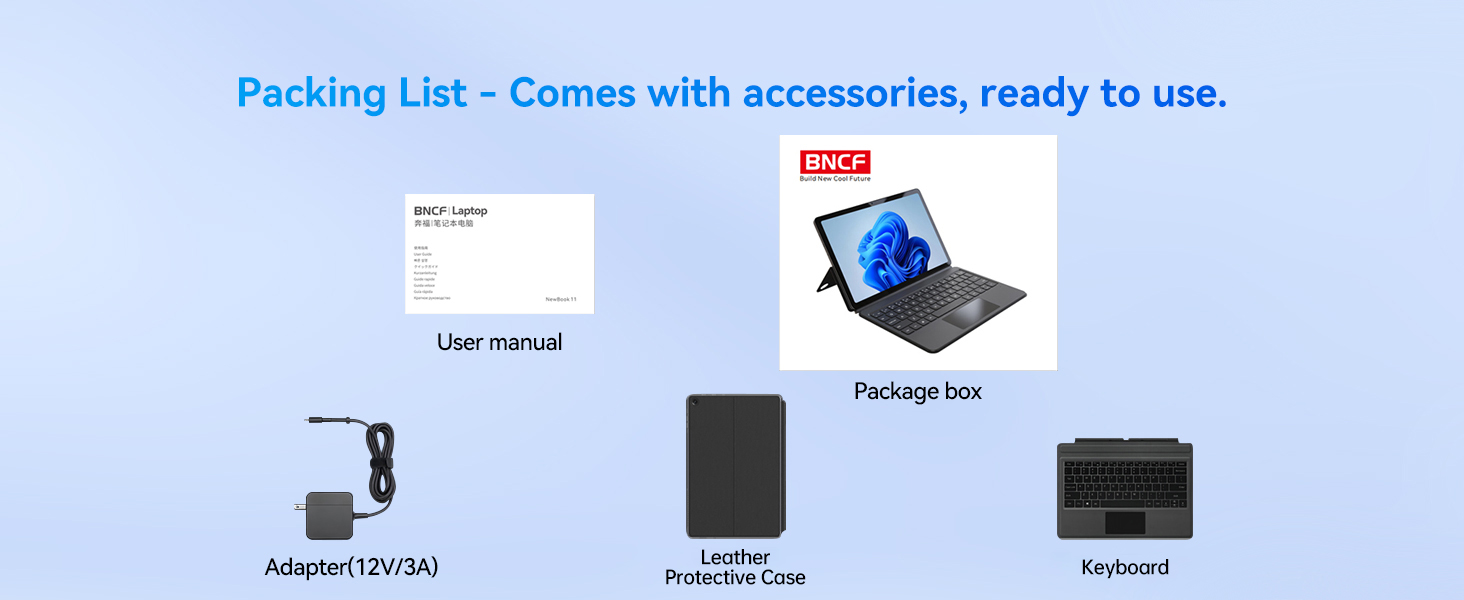
Gambar 2.1: Eusi pakét
3. Produk Langkungview
3.1 Fitur konci
- Prosesor: Intel Alder Lake N150 Quad-core CPU (up to 3.6GHz Turbo) with Intel UHD Graphics.
- Sistem operasi: Windows 11 Pro.
- Mémori & Panyimpenan: 12GB DDR5 RAM sareng 256GB NVMe SSD.
- tampilan: 11-inch FHD IPS In-Cell Touchscreen (1920x1200 resolution).
- Kaméra: Dual cameras (5MP front, 8MP rear).
- Batré: 34.2Wh with Type-C fast charging (PD 36W).
- Konektipitas: Wi-Fi 6 (2.4/5GHz), Bluetooth 5.0, 2x Type-C ports (charging/data), 1x USB 3.0 port, Micro HDMI, 3.5mm audio jack.
- Desain: Durable 635g metal body (tablet only), total 1106g with keyboard and kickstand.
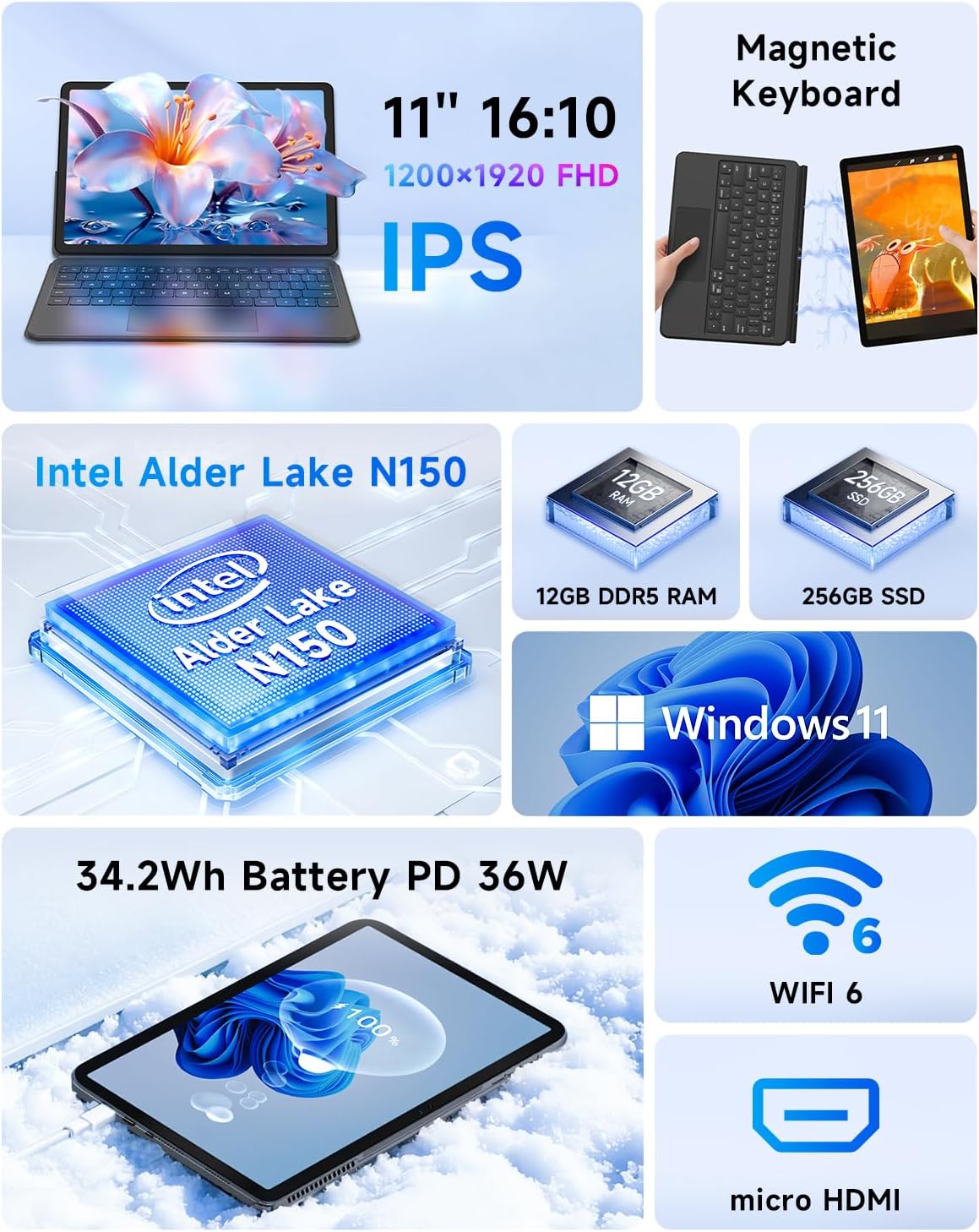
Gambar 3.1: Fitur konci Leuwihview
3.2 Palabuhan sarta Tombol
Familiarize yourself with the location and function of the ports and buttons on your device:
- Tombol Daya: Located on the top edge. Press to power on/off or sleep/wake.
- Tombol Volume: Located on the top edge, next to the power button.
- Port Tipe-C: Two ports on the left side, supporting charging and data transfer.
- Palabuhan USB 3.0: Port USB standar pikeun nyambungkeun périferal.
- Port Mikro HDMI: Pikeun nyambungkeun ka tampilan éksternal.
- Jack Headphone 3.5mm: Pikeun kaluaran audio.
- Panyatur: Spiker stéréo anu terintegrasi.
- Mikropon: Built-in for audio input.
- Kaméra hareup: 5MP camera for video calls.
- Kaméra tukang: Kaméra 8MP pikeun poto sareng pidéo.
- Keyboard Docking Connector: Magnetic connector at the bottom edge for attaching the keyboard.

Figure 3.2: Device Ports and Buttons
4. Setélan
4.1 Ngecas Awal
Before first use, connect the provided power adapter to one of the Type-C ports on your device and plug it into a power outlet. Allow the device to charge for at least 30 minutes, or until the charging indicator shows a sufficient charge, before powering it on.
4.2 Attaching the Keyboard and Kickstand
The magnetic keyboard and kickstand can be easily attached to transform your tablet into a laptop. Align the magnetic connector on the keyboard with the docking port on the bottom edge of the tablet. The magnets will secure the connection. The kickstand attaches magnetically to the back of the tablet, allowing you to prop it up for comfortable viewdina atawa ngetik.

Figure 4.1: Attaching the Magnetic Keyboard and Kickstand
4.3 Powering On and Initial Windows Setup
- Pencét jeung tahan tombol Tombol Daya on the top edge until the screen illuminates.
- Turutan parentah dina layar pikeun ngalengkepan setelan awal Windows 11 Pro, kalebet pilihan basa, sambungan jaringan, sareng nyieun akun pangguna.
- Connect to a Wi-Fi network to ensure your device can download necessary updates and drivers.
5. Parentah Operasi
5.1 Ngalihkeun Antara Modeu
Your BNCF NewBook 11 supports three primary modes:
- Modeu Laptop: With the magnetic keyboard and kickstand attached, use the device as a traditional laptop for typing and productivity.
- Modeu tablet: Detach the keyboard and fold the kickstand for a lightweight, portable tablet experience, ideal for browsing or media consumption.
- Mode nangtung: With the kickstand deployed and the keyboard detached or folded back, the tablet can stand upright, perfect for watching videos or presentations.
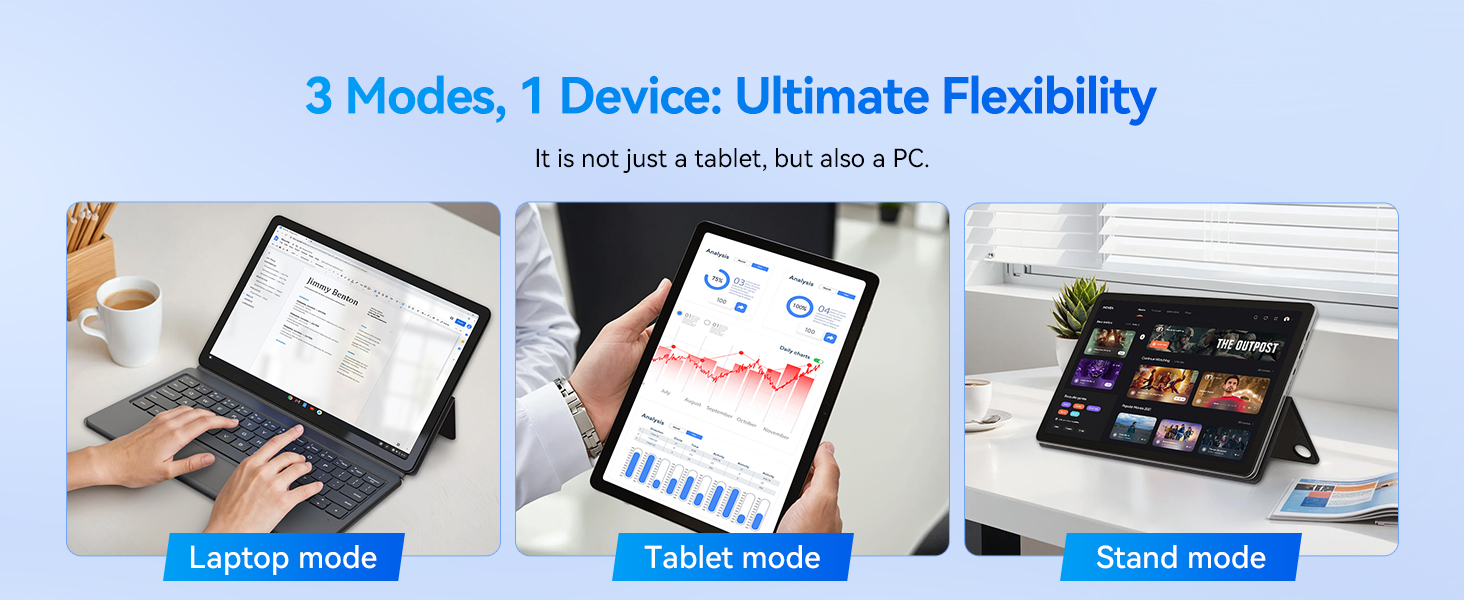
Figure 5.1: Flexible Usage Modes
5.2 Touchscreen and Gestures
The 11-inch FHD IPS In-Cell touchscreen supports multi-touch gestures. Common gestures include:
- Ketok: Pilih hiji item atawa buka aplikasi.
- Ketok jeung Tahan: Access contextual menus.
- Ciwit-pikeun-Zoom: Ngazum gede atawa leutik dina gambar na web kaca.
- Gesek: Scroll through content or navigate interfaces.
5.3 Konéktipitas
- Wi-Fi 6: Nyambung ka jaringan nirkabel pikeun aksés internét. Pindah ka Setelan > Jaringan & Internét > Wi-Fi pikeun ngatur sambungan.
- Bluetooth 5.0: Pair with wireless accessories like headphones or mice. Go to Setelan > Bluetooth & alat.
- Mikro HDMI: Use a Micro HDMI to HDMI cable to connect to external monitors or projectors. This supports 1080p HD output.
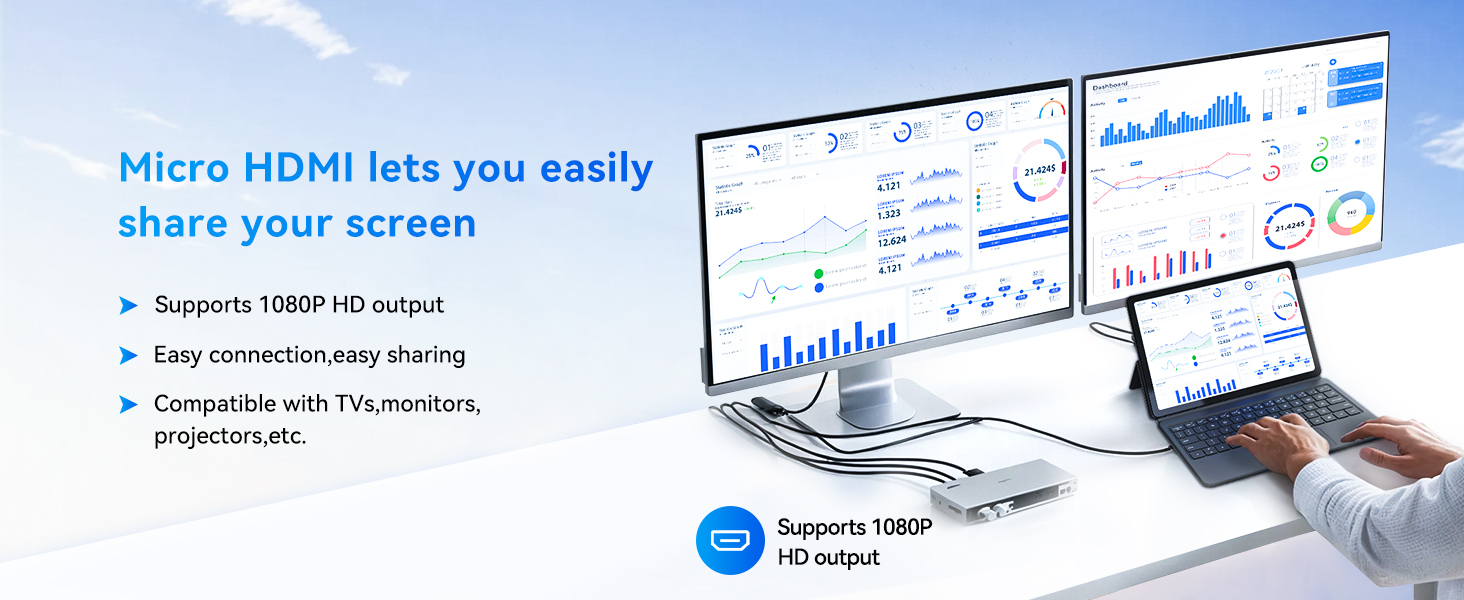
Figure 5.2: Micro HDMI Connectivity
5.4 Manajemén batré
The device is equipped with a 34.2Wh battery and supports PD 36W fast charging via the Type-C port. To maximize battery life:
- Atur kacaangan layar ka tingkat anu nyaman.
- Tutup aplikasi anu henteu dianggo.
- Aktipkeun modeu Batre Saver dina setélan Windows.
- Use the provided adapter for optimal charging speed.
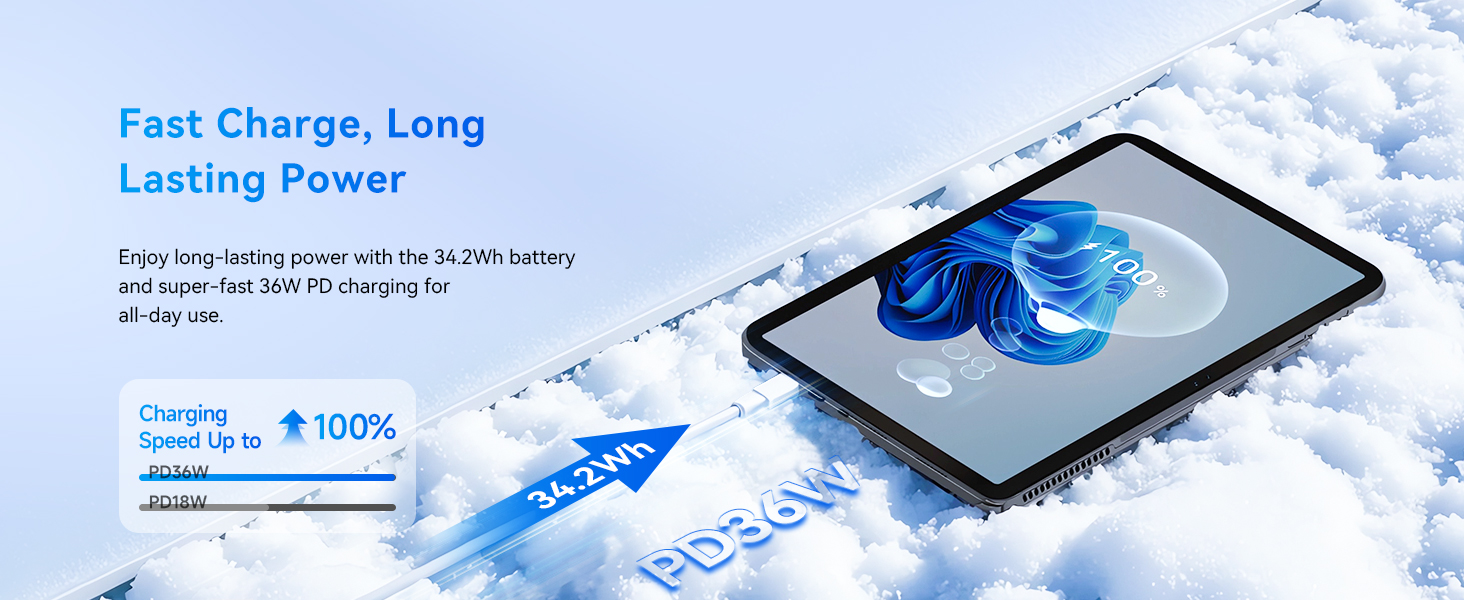
Figure 5.3: Fast Charging Feature
6. Pangropéa
Proper maintenance ensures the longevity and optimal performance of your BNCF NewBook 11.
- beberesih: Anggo lawon anu lemes sareng henteu lint pikeun ngabersihan layar sareng luar. Pikeun smudges nekad, rada dampen lawon jeung cai atawa cleaner aman layar. Hindarkeun bahan kimia anu kasar.
- Panyimpenan: Simpen alat dina tempat anu tiis sareng garing jauh tina sinar panonpoé langsung sareng suhu anu ekstrim.
- Apdet parangkat lunak: Regularly check for and install Windows updates to ensure security and performance improvements. Go to Setélan > Windows Update.
- Cadangan Data: Jieun cadangan data penting sacara périodik ka drive éksternal atanapi panyimpenan awan pikeun nyegah leungitna data.
- Sistim cooling: The device features an active cooling system with a PC-level fan and copper heat pipe. Ensure the air vents are not obstructed to maintain efficient cooling.

Figure 6.1: Active Cooling System
7. Cara ngungkulan
This section addresses common issues you might encounter with your BNCF NewBook 11.
| Masalah | Solusi anu mungkin |
|---|---|
| Alat teu hurung | Ensure the device is charged. Connect the power adapter and wait a few minutes before attempting to power on again. If unresponsive, perform a hard reset by holding the power button for 10-15 seconds. |
| Screen is blank or unresponsive | Check if the device is powered on. If it is, try restarting the device. If the touchscreen is unresponsive, use the keyboard/mouse or perform a hard reset. |
| Keyboard or trackpad not working | Ensure the magnetic keyboard is securely attached to the tablet's docking port. Detach and reattach the keyboard. Restart the device. |
| Wi-Fi or Bluetooth connectivity issues | Check if Wi-Fi/Bluetooth is enabled in Windows settings. Restart your router/modem. Forget the network/device and reconnect. Update network drivers if necessary. |
| kinerja lalaunan | Close unnecessary applications. Check for background processes consuming resources (Task Manager). Ensure sufficient free storage space. Run Windows Update. |
| External display not detected via Micro HDMI | Ensure the Micro HDMI cable is securely connected to both the tablet and the external display. Verify the external display is set to the correct input source. Try restarting both devices. |
8. Spésifikasi
Detailed technical specifications for the BNCF NewBook 11 2-in-1 Laptop:
| Fitur | Spésifikasi |
|---|---|
| Ngaran modél | NewBook 11 |
| Sistem operasi | Windows 11 Pro |
| Prosesor | Intel Alder Lake N150 (Quad-core, up to 3.6 GHz) |
| Grafik Coprocessor | Intel UHD Graphics (Terpadu) |
| Ram | 12GB DDR5 |
| Hard Drive | 256GB NVMe SSD |
| Ukuran layar | 11 inci |
| Resolusi layar | 1920 x 1200 pixels (FHD IPS In-Cell) |
| Tipe Wireless | Wi-Fi 6 (802.11a/b/g/n/ac), Bluetooth 5.0 |
| palabuhan USB | 2x Type-C (charging/data), 1x USB 3.0 |
| Kaluaran Video | Mikro HDMI |
| Audio | 3.5mm Headphone Jack, Dual Stereo Speakers |
| Kaméra | 5MP Hareup, 8MP Rear |
| Batré | 34.2Wh, PD 36W Fast Charging |
| Item Beurat | Tablet: 635g (1.4 lbs), Total with keyboard/kickstand: 1106g (2.44 lbs) |
| Dimensi produk | 10.12 x 6.61 x 0.38 inci |
| Warna | Hideung |
9. Garansi jeung Rojongan
BNCF is committed to providing high-quality products and customer satisfaction.
9.1 Émbaran jaminan
Your BNCF NewBook 11 comes with a jaminan hiji taun. For tablets purchased from the BNCF Official Flagship Store, customers benefit from a 12-month free repair warranty and lifetime technical support. This warranty covers manufacturing defects and malfunctions under normal use.
9.2 Rojongan Palanggan
If you encounter any issues or have questions regarding your device, please contact BNCF customer support. You can expect a response within 24 hours. Our expertise is available to help solve problems, or to facilitate return or exchange services if necessary.
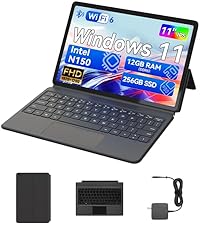
Figure 9.1: BNCF Warranty and Support
9.3 Rencana panyalindungan
Rencana panyalindungan tambahan sayogi kanggo dipésér:
- Rencana Perlindungan 2 Taun: Sadia pikeun $52.99.
- Rencana Perlindungan 4 Taun: Sadia pikeun $90.99.
- Ngajaga lengkep: A monthly plan at $16.99/month, covering all eligible past and future purchases.


