1. Bubuka
This manual provides essential information for the safe and efficient use of your KOORUI G2711P 27-inch IPS Full HD Gaming Monitor. Please read it thoroughly before operating the device and retain it for future reference.
The KOORUI G2711P monitor features a 27-inch IPS non-glare panel with Full HD (1920x1080) resolution, a 200Hz refresh rate, and a 1ms MPRT response time, designed for an immersive gaming and viewing experience. It includes multiple connectivity options and eye-care features.

Gambar 1.1: Hareupeun view of the KOORUI G2711P 27-inch IPS Full HD Gaming Monitor.
2. Émbaran Kasalametan
- Ulah ngalaan monitor ka hujan atawa Uap pikeun nyegah seuneu atawa shock listrik.
- Ulah muka monitor casing. Henteu aya bagian anu tiasa dilayanan ku pangguna di jero. Rujuk sadayana jasa ka tanaga jasa anu mumpuni.
- Teundeun monitor dina tempat nu datar, stabil pikeun nyegah ragrag.
- Pastikeun ventilasi ditangtoskeun sabudeureun monitor. Ulah meungpeuk bukaan ventilasi.
- Paké ngan adaptor kakuatan disadiakeun kalawan monitor.
- Cabut colokan monitor tina stop kontak listrik nalika badai kilat atanapi nalika henteu dianggo kanggo waktos anu lami.
3. Setélan
3.1 Ngabongkar bungkusan
Carefully remove all components from the packaging. Ensure all parts listed in the packing list are present and undamaged. Keep packaging materials for future transport or return.
3.2 Majelis nangtung
- Gantelkeun dasar nangtung kana beuheung nangtung.
- Secure the assembled stand to the back of the monitor panel. Refer to the product images for visual guidance on the attachment method.

Image 3.1: Monitor dimensions and side view, illustrating the stand attachment area.
3.3 Nyambungkeun ka Alat
The monitor supports various input options:
- HDMI: Connect an HDMI cable from your computer or other device to one of the two HDMI 2.0 ports on the monitor.
- DisplayPort (DP): Connect a DisplayPort cable from your computer to the DP 1.4 port on the monitor.
- Audio Out (A/O): Connect external speakers or headphones to the audio output port if desired, as the monitor does not have built-in speakers.

Gambar 3.2: Tukangeun view of the monitor showing HDMI, DisplayPort, and Audio Out connections, along with the 75x75mm VESA mount.
3.4 Sambungan Daya
Connect the power adapter to the monitor's power input, then plug the power cable into a wall outlet. The monitor is designed for 110V power input.
4. Parentah Operasi
4.1 Daya Hurung/Pareuman
Press the power button, typically located on the back or bottom of the monitor, to turn the monitor on or off. An indicator light will show the power status.
4.2 Napigasi Menu dina Layar (OSD).
The monitor features a 5-way joystick for intuitive OSD menu navigation. This joystick allows you to access and adjust various display settings.
- Pencét joystick: Konfirmasi pilihan.
- Move joystick up/down: Adjust or select options.
- Move joystick left/right: Adjust or select options.
- Move joystick back (usually left): Exit menu or go back.

Image 4.1: Illustration of the 5-way joystick control for OSD menu navigation.
4.3 Setélan tampilan
- Resolusi: The native resolution is 1920x1080 Full HD. Ensure your device is set to this resolution for optimal display quality.
- Laju Refresh: The monitor supports up to 200Hz. Adjust your graphics card settings to utilize the higher refresh rate for smoother visuals.
- Waktu Tanggapan (MPRT): The monitor features 1ms MPRT (Moving Picture Response Time) for reduced motion blur. This setting can usually be enabled or adjusted in the OSD menu.
- Singkronisasi adaptif: This technology synchronizes the monitor's refresh rate with your graphics card's frame rate to eliminate screen tearing and stuttering. Enable it in the OSD menu and your graphics card control panel.
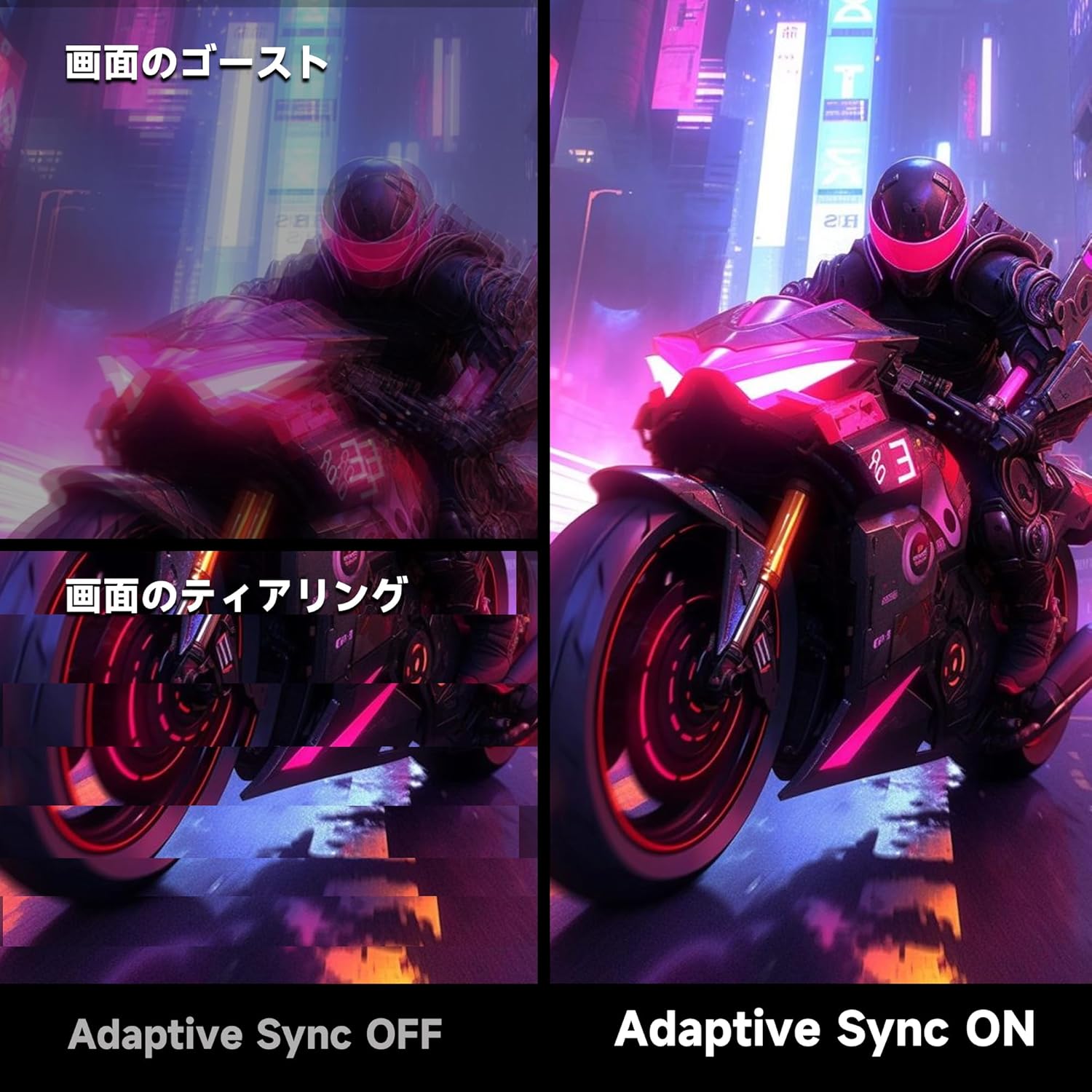
Image 4.2: Visual comparison demonstrating the effect of Adaptive Sync being OFF (showing ghosting and tearing) versus ON (smooth image).

Image 4.3: Comparison illustrating the difference in motion clarity between 200Hz 1ms MPRT and 75Hz 5ms settings.
- HDR 400: The monitor supports HDR 400 for enhanced contrast and color depth. Enable HDR in your operating system settings for compatible content.

Image 4.4: Visual representation of HDR 400 providing more impressive and vibrant images compared to standard HDR 10.
- Setélan warna: The monitor offers 93% DCI-P3 color gamut for accurate and vibrant color reproduction. Adjust brightness, contrast, and color temperature via the OSD menu.

Image 4.5: Display showing a wide range of colors, indicating 93% DCI-P3 color gamut coverage for accurate and vivid visuals.
- Fitur Perawatan Mata: The monitor incorporates 'Blue Light Reduction' and 'Flicker-Free' technologies to minimize eye strain during prolonged use. These settings can be adjusted in the OSD menu.
- Crosshair Function: For shooting games, a built-in crosshair overlay can be enabled via the OSD menu to assist with aiming.

Image 4.6: A gaming scene demonstrating the monitor's crosshair function, which can be toggled ON or OFF to assist players in shooting games.
5. Pangropéa
5.1 Ngabersihan Layar
Ngusap layar nganggo kaén anu lembut sareng teu aya serat. Pikeun tanda nekad, dampen the cloth with a small amount of screen cleaner specifically designed for monitors. Do not spray cleaner directly onto the screen.
5.2 Ngabersihkeun Casing
Make kaen nu lemes tur garing pikeun ngusap monitor casing. Avoid using abrasive cleaners or solvents that may damage the surface.
6. Cara ngungkulan
- Henteu aya kakuatan: Pastikeun kabel daya disambungkeun pageuh kana monitor sareng stop kontak. Pariksa naha stop kontakna tiasa dianggo.
- Henteu aya sinyal: Verify that the video cable (HDMI or DisplayPort) is correctly connected to both the monitor and your computer. Ensure the correct input source is selected in the monitor's OSD menu.
- Layar kedip-kedip: Pariksa sambungan kabel vidéo. Cobi kabel atanapi port anu béda. Pastikeun supir kartu grafis anjeun mutahir.
- Image Distortion/Tearing: Ensure Adaptive Sync is enabled in both the monitor's OSD and your graphics card settings. Check for correct resolution and refresh rate settings.
- Poor Color Quality: Adjust color settings (brightness, contrast, color temperature) in the OSD menu. Ensure HDR is enabled for HDR content.
7. Spésifikasi
| Fitur | Spésifikasi |
|---|---|
| merek | KOORUI |
| Modél | G2711P |
| Ukuran layar | 27 inci |
| Tipe Panel | IPS, Non-Glare |
| Resolusi | 1920 x 1080 (HD lengkep) |
| Rasio Aspék | 16:9 |
| Refresh Laju | 200Hz |
| Waktu Tanggapan | 1ms MPRT (GTG) |
| Caang | 300 cd/m² |
| Babandingan Kontras | 1000:1 |
| Viewdina Angle | 178° (Horizontal/Vértikal) |
| Warna Gamut | 93% DCI-P3 |
| Rojongan HDR | HDR 400 |
| Konektipitas | 2x HDMI 2.0, 1x DisplayPort 1.4, 1x Audio Out |
| Panyatur | Teu kaasup |
| VESA Gunung kasaluyuan | 75 x 75 mm |
| Ukuran (W x H x D) | 61.34 x 47.23 x 21.49 cm (kalayan nangtung) |
| Beurat | 5.8 kg |
| Input kakuatan | 110V |
8. Garansi
The KOORUI G2711P monitor screen is covered by a garansi 1 taun from the date of purchase. All other included accessories are covered by a garansi 3 taunMangga simpen bukti pameseran anjeun kanggo klaim garansi. Garansi ieu ngawengku cacad manufaktur sareng gangguan fungsi dina kaayaan panggunaan normal.
9. Rojongan
For technical assistance, troubleshooting, or warranty inquiries, please contact KOORUI customer support through the retailer where you purchased the product or visit the official KOORUI website for contact information. When contacting support, please have your monitor model number (G2711P) and proof of purchase readily available.


