1. Bubuka
This manual provides detailed instructions for the setup, operation, and maintenance of your Dierya M1 Wireless Gaming Mouse. Please read this manual thoroughly before using the product to ensure proper functionality and to maximize your user experience.

Figure 1: Dierya M1 Wireless Gaming Mouse and 2.4G USB Receiver.
2. Fitur Produk
- Sensor Optik 24,000 DPI: Adjustable DPI range from 200 to 24,000, with 6 preset levels (400-6400 DPI). Features a 125-1000 Hz polling rate, 300 IPS tracking speed, and 35G acceleration.
- Konektipitas Tri-Mode: Supports ultra-fast 2.4 GHz wireless (1000 Hz polling rate), energy-efficient Bluetooth 5.2 (125 Hz polling rate), and stable USB-C wired connection (1000 Hz polling rate).
- Manjangkeun Umur Batré: Equipped with a 1000 mAh battery, providing up to 180 hours of use in ECO mode or 48 hours with RGB lighting enabled. Fully recharges in approximately 1 hour via USB-C. Includes an automatic power-saving mode after 1-5 minutes of inactivity.
- Ringan & Desain Ergonomis: Weighs 90g with a breathable honeycomb shell. Symmetrical design (125x63x41 mm) suitable for various grip styles.
- Komponén awét: Features Huano switches rated for 20 million clicks and 100% PTFE feet for smooth gliding.
- Tombol anu tiasa diprogram: Six customizable buttons for macros and reassignments.
- Lampu RGB Dinamis: 13 integrated dynamic RGB lighting effects with 16.8 million customizable colors.
- Kasaluyuan Sistim: Compatible with Windows, macOS, Linux, and Chrome OS.
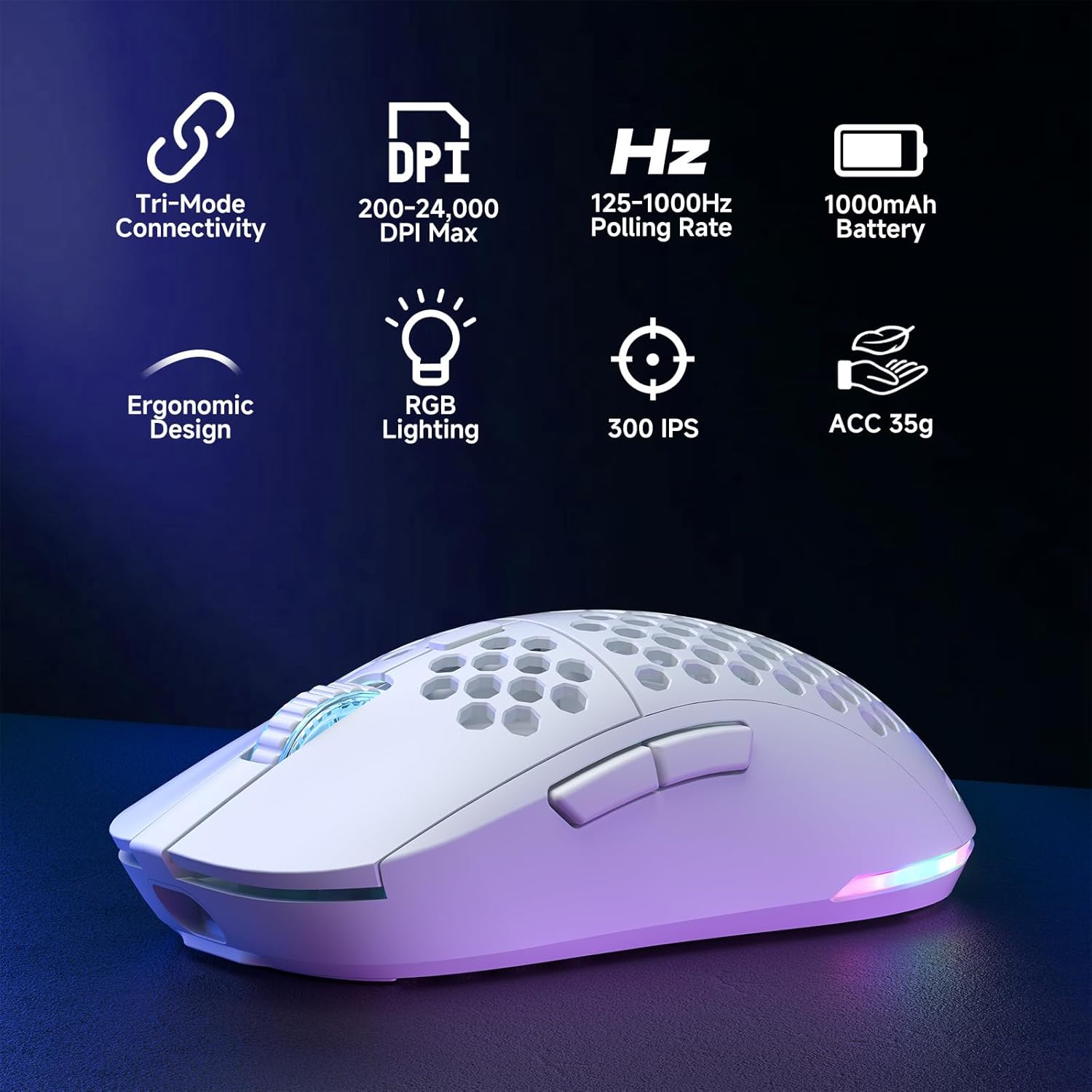
Figure 2: Key features of the Dierya M1 Wireless Gaming Mouse.
3. Diagram Produk sareng Komponenna
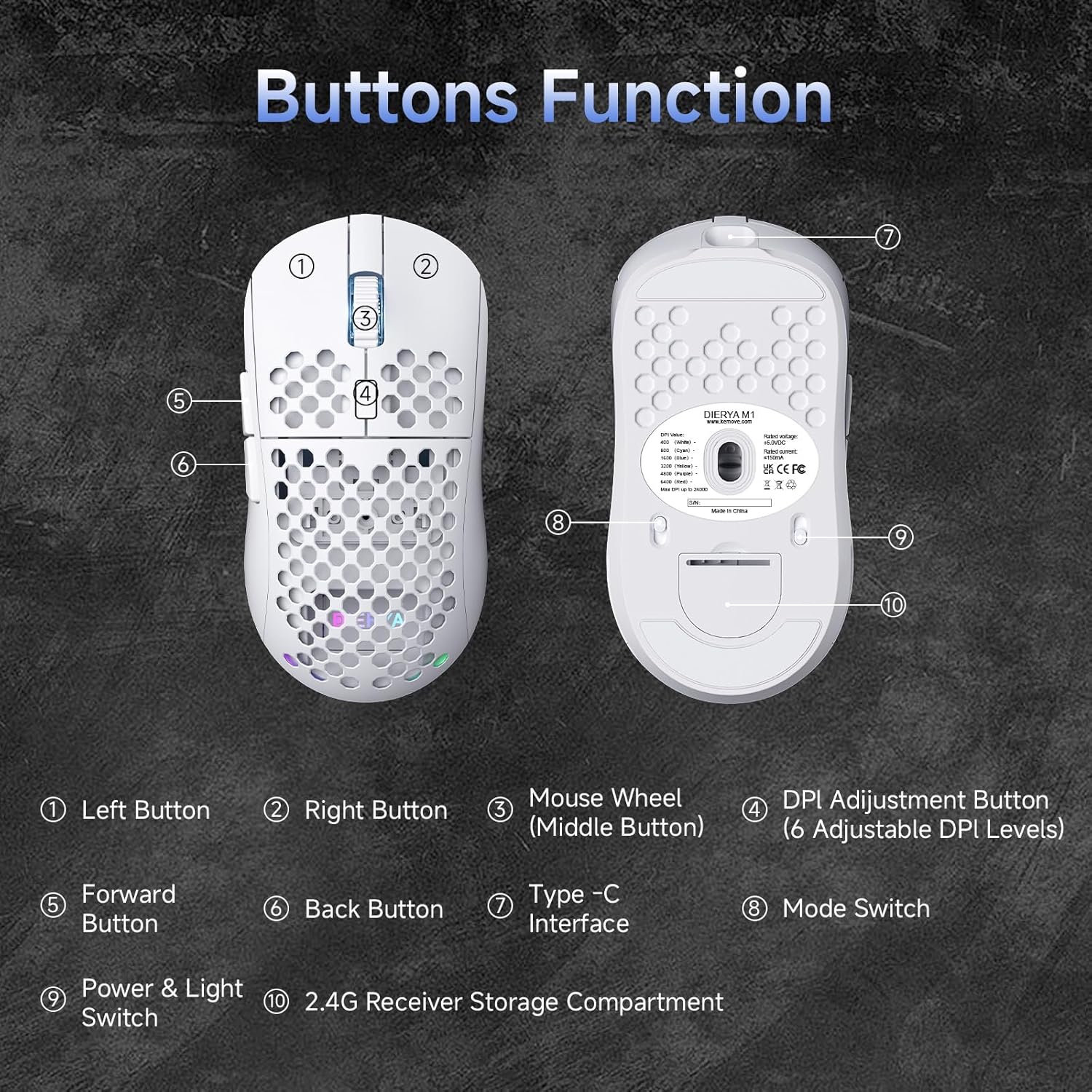
angka 3: luhur jeung handap view of the Dierya M1 mouse with labeled components.
- Tombol kénca
- Tombol Katuhu
- Mouse Wheel (Middle Button)
- DPI Adjustment Button (6 Adjustable DPI Levels)
- Tombol Maju
- Tombol Balik
- Antarmuka Tipe-C
- Mode Switch (2.4G / Bluetooth / Wired)
- Power & Light Switch
- 2.4G Receiver Storage Compartment
4. Setup jeung Connection
The Dierya M1 mouse offers three connection modes: 2.4 GHz Wireless, Bluetooth 5.2, and USB-C Wired.

Gambar 4: Leuwihview tina tilu modeu sambungan.
4.1. Konéksi Nirkabel 2.4 GHz
- Locate the 2.4G USB receiver in the storage compartment on the bottom of the mouse.
- Colokkeun panarima USB ka port USB nu sadia dina komputer Anjeun.
- Set the mode switch on the bottom of the mouse to the '2.4G' position.
- Mouse kedahna nyambung sacara otomatis.
4.2. Sambungan Bluetooth 5.2
- Set the mode switch on the bottom of the mouse to the 'Bluetooth' position.
- Dina komputer atanapi alat anjeun, buka setélan Bluetooth.
- Milarian pikeun new devices and select 'Dierya M1' from the list.
- Turutan ajakan dina layar pikeun ngarengsekeun prosés papasangan.
4.3. Sambungan Kabel USB-C
- Connect the provided USB-C cable to the Type-C interface on the front of the mouse.
- Sambungkeun ujung kabel USB-C nu sejen ka port USB nu sadia dina komputer Anjeun.
- Set the mode switch on the bottom of the mouse to the 'Wired' position.
- Beurit bakal fungsina salaku beurit kabel sareng ngecas sakaligus.
5. Parentah Operasi
5.1. Adjustment DPI
The DPI Adjustment Button (4) on the top of the mouse allows you to cycle through preset DPI levels. Each DPI level is indicated by a specific color on the scroll wheel LED for a few seconds after adjustment.
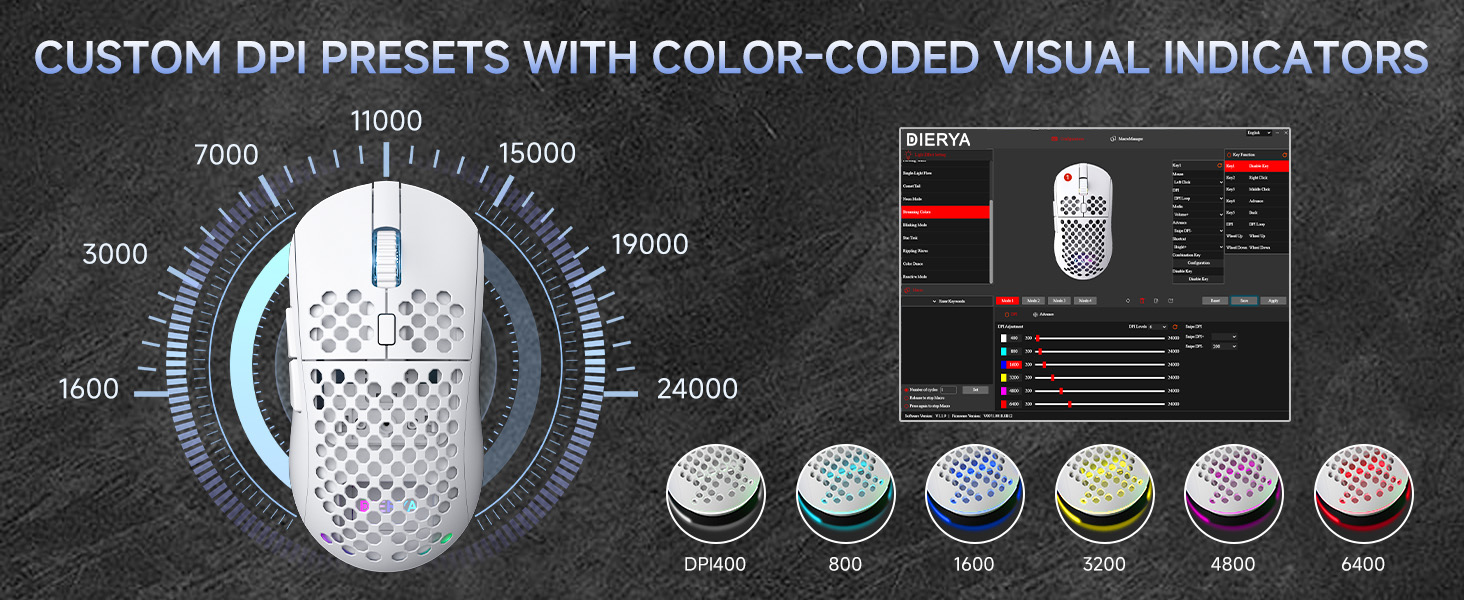
Figure 5: DPI levels and their corresponding scroll wheel LED colors.
- Press the DPI button to switch between 6 preset DPI levels.
- Default presets: 400 DPI (Red), 800 DPI (Green), 1600 DPI (Blue), 3200 DPI (Yellow), 4800 DPI (Purple), 6400 DPI (Cyan).
- For custom DPI settings and a wider range (200-24,000 DPI), use the M1 Driver Software (Windows only).
5.2. RGB Lighting Control
The mouse features 13 dynamic RGB lighting effects. You can control the lighting directly on the mouse or customize it further with the software.
- To cycle through RGB effects: Press and hold the DPI Adjustment Button (4) for 3 seconds.
- To turn RGB lighting On/Off: Use the Power & Light Switch (9) on the bottom of the mouse.
- For advanced customization of colors and effects, use the M1 Driver Software (Windows only).
5.3. Tombol Programmable
The Dierya M1 has 6 programmable buttons (Left, Right, Middle, DPI, Forward, Back). These buttons can be customized for various functions, macros, or key reassignments using the M1 Driver Software.
6. Manajemén Ngecas sareng Batré
The Dierya M1 mouse is equipped with a 1000 mAh rechargeable battery.

Figure 6: Charging the Dierya M1 mouse and battery life indicators.
- Ngecas: Connect the mouse to your computer using the provided USB-C cable. The mouse will charge while in wired mode or when connected to a power source. A full charge takes approximately 1 hour.
- Kahirupan batré: Expect up to 180 hours of use in ECO mode (RGB off) and up to 48 hours with RGB lighting enabled.
- Hemat Daya: The mouse automatically enters a power-saving sleep mode after 1-5 minutes of inactivity. This duration can be adjusted via the M1 Driver Software.
- Indikator batré lemah: The RGB lighting or a specific LED will indicate when the battery is low. Charge the mouse promptly to avoid interruption.
7. M1 Driver Software (Windows Only)
The M1 Driver Software allows for advanced customization of your mouse settings. This software is currently available for Windows operating systems only.

Figure 7: M1 Driver Software interface.
7.1. Fitur parangkat lunak
- Tugas konci: Customize the function of all 6 buttons.
- Editor Makro: Jieun sareng tetapkeun makro anu rumit.
- Penyesuaian DPI: Fine-tune DPI settings from 200 to 24,000 in increments.
- Laju Polling: Adjust the polling rate (125-1000 Hz).
- Kustomisasi RGB: Personalize lighting effects, colors, and brightness.
- Waktu Saré: Configure the automatic power-saving sleep mode duration.
- Profile Manajemén: Save and load different profiles pikeun sagala rupa aplikasi atawa kaulinan.
7.2. Pamasangan
Download the latest M1 Driver Software from the official Dierya website. Follow the on-screen instructions to install the software on your Windows computer.
8. Pangropéa
- beberesih: Anggo kaén anu garing sareng lemes pikeun ngabersihan beurit. Pikeun kokotor nekad, a rada damp cloth can be used, ensuring no liquid enters the mouse.
- Panyimpenan: Simpen beurit di tempat anu tiis sareng garing jauh tina sinar panonpoé langsung sareng suhu anu ekstrim.
- Perawatan batré: Ulah sering-sering ngecas batréna nepi ka pinuh. Pikeun panyimpenan jangka panjang, eusian beurit nepi ka sakitar 50% teras simpen di tempat anu tiis sareng garing.
9. Cara ngungkulan
- Mouse teu ngabales:
- Pastikeun beurit diaktipkeun.
- Check the connection mode switch (2.4G, Bluetooth, Wired) is set correctly.
- Pikeun 2.4G, pastikeun panarima USB parantos dipasang kalayan pageuh.
- For Bluetooth, re-pair the device.
- Try connecting via USB-C cable to check if it works in wired mode.
- Charge the mouse; the battery might be depleted.
- Lag atanapi sambungan intermittent:
- Ensure the mouse is within range of the receiver/device (for wireless connections).
- Ngurangan gangguan tina alat nirkabel anu sanés.
- Pastikeun batre tos dieusi cekap.
- Update mouse drivers if available (Windows only).
- Lampu RGB teu jalan:
- Check the Power & Light Switch (9) on the bottom of the mouse.
- Ensure the mouse is not in ECO mode or a low-power state.
- If using the software, verify RGB settings.
- adjustment DPI teu jalan:
- Ensure you are pressing the correct DPI Adjustment Button (4).
- If using custom settings, check the M1 Driver Software.
10. Spésifikasi
| Fitur | Spésifikasi |
|---|---|
| merek | Dierya |
| Ngaran modél | M1 |
| Warna | Bodas |
| Téhnologi konektipitas | 2.4GHz Wireless, Bluetooth 5.2, Kabel USB-C |
| Téknologi Sénsor | Optik |
| Rentang DPI | 200 - 24,000 DPI |
| Laju Polling | 125-1000 Hz |
| Laju nyukcruk | 300 IPS |
| Akselerasi | 35G |
| Jumlah Kancing | 6 (Bisa diprogram) |
| Saklar | Huano (20 Million Clicks) |
| Bahan Kaki | 100% PTFE |
| Kapasitas batré | 1000 mAh (Litium-ion) |
| Battery Life (ECO Mode) | Nepi ka 180 jam |
| Battery Life (RGB Mode) | Nepi ka 48 jam |
| Waktu Ngecas | Kira-kira. 1 jam |
| Beurat | 90 gram |
| Diménsi | 125 x 63 x 41 mm |
| Kasaluyuan System Operasi | Windows, macOS, Linux, Chrome OS |
11. Garansi jeung Rojongan
The Dierya M1 Wireless Gaming Mouse comes with a 1-taun jaminan produsén. Garansi ieu nyertakeun cacad dina bahan sareng pagawean dina panggunaan normal.
For warranty claims, technical support, or further inquiries, please contact Dierya customer service through the official website or your point of purchase. Please have your product model number (M1) and proof of purchase ready when contacting support.


