1. Bubuka
Thank you for choosing the Dierya x TMKB M1 Wireless Gaming Mouse. This manual provides detailed instructions on how to set up, operate, and maintain your new gaming mouse. The M1 mouse offers versatile connectivity, high-precision tracking, and customizable features to enhance your gaming and productivity experience.
2. Produk Langkungview
2.1 Komponén jeung kadali
Familiarize yourself with the various buttons and features of your Dierya M1 mouse:
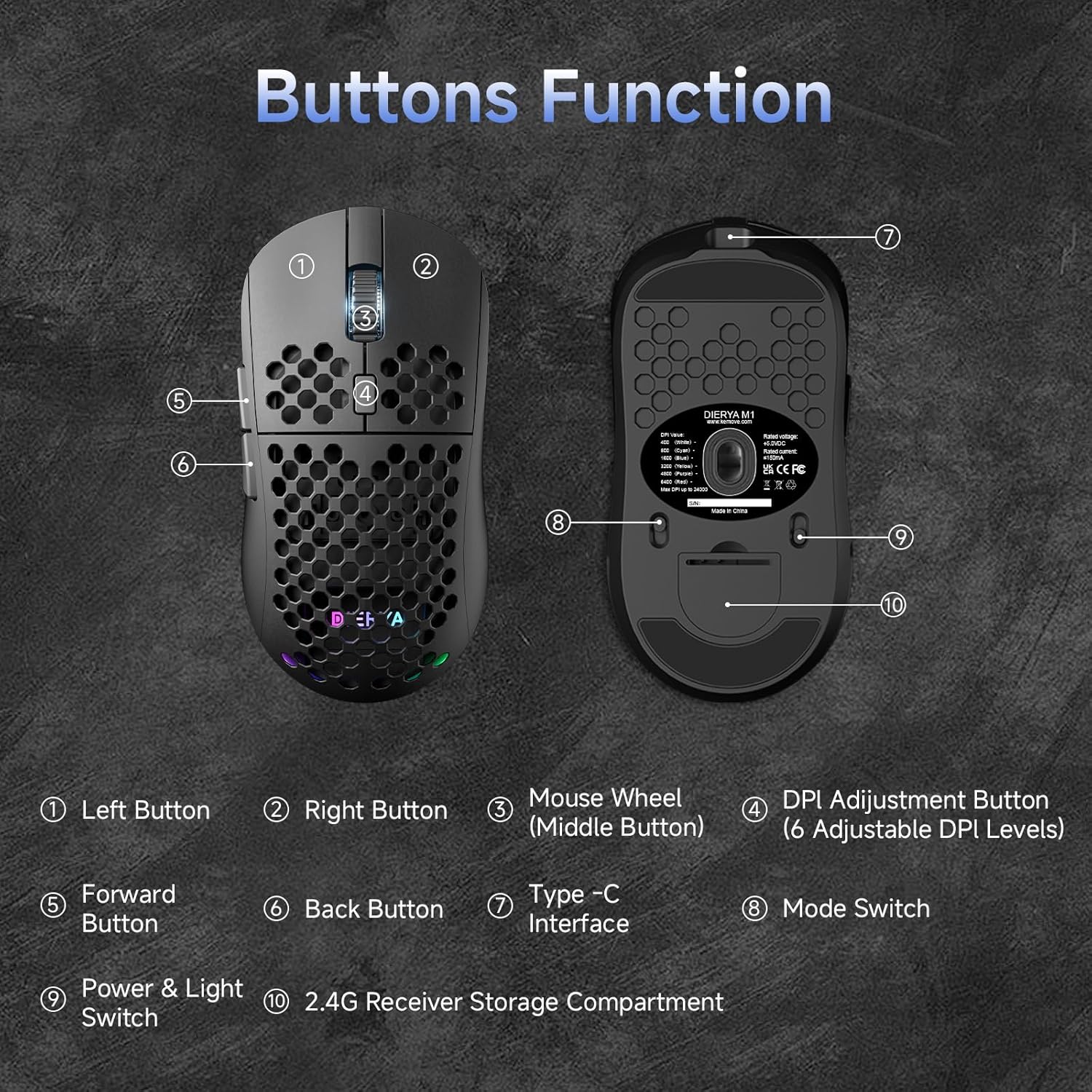
This diagram illustrates the various components of the Dierya M1 wireless gaming mouse. It highlights the Left Button (1), Right Button (2), Mouse Wheel (Middle Button) (3), DPI Adjustment Button (4) with 6 adjustable DPI levels, Tombol Maju (5), Tombol Balik (6), Type-C Interface (7) for charging and wired connection, Pindah Modeu (8) for selecting connection type, Power & Light Switch (9), jeung 2.4G Receiver Storage Compartment (10) located on the underside.
2.2 Fitur konci
- Sensor Optik 24,000 DPI: Adjustable DPI range from 200 to 24,000, with 6 preset levels (400-6400 DPI).
- Konektipitas Tri-Mode: Supports ultra-fast 2.4GHz wireless, energy-efficient Bluetooth 5.2, and stable USB-C wired connections.
- Hirup batré anu panjang: 1000mAh battery provides up to 180 hours in ECO mode or 48 hours with RGB lighting, with 1-hour fast charging.
- Ringan & Desain Ergonomis: Weighs only 90g with a honeycomb shell for breathability and a symmetrical design (125x63x41 mm).
- Tombol anu tiasa diprogram: 6 customizable buttons via the M1 Driver software (Windows only).
- Lampu RGB Dinamis: 13 integrated RGB lighting effects with 16.8 million customizable colors.
- Kinerja luhur: 125-1000 Hz polling rate, 300 IPS tracking speed, and 35G acceleration.
- Saklar awét: Equipped with Huano switches rated for 20 million clicks and 100% PTFE feet for smooth gliding.
3. Setélan
3.1 Ngecas Mouse
Before first use, it is recommended to fully charge the mouse. Connect the provided USB-C cable to the Type-C Interface (7) on the mouse and the other end to a USB power source (e.g., computer USB port, USB wall adapter).
- The mouse charges in approximately 1 hour.
- The scroll wheel LED will indicate charging status (e.g., red for charging, green for fully charged).
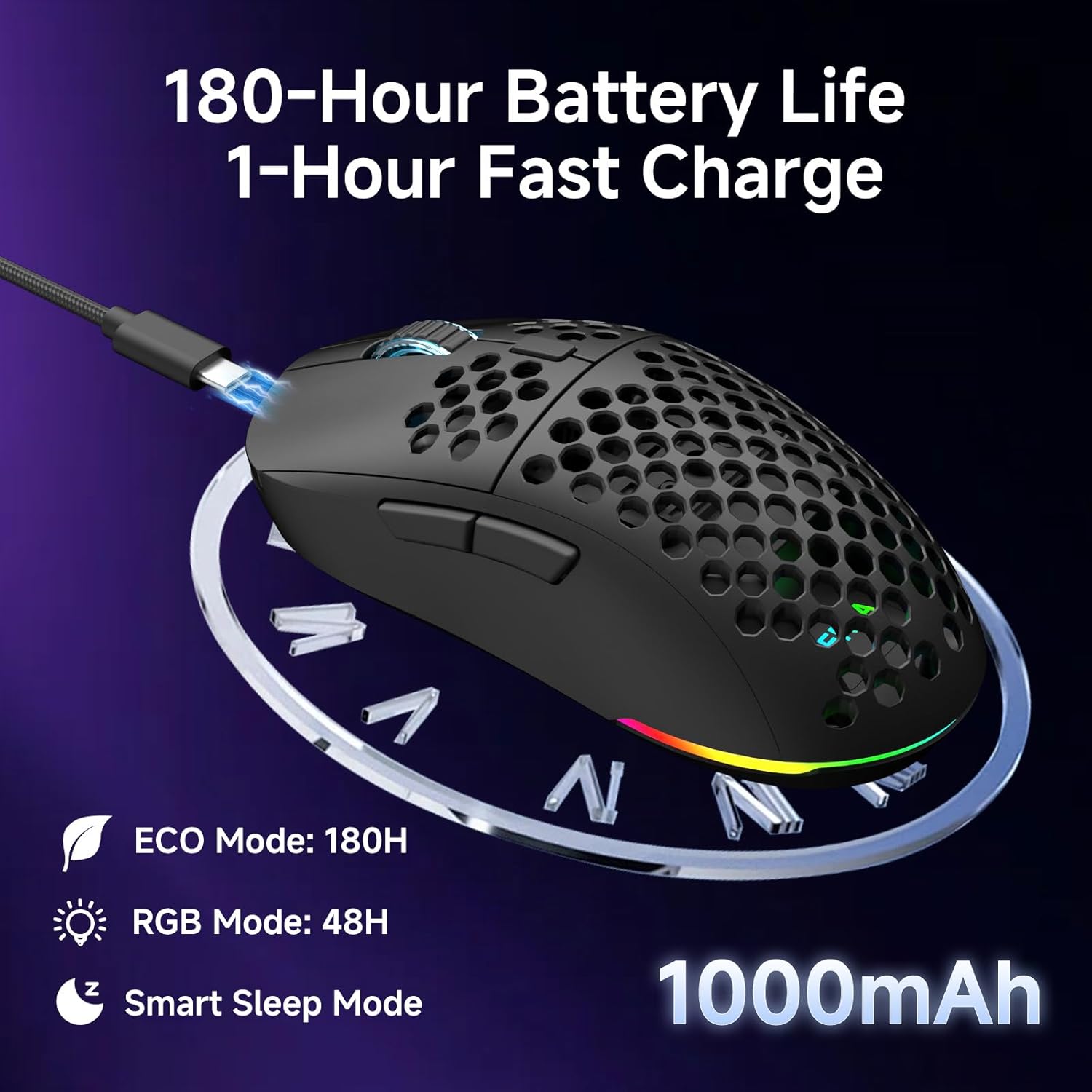
The Dierya M1 mouse features a 1000mAh battery, providing up to 180 hours of use in ECO mode or 48 hours with RGB lighting enabled. It supports fast charging, reaching full capacity in approximately 1 hour via the included USB-C cable. The mouse also includes a smart sleep mode to conserve power during inactivity.
3.2 Nyambungkeun Mouse
The Dierya M1 mouse offers three connection modes: 2.4GHz Wireless, Bluetooth 5.2, and USB-C Wired.

The Dierya M1 mouse supports three flexible connection modes: Bluetooth 5.2 for energy-efficient pairing with up to two devices, 2.4GHz Wireless via a USB dongle for ultra-fast response, and a stable USB-C Wired connection for charging and direct use. Each mode offers a different polling rate, with 2.4GHz and wired modes providing 1000Hz, and Bluetooth offering 125Hz.
3.2.1 2.4GHz Sambungan Wireless
- Locate the 2.4G receiver in the storage compartment (10) on the underside of the mouse.
- Colokkeun panarima 2.4G kana port USB nu sadia dina komputer Anjeun.
- Set the Mode Switch (8) on the underside of the mouse to the '2.4G' position.
- The mouse should connect automatically. The polling rate for this mode is 1000 Hz.
3.2.2 Bluetooth 5.2 Sambungan
- Set the Mode Switch (8) on the underside of the mouse to the 'BT' position.
- Dina komputer atawa alat Anjeun, buka setelan Bluetooth tur neangan alat anyar.
- Select 'Dierya M1' from the list of available devices to pair.
- The mouse supports Bluetooth 5.2 and has a polling rate of 125 Hz in this mode.
3.2.3 Sambungan Kabel USB-C
- Connect the USB-C cable to the Type-C Interface (7) on the mouse.
- Sambungkeun ujung kabel USB-C nu sejen ka port USB nu sadia dina komputer Anjeun.
- The mouse will automatically switch to wired mode and begin charging. The polling rate for this mode is 1000 Hz.
4. Parentah Operasi
4.1 DPI adjustment
The Dierya M1 mouse features a dedicated DPI Adjustment Button (4) to cycle through preset DPI levels. The scroll wheel LED color indicates the current DPI setting.
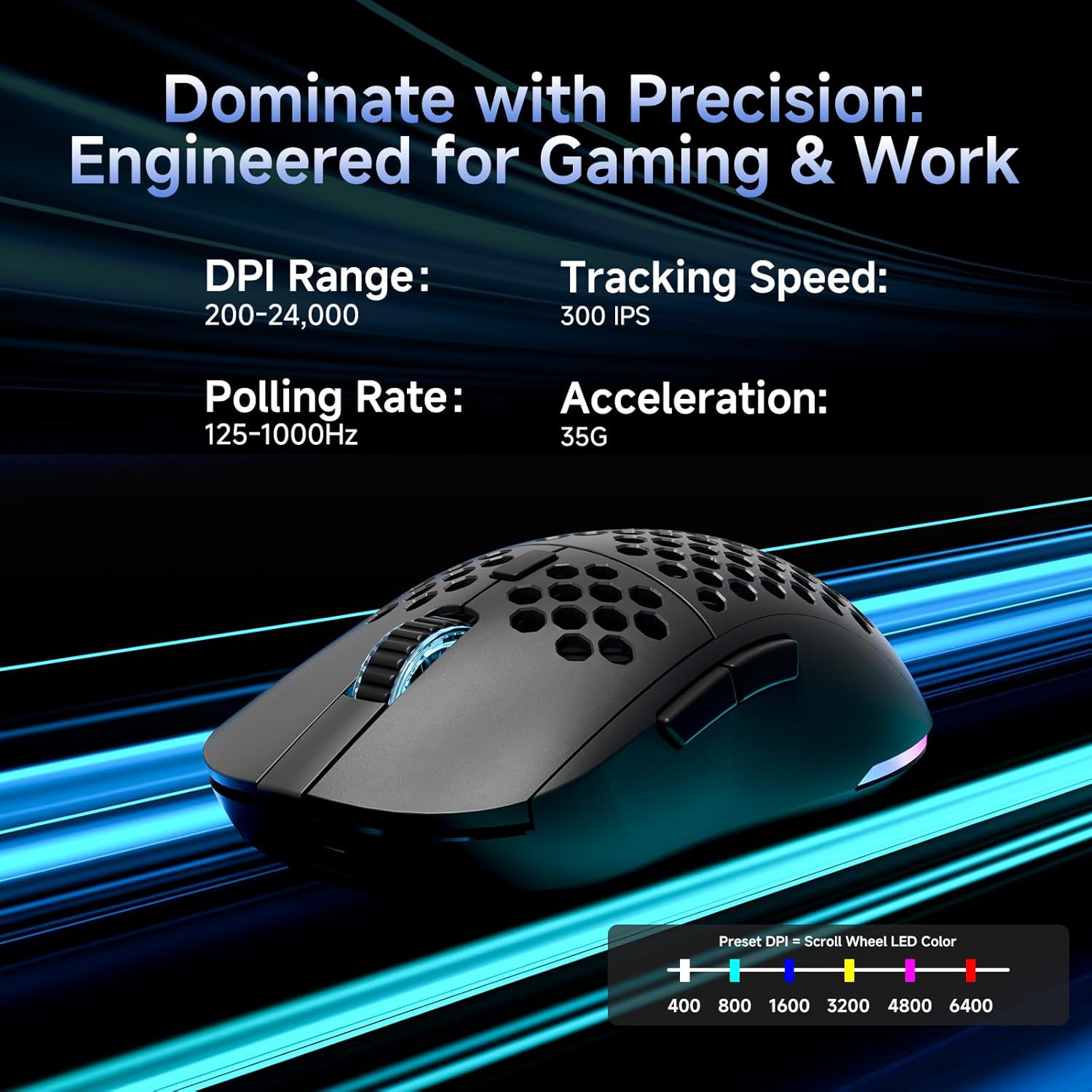
This image details the performance specifications of the Dierya M1 mouse, including a DPI range of 200-24,000, a tracking speed of 300 IPS, a polling rate of 125-1000Hz, and 35G acceleration. It also shows the preset DPI levels (400, 800, 1600, 3200, 4800, 6400) and the color indicators on the scroll wheel for each setting.
- Press the DPI Adjustment Button (4) to cycle through the 6 default DPI settings: 400, 800, 1600, 3200, 4800, and 6400 DPI.
- Each DPI level is indicated by a specific color on the scroll wheel LED.
- For custom DPI settings and a wider range (200-24,000 DPI), use the M1 Driver software.
4.2 Kontrol cahaya RGB
The Dierya M1 mouse features dynamic RGB lighting. You can control the lighting effects and colors using the M1 Driver software.
- The mouse has 13 built-in RGB lighting effects.
- Use the M1 Driver software to customize colors (16.8 million options), brightness, and speed of the lighting effects.
- The Power & Light Switch (9) on the underside can be used to turn the lighting on or off.
4.3 Tombol sareng Parangkat Lunak anu Tiasa Diprogram
The M1 mouse has 6 programmable buttons that can be customized using the dedicated M1 Driver software.

The Dierya M1 driver software, currently available for Windows, allows users to customize various aspects of the mouse. This includes reassigning the 6 programmable buttons, creating macros, adjusting DPI settings, modifying the polling rate, and personalizing the 13 dynamic RGB lighting effects with 16.8 million colors.
- Kasaluyuan Parangkat Lunak: The M1 Driver software is currently only available for Windows operating systems.
- Tugas konci: Reassign functions to any of the 6 programmable buttons (Left, Right, Middle, DPI, Forward, Back).
- Nyiptakeun makro: Create and assign complex macros to streamline in-game actions or productivity tasks.
- DPI & Polling Rate: Fine-tune DPI settings beyond the presets and adjust the polling rate.
- Kustomisasi RGB: Personalize lighting effects, colors, and patterns.
- Profile Manajemén: Save and load different profiles pikeun rupa-rupa kaulinan atanapi aplikasi.
4.4 Modeu Hemat Daya
The M1 mouse is designed with automatic power-saving features to extend battery life:
- The mouse will enter an automatic power-saving mode after 1-5 minutes of inactivity.
- This inactivity time can be adjusted via the M1 Driver software.
- Pikeun ngahudangkeun beurit, cukup pindahkeun atanapi klik tombol naon waé.
5. Pangropéa
Proper maintenance ensures the longevity and optimal performance of your Dierya M1 mouse.
- beberesih: Anggo lawon anu lemes sareng garing pikeun ngusap beungeut beurit. Pikeun kokotor anu bandel, radaamp lawon bisa dipaké, tapi pastikeun teu aya Uap anu asup kana beurit. Hindarkeun bahan kimia anu kasar atanapi pembersih anu abrasif.
- Pangropéa sénsor: Tetep sensor optik dina underside beurit beresih jeung bebas tina lebu atawa lebu pikeun mastikeun tracking akurat.
- Perawatan batré: Ulah sering-sering ngecas batréna nepi ka pinuh. Pikeun panyimpenan jangka panjang, eusian beurit nepi ka sakitar 50% teras simpen di tempat anu tiis sareng garing.
- Panyimpenan: Nalika henteu dianggo, simpen beurit di tempat anu bersih sareng garing, jauh tina suhu anu ekstrim.
6. Cara ngungkulan
If you encounter issues with your Dierya M1 mouse, refer to the following common troubleshooting steps:
| Masalah | Mungkin Cukang lantaranana | Solusi |
|---|---|---|
| Beurit teu ngabales (2.4GHz) | Low battery, receiver unplugged, incorrect mode, interference. | Charge the mouse. Ensure 2.4G receiver is securely plugged in. Set Mode Switch to '2.4G'. Try a different USB port. Reduce distance to receiver. |
| Beurit teu ngaréspon (Bluetooth) | Low battery, incorrect mode, not paired, Bluetooth off on device. | Charge the mouse. Set Mode Switch to 'BT'. Ensure Bluetooth is enabled on your device. Re-pair the mouse in Bluetooth settings. |
| Mouse teu ngabales (Kabel) | Cable not connected, faulty cable/port. | Ensure USB-C cable is securely connected to both mouse and computer. Try a different USB port or cable. |
| Pelacakan anu teu akurat | Dirty sensor, unsuitable surface, incorrect DPI. | Clean the optical sensor. Use a mouse pad or a clean, non-reflective surface. Adjust DPI settings. |
| Lampu RGB teu jalan | Lighting switched off, low battery, software issue. | Check Power & Light Switch (9). Charge the mouse. Check settings in M1 Driver software. |
| Tombol teu bisa diprogram | M1 Driver not installed/running, not on Windows. | Ensure M1 Driver software is installed and running (Windows only). Check software settings. |
7. Spésifikasi
| Ngaran modél | M1 |
| merek | Dierya |
| Téhnologi konektipitas | 2.4GHz Wireless, Bluetooth 5.2, Kabel USB-C |
| Téhnologi Deteksi Gerakan | Optik |
| Rentang DPI | 200 - 24,000 DPI (6 preset levels: 400, 800, 1600, 3200, 4800, 6400) |
| Laju Polling | 125-1000 Hz |
| Laju nyukcruk | 300 IPS |
| Akselerasi | 35G |
| Jumlah Kancing | 6 (Bisa diprogram) |
| Kapasitas batré | 1000 mAh Litium-ion |
| Kahirupan batré | Up to 180 hours (ECO mode), 48 hours (RGB mode) |
| Waktu Ngecas | Kira-kira. 1 jam |
| Beurat | 90 gram |
| Diménsi | 125 x 63 x 41 mm |
| Pindah Tipe | Huano (20 million clicks) |
| Bahan Kaki | 100% PTFE |
| Kasaluyuan System Operasi | Windows, macOS, Linux, Chrome OS |
| Driver Software Compatibility | Windows wungkul |
8. Garansi jeung Rojongan
8.1 Produsén jaminan
The Dierya M1 Wireless Gaming Mouse comes with a 1-taun jaminan produsén. Garansi ieu nyertakeun cacad dina bahan sareng pagawean dina panggunaan normal. Punten tahan bukti pameseran anjeun pikeun klaim garansi.
8.2 Rojongan Palanggan
For further assistance, technical support, or warranty inquiries, please refer to the official Dierya website or contact your retailer. Ensure you have your product model (M1) and proof of purchase ready when seeking support.


