1. Bubuka
This user manual provides detailed instructions for the Bemi Cognita Tab 6+ E-Reader. Please read this manual carefully before using your device to ensure proper operation and to maximize your reading experience. Keep this manual for future reference.
1.1 Eusi pakét
- Bemi Cognita Tab 6+ E-Reader
- Kabel Ngecas USB
Pastikeun sadaya barang aya sareng dina kaayaan anu saé nalika dibuka kotakna.
2. Alat Leuwihview
Familiarize yourself with the physical components of your Bemi Cognita Tab 6+ E-Reader.

Gambar 2.1: Hareupeun view of the Bemi Cognita Tab 6+ E-Reader. The device features a 6-inch E-Ink display with the Bemi logo and model name visible. The screen is designed to mimic paper for a comfortable reading experience.

Gambar 2.2: Hareup jeung tukang view of the Bemi Cognita Tab 6+ E-Reader. This image highlights the device's thin design and the textured back cover, which provides a secure grip.

Gambar 2.3: Samping view of the Bemi Cognita Tab 6+ E-Reader, illustrating the location of the power button and a small LED indicator. This button is used for turning the device on/off and waking it from sleep.
2.1 Komponén konci:
- 6-inch E-Ink Touchscreen: Glare-free display for comfortable reading.
- Tombol Daya: Located on the side for turning the device on/off and sleep/wake.
- Palabuhan USB-C: Pikeun ngecas sareng mindahkeun data.
- Slot Kartu MicroSD: Expandable storage up to 256GB.
- Side Control Buttons: For page turning and navigation.
- SMARTlight: Adjustable front light for reading in various conditions.
3. Setélan
3.1 Ngecas Awal
Before first use, fully charge your Bemi Cognita Tab 6+ E-Reader. Connect the provided USB cable to the device's USB-C port and the other end to a compatible USB power adapter (not included) or a computer's USB port.
- Ngeusi batre pinuh biasana butuh 2-3 jam.
- Lampu indikator ngecas bakal nunjukkeun status ngecas.
3.2 Powering on / Pareum
- Pikeun Ngahurungkeun: Press and hold the Power button (refer to Figure 2.3) for a few seconds until the screen activates.
- Pikeun mareuman: Press and hold the Power button until a power-off menu appears, then select "Power Off".
- Pikeun Saré / Hudang: Pencét sakeudeung tombol Daya pikeun ngasupkeun alat kana mode sare atanapi ngahudangkeunana.
3.3 Sambungan Wi-Fi
Connecting to Wi-Fi allows you to download books, transfer files, and access online services.
- Tina layar utama, ketok Setélan ikon.
- Pilih Wifi.
- Togél saklar Wi-Fi ka On.
- The device will scan for available networks. Select your desired network from the list.
- Tulis kecap akses upami dipenta, teras ketok Nyambung.
3.4 Konfigurasi Awal
Upon first power-on, you may be guided through initial setup steps, including language selection and time zone settings. Follow the on-screen prompts.
4. Parentah Operasi
4.1 Napigasi Antarmuka
The Bemi Cognita Tab 6+ features a touch-sensitive E-Ink screen and physical side buttons for navigation.
- Sapuan Toél: Tap to select, swipe to scroll, pinch to zoom (where supported).
- Kancing samping: Use the physical buttons on the side to turn pages forward or backward during reading.
- G-Sénsor: The device automatically rotates the screen orientation based on how you hold it, accommodating both right and left-handed users.
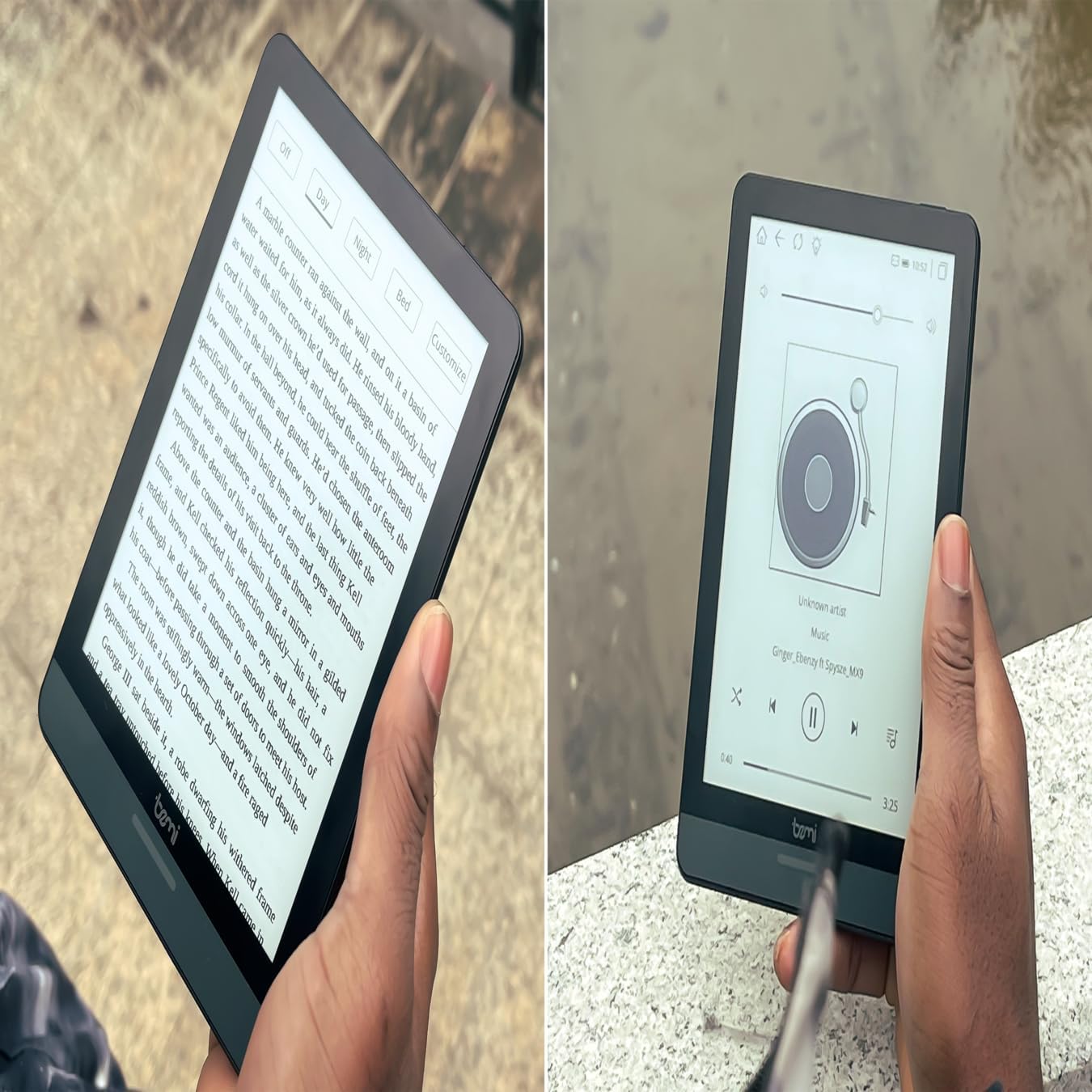
Gambar 4.1: User holding the Bemi Cognita Tab 6+ E-Reader while reading. The image shows the clear text display on the E-Ink screen, highlighting the device's readability.
4.2 Buku Bacaan
To open and read a book:
- From the home screen, tap on the Perpustakaan or Buku ikon.
- Browse your collection or use the search function to find a book.
- Tap on the book cover to open it.
- Use the touch screen or side buttons to turn pages.
4.3 Adjusting SMARTlight
The SMARTlight feature allows you to adjust both the brightness and color temperature of the screen's front light.
- During reading, tap the center of the screen to bring up the reading menu.
- Néangan nu Caang or SMARTlight ikon.
- Adjust the sliders for brightness (intensity) and color temperature (warm to cool) to your preference.
4.4 Mindahkeun Files
You can transfer e-books and other supported files to your device via Wi-Fi or USB cable.
- Ngaliwatan Wi-Fi: If your device supports cloud services or direct Wi-Fi transfer, follow the specific application instructions.
- Ngaliwatan Kabel USB:
- Connect your E-Reader to a computer using the provided USB cable.
- The device will appear as a removable storage drive on your computer.
- Sered jeung leupaskeun nu dipikahayang files (e.g., EPUB, PDF, MOBI) into the appropriate folders on the E-Reader (e.g., "Books" folder).
- Cabut alat tina komputer anjeun kalayan aman sateuacan nyabut kabelna.
4.5 Ngagunakeun Kartu MicroSD
To expand storage, insert a microSD card (up to 256GB) into the designated slot.
- Gently insert the microSD card with the gold contacts facing down until it clicks into place.
- Pikeun nyabutna, pencét kartu sacara lalaunan ka jero dugi ka kaluar.
- Files on the microSD card will be accessible through the device's file manager or library.
5. Pangropéa
5.1 Ngabersihan Alat
- Anggo lawon anu lemes sareng henteu ngaganggu pikeun ngusap layar sareng awak alat sacara lembut.
- Pikeun smudges nekad, rada dampen lawon kalawan cai atawa cleaner layar husus dirancang pikeun éléktronika.
- Ulah make bahan kimia kasar, bahan abrasive, atawa Uap kaleuleuwihan.
5.2 Perawatan Batré
- Pikeun manjangkeun umur batre, ulah miceun batre pinuh.
- Simpen alat dina tempat anu tiis sareng garing upami henteu dianggo kanggo waktos anu lami.
- Charge the device regularly, even if not used, to prevent deep discharge.
5.3 Panyimpenan
When not in use, store your E-Reader in a protective case to prevent scratches and damage to the screen.
6. Cara ngungkulan
If you encounter issues with your Bemi Cognita Tab 6+, refer to the following common solutions:
| Masalah | Solusi |
|---|---|
| Alat henteu hurung. | Ensure the battery is charged. Connect the device to a power source for at least 30 minutes. If it still doesn't turn on, try a hard reset by holding the power button for 10-15 seconds. |
| Layar beku atanapi henteu ngaréspon. | Perform a soft reset by holding the power button for 5-7 seconds until the device restarts. If the issue persists, try a hard reset. |
| Teu bisa nyambung ka Wi-Fi. | Check if Wi-Fi is enabled in settings. Verify the Wi-Fi password. Restart your E-Reader and your Wi-Fi router. Ensure you are within range of the Wi-Fi signal. |
| Books are not appearing in the library. | Pastikeun files are in a supported format (e.g., EPUB, PDF). If transferred via USB, ensure they are in the correct folder. Try refreshing the library or restarting the device. |
| Batré gancang boros. | Reduce screen brightness. Turn off Wi-Fi and Bluetooth when not in use. Close background applications. Ensure the device is not constantly searching for networks. |
7. Spésifikasi
| Fitur | Rincian |
|---|---|
| Ngaran modél | Bemi Cognita Tab 6+ |
| Ukuran layar | 6 Inches (E-Ink Carta, 1024x758, 212 ppi) |
| Mémori internal | 32 GB |
| Panyimpenan Expandable | MicroSD card slot, up to 256 GB |
| Konektipitas | Wi-Fi, Bluetooth |
| Sistem operasi | Android 8.1 |
| Input Antarmuka Manusa | Touchscreen, Side Control Buttons |
| Fitur husus | Adjustable SMARTlight, G-Sensor for auto-rotation, Glare-Free & Eye-Friendly E-Ink Display |
| Ukuran (Kira-kira.) | ketebalan 7 mm |
| Komponén Kaasup | Kabel USB |
8. Garansi jeung Rojongan
8.1 Émbaran jaminan
Your Bemi Cognita Tab 6+ E-Reader comes with a standard manufacturer's warranty. Please refer to the warranty card included in your product packaging or visit the official Bemi websitus pikeun istilah jeung kaayaan lengkep ngeunaan cakupan jaminan jeung durasi.
Rencana panyalindungan opsional tiasa sayogi kanggo panangtayungan anu langkung lami. Mangga parios ka padagang anjeun kanggo langkung jelasna.
8.2 Rojongan Palanggan
For technical assistance, troubleshooting beyond this manual, or warranty claims, please contact Bemi customer support:
- Websitus: www.bemi-electronics.com
- Surélék: Refer to the Bemi websitus pikeun email kontak.
- Telepon: Refer to the Bemi websitus pikeun nomer telepon kontak.
When contacting support, please have your device model (Cognita Tab 6+) and purchase information ready.


