1. Bubuka
The TABWEE 10.1 Inch WiFi Digital Calendar, Model P10, is an interactive touchscreen display designed to streamline family organization. It integrates calendars, task management, meal planning, and digital photo frame capabilities into a single device. This manual provides detailed instructions to help you set up and utilize all features of your new digital calendar.

Gambar 1.1: The TABWEE Digital Calendar in use, showcasing its calendar interface and mobile app synchronization.
2. Émbaran Kasalametan
- Pastikeun alat disimpen dina permukaan anu stabil sareng datar pikeun nyegah ragrag anu teu dihaja.
- Anggo ngan ukur adaptor daya anu disayogikeun. Nganggo adaptor anu teu sah tiasa ngaruksak alat sareng ngabatalkeun garansi.
- Jauhkeun alat tina cai, beueus, sareng suhu anu ekstrim.
- Ulah nyobian muka atawa ngalereskeun alat sorangan. Rujuk ka tanaga jasa anu mumpuni pikeun kabutuhan pangropéa atanapi perbaikan.
- Keep out of reach of small children to prevent accidental ingestion of small parts or damage to the device.
3. Eusi Paket
Pastikeun yén sadaya item aya dina bungkusan:
- TABWEE 10.1 Inch WiFi Digital Calendar (Model P10)
- Adaptor kakuatan
- Manual pangguna (dokumén ieu)
4. Produk Langkungview
Familiarize yourself with the physical components of your TABWEE Digital Calendar.

Gambar 4.1: Technical details and component layout of the TABWEE Digital Calendar.
- Tombol Daya / Pareuman: Perenahna di sisi pikeun ngahurungkeun atanapi mareuman alat.
- Tombol Luhur / Turun: Adjust the device's audio output.
- Sénsor cahaya: Otomatis nyaluyukeun kacaangan layar dumasar kana cahaya sakurilingna.
- Support Stand: Integrated stand for desk placement.
5. Setélan
5.1 Mimiti Power-On
- Connect the provided power adapter to the device's power port.
- Plug the adapter into a standard electrical outlet. The device will automatically power on.
- Turutan pitunjuk dina layar pikeun milih basa sareng daérah anjeun.
5.2 Sambungan Jaringan
- Dina layar setelan awal, pilih jaringan Wi-Fi anjeun tina daptar.
- Enter your Wi-Fi password and tap 'Connect'.
- Ensure the device is connected to a stable internet connection for full functionality.
5.3 Pamasangan Aplikasi sareng Nyiptakeun Akun
To fully utilize the calendar's features, download and set up the companion 'eCalendar' app on your smartphone (iOS or Android).

Gambar 5.1: Steps for downloading and creating an account on the eCalendar app.
- Scan the QR code displayed on the calendar screen or search for 'eCalendar' in your device's app store (Google Play Store for Android, Apple App Store for iOS).
- Unduh sareng pasang aplikasina.
- Open the eCalendar app and follow the prompts to create a new account or log in if you already have one.
- Satuju kana Kasapukan Pamaké sareng Kabijakan Privasi.
5.4 Device Linking
Link your TABWEE Digital Calendar to your eCalendar app account.

Gambar 5.2: Linking the calendar device to the eCalendar app and setting up your unique calendar email.
- In the eCalendar app, select the option to 'Add Device' or 'Activate a new eCalendar Frame'.
- Follow the on-screen instructions to pair your device. This may involve scanning a QR code displayed on the calendar or entering a pairing code.
- Once linked, you can set up your unique calendar email address within the app.
6. Operasi
6.1 Napigasi Dasar
The TABWEE Digital Calendar features a responsive touchscreen. Navigate through menus and features by tapping, swiping, and pinching as you would on a tablet device.
6.2 Manajemén Kalénder
The core function of your device is calendar management, allowing for seamless synchronization and event organization.
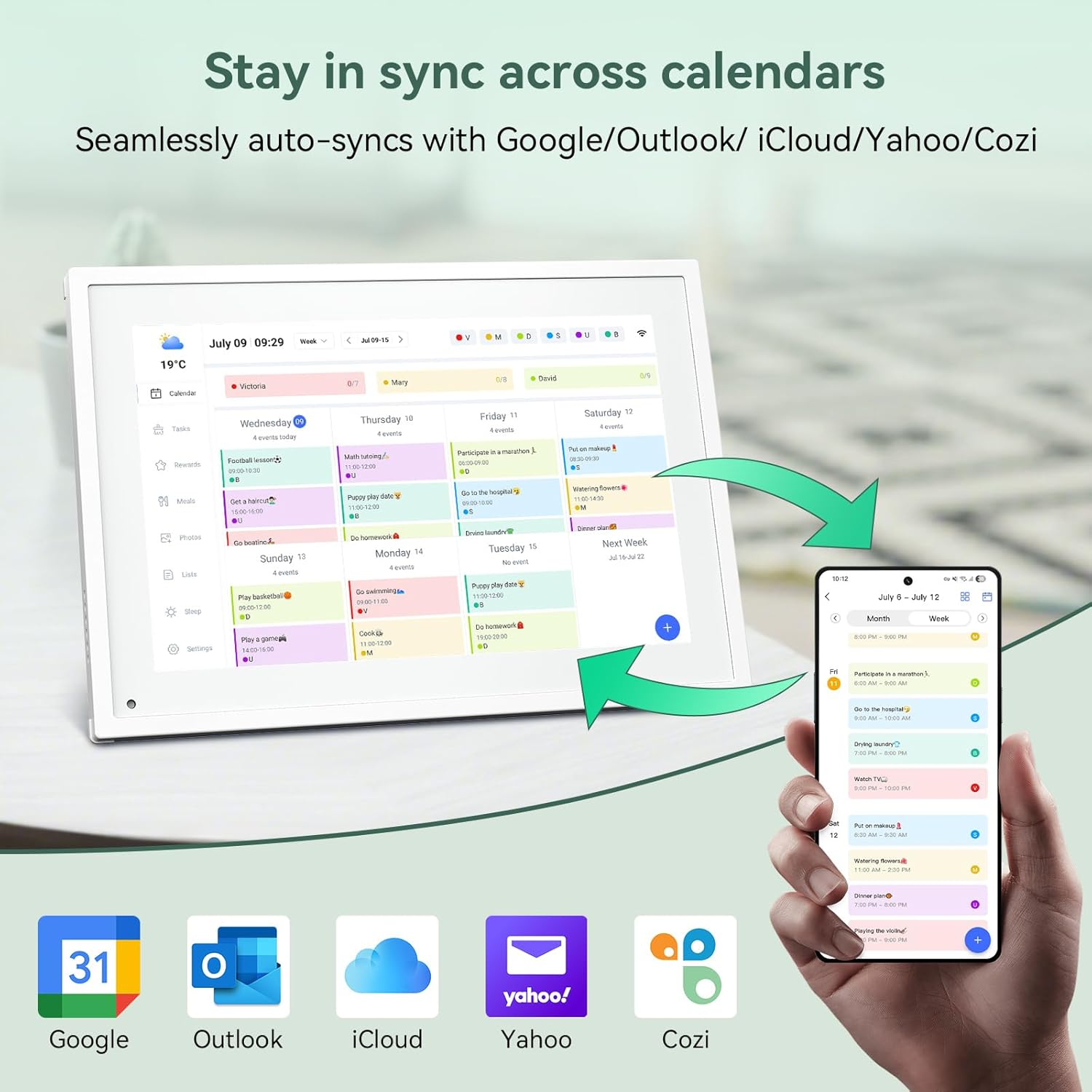
Gambar 6.1: Seamless synchronization of the digital calendar with various external calendar services.
- Syncing External Calendars: Within the eCalendar app settings, you can link your Google, Apple, Outlook, Yahoo, or Cozi calendars. Events from these linked accounts will automatically appear on your TABWEE Digital Calendar.
- Adding/Editing Events: Tap on a date or time slot on the calendar display or use the eCalendar app to add new events. You can specify event details, set reminders, and assign participants.
- Disaluyukeun Views: Switch between day, week, or month views directly on the device or through the app.
6.3 Task Management (Chore Chart)
Organize tasks and chores for family members with a built-in reward system.
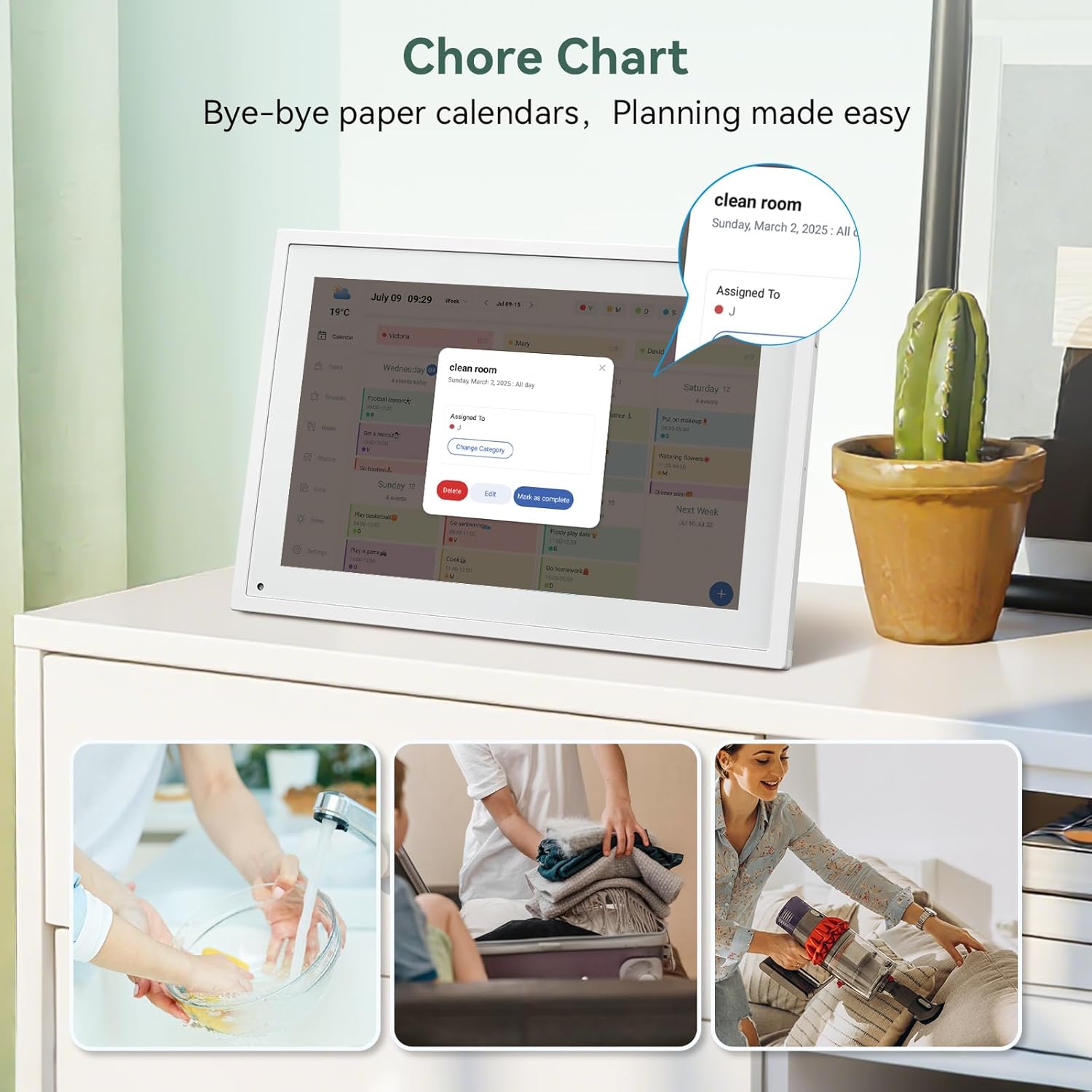
Gambar 6.2: Managing tasks and chores on the digital calendar interface.
- Nyieun Tugas: Use the 'Tasks' section on the device or app to create new tasks. Assign them to specific individuals, set due dates, and configure recurring tasks.
- Ngalacak Kamajuan: Users can mark tasks as complete. The system tracks completion and can be configured to award points.
- Sistem Ganjaran: Set up a star-point reward system within the app. Points earned from completed tasks can be redeemed for custom rewards, encouraging participation.

Gambar 6.3: The task manager and rewards interface, designed for engaging users.
6.4 Meal Planning
Plan your meals directly on the device or through the app.

Gambar 6.4: Visual meal planning interface on the digital calendar.
- Create Meal Plans: Access the 'Meals' section to plan breakfasts, lunches, dinners, and snacks for the week.
- Custom Recipes: Upload and store your favorite recipes.
- Grocery Lists: Generate grocery lists based on your meal plans.
6.5 Digital Photo Frame Functionality
The device can also function as a digital photo frame.

Gambar 6.5: The digital calendar switching between calendar and photo frame modes, in both landscape and portrait orientations.
- Ngalihkeun Modeu: Navigate to the 'Photos' section on the device or app to activate the digital photo frame mode.
- Ngunggah Poto: Upload your favorite memories directly from your smartphone via the eCalendar app.
- Orientasi: The device supports both landscape and portrait orientations, automatically adjusting the display.
6.6 Fitur séjén
The TABWEE Digital Calendar includes additional smart features to enhance usability.
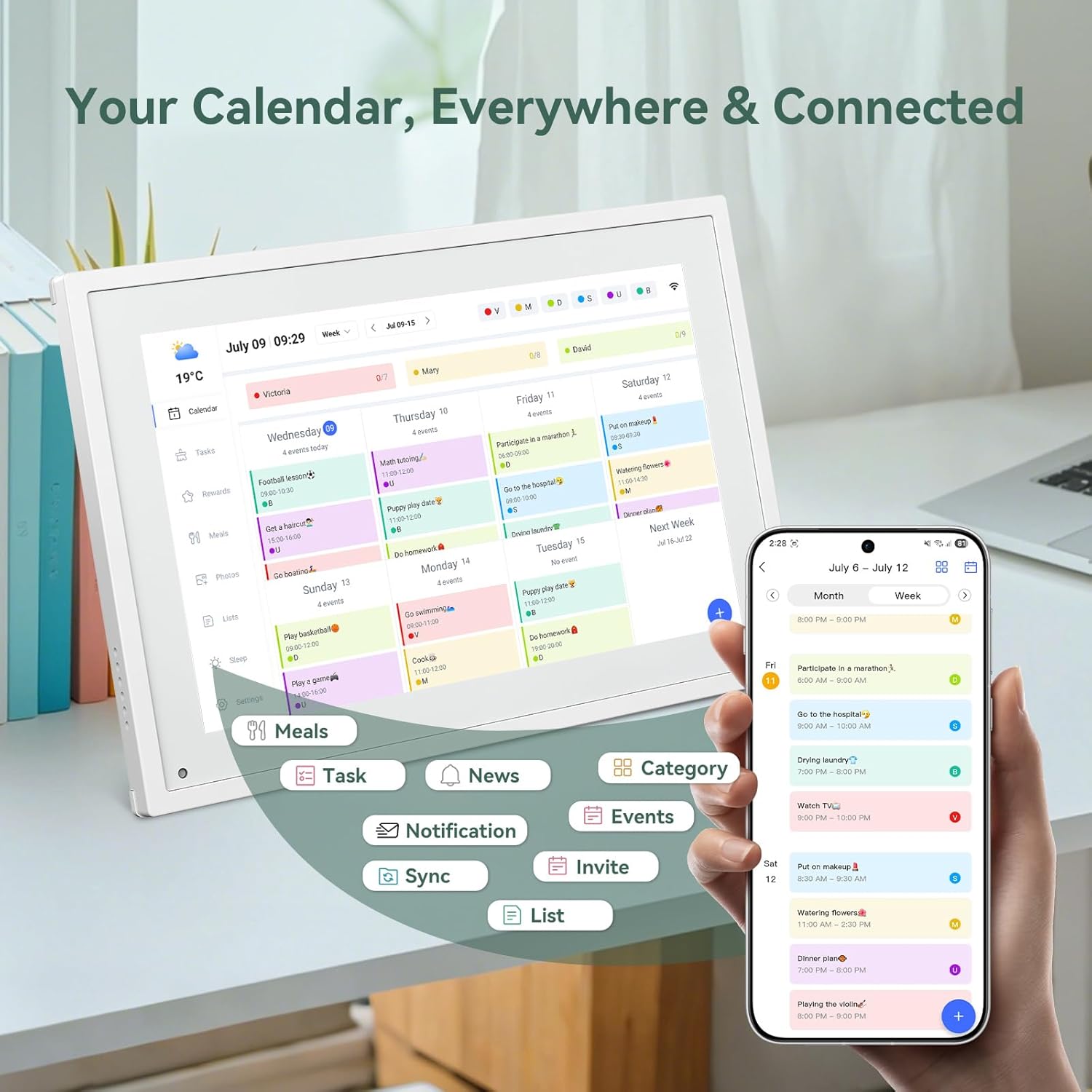
Gambar 6.6: Leuwihview of smart features and app connectivity.
- Live Weather Forecasts: Mintonkeun kaayaan cuaca ayeuna sareng ramalan.
- Kacaangan otomatis: The built-in light sensor automatically adjusts screen brightness for optimal viewing.
- Modeu Bobo: Configure scheduled times for the device to enter a low-power sleep mode.
- Custom Lists: Create and manage various lists (e.g., shopping lists, packing lists).
- Coding Warna: Assign different colors to events or tasks for easy visual identification.
7. Pangropéa
7.1 Ngabersihan Alat
- Ngusap layar nganggo kaén anu lembut sareng teu aya serat. Pikeun smudges nekad, rada dampen lawon kalayan cai atanapi solusi beberesih layar.
- Ulah make bahan kimia kasar, bahan abrasive, atawa sprays aerosol langsung dina alat.
- Pastikeun alat dipareuman sareng dicabut colokan sateuacan beberesih.
7.2 Apdet parangkat lunak
The device may receive periodic software updates to improve performance and add new features. Ensure your device is connected to Wi-Fi to receive these updates. You will typically be notified on-screen when an update is available.
8. Cara ngungkulan
| Masalah | Mungkin Cukang lantaranana | Solusi |
|---|---|---|
| Alat teu hurung. | Adaptor listrik teu nyambung atanapi lepat. | Pastikeun adaptor daya disambungkeun sacara aman ka alat sareng stop kontak listrik anu tiasa dianggo. |
| Teu bisa nyambung ka Wi-Fi. | Sandi salah, di luar jangkauan, atanapi masalah jaringan. | Verify Wi-Fi password. Move the device closer to the router. Restart your router. |
| Calendar events are not syncing. | App not linked, external calendar not connected, or internet issue. | Check app-device linking. Ensure external calendars are correctly linked in the eCalendar app. Verify internet connection. |
| Layar teu ngaréspon. | glitch software samentara. | Balikan deui alat ku cara nahan tombol daya nepi ka pareum, teras hurungkeun deui. |
9. Spésifikasi
| Fitur | Rincian |
|---|---|
| Nomer modél | P10 |
| Ukuran layar | 10.1 inci |
| Tipe tampilan | Layar cabak |
| Konektipitas | Wifi |
| Dimensi produk | 10.51 x 0.91 x 7.32 inci (26.7 x 2.3 x 18.6 cm) |
| Item Beurat | 2.58 pon (1.17 kg) |
| Tipe Pamasangan | Desk Mount (not wall-mountable) |
| Sumber Daya | Plug-in (no internal battery) |
| Warna | Bodas |
10. Garansi jeung Rojongan
The TABWEE Digital Calendar comes with a standard manufacturer's warranty. For specific warranty terms and conditions, please refer to the warranty card included in your product packaging or visit the official TABWEE websitus.
For technical support, troubleshooting assistance, or any inquiries regarding your product, please contact TABWEE customer service through their official websitus atanapi inpormasi kontak anu disayogikeun dina dokuméntasi produk anjeun.


