1. Bubuka
This manual provides detailed instructions for the installation, operation, and maintenance of your Zomolither Android 15 Car Stereo. This unit is specifically designed for Subaru Forester, Impreza, and WRX models manufactured between 2008 and 2012. Please read this manual thoroughly before use to ensure proper functionality and to maximize your experience with the device.

Image 1: Zomolither Android 15 Car Stereo main unit. This image shows the 9-inch touchscreen displaying the Android 15 interface with app icons for iHeart, Telegram, Amap, and Spotify, along with system information like 4G signal, RAM, and ROM.
2. Émbaran Kasalametan
Perhatikeun pancegahan kaamanan di handap ieu pikeun nyegah tatu atanapi karusakan kana alat:
- Do not attempt to disassemble or modify the unit. Unauthorized modifications can lead to electric shock, fire, or damage to the product.
- Pastikeun sadaya sambungan kabel aman sareng insulated leres pikeun nyegah sirkuit pondok.
- Avoid operating the device in extreme temperatures outside the specified range (-20°C to 70°C).
- Ulah meungpeuk bukaan ventilasi dina unit.
- Always prioritize safe driving. Do not operate features that distract you from the road.
- Taroskeun ka profésional pikeun pamasangan upami anjeun henteu yakin kana léngkah-léngkah naon waé.
3. Eusi Paket
Pastikeun yén sadaya item anu didaptarkeun di handap kalebet kana pakét anjeun:
- 1 x Car Stereo Head Unit
- 1 x Antena GPS
- 2 x Kabel Listrik
- 1 x Antena Radio
- 1 x Kabel USB Mobil Asli
- 1 x Kabel Input Kaméra Tukang
- 1 x RCA Kabel
- 1 x Mikropon Éksternal
- 1 x Belakang View Camera (Optional, if included in your specific package)
- 1 x Manual Pamaké (Dokumén ieu)
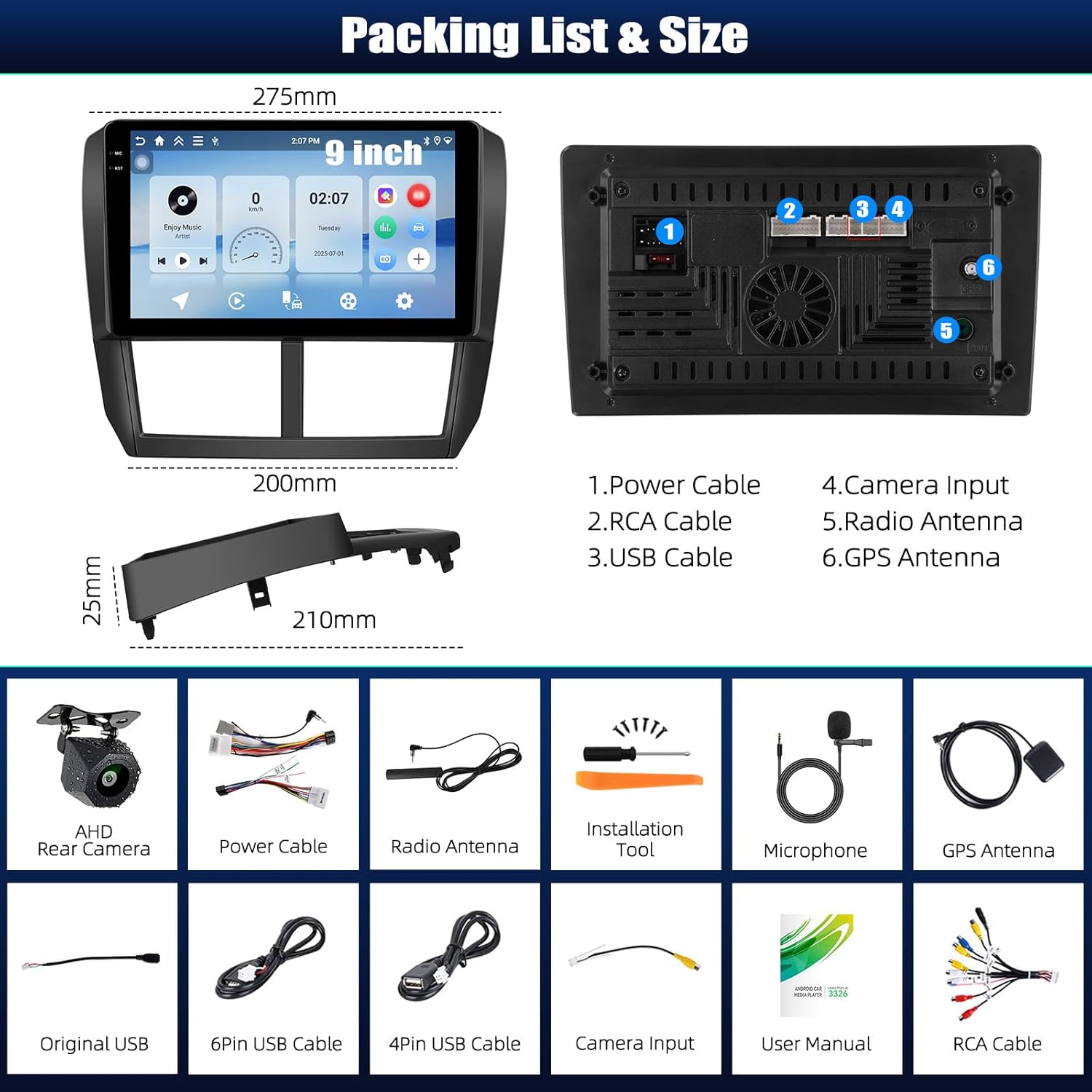
Image 2: Package contents and dimensions. This image illustrates the physical dimensions of the head unit and lists the various cables and accessories included, such as the AHD Rear Camera, Power Cable, Radio Antenna, Installation Tool, Microphone, GPS Antenna, Original USB, USB cables, Camera Input, User Manual, and RCA Cable.
4. Instalasi (Setup)
This car stereo is designed for direct fitment in Subaru Forester, Impreza, and WRX models from 2008 to 2012. Professional installation is recommended.
4.1 Cék Pra-Pamasangan
- Pastikeun ignition kendaraan pareum sareng batréna dipegatkeun sateuacan ngamimitian pamasangan.
- Confirm compatibility with your vehicle model and year.
- Review the wiring diagrams provided with your unit for specific connections.
4.2 Léngkah-léngkah Instalasi Umum
- Carefully remove the factory radio and trim panels from your vehicle's dashboard.
- Connect the main power harness, RCA cables, USB cables, GPS antenna, and radio antenna to the new head unit.
- If installing the backup camera, route the camera cable to the rear of the vehicle and connect it to the designated input on the head unit.
- Connect the steering wheel control (SWC) wires according to your vehicle's wiring diagram.
- Pasangkeun head unit anyar kalayan pageuh kana liang dasbor.
- Reconnect the vehicle battery and test all functions before reassembling the trim panels.

Image 3: Before and After installation. This image shows a side-by-side comparison of a Subaru dashboard with the original factory radio (Before) and the Zomolither Android 15 Car Stereo installed (After), highlighting the integrated appearance.
5. Operasi
5.1 Daya Hurung/Pareuman
Press the power button (usually located on the front panel or a soft button on the screen) to turn the unit on or off. The unit will typically power on automatically with the vehicle's ignition.
5.2 Panganteur layar rampa
The 9-inch Incell touchscreen features a 1280x720 resolution, offering clear visuals and responsive touch control. Navigate through menus and applications by tapping, swiping, and pinching.
5.3 Wireless CarPlay & Android Auto
Connect your compatible iPhone or Android smartphone wirelessly to access navigation, music, calls, and messages directly on the car stereo display. Follow the on-screen prompts to pair your device.

Image 4: Wireless CarPlay, Android Auto, and Mirror Link. This image displays various screens showing the integration of smartphone features like calls, messages, music, and maps via Wireless CarPlay and Android Auto, as well as the Mirror Link function.
5.4 Tautan Eunteung
The Mirror Link function allows you to display your smartphone's screen content directly onto the car stereo. This is useful for sharing videos or using specific applications not natively supported by CarPlay or Android Auto.
5.5 Bluetooth 5.0
Pair your smartphone via Bluetooth for hands-free calling and high-quality audio streaming. Access your phonebook, dial numbers, and control music playback directly from the head unit.

Image 5: Bluetooth, WiFi, and GPS features. This image illustrates the Bluetooth dialer for hands-free calls, a collage of app icons representing WiFi connectivity for app downloads, and a GPS navigation map displaying routes.
5.6 Napigasi GPS
The built-in GPS system supports both offline maps and real-time traffic updates when connected to WiFi. Download your preferred navigation apps from the app store.
5.7 Konektipitas WiFi
Connect the car stereo to a WiFi hotspot (e.g., from your smartphone) to access online features, download applications, and receive system updates.
Radio 5.8 FM/RDS
Tune into FM radio stations. The RDS (Radio Data System) feature displays station information, song titles, and traffic announcements where available. The unit is equipped with 32EQ for clear channel search and low noise.

Image 6: FM/RDS Radio and 32-band Equalizer. This image shows the radio interface with station frequencies and RDS information, alongside a detailed 32-band equalizer for audio customization.
5.9 Audio Equalizer (32EQ)
Customize your audio experience with the integrated 32-band equalizer. Adjust frequency levels to match your preferences and vehicle acoustics.
5.10 Multiple UI Themes
Personalize the appearance of your car stereo by choosing from various user interface themes to match your style or mood.

Image 7: Split Screen and Multiple UI Themes. This image illustrates the split-screen feature, allowing two applications to run simultaneously, and showcases several distinct user interface themes for personalization.
5.11 Fungsi Layar Pamisah
Utilize the split-screen feature to run two applications simultaneously, such as navigation and music playback, for enhanced convenience.
5.12 Kontrol Setir (SWC)
If your vehicle supports it, connect the steering wheel controls to operate the stereo without taking your hands off the wheel. This allows for safe adjustment of volume, track changes, and mode selection.

Image 8: Backup Camera and Steering Wheel Control. This image displays a simulated view from a backup camera with parking guidelines and an interface for mapping steering wheel control buttons to various stereo functions.
5.13 Backup Camera
When a compatible AHD backup camera is connected, the display automatically switches to the camera view when the vehicle is put into reverse, providing clear visuals for safe parking.
6. Pangropéa
Pikeun mastikeun umur panjang sareng kinerja optimal stereo mobil anjeun, turutan pedoman perawatan ieu:
- Ngabersihan layar: Anggo lawon anu lemes sareng henteu lint pikeun ngusap layar rampa. Pikeun smudges nekad, rada dampen lawon jeung cai atawa cleaner aman layar. Hindarkeun bahan kimia anu kasar atanapi bahan abrasive.
- beberesih umum: Jaga unit ieu bébas tina lebu sareng kokotor. Anggo sikat lemes atanapi hawa anu dikomprés pikeun ngabersihkeun sakitar tombol sareng ventilasi.
- Apdet parangkat lunak: Periodically check for available software updates via the system settings when connected to WiFi. Updates can improve performance and add new features.
- Kontrol Suhu: Avoid exposing the unit to extreme temperatures for extended periods. The operating temperature range is -20°C to 70°C.
7. Cara ngungkulan
If you encounter issues with your Zomolither car stereo, refer to the following common problems and solutions:
| Masalah | Mungkin Cukang lantaranana | Solusi |
|---|---|---|
| Unit teu hurung | Sambungan kakuatan leupas, sekering ditiup, masalah batré kandaraan. | Check power cables and fuse. Ensure vehicle battery is connected and charged. |
| Teu aya sora atanapi audio anu distorsi | Speaker wires incorrectly connected, volume too low, EQ settings. | Verify speaker connections. Adjust volume. Reset EQ settings to default. |
| Sambungan Bluetooth teu stabil | Interference, outdated firmware, phone compatibility. | Ensure no other devices are interfering. Update stereo firmware. Try re-pairing the device. |
| Screen goes black randomly | Software glitch, power fluctuation. | Perform a system reset (refer to the device settings for reset options). Check power connections. |
| Sinyal GPS lemah atanapi teu akurat | Panempatan anteneu GPS, gangguan lingkungan. | Pastikeun anteneu GPS boga jelas view of the sky. Avoid placing near metal objects. |
| Kontrol Setir teu jalan | Incorrect wiring, SWC learning not configured. | Check SWC wiring. Access SWC settings in the unit to program buttons. |
If the problem persists after attempting these solutions, please contact Zomolither customer support for further assistance.
8. Spésifikasi
| Fitur | Rincian |
|---|---|
| Sistem operasi | Android 15 |
| Ram | 4GB |
| Rom | 128GB |
| Ukuran tampilan | 9 inci |
| Resolusi tampilan | 1280x720 (Incell Touchscreen) |
| Konektipitas | Bluetooth 5.0, WiFi, GPS |
| Fitur husus | Wireless CarPlay, Android Auto, Mirror Link, 32EQ, FM/RDS Radio, Split Screen, Multiple UI Themes, Steering Wheel Control (SWC), AHD Backup Camera Support |
| Mode Kaluaran Audio | Digital |
| Dimensi produk | 11.02 x 9.65 x 2.56 inci |
| Item Beurat | 3.74 pon |
| Suhu Operasi | -20°C nepi ka 70°C |
9. Garansi jeung Rojongan
For warranty information, technical support, or service inquiries, please refer to the contact details provided with your purchase documentation or visit the official Zomolither websitus. Simpen bukti pameseran anjeun pikeun klaim garansi.


