Bubuka
Thank you for choosing the AZDOME PG17 Pro Mirror Dash Cam. This manual provides essential information for setting up, operating, and maintaining your device. Please read it thoroughly before use to ensure optimal performance and safety.
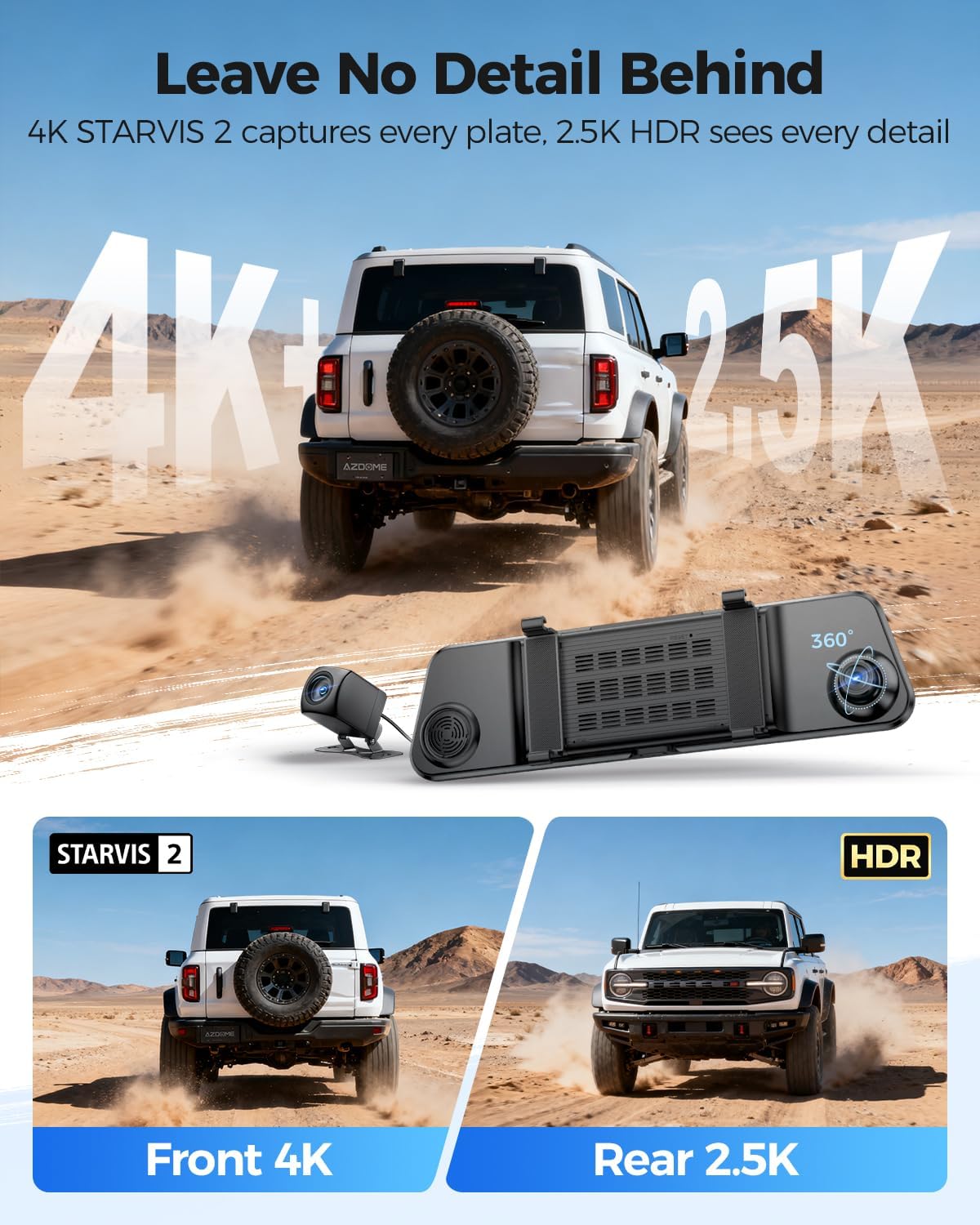
Image: The AZDOME PG17 Pro Mirror Dash Cam, showcasing its sleek design and integrated front camera, with the separate rear camera visible.
Naon dina Box
Pastikeun yén sadaya item anu didaptarkeun di handap kalebet kana pakét anjeun:
- AZDOME PG17 Pro 4K Mirror Dash Cam ×1
- 2.5K Rear Camera ×1
- GPS Receiver ×1
- 128GB Memory Card ×1
- Type-C Power Cable ×1
- 20ft Rear Cam Cable ×1
- Car Wire Trim Tool ×1
- Straps ×4
- Cable Clips ×5

Image: A visual representation of all items included in the AZDOME PG17 Pro Mirror Dash Cam package.
Setup sareng Instalasi
1. Masang Eunteung Dash Cam
Secure the main dash cam unit over your existing rearview eunteung ngagunakeun tali karét nu disadiakeun. Pastikeun éta napel pageuh tur teu ngahalangan Anjeun view.

Image: A close-up of the dash cam being secured onto a vehicle's rearview mirror using the elastic straps.
2. Connecting the Power Cable
Connect the Type-C power cable to the dash cam and route it along the windshield trim down to your vehicle's 12V power outlet (cigarette lighter socket). Use the trim tool to tuck the cable neatly for a clean installation.
Video: Demonstrates the step-by-step installation process of the PG17 Pro Dash Cam, including securing the mirror unit and routing the power cable.
3. Masang kaméra Rear
Connect the 2.5K rear camera to the main unit using the provided 20ft rear cam cable. Route this cable from the main unit, along the headliner and side pillars, to the rear of your vehicle. Mount the rear camera above your license plate frame for optimal rear view. Connect the red trigger wire from the rear camera cable to the positive wire of your vehicle's reversing light for automatic reverse assist functionality.

Image: A diagram illustrating how to connect the rear camera and the car charger to the main dash cam unit.
4. Installing the GPS Receiver
Plug the GPS receiver into the designated port on the dash cam. Mount the GPS module on your dashboard or windshield where it has a clear view of the sky for accurate signal reception. This enables GPS tracking and speed display.

Image: A visual demonstrating the built-in GPS logger, which tracks speed, location, and driving routes.
5. Nyelapkeun Kartu Mémori
Insert the provided 128GB MicroSD card into the MicroSD card slot on the top of the dash cam. Ensure it clicks into place. The dash cam requires a high-speed memory card (U3 V30 A2 recommended) for optimal recording performance. Format the memory card before first use via the dash cam settings.
Parentah Operasi
1. Daya Hurung / Pareum
The dash cam will automatically power on and begin recording when your vehicle starts. It will power off automatically when the vehicle is turned off.
2. Panganteur layar rampa
The 12-inch IPS touchscreen allows for easy navigation through menus and settings. Swipe left or right on the screen to switch between front camera view, kaméra pungkur view, or a split-screen display showing both simultaneously.

Image: The dash cam display showing simultaneous 4K front and 2.5K rear camera views, highlighting clarity.
3. Kontrol sora
Operate the dash cam hands-free using voice commands. Supported commands include: "Record Video", "Take Photo", "Turn on Audio", "Turn off Audio", "Show Front Camera", "Show Rear Camera", "Turn on WiFi", "Turn off WiFi", "Lock Video".

Image: A driver demonstrating the smart voice control feature to activate various dash cam functions without taking hands off the wheel.
4. ADAS (Advanced Driver Assistance System)
The ADAS feature provides real-time warnings for enhanced driving safety. This includes Lane Departure Warning, Forward Collision Warning, and Front Vehicle Start Alerts.

Image: A visual representation of the Advanced Driver Assistance System (ADAS) providing real-time collision warnings to the driver.
5. Parking Monitor (Hardwire Required)
For 24/7 parking surveillance, the dash cam requires a hardwire kit (sold separately). This enables Collision Detection and Time-Lapse Recording modes when the vehicle is parked.

Image: The 24H Parking Monitor feature, illustrating collision detection and time-lapse recording for vehicle security.
6. Sambungan WiFi jeung Aplikasi Dianggo
Connect your dash cam to the AZDOME app via 5.8GHz WiFi for seamless video management, live preview, and settings adjustments. Download the AZDOME app from your smartphone's app store. The default WiFi password is 12345678.
Video: A demonstration of connecting the PG17 Pro to a smartphone via WiFi and using the AZDOME app.
Video: A guide on navigating and adjusting settings within the AZDOME app for the PG17 Pro.
Pangropéa
1. Manajemén Kartu Mémori
Regularly format your MicroSD card (at least once a month) to prevent data corruption and ensure continuous recording. The dash cam features loop recording, automatically overwriting the oldest files when the card is full, but periodic manual formatting is recommended.

Image: Illustrates the loop recording function, which automatically overwrites old files, and the emergency lock feature for critical footage.
2. Ngabersihan Alat
Use a soft, dry cloth to clean the dash cam's screen and lens. Avoid using abrasive cleaners or solvents that could damage the device. Ensure the lenses are clean for clear video capture.
Pamérésan masalah
If you encounter any issues with your AZDOME PG17 Pro, please refer to the following common solutions:
- Dash Cam Henteu Diaktipkeun: Ensure the power cable is securely connected to both the dash cam and the vehicle's 12V power outlet. Check if the vehicle's ignition is on.
- Masalah Rekaman: Format the MicroSD card through the dash cam settings. Ensure the card is a high-speed (U3 V30 A2) card.
- Video anu teu jelas: Clean the front and rear camera lenses with a microfiber cloth. Adjust the camera angles for optimal view.
- Kaleungitan Sinyal GPS: Pastikeun modul GPS mibanda tampilan anu jelas view langit sareng nyambung kalayan aman.
- Masalah Koneksi WiFi: Verify that WiFi is enabled on the dash cam and your smartphone. Re-enter the WiFi password (default: 12345678).
- Kontrol Sora Teu Ngabales: Speak clearly and ensure the vehicle's audio is not excessively loud.
For further assistance, please contact AZDOME customer support.
spésifikasi
| Fitur | Rincian |
|---|---|
| Ngaran modél | PG17 Pro ADAS F1.0 |
| Dimensi produk | 1.5 x 12 x 3 inci |
| Item Beurat | 2.53 pon |
| Resolusi Capture Video | Front: 3840 × 2160 (4K), Rear: 2560 × 1440 (2.5K) |
| Fitur husus | STARVIS 2 IMX678, Advanced Driver Assistance System (ADAS), 5.8GHz WiFi, GPS, Voice Control, Dual HDR, Reverse Assist |
| Tipe Pamasangan | Tukangeunview Eunteung Gunung |
| Widang Of View | 170 darajat |
| Téhnologi konektipitas | USB, Wireless (5.8GHz WiFi) |
| Batré | 1 batré Litium Metal diperlukeun |
| Warna | Hideung |
Garansi sareng Rojongan
The AZDOME PG17 Pro Mirror Dash Cam comes with 18 months of professional support. For any technical assistance, warranty claims, or product inquiries, please contact our customer service team.
Email Layanan Pelanggan: service@azdomevip.com

Image: AZDOME customer support representative ready to assist with product inquiries.


