1. Produk Langkungview
The ASUS ROG Swift PG32UCDMR is a 32-inch 4K (3840 x 2160) QD-OLED gaming monitor designed for high-performance visual experiences. It features a 240 Hz refresh rate and an ultra-fast 0.03 ms (GTG) response time, ensuring smooth and blur-free action. This monitor incorporates third-generation QD-OLED technology for vibrant colors, deep blacks, and bright highlights. Advanced cooling is provided by a custom heatsink, which also helps to mitigate burn-in risk and extend the panel's lifespan. The monitor is G-SYNC Compatible and offers extensive connectivity options.
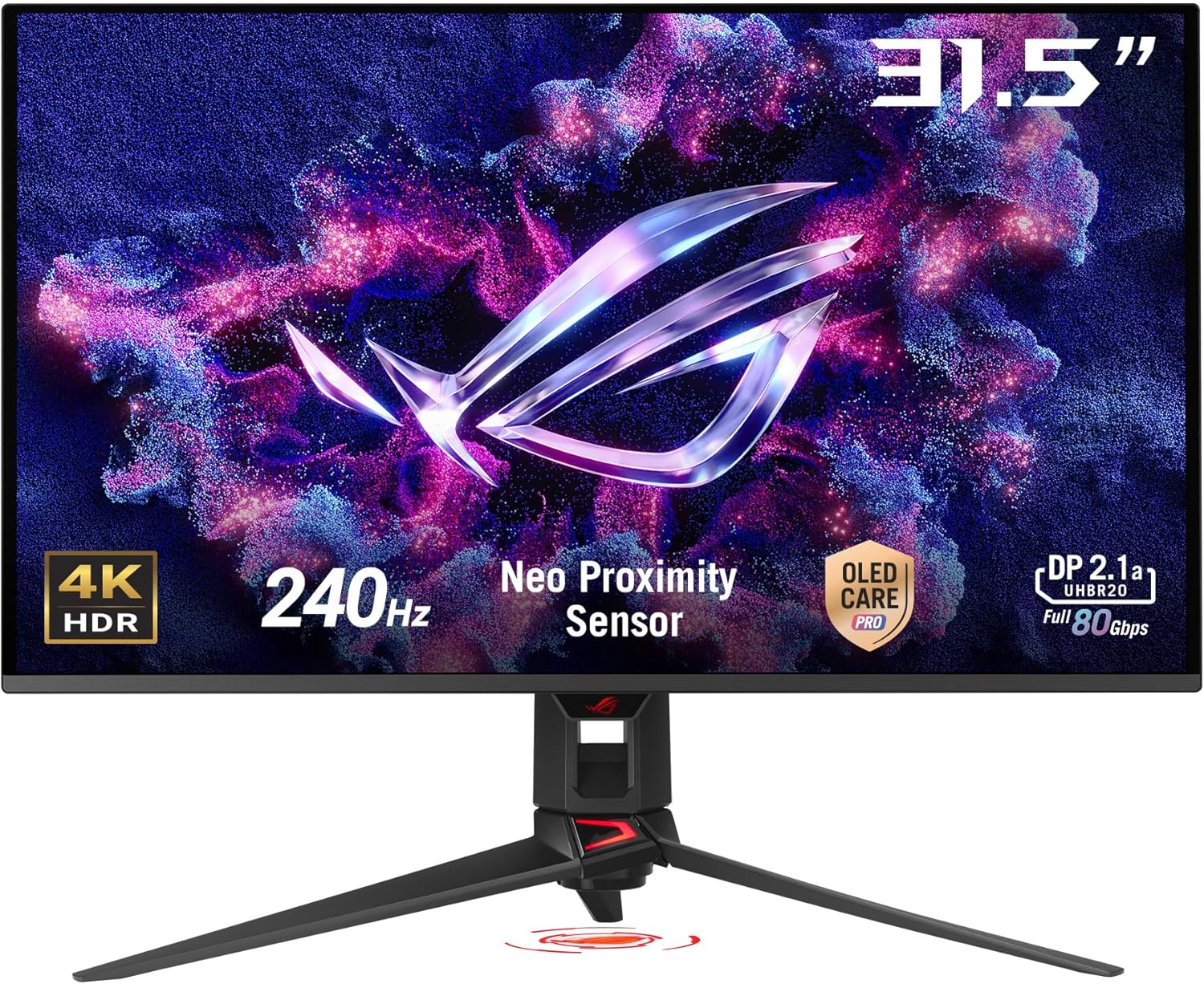
Gambar 1.1: Hareupeun view of the ASUS ROG Swift PG32UCDMR monitor, showcasing its 31.5-inch 4K HDR display, 240Hz refresh rate, Neo Proximity Sensor, OLED Care Pro, and DisplayPort 2.1a capabilities.
2. Émbaran Kasalametan penting
- Sok pegatkeun sambungan kabel listrik tina stop kontak sateuacan ngabersihan monitor.
- Ulah ngalaan monitor ka hujan atawa beueus pikeun nyegah seuneu atawa shock bahaya.
- Ulah pernah muka monitor casing. Tinggi voltagdi jero bisa nyababkeun tatu anu parah.
- Use only the power adapter and cables provided with your monitor.
- Pastikeun ventilasi ditangtoskeun sabudeureun monitor. Ulah meungpeuk bukaan ventilasi.
- Position the monitor on a stable, flat surface to prevent it from falling.
- Ulah neundeun barang beurat kana kabel listrik atanapi kabel anu sanés.
3. Eusi Paket
Verify that all items listed below are present in your product package. If any item is missing or damaged, contact your retailer immediately.
- ASUS ROG Swift PG32UCDMR Gaming Monitor
- Kabel DisplayPort 2.1 (DP80)
- Kabel HDMI Ultra Gancang
- kabel USB 3.2
- Kabel USB-C
- Kabel listrik
- kantong ROG
- Stiker ROG
- VESA Gunung kit
- Pituduh ngamimitian gancang
- Kartu Garansi

Image 3.1: Illustration of the items included in the ASUS ROG Swift PG32UCDMR product package.
4. Setélan
4.1 Ngarakit Stand Monitor
- Simpen panel monitor nyanghareup ka handap dina lawon anu lemes sareng bersih pikeun nyegah goresan.
- Pasangkeun dasar penyangga kana beuheung penyangga, pastikeun éta ngaklik pageuh kana tempatna.
- Sejajarkeun dudukan anu parantos dirakit sareng liang pemasangan di tukang panel monitor.
- Secure the stand to the monitor panel using the provided screws.
4.2 Nyambung kana Komputer
The monitor supports DisplayPort 2.1, HDMI 2.1, and USB-C connections. Choose the appropriate cable for your system.
- Sambungan DisplayPort: Connect one end of the DisplayPort 2.1 (DP80) cable to the monitor's DisplayPort input and the other end to your computer's DisplayPort output.
- Sambungan HDMI: Connect one end of the HDMI Ultra High Speed Cable to the monitor's HDMI input and the other end to your computer's HDMI output.
- Sambungan USB-C: Connect one end of the USB-C cable to the monitor's USB-C input and the other end to your computer's USB-C port. This connection also supports 90W Power Delivery.
- Sambungan Hub USB: Connect the USB 3.2 cable from your computer to the monitor's USB upstream port to enable the monitor's USB hub functionality.
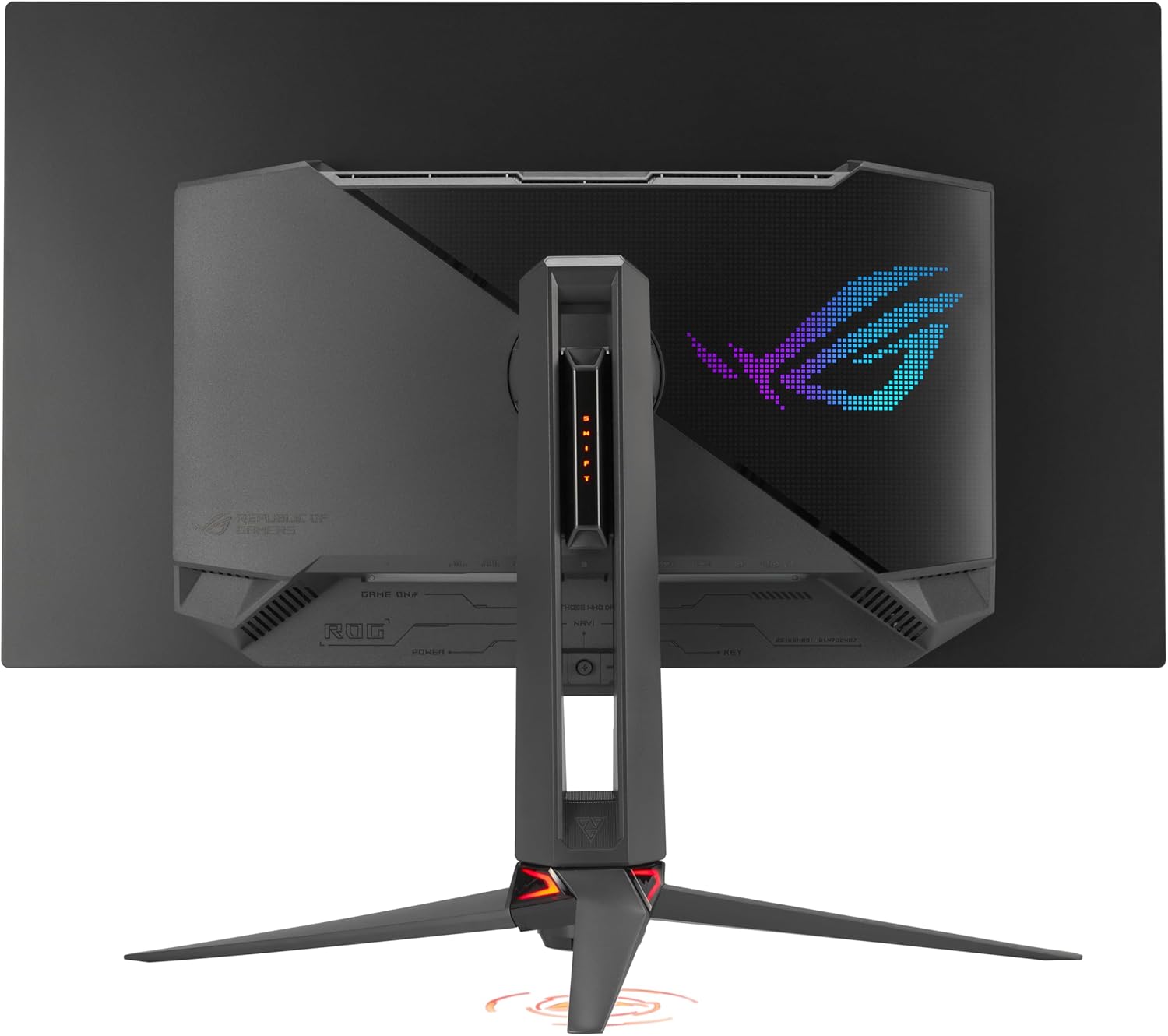
Image 4.1: Rear panel of the monitor displaying available connectivity ports.
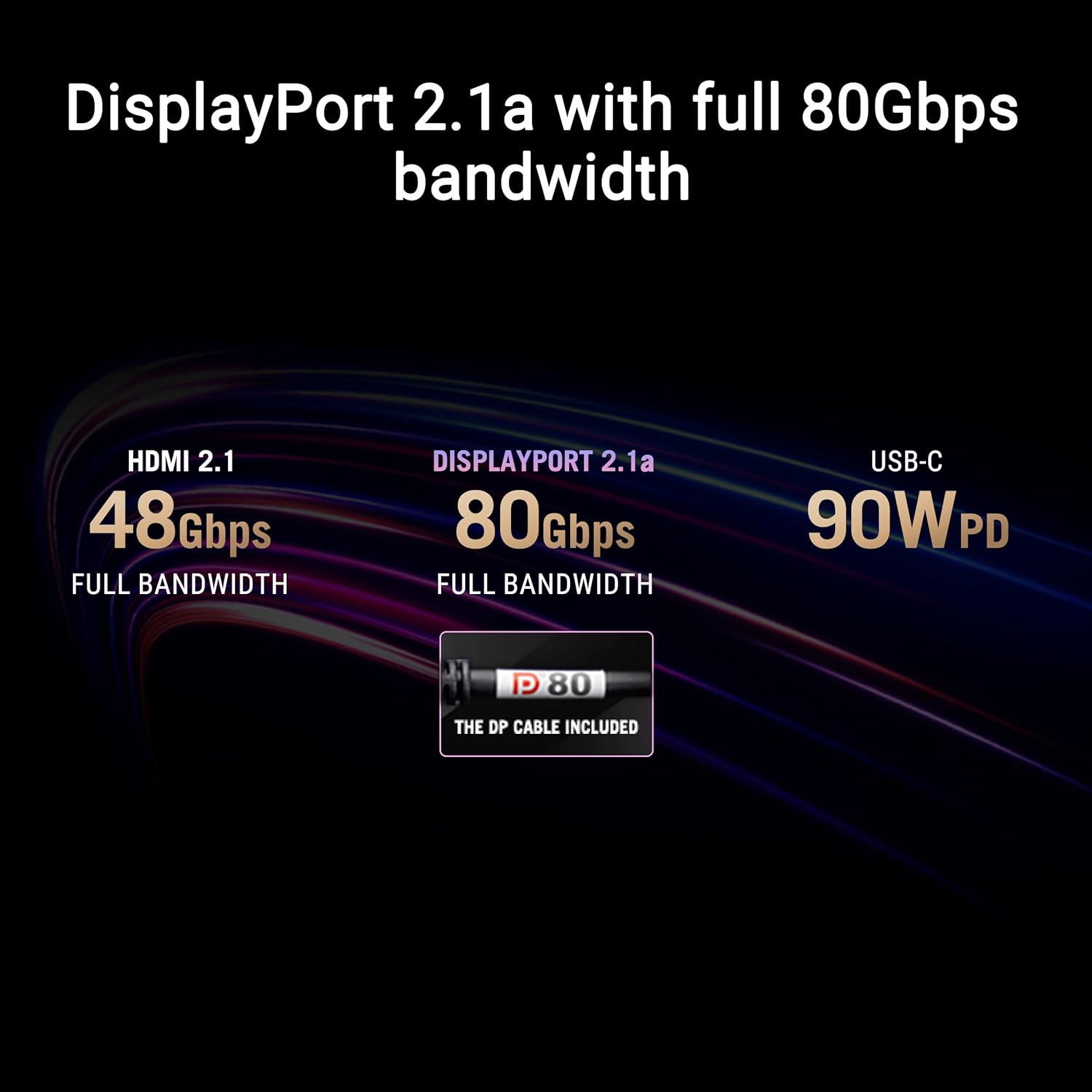
Image 4.2: Connectivity options and their respective bandwidths: HDMI 2.1 (48Gbps), DisplayPort 2.1a (80Gbps), and USB-C (90W PD).
4.3 Sambungan Daya
Sambungkeun kabel daya kana input daya monitor, teras colokkeun tungtung anu sanésna kana stop kontak anu di-ground.
5. Ngoperasikeun Monitor
5.1 Napigasi dina-layar (OSD).
The monitor features an intuitive OSD joystick and buttons, typically located on the rear or bottom right of the panel, to navigate and adjust settings. Press the joystick to access the main OSD menu, then use it to move through options and confirm selections.
5.2 Parangkat Lunak Pusat DisplayWidget
The DisplayWidget Center software provides a convenient way to adjust monitor settings directly from your computer. This includes access to OLED Care functions, customizable monitor settings, auto firmware update notifications, and multiscreen control.

Image 5.1: DisplayWidget Center software interface for easy adjustment of monitor settings.
5.3 Key Display Features
- QD-OLED Technology: Delivers superior color accuracy, contrast, and brightness compared to traditional OLED panels.
- 240 Hz Laju Refresh: Provides extremely fluid motion for competitive gaming.
- 0.03 ms (GTG) Response Time: Minimizes ghosting and motion blur.
- G-SYNC Cocog: Ensures tear-free and stutter-free gaming experiences with compatible NVIDIA graphics cards.
- VESA DisplayHDR 400 True Black: Offers exceptional HDR performance with deep blacks and bright highlights.
- 99% DCI-P3 Gamut & 10-bit Color: Provides a wide color spectrum and accurate color reproduction.
- Optional Uniform Brightness: Maintains consistent luminance levels across the screen.
6. Pangropéa
6.1 ASUS OLED Care Pro
ASUS OLED Care Pro is a suite of features designed to protect the OLED panel from burn-in and extend its lifespan. These functions can be accessed via the OSD or DisplayWidget Center software.
- Sénsor Neo Proximity: Otomatis ngadeteksi nalika pangguna teu aya di tempat sareng ngarobih ka layar hideung pikeun ngirangan résiko kaduruk.
- Ngabersihan piksel: A maintenance process that refreshes the pixels to prevent image retention.
- Simpen layar: Activates a screen saver after a period of inactivity.
- Pindah Piksel: Ngageser gambar saeutik pikeun nyegah unsur statis nyababkeun kaduruk.
- Deteksi Wates: Identifies and mitigates potential burn-in from static UI elements.
- Pangaluyuan Kacaangan Logo: Reduces the brightness of static logos to prevent burn-in.
- Deteksi Taskbar: Automatically dims the Windows taskbar to protect the OLED panel.
- Deteksi Peredupan Luar: Dims static elements on the edges of the screen.
- Deteksi Peredupan Global: Dims the entire screen when static content is detected.
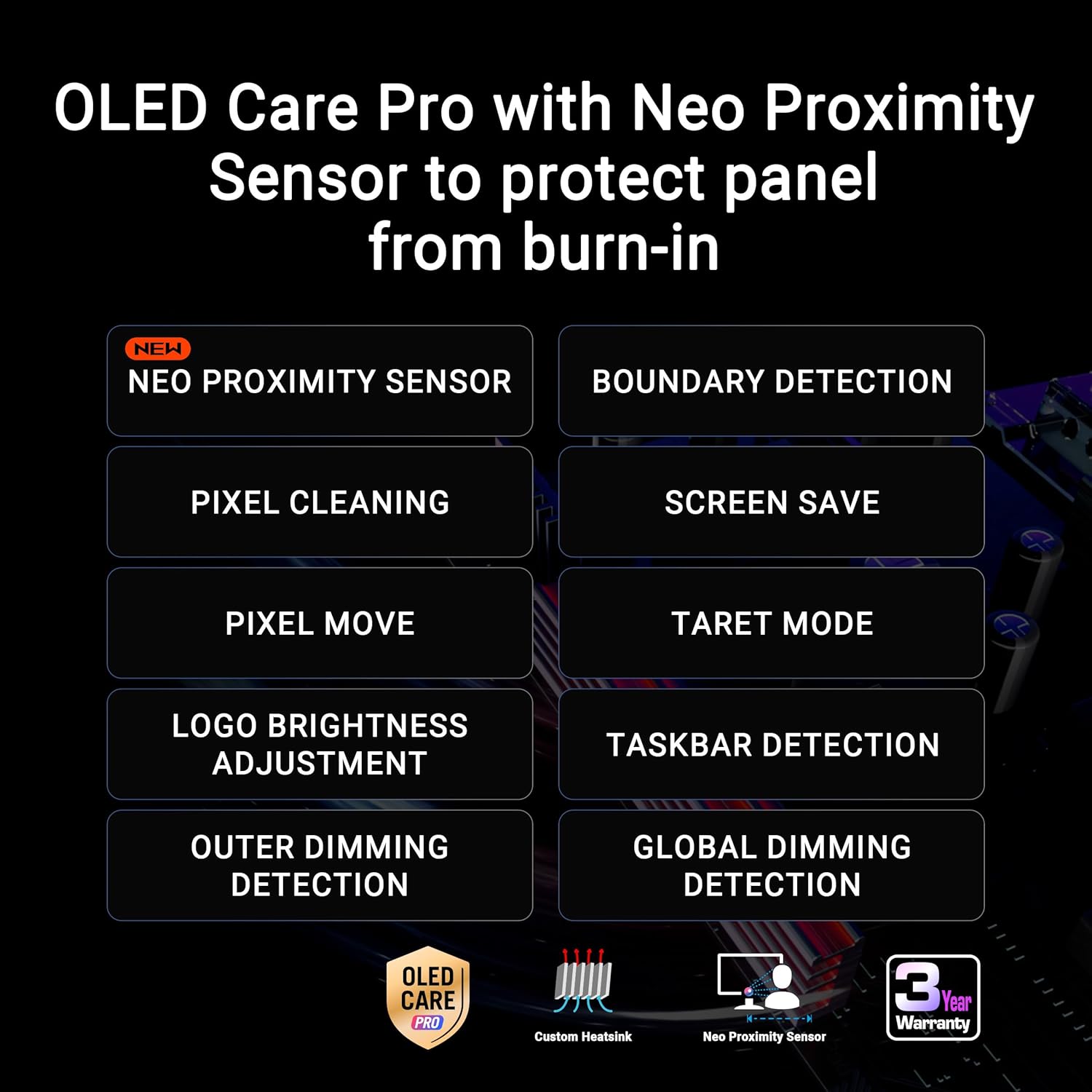
Gambar 6.1: Leuwihview of OLED Care Pro functions with Neo Proximity Sensor for panel protection.
6.2 Ngabersihan Monitor
- Pareuman heula monitor jeung cabut heula kabel listrikna sateuacan diberesihan.
- Use a soft, lint-free cloth (such as the provided microfiber cloth) to gently wipe the screen and casing.
- Pikeun tanda pengkuh, enteng dampBilas lawon ku cai atanapi pembersih layar anu hampang sareng henteu abrasif. Ulah nyemprotkeun cairan langsung kana layar.
- Avoid using alcohol-based cleaners, ammonia, or abrasive materials, as these can damage the screen surface.
7. Cara ngungkulan
7.1 Taya Daya
- Pastikeun kabel daya disambungkeun pageuh kana monitor sareng stop kontak anu tiasa dianggo.
- Check if the power indicator light on the monitor is on.
- Test the electrical outlet with another device to confirm it is functioning.
7.2 Taya Sinyal
- Verify that the video cable (DisplayPort, HDMI, or USB-C) is securely connected to both the monitor and your computer.
- Pastikeun sumber input anu leres dipilih dina monitor ngalangkungan menu OSD.
- Check your computer's display settings to ensure the monitor is detected and enabled.
- Try a different video cable or port if available.
7.3 Display Issues (e.g., Flickering, Incorrect Colors)
- Adjust the monitor's refresh rate and resolution in your computer's display settings to match the monitor's capabilities.
- Apdet supir kartu grafik anjeun ka versi panganyarna.
- Perform a factory reset of the monitor settings via the OSD menu.
- Ensure no strong electromagnetic interference sources are near the monitor.
8. Spésifikasi
| Fitur | Spésifikasi |
|---|---|
| Ukuran layar | 31.5 inci |
| Tipe Panel | QD-OLED |
| Resolusi | 3840 x 2160 (4K) |
| Refresh Laju | 240 Hz |
| Waktu Tanggapan | 0.03 ms (GTG) |
| Rojongan HDR | VESA DisplayHDR 400 True Black, Dolby Vision |
| Warna Gamut | 99% DCI-P3 |
| Jerona Warna | Leres 10-bit |
| Konektipitas | DisplayPort 2.1, HDMI 2.1, USB-C (90W PD), USB 3.0 Hub |
| Beurat | 19.2 pon |
| Ukuran (L x W x H) | 10.9 x 28.3 x 20.9 inci |
| Warna | HIDEUNG |
9. Garansi jeung Rojongan
9.1 Émbaran jaminan
This ASUS ROG Swift PG32UCDMR monitor comes with a 3-year limited warranty. Please refer to the included Warranty Card for detailed terms and conditions, including coverage specifics and regional variations. Keep your proof of purchase for warranty claims.
9.2 Rojongan Palanggan
Kanggo bantosan téknis, ngungkulan masalah, atanapi patarosan garansi, mangga buka dukungan resmi ASUS. website or contact ASUS customer service in your region. The Quick Start Guide included in your package also contains initial support contact information.
Additionally, this product includes complimentary access to Adobe Creative Cloud for 3 months (valid until August 31, 2026). Refer to the documentation provided with your monitor for activation instructions.


