Bubuka
This manual provides comprehensive instructions for the safe and efficient operation of your NIIMBOT D110 Bluetooth Label Maker Machine. Please read this manual thoroughly before using the device to ensure proper setup, usage, and maintenance.
Eusi pakét
Saatos muka bungkusan, pariksa yén sadaya item di handap ieu kalebet:
- 1 x NIIMBOT D110 Label Maker Machine
- 1 x 12x40mm Thermal Label Roll (pre-installed in printer)
- 1 x Kabel USB Tipe-C
- Manual pangguna (dokumén ieu)
- Additional 3 rolls of clear labels (packaged separately)
Disetél
1. Ngecas Alat
Before initial use, fully charge the NIIMBOT D110 label maker.
- Connect the provided Type-C USB cable to the charging port on the label maker.
- Sambungkeun tungtung kabel USB anu sanés ka adaptor kakuatan USB standar (teu kalebet) atanapi port USB komputer.
- Lampu indikator bakal nembongkeun status ngecas (misalna beureum keur ngecas, héjo keur dicas pinuh).
2. Masang Label Tape
The device comes with one roll of label tape pre-installed. To replace or install new tape:
- Open the label compartment cover by gently lifting it.
- Remove any empty label roll.
- Insert the new label roll with the printing surface facing upwards, ensuring the label edge extends slightly out of the slot.
- Close the compartment cover firmly until it clicks into place.

Image: NIIMBOT D110 Label Maker with a label roll being inserted and a smartphone displaying the NIIMBOT app interface for label creation.
3. Unduh Aplikasi sareng Sambungan Bluetooth
The NIIMBOT D110 operates via a dedicated mobile application.
- Download the "NIIMBOT" app from the App Store (for iOS) or Google Play Store (for Android). You can search for "NIIMBOT" or scan the QR code provided in the quick start guide.
- Pastikeun Bluetooth diaktipkeun dina alat sélulér Anjeun.
- Open the NIIMBOT app.
- Turn on the D110 label maker by pressing and holding the power button.
- Within the app, search for available devices and select "D110" to connect. The indicator light on the printer will confirm a successful connection.
Image: The NIIMBOT D110 Bluetooth Label Maker, highlighting its wireless connectivity and showing icons for downloading the companion app from the App Store and Google Play.
4. Sambungan PC (Opsional)
For more versatile content editing, the D110 can also be connected to a computer.
- Download and install the necessary drivers from the official NIIMBOT websitus.
- Connect the D110 to your computer using the provided Type-C USB cable.
- Follow the on-screen instructions in the NIIMBOT PC software to begin creating and printing labels.
Parentah Operasi
1. Creating Labels with the NIIMBOT App
The NIIMBOT app offers various features for designing your labels.
- Input téks: Enter your desired text.
- Simbol & Ikon: Aksés langkung ti 1500 simbol pikeun ningkatkeun labél anjeun.
- Basa: Supports over 10 languages for text input.
- Pigura: Choose from over 100 frames to customize label borders.
- QR Code & Barcode: Ngahasilkeun sareng nyitak kode QR atanapi barkod langsung tina aplikasi.
- Citakan: Utilize various built-in templates for quick label creation.
- Batch Printing: Print multiple identical or different labels efficiently.

Image: The NIIMBOT app interface showcasing its powerful functions, including a wide selection of symbols, support for multiple languages, various frames, and the ability to generate QR codes and barcodes.
2. Nyitak Label
After designing your label in the app:
- Review your label design on the app screen.
- Ensure the D110 is connected via Bluetooth and has sufficient battery.
- Tap the "Print" button in the app.
- The label maker will automatically feed and print the label.
- Tear off the printed label along the serrated edge.
3. Supported Label Sizes
The D110 supports various label widths from 0.47 inches (12mm) to 0.59 inches (15mm). Ensure you use genuine NIIMBOT thermal labels for optimal performance.

Image: The NIIMBOT D110 Label Maker demonstrating its compatibility with various label sizes, including 12x22mm, 12x40mm, 14x40mm, 14x60mm, 15x30mm, and 15x50mm, with examples of printed labels.
4. Aplikasi Examples
The NIIMBOT D110 is suitable for a wide range of labeling needs, including:
- School supplies (notebooks, binders, pencil cases)
- Food storage and organization
- Reminder labels for medication or tasks
- Gift labeling
- Travel item identification
- Cosmetic organization
- Office filing and organization
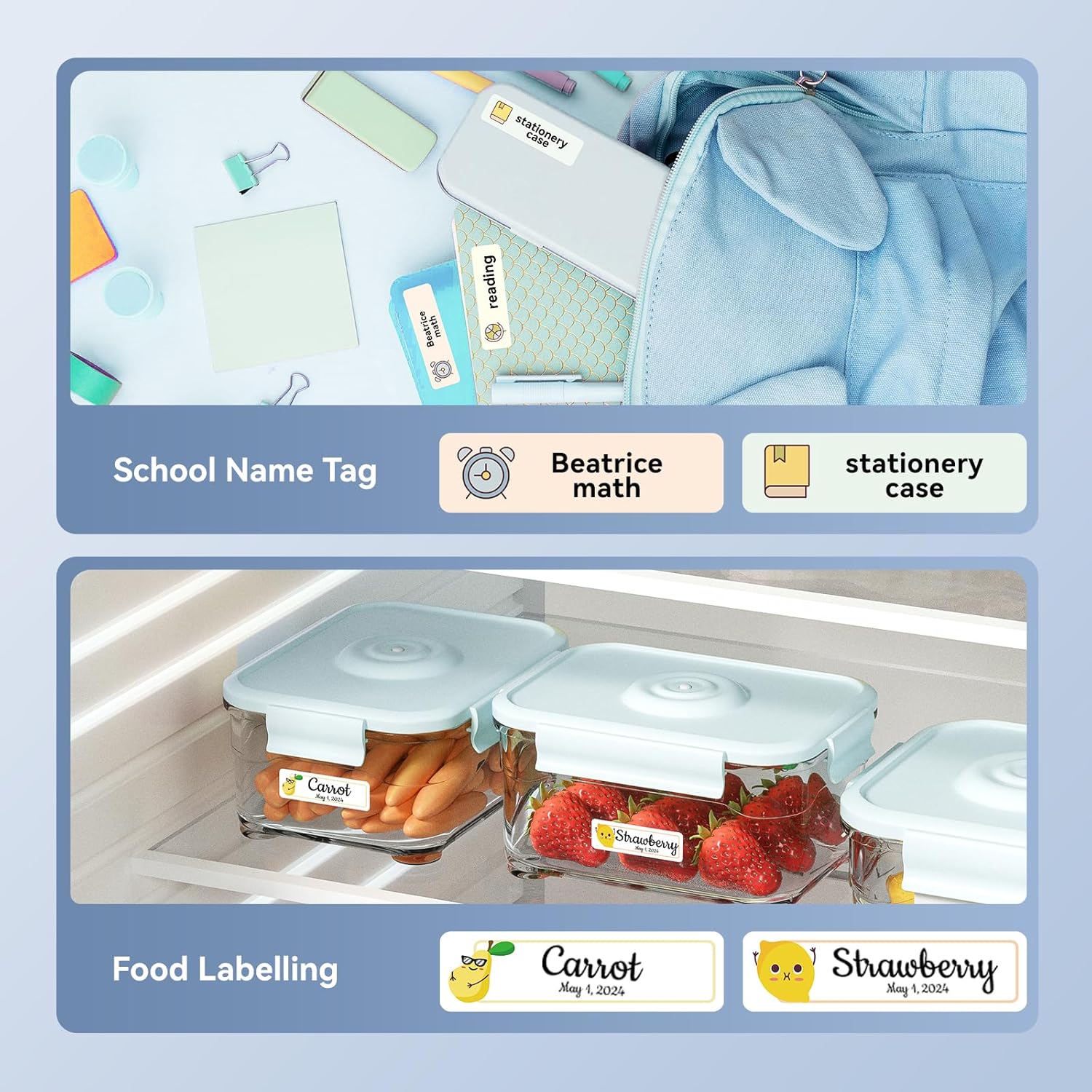
Gambar: Examples of labels created with the NIIMBOT D110, demonstrating use for school name tags on backpacks and stationery, as well as for food labeling on storage containers with contents and dates.

Gambar: Examples of labels created with the NIIMBOT D110, showing application for medication reminders in a pill organizer and decorative labels for gifts.

Gambar: Examples of labels created with the NIIMBOT D110, illustrating use for organizing travel toiletries like shampoo and conditioner, and for identifying makeup products such as eyeliner and eyeshadow.
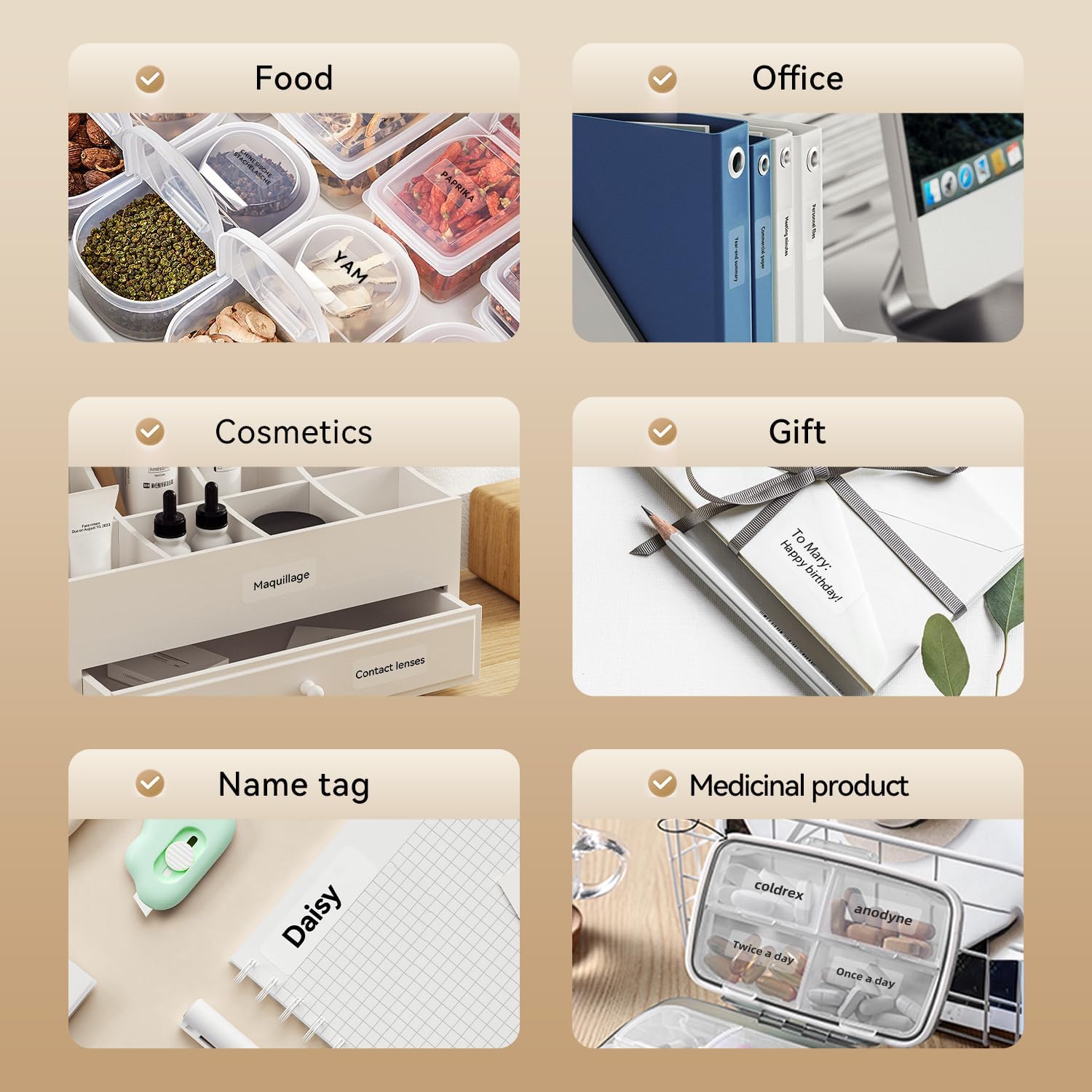
Image: A collage of various application examples for NIIMBOT D110 labels, including organizing food containers, office supplies, cosmetic items, gifts, creating name tags, and labeling medicinal products.
Pangropéa
1. Ngabersihan Print Head
To ensure optimal print quality, regularly clean the print head.
- Turn off the label maker and disconnect it from any power source.
- Buka panutup kompartemen labél.
- Usap sirah citak sacara lalaunan nganggo kapas sacara saksamaampDipasang dengan isopropil alkohol.
- Ngidinan sirah citak nepi ka garing sagemblengna samemeh nutup panutup sarta neruskeun pamakéan.
2. Kaperawatan batré
Pikeun manjangkeun umur batre:
- Hindarkeun sering-sering ngeusi batre.
- Ngecas alat sacara rutin, sanajan teu dianggo terus-terusan.
- Simpen alat dina tempat anu tiis sareng garing upami henteu dianggo kanggo waktos anu lami.
3. Panyimpenan
Store the label maker and label rolls in a dry environment, away from direct sunlight and extreme temperatures.
Pamérésan masalah
| Masalah | Mungkin Cukang lantaranana | Solusi |
|---|---|---|
| Alat teu hurung | batré lemah | Ngecas alat nganggo kabel USB anu disayogikeun. |
| Teu bisa nyambung via Bluetooth | Bluetooth is off; App not open; Device out of range | Ensure Bluetooth is enabled on your phone, open the NIIMBOT app, and keep the printer within close proximity. Restart both devices if necessary. |
| Kualitas cetak goréng | sirah print kotor; Jenis labél anu salah; batré lemah | Clean the print head (refer to Maintenance section). Ensure you are using genuine NIIMBOT thermal labels. Charge the device. |
| Label teu nyoco leres | Label roll incorrectly installed; Label jammed | Open the cover and re-install the label roll, ensuring it is properly aligned. Remove any jammed labels carefully. |
| "No ink" message | Thermal printers do not use ink. This message is incorrect or a misunderstanding. | The D110 is a thermal printer and does not require ink. Ensure the label roll is correctly installed and is thermal paper. |
spésifikasi
| Fitur | Rincian |
|---|---|
| Modél | NIIMBOT D110 |
| Métode nyitak | Thermal Printing (No Ink Required) |
| Konektipitas | Bluetooth, USB (for PC) |
| Dirojong Label Width | 0.47'' - 0.59'' (12mm - 15mm) |
| Beurat | 0.2 lb (approximately 90g) |
| Diménsi | 3.8'' x 2.9'' x 1.1'' (approximately 9.65cm x 7.37cm x 2.79cm) |
| Input kakuatan | USB Tipe-C |

Image: A visual comparison showing the NIIMBOT D110 as significantly smaller and lighter (0.2 lb, 3.8"x2.9"x1.1") compared to a traditional label printer (1.2 lb, 7"x6.3"x2.2").
Garansi sareng Rojongan
For warranty information and technical support, please refer to the official NIIMBOT website or contact NIIMBOT customer service directly. Details can typically be found on the product packaging or the manufacturer's websitus.
Dukungan Online: Nganjang www.niimbot.com for FAQs, driver downloads, and contact information.


