Bubuka
The Kensington Expert Mouse TB800 EQ Wireless Trackball is designed for professionals requiring precise control, deep customization, and ergonomic comfort. This manual provides detailed instructions for setting up, operating, maintaining, and troubleshooting your trackball.
Fitur konci:
- Award-Winning Design: Recognized with the iF Design Award and Red Dot Award for outstanding design and innovative features.
- Adjustable Scroll Ring and Two Side Scrolls: Offers effortless switching between line-by-line and smooth scrolling, with customizable side scrolls for horizontal movement and zooming.
- Advanced Customization Options: Personalize up to 16 functions using the free Kensington trackball software, compatible with Windows 10/11 and macOS 13 or later.
- Exceptional Optical Tracking Technology: Features a large 55mm ball for ultra-precise tracking and a polling rate up to 1kHz via wired or dongle connection for responsive performance.
- Ambidextrous Design: Provides all-day comfort for both right- and left-handed users, minimizing hand and wrist movement.
Produk Leuwihview
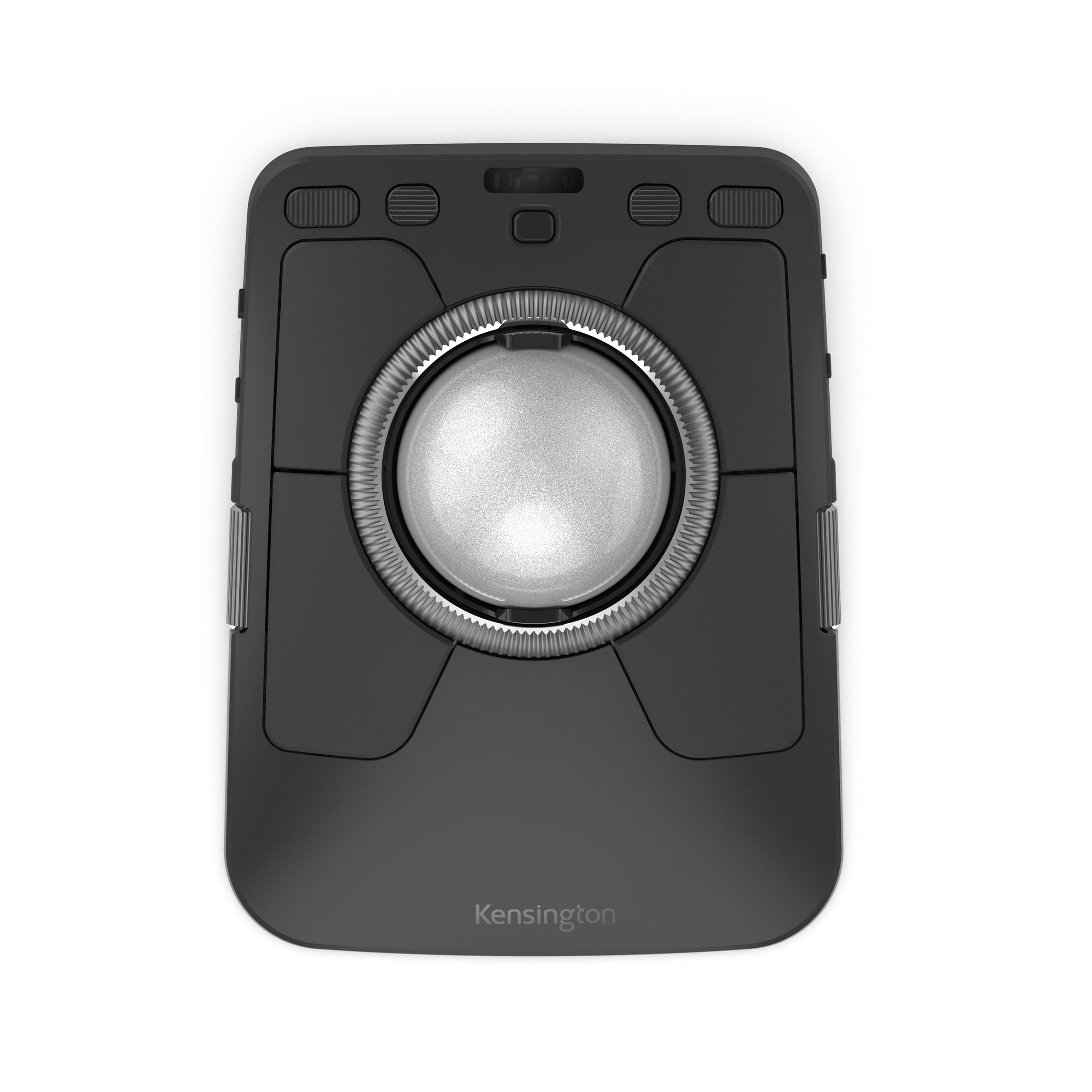
Gambar 1: Top view of the Kensington Expert Mouse TB800 EQ Wireless Trackball.

Figure 2: Detailed diagram showing programmable buttons, scroll ring, and side scrolls for demanding workflows.
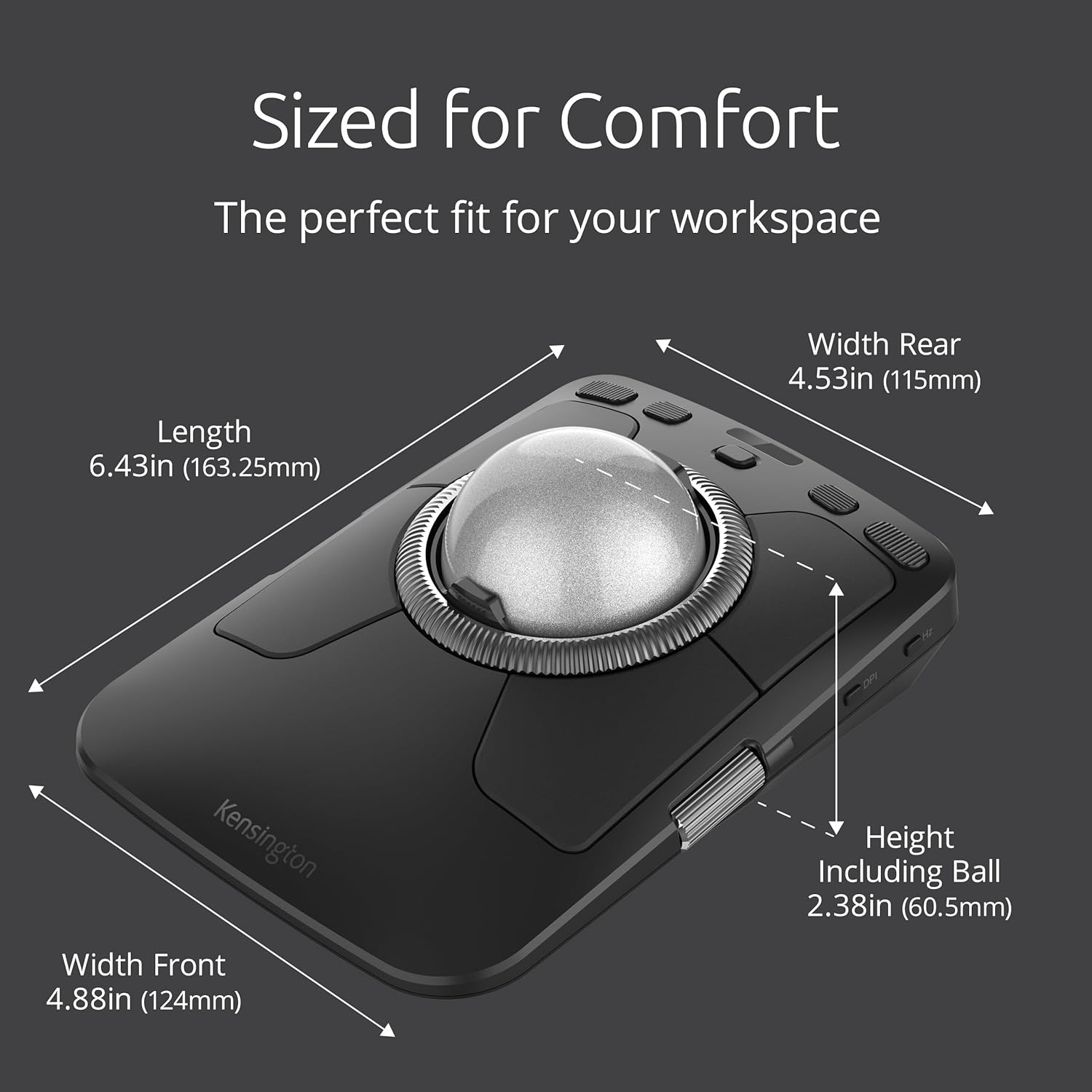
Figure 3: Dimensions of the trackball, highlighting its comfortable size for various workspaces.

Figure 4: The ambidextrous design allows comfortable use for both left-handed and right-handed individuals.

Figure 5: The large 55mm trackball provides exceptional optical tracking technology for precise control.
Disetél
Pilihan konektipitas:
The Kensington Expert Mouse TB800 EQ offers versatile connectivity to suit your needs:
- Bluetooth: Connect wirelessly to up to two devices. Use the channel switch on the side of the trackball to toggle between paired Bluetooth devices.
- 2.4GHz Wireless: Utilize the included USB-C wireless dongle for a stable and responsive connection. The dongle can be stored in a dedicated compartment on the underside of the trackball when not in use.
- USB-C kabel: Connect directly to your computer using a USB-C cable for a reliable, lag-free experience and simultaneous charging.

Figure 6: The trackball supports quad-connection capability, allowing seamless switching between up to four devices (two Bluetooth, one 2.4GHz, one wired).
Sambungan awal:
- Daya Hurung: Locate the On/Off switch on the left side of the trackball and slide it to the "On" position.
- Select Connection Mode: Use the connectivity mode button (usually labeled with a chain link icon) on the side to cycle through Bluetooth 1, Bluetooth 2, 2.4GHz, or Wired modes. The LED indicator will change color to show the active mode.
- Pairing (Bluetooth/2.4GHz):
- For Bluetooth, press and hold the connectivity mode button until the LED flashes, indicating pairing mode. Then, search for "Kensington TB800 EQ" on your device's Bluetooth settings and connect.
- For 2.4GHz, insert the USB-C dongle into an available USB port on your computer. The trackball should automatically connect.
- Sambungan kabel: Connect the provided USB-C cable from the trackball to your computer. The trackball will function as a wired device and charge simultaneously.
Ngoperasikeun Trackball
Fungsi dasar:
- Trackball (55mm ball): Use your fingers to control the cursor movement on the screen.
- Cincin Gulung: Rotate the large ring around the trackball for vertical scrolling. Press the Mode Switch button (located above the scroll ring) to toggle between smooth scrolling and line-by-line click scrolling.
- Side Scrolls: The two customizable side scrolls (on the left and right edges) are typically used for horizontal scrolling and zooming.
- Tombol: The trackball features multiple programmable buttons (left click, right click, middle click, forward, back, play/pause, volume up, volume down). Refer to the customization section for remapping.
- Tombol DPI: Located on the right side, this button allows you to adjust the cursor sensitivity (DPI) on the fly. Cycle through 400, 800, 1200, and 1600 DPI settings.
- Polling Rate Button (Hz): Also on the right side, this button adjusts the polling rate (how often the device reports its position). Higher values (up to 1000Hz for wired/dongle) provide faster response times. Note: Bluetooth mode may have a lower maximum polling rate.
Video 1: Hiji leuwihview of the Kensington Expert Mouse TB800 EQ Wireless Trackball, demonstrating its features and ergonomic design.
Customization (Kensington Konnect Software)
Unlock the full potential of your TB800 EQ trackball with the free Kensington Konnect software. This software allows you to remap buttons, adjust pointer settings, and customize scrolling behavior.
Pamasangan parangkat lunak:
- Download the Kensington Konnect software from the official Kensington websitus (www.kensington.com/software).
- Follow the on-screen instructions to install the software on your Windows or macOS device.
Key Customization Features:
- Pemetaan Tombol: Assign custom functions to any of the 8 buttons, including single actions, keyboard shortcuts, text snippets, or complex macros. The software provides a visual representation of the trackball for easy configuration.
- Modeu Canggih: Configure dual-action button bindings, allowing a single button to perform different actions based on a modifier key (e.g., pressing a button alone vs. pressing it with Shift).
- Pointer Settings: Adjust pointer speed, responsiveness, and acceleration to match your preferences. You can also set specific DPI and polling rates within the software.
- Scrolling Customization: Define the behavior of the scroll ring and side scrolls. For example, you can change the side scrolls from horizontal scrolling to vertical scrolling or zooming functions.
- Application-Specific Profiles: Jieun custom profiles for different applications. The trackball will automatically switch to the appropriate profile when you open a specific program, optimizing your workflow.
- Disable Scrolls: For specific tasks, you can manually disable the scroll ring or side scrolls using physical switches on the underside of the trackball to prevent accidental inputs.
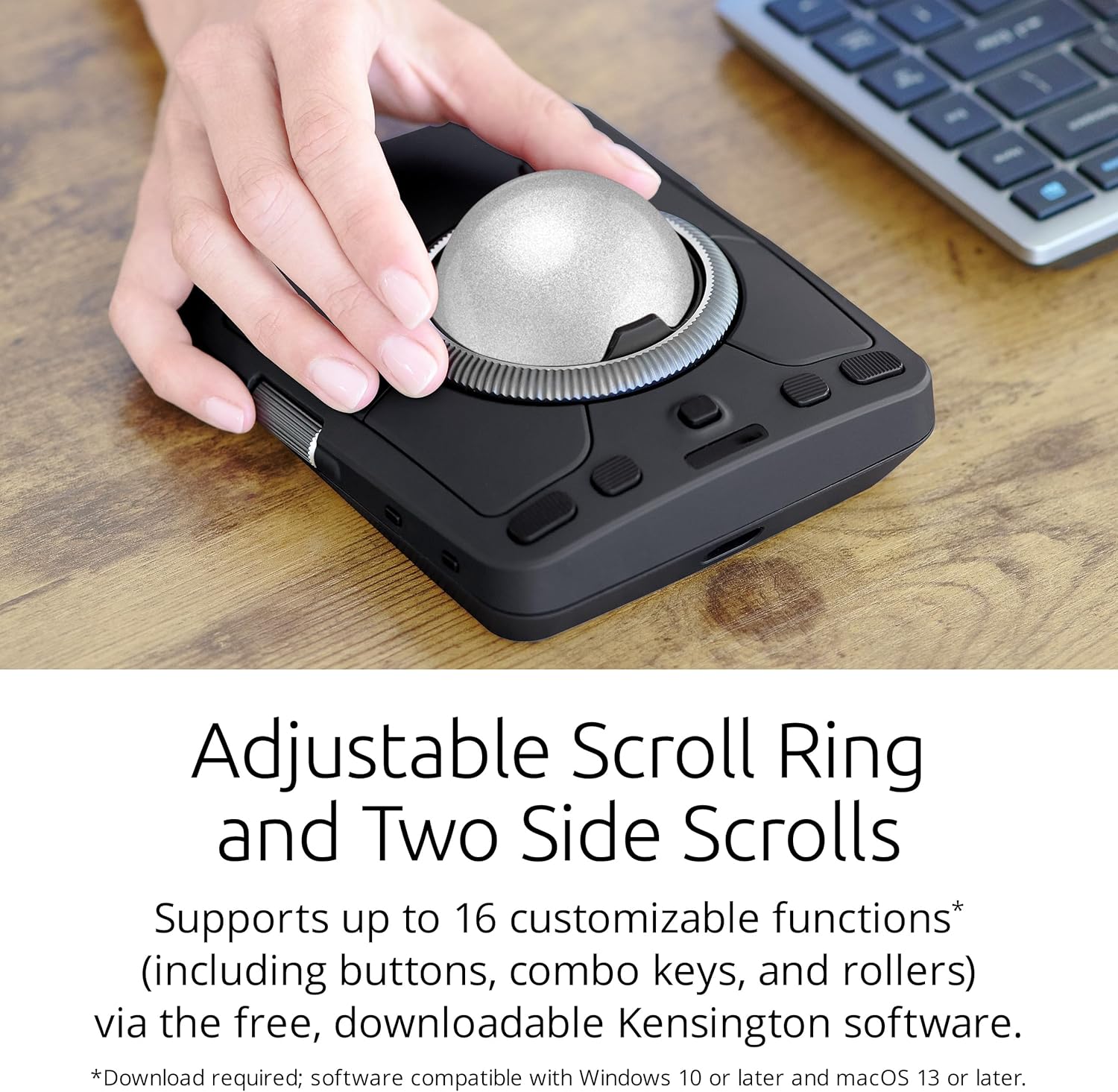
Figure 7: The adjustable scroll ring and two side scrolls offer up to 16 customizable functions via the Kensington Konnect software.
Pangropéa
Regular maintenance ensures optimal performance and longevity of your trackball.
Ngabersihkeun Trackball:
- Remove the Ball: Gently push the trackball from the underside access hole to remove it from its housing.
- Ngabersihan Bola: Wipe the 55mm trackball with a soft, lint-free cloth. For stubborn dirt, use a slightly damp lawon ku sabun hampang, teras garing tuntas.
- Clean the Sensor and Bearings: Use a cotton swab or compressed air to carefully clean the optical sensor and the three small support bearings inside the trackball housing. Ensure no dust or debris remains.
- Reinsert the Ball: Place the clean trackball back into its housing, ensuring it snaps securely into place.
Ngeusi batre:
The trackball features a rechargeable battery. Connect the USB-C cable to the trackball and a power source (e.g., computer USB port, wall adapter) when the battery indicator light signals low power. A full charge can last up to 4 months, depending on usage.

Figure 8: The trackball features a rechargeable battery, providing extended use on a single charge.
Pamérésan masalah
Masalah konektipitas:
- Henteu aya sambungan: Ensure the trackball is powered on and the correct connectivity mode (Bluetooth, 2.4GHz, or Wired) is selected.
- Gagalna Pasangkeun Bluetooth: Make sure the trackball is in pairing mode (flashing LED) and your device's Bluetooth is enabled and discoverable. Try unpairing and re-pairing the device.
- 2.4GHz Dongle Not Detected: Ensure the USB-C dongle is fully inserted into a working USB port. Try a different USB port or restart your computer.
- Sambungan Intermittent: Check for potential interference from other wireless devices. Ensure the trackball is within range of your device (for wireless connections).
Masalah Kinerja:
- Jumpy/Inaccurate Cursor: Clean the trackball and the internal sensor/bearings as described in the Maintenance section. Adjust DPI settings for desired sensitivity.
- Scroll Ring/Side Scrolls Not Working: Check the physical disable switches on the underside of the trackball. Ensure they are in the "On" position for the desired scroll function. Verify settings in Kensington Konnect software.
- Tombol Teu Ngabales: Check button assignments in the Kensington Konnect software. Ensure no conflicting profiles aktip.
Masalah parangkat lunak:
- Parangkat Lunak Teu Jalan/Ngadat: Ensure your operating system is up to date. Reinstall the Kensington Konnect software.
- Setélan Henteu Simpen: Ensure the software has necessary permissions on your operating system. Restart the software and try again.
spésifikasi
| Fitur | Rincian |
|---|---|
| merek | Kensington |
| Modél Series | TB800 EQ |
| Téhnologi konektipitas | Bluetooth, 2.4GHz Wireless (USB-C Dongle), Wired USB-C |
| Téhnologi Deteksi Gerakan | Optical Trackball |
| Trackball Size | 55 mm |
| Setélan DPI | 400, 800, 1200, 1600 (Saluyukeun) |
| Laju Polling | Up to 1kHz (Wired/Dongle), Lower for Bluetooth (Adjustable) |
| Fitur husus | 4-Way Scrolling, Ergonomic Design, Programmable Buttons, Rechargeable Battery, Ambidextrous Design |
| Kasaluyuan System Operasi | Windows 10 (32-bit/64-bit), Windows 11 (64-bit only), macOS 13 or later |
| Sumber Daya | Batré anu tiasa dicas deui (USB-C) |
| Item Beurat | 1.67 pon |
| Ukuran Paket | 11 x 5.67 x 2.56 inci |
Garansi sareng Rojongan
Kensington products are designed for durability and performance. For warranty information, technical support, or to access additional resources, please visit the official Kensington support websitus:
Punten tahan bukti pameseran anjeun pikeun klaim garansi.


